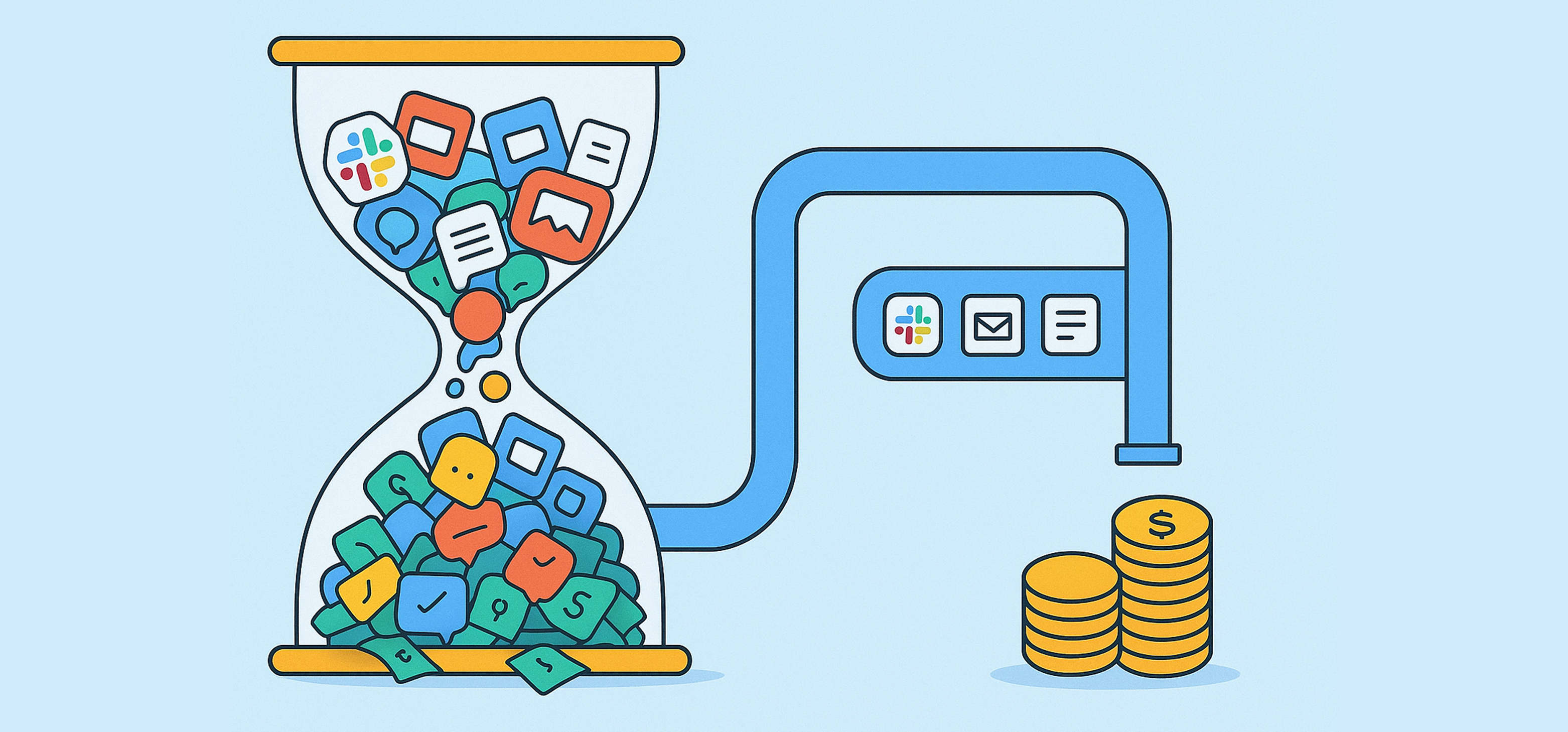
How often do you feel burnt out at the end of the day without achieving anything meaningful?
Or how often do you end a workday wondering where your time went, or why small details slipped through the cracks?
If that sounds familiar, you’re experiencing the effects of context switching.
And if your teammates or employees are saying the same, it’s not an excuse, a lack of commitment, or a sign of laziness. It’s a real problem that deserves your attention.
In this article, we’ll cover what context switching is, how it costs companies millions, the four key reasons behind it, and nine tools to fix it.
What is Context Switching?
Every time you shift your focus from one task to another, you switch contexts.
If you only do this after completing a task, it’s harmless.
But that’s rarely how work happens.
Most of us jump between half-finished tasks, respond to constant notifications, and juggle multiple tools, all before finishing what we started.
The human brain can only hold 3 to 7 thoughts at once.
Each unfinished task lingers in that space, pulling attention away from what matters and leading to mental fatigue, brain fog, and forgetfulness.
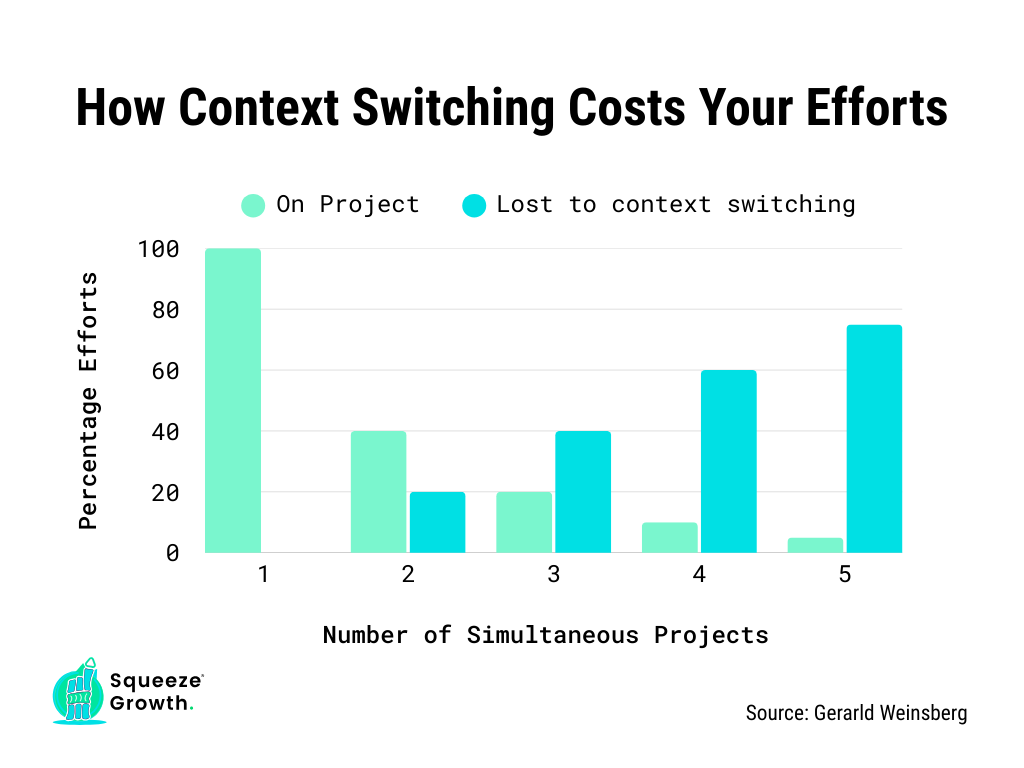
If you run a business or manage a team, context switching is silently killing your team’s productivity and costing you money every day.
Let me tell you how.
The Real Cost Of Context Switching
Context switching costs companies millions in direct productivity loss, wasted compensation, and opportunity costs.
Here’s how it happens.
1. The Paradox of Multitasking
Multitasking is rapid context switching. The brain doesn’t process tasks in parallel; it toggles between them.
Microsoft research shows it takes 23 minutes to regain deep focus after each switch. That reduces productivity by nearly 40% and cognitive performance by up to 15 IQ points.
Work takes twice as long. Errors go up.
2. Wasted Compensation
Employees face nearly 25 interruptions a day.
That constant disruption drains mental energy, pushing people into survival mode, defaulting to low-effort tasks like replying to emails or tweaking finished work instead of doing the job you hired them for.
Employees already spend 60% of their time on “work about work”: status checks, chasing approvals, re-explaining tasks.
Context switching makes that worse. Over time, shallow work becomes the habit and deep work becomes the exception.
3. Disengaged Employees
Everything above happens unintentionally.
But what if employees start disengaging on purpose?
University of California research shows that constant context switching increases mental workload, stress, and frustration. The exact conditions that breed disengagement.
Gallup’s 2025 State of the Global Workplace Report puts 62% of employees in the disengaged category globally, with nearly half either watching for or actively seeking a new job.
Replacing an employee is expensive. A disengaged one is worse because they’re still on the payroll.
In 2024, a 2-point drop in global engagement cost $438 billion in lost productivity.
4 Key Reasons Why Context Switching Exists (with solutions)
1. Fragmented Tech Stack
A Harvard Business Review study found that employees use an average of 10 different tools and switch between apps around 1,200 times a day.
That constant toggling kills focus, slows output, and raises error rates, a problem now called the “Toggle Tax.”
Solution: Consolidate your stack. Choose tools that cover multiple needs or connect your existing ones, so your team isn’t juggling tabs just to get work done.
2. Hyper-Responsive Culture
Companies confuse responsiveness with productivity, especially in remote settings. If you’re not replying fast, you must not be working.
So 56% of employees feel obligated to respond instantly, keeping Slack or Teams open all day.
Slack’s own data shows users actively engage with it for about 90 minutes daily, roughly 20% of the workday spent in chat.
Solution: Set clear norms around response windows. Block focus time, schedule discussions, and make it explicit that a delayed reply isn’t a sign of disengagement.
3. Shoulder Tapping & Information Hunting
Undocumented information gets extracted through interruption.
Employees spend nearly 59 minutes a day searching for information.
Every time someone asks a question that should have been written down, two people lose focus: the one asking and the one answering.
Solution: Centralise your knowledge base, document SOPs, and define how updates get shared. The goal is to make information findable without pulling someone away from their work.
At Squeeze Growth, our founder, Aayush Bhaskar, built a centralised wiki in Notion that covers everything. When a writer or editor has a question, they check the doc first. Most answers are already there.
Aayush updates it regularly, so it stays useful. Nobody needs to interrupt anyone for the small stuff.
4. Cultural Ambiguity
The tools won’t save you if the culture is broken.
- No no-meeting norms? Calendars fill with fragmented 30-minute slots.
- No workload checks? High performers get buried.
- No clear priorities? Everything becomes urgent.
No tool fixes that. Reducing context switching requires intent, not just software.
9 Best Tools to Reduce Context Switching for Teams
1. Motion
Best For: Teams that struggle to balance meetings, priorities, and focused work.
Most project management tools have a blind spot: they don’t know what your calendar looks like.
So your task list says “do this today,” while your calendar says you have four hours of meetings. Motion solves that.
It combines tasks, meetings, and schedules in one place, then uses AI to plan your day around what’s actually available.
You set the deadlines and define how you want to work, short focused blocks or long deep-work sessions, and Motion figures out when things fit.
When priorities shift, or something runs over, it reschedules automatically instead of leaving you to sort out the wreckage.
That’s what makes it genuinely useful for reducing context switching. You’re not deciding what to do next. Motion already did that.
It won’t suit every team.
If your work is unpredictable or you prefer manual control over your schedule, the AI planning can feel like it’s fighting you.
But for teams with recurring work, consistent deadlines, and too many meetings, it’s one of the strongest options on this list.
Key Features
- AI Scheduling: Automatically plans tasks and meetings around team availability, priority, and deadlines.
- AI Project Management: Visual timelines that update automatically as priorities or capacity change.
- AI Workflows: Automates recurring steps to cut manual planning.
- AI Dashboards: Unified view of project progress, priorities, and scheduling.
- AI Sheets: Spreadsheet-style tables with built-in automation.
- AI Meeting Notetaker: Captures and summarises meetings automatically.
- AI Chat: Manage tasks and get answers without leaving the app.
Related reading: Read our complete Motion review.
2. ClickUp
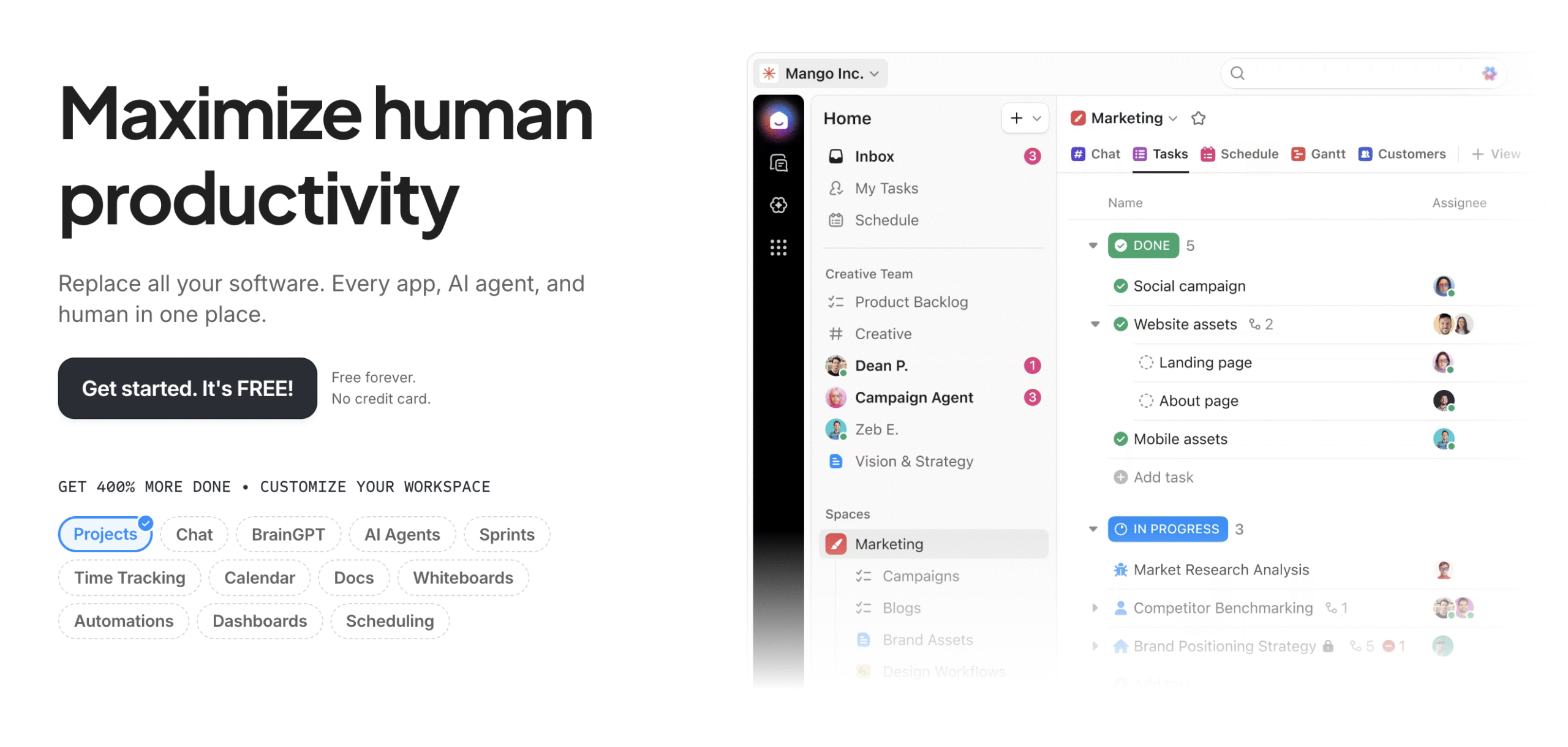
Best For: Teams drowning in tool sprawl who want tasks, docs, chat, and reporting in one place.
ClickUp’s answer to context switching is consolidation.
Tasks, docs, whiteboards, time tracking, chat, dashboards, goals, and calendar management all live in one workspace.
For teams paying for five separate tools to cover those functions, ClickUp often makes financial sense before it even makes productivity sense.
The AI layer (BrainGPT) works with your actual project data.
You can connect external models like ChatGPT or Claude, build custom AI agents, and automate across your stack without leaving ClickUp.
The workload views show each team member’s capacity at a glance, so overloads get caught before they become problems.
ClickUp is big, and getting it right takes real setup time.
Teams that skip that step end up with a sprawling, disorganised workspace that creates its own kind of context switching. It rewards teams who configure it properly and punishes teams who don’t.
If you want powerful and are willing to invest in the setup, it’s one of the strongest options on this list. If you want simple, look at Motion, Notion, or Basecamp instead.
Key features
- Project Management: Tasks, subtasks, dependencies, priorities, custom workflows, and agile sprint cycles.
- Automations: 50+ triggers and actions via prebuilt templates or a custom AI Automation Builder.
- AI Features: BrainGPT or connected external models (ChatGPT, Claude) that work with your real project data and tasks.
- Time Tracking: Log time from desktop, mobile, or browser with automatic productivity reports.
- Dashboards: Custom views for performance, workload, and key metrics in real time.
- Calendar Management: Sync Google or Outlook to manage tasks, meetings, and focus time in one view.
- Built-in Chat: Team communication without switching tools.
- Collaborative Workspaces: Docs and whiteboards connected directly to tasks and projects.
Related reading: Is ClickUp too much for your team? Read our comparison of the best ClickUp alternatives.
3. Monday
Best For: Teams that want a workspace shaped around how they actually work, not a blank slate they have to build from scratch.
Some tools give you an empty workspace and wish you luck. Monday starts by asking questions.
When you sign up, it asks about your team’s function, size, workflow style, and the tools you already use.
Then it builds a ready-to-use workspace around your answers. For teams that dread setup, that alone is worth something.
Monday also splits into four dedicated products: Work Management, CRM, IT Support, and Development, each tuned for its specific context rather than forcing every team into the same layout.
The AI layer is strong.
You can build custom agents, deploy pre-built ones (Appointment Coordinator, SDR Expert, Support Specialist), and connect external tools like ChatGPT or Claude directly into your Monday workspace via MCP.
The dashboards are genuinely flexible, with workloads, KPIs, and portfolio health, and you can toggle between multiple views without rebuilding anything.
The learning curve is real, though.
Not as steep as ClickUp, but Monday’s flexibility can work against you if you don’t stay disciplined about how you set it up.
Teams that let it sprawl end up with the same fragmentation problem they were trying to solve.
If you want something that meets you where you are and grows with your workflow, Monday is a strong pick.
Key Features
- Workload Optimisation: Balance team capacity and assign tasks from one central view.
- Portfolio Management: Connect all projects into a single portfolio with real-time health snapshots.
- Risk Insights: AI flags potential risks early by analysing dependencies, due dates, and comments before they escalate.
- Monday AI: Automates repetitive tasks, predicts delays, and surfaces real-time insights.
- MCP: Connect external AI tools so they can access your Monday workspace and act through chat.
- Agent Factory: Build or deploy pre-built AI agents for time-consuming workflows.
- Activity Logs: Full change history across tasks and projects.
- Performance Insights: Dashboards and reports across teams, projects, and workflows.
Related reading: Deciding between Asana, Monday.com, and ClickUp? We’ve got you covered with our complete comparison of the three. Or take a look at our best Monday.com alternatives.
4. Asana
Best For: Teams that want strong project management without the setup tax.
Most teams don’t need a platform that does everything. They need one that does project management really well and stays out of the way.
That’s Asana’s pitch, and it mostly delivers.
Where ClickUp and Monday ask you to configure your way to clarity, Asana is clear from the start.
The structure is sensible out of the box. Timelines, boards, task lists, goals, it’s all there without requiring a week of setup to make it usable.
The AI teammates are worth calling out.
Asana offers 11 pre-built ones for roles like Content Strategist, Bug Investigator, and Compliance Auditor. This is a genuine advantage for small teams that need coverage without headcount. You can also build custom ones to fit your workflows.
The tradeoff is scope.
Asana doesn’t try to be your CRM, your wiki, or your chat tool. If you need all of that in one place, look at ClickUp or Notion.
But if fragmented tools are your problem and you just want project management that works cleanly, Asana is the least friction path on this list.
Key Features
- Project Management: Task lists, timelines, boards, and shared project views.
- Goals and Reporting: Link goals to daily work and track progress with real-time charts and milestones.
- Asana AI: Automates routine work, summarises projects, detects risks, and surfaces suggestions to keep work on track.
- Workflows and Automation: No-code workflows for tasks, approvals, reminders, and multi-project processes.
- Resource Management: Monitor team capacity and workloads with time-tracking to allocate resources across projects.
Related reading: Deciding between Motion and Asana? Here’s our comparison of the two.
5. Notion
Best For: Teams who want to replace their scattered stack of docs, wikis, project trackers, and async tools with one place that actually works.
Notion’s answer to context switching is consolidation at the content layer.
Most tools help you manage work. Notion helps you store, shape, and share it. Docs, databases, project trackers, wikis, content calendars, CRMs, you build them all inside the same workspace instead of bouncing between five different apps.
That’s where it genuinely reduces context switching: not by scheduling your day, but by making information findable without hunting across tools.
The knowledge base is the strongest part.
If your team’s institutional knowledge lives in a mix of Google Docs, Confluence, random Slack threads, and someone’s brain, Notion is the best tool on this list for pulling that together.
The AI-powered search pulls answers from Notion and connected tools like Slack, Google Drive, and Jira, so information stops living in silos.
Where it struggles is where most flexible tools struggle: you have to build it. The blank canvas is powerful, but it’s still a blank canvas.
Skip the setup (templates, structure, and clear ownership), and you end up with a beautiful mess that’s harder to navigate than what you replaced.
For larger teams with complex, specialised needs, a dedicated tool will outperform Notion. It’s not built to replace Jira for engineering or Asana for cross-functional workflows.
But as the connective tissue, the place where your team’s knowledge lives, projects get tracked, and async communication happens, Notion is the strongest option on this list.
Key features
- Projects: Custom databases, task trackers, timelines, and Kanban boards with built-in integrations.
- Notion AI: Drafts documents, answers questions, analyses data, and builds dashboards from your workspace.
- AI Agents: Automate workflows, analyse databases, update pages, convert meeting notes into tasks, etc, using your workspace as context.
- Enterprise Search: AI-powered search across Notion and connected tools like Slack, Google Drive, and Jira.
- Knowledge Base: Flexible team wikis and documentation with inline teammate tagging and comments.
- AI Meeting Notes: Transcribes meetings, captures takeaways, and turns discussions into tasks automatically.
Related reading: Looking for something like Notion, but a little different? Here are our 12 best Notion alternatives.
6. Basecamp
Best For: Business leaders or managers who oversee multiple projects across different teams and departments.
No AI. No automations. Little customisation. Basecamp is a deliberate choice and not a limitation.
Most of what you’d spend time configuring elsewhere is already built in. The opinionated structure is the product.
What makes it different for managers is the ‘Move the Needle’ feature. Each project has a visual needle that team members update to show progress, risks, or concerns.
You see every project’s health on a single dashboard and can discuss issues or give feedback directly from there, without jumping to separate chats or tools.
The dashboards show every comment, task update, and to-do in a date-based timeline with filters to track individual or team performance. Everything in one view.
If you want flexibility, AI, or deep customisation, look elsewhere.
If you manage multiple teams and need a clear, low-noise overview that keeps everyone accountable, Basecamp is the most focused tool on this list for that job.
Key Features
- To-Do Lists: Assign tasks with checklists, due dates, notes, and attachments.
- Hill Charts: Track project progress visually across uphill and downhill stages.
- Message Board: Post updates or chat with teammates per project in one place.
- Schedule & Milestones: Shared calendars for deadlines, meetings, and events.
- Automatic Check-Ins: Recurring prompts that collect progress updates automatically.
- Time & Progress Tracking: Log time and monitor progress from start to finish.
- Reports: Activity, task completion, and workload reports across all projects.
7. Jira
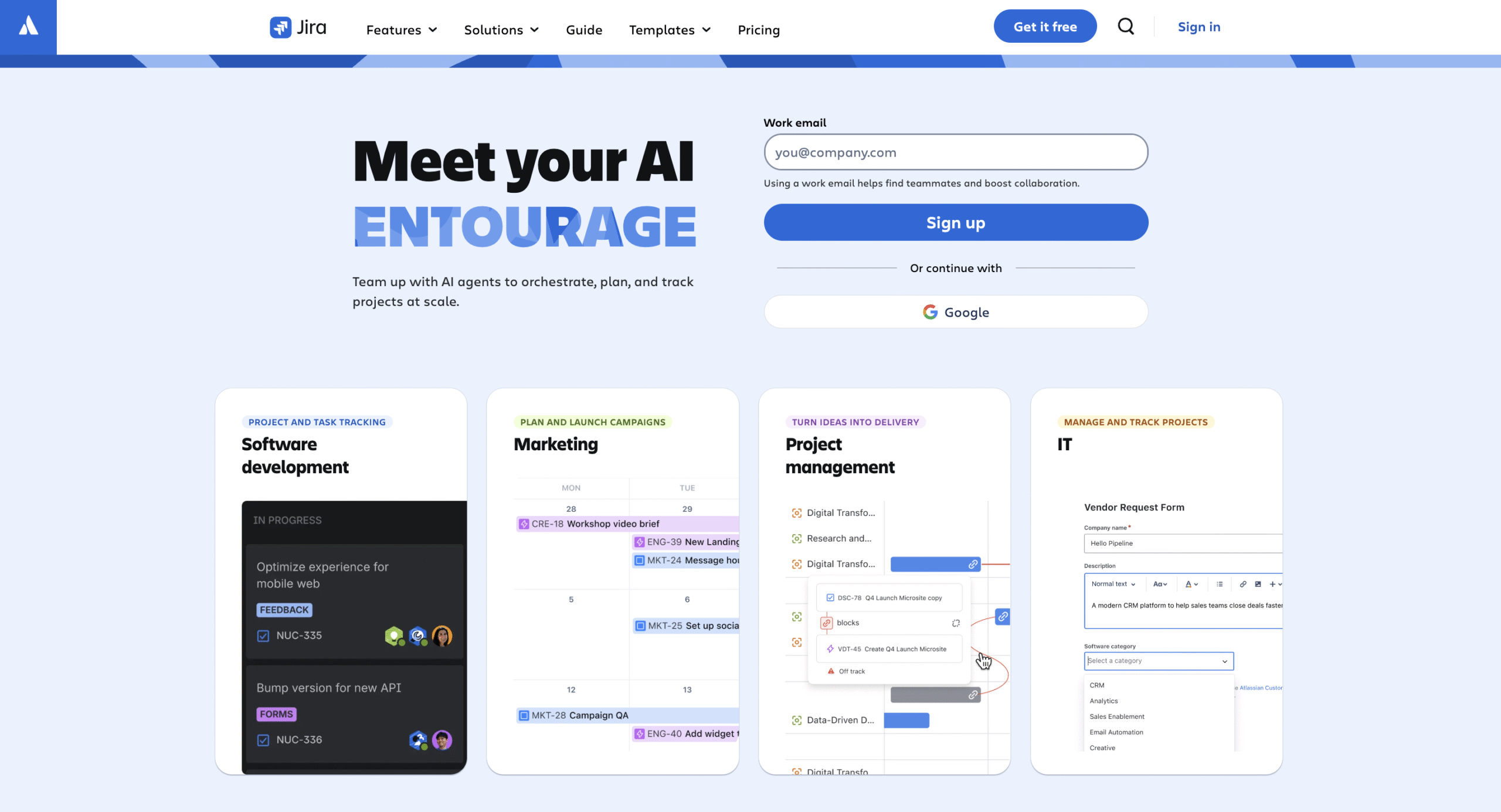
Best For: Engineering and product teams already inside, or planning to build inside, the Atlassian ecosystem.
Jira isn’t trying to be everything to everyone. It’s built for product and engineering teams, and that focus shows.
What actually sets it apart is the Atlassian ecosystem around it.
Confluence for documentation, Loom for async video, Rovo AI for intelligent automation, Bitbucket and Sourcetree for code collaboration, Compass for architecture tracking, and Jira Service Management for incident response.
That’s where it wins on context switching. The more of your product lifecycle that lives inside one ecosystem, the fewer tools your engineers are jumping between.
If you’re already using Atlassian tools, Jira is the obvious choice. If you’re starting from scratch, evaluate the ecosystem as a whole, not just Jira in isolation.
The tradeoff is complexity. Jira is not a light tool. It’s also overkill outside of product and engineering. If you’re a marketing or ops team, look at other options on this list.
Key Features
- Project Management: Plan, assign, and track work across teams with customisable dashboards and templates.
- Sandbox: Test configurations and workflows safely before pushing to production.
- Release Tracks: Coordinate and track releases across teams, versions, and pipelines.
- Dependency Management: Visualise blockers and sequence work intelligently.
- Capacity Management: Forecast delivery and balance workloads across teams and projects.
- Rovo AI: Search, build agents, or chat to plan, track, and improve delivery quality.
- Automation: Automate status updates, notifications, and task routing at the project or portfolio level.
8. Jellyfish
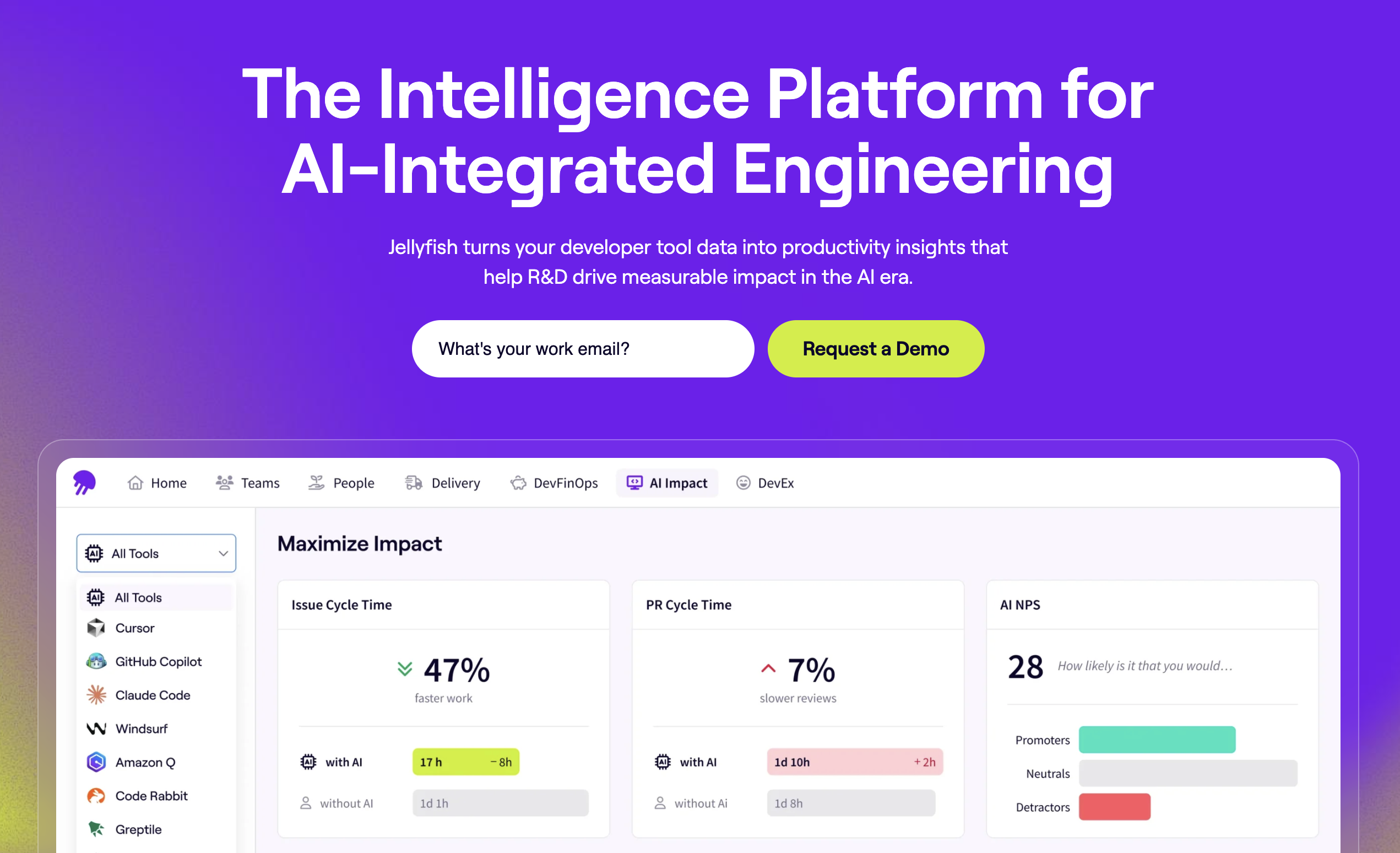
Best For: Engineering leaders who need visibility into how their team’s time is actually spent, not just what’s on the roadmap.
Jellyfish sit in a different category from everything else on this list.
It’s not a project management tool. It’s an engineering intelligence platform, meaning its job is to show you where engineering time goes, surface bottlenecks, and tie effort to business outcomes.
Most engineering leaders are flying blind. They know what’s on the roadmap, but not whether their team is spending 40% of the week on unplanned work, or which projects are quietly burning people out.
Jellyfish fixes that gap. It combines quantitative data from your dev tools with qualitative surveys to surface the kind of issues that never show up in a standup.
That’s also what makes it useful for context switching specifically.
If your engineers are constantly getting pulled off focused work, Jellyfish shows you where and why. You can see the pattern before it becomes a retention problem.
The tradeoff: this is an analytics and observability layer, not a workflow tool. It doesn’t replace Jira; it sits on top of it.
If you want one tool to manage and measure engineering work, Jellyfish won’t cover both sides.
If you already have a solid PM setup and need visibility into what’s actually happening underneath it, this is the strongest option on this list for that job.
Key Features
- Jellyfish AI Impact: Tracks how engineering teams use AI tools and measures the ROI.
- Resource Allocation: Maps engineering effort to business goals and rebalances when priorities shift.
- Lifecycle Explorer: Surfaces bottlenecks at every stage of delivery before they compound.
- Team Benchmarks: Compares performance against peers to show what’s working and what isn’t.
- Scenario Planner: Models how headcount or priority changes affect timelines and cost before you commit.
- Engineering Metrics: Tracks delivery speed, quality, and productivity tied to real outcomes.
- Software Capitalisation: Automates R&D reporting for compliance and financial teams.
9. Graphite
Best For: Engineering teams where the code review process itself is the context-switching bottleneck.
Graphite has the narrowest focus on this list. It’s a code review platform, and that’s deliberate.
Most of the friction that slows engineers down isn’t in the code itself. It’s everything around it: waiting on reviews, managing merge conflicts, bouncing between your IDE, GitHub, and Slack just to get one PR merged.
Graphite targets that friction specifically.
The stacked pull requests feature is the standout.
Instead of shipping one large change and waiting, engineers split work into smaller PRs, run them in parallel, and keep moving while reviews happen. Less idle time, less context switching.
That narrow scope is also the tradeoff.
Graphite is an engineering-only tool for one function. It doesn’t replace your project management setup. If you need broader workflow coverage, Jira handles that. If code review is the specific bottleneck, Graphite is the right fix.
Worth flagging: Graphite has signed an agreement to join Cursor, which would extend its scope to include code creation. It doesn’t offer that yet, but the direction is clear.
Key Features
- Stacked Pull Requests: Split large tasks into smaller PRs, run them in parallel, and cut idle time while reviews are in progress.
- Unified Environment: Manage PRs, reviews, and feedback from your CLI, IDE, or Slack without tool-hopping.
- AI-Assisted Reviews: Instant feedback on bugs, code quality, and style to shorten review cycles.
- Automated Merge Queue: Rebase and merge automatically to keep your main branch stable and conflict-free.
- Prioritisation and Visibility: Sort and prioritise the review inbox so engineers focus on what unblocks the most work first.
Final Thoughts
None of these tools is plug-and-play.
Set them up wrong, and you’ve just added another thing to manage.
Keep your systems lean. The goal is fewer decisions, not more features.
Start by identifying where your team loses focus most, pick the tool built for that problem, and configure it before you customise it.


 A better way to manage projects and clients for freelancers
 Get through busy days like a breeze with Reclaim.ai