Onepage gives you a quick way to build websites and landing pages.
It handles most of the technical work for you, so you can create and launch your site without dealing with a complicated setup.
In this article, I will review Onepage features and share my personal experience using it.
The idea is to help you decide whether it’s the right tool for you.
Onepage At A Glance
Features | Details |
|---|---|
| Website builder | Drag-and-drop editor. |
| AI tools | Creates landing pages, writes content, and generates images |
| Forms and Funnels | Add-on feature. The standard form is free. |
| Integrations | Connects with third-party apps, including AI tools like ChatGPT. |
| Custom domain | Yes. |
| Free plan | Yes. |
| Starting Price | $20 per month. |
| Best For | Agencies, freelancers, and small businesses. |
What Is Onepage?
Onepage is a beginner-friendly website builder that lets you create professional websites without any coding.
It provides a simple drag-and-drop editor with a built-in AI that can automatically generate web pages, write web copy, and add images.
You can get started for free and publish your website on Onepage’s hosting. If you want to connect your own domain, you can do that as well.
Onepage also offers lead generation tools. You can create multi-step opt-in forms and send leads to the CRM.
Here are Onepage’s core features
- Website builder with a drag-and-drop editor.
- AI-generated landing pages, forms, and funnels.
- AI web content and SEO writer.
- Email automation.
- Built-in CRM.
- Custom domain.
- Team collaboration.
- Password protection.
- API and integration.
- Analytics.
Who Is Onepage For?
Onepage is best for agencies and independent contractors that design landing pages and sales funnels for clients.
It’s also well-suited for small businesses that want quick results and low maintenance.
Here’s Who Onepage Is For:
Agency: You can build up to 20 websites and create unlimited funnels while staying within your budget.
Freelancer: You can build only one to two websites on the standard plan, but you don’t need a huge quota if you’re working with individual clients. Onepage lets you transfer the website to your client account to free up the space for other projects.
Small Business: You can launch a simple but professional website for your local business without any technical skills.
If you’re a solopreneur, you don’t need to buy upgrades. You can run a website on the free plan.
The only catch is that you can’t connect your own domain. It’s a pro feature.
Onepage Features
Now that we’ve covered the basics, let’s explore Onepage’s core functions one by one.
I have reviewed its website builder, funnels, AI tools, and integrations.
1. Website builder
Onepage’s website builder is pretty straightforward.
It displays everything on a single dashboard, including a preview window where you can edit and see changes on the spot.
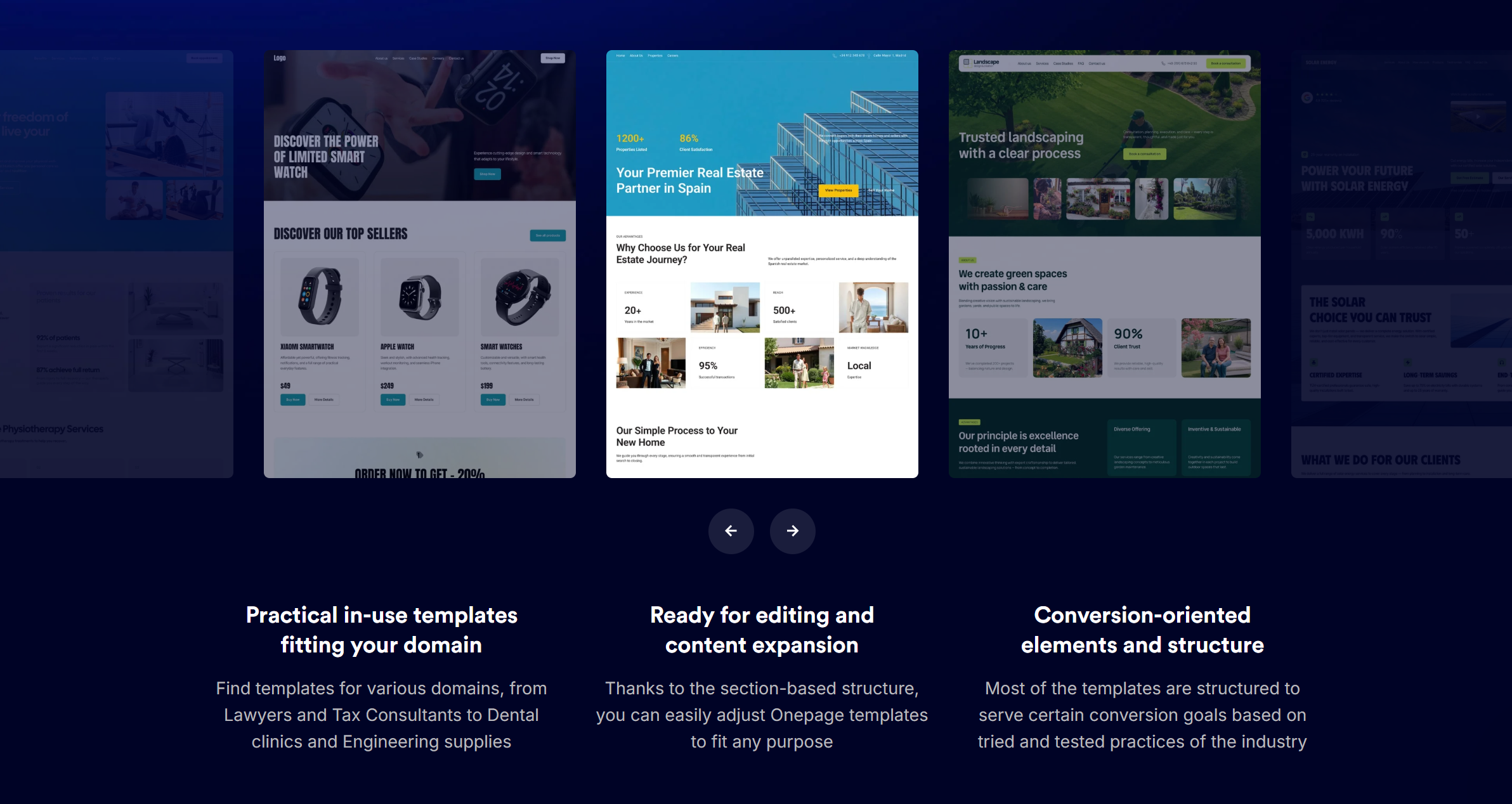
You can build a website with a preset template and make changes later. Onepage has a drag-and-drop editor and a multimedia library, making it easy to edit the layout and visuals.
If you want to change the page appearance, you can add your own code. You probably won’t get the same level of control as WordPress, but you can still customize most things on the page.
Several side features are also built into the editor that you’d typically find in most website builders.
For example, you can add cookie banners, set up a countdown timer for deals, link your social media accounts, and add a password to premium content.
If you can’t find what you’re looking for, you can embed HTML blocks to add custom widgets.
What I love most about Onepage is how much AI is built into the main website-building process. You can use AI to build landing pages from scratch without having to create anything manually.
I will explain more about its AI capabilities in a separate section. Let me walk you through the funnels and forms first.
2. Forms And Funnels
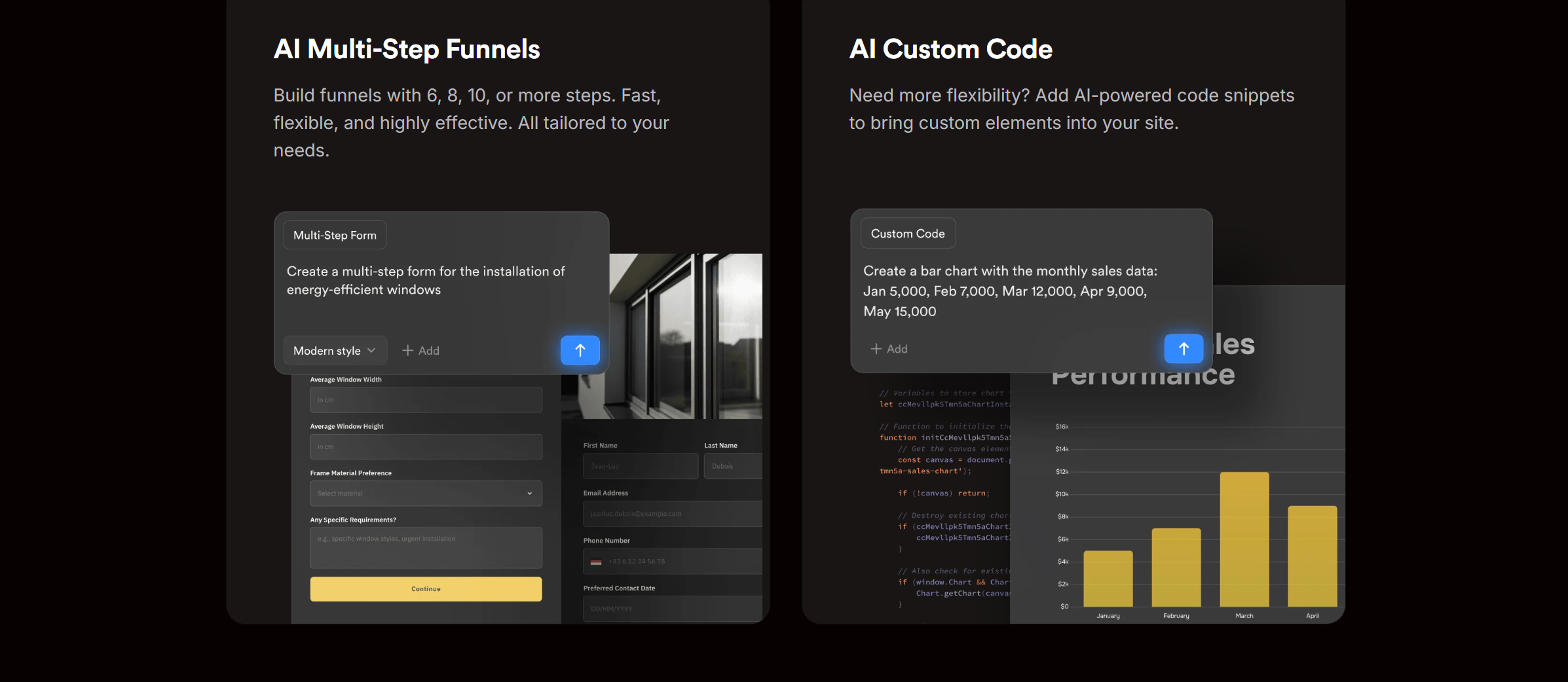
Forms and funnels are add-on features that you can buy with the main license.
You’ll get a basic form with a few templates for free, but some advanced features, like conditional logic, are only available as add-ons.
Some of the forms you can build with Onepage include appointment booking, email subscriptions, recruitment forms, surveys, and freebies.
You can add your forms directly inside your main page or build a separate page and add it to the navigation menu. It’s up to you. Onepage gives you the flexibility to use both approaches.
If you want to personalize your forms, you can build logic paths and add dynamic content. This automatically shows different content based on the visitor’s response.
The best thing about Onepage forms is that you don’t have to create a separate sales funnel.
You can turn a standard single-page form into a multi-step funnel. I have included a step-by-step demo showing how to create multi-step funnels using templates and AI. Scroll down to see it.
3. AI Capabilities
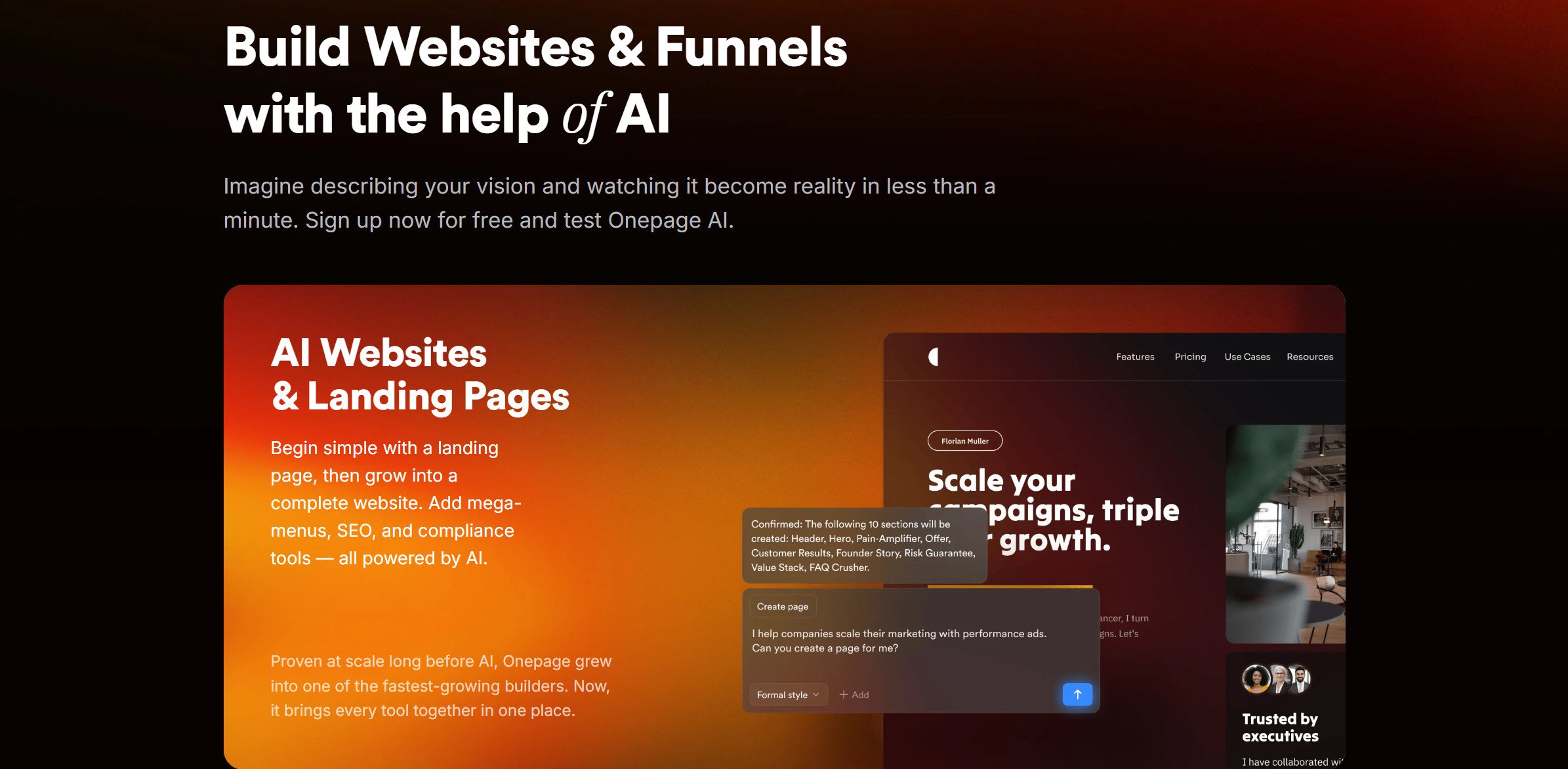
AI is Onepage’s best feature.
It automates most of the website building, making the whole process easier.
For example, you don’t need to do anything complex to create a personalized website. Just ask the AI chatbot what you want, and it’ll automatically pick a suitable layout and generate a ready-made landing page.
You can also use the AI chatbot to write web copy, draft SEO descriptions, create new sections, and even make quick changes to existing sections.
For example, I asked AI to change the color scheme of only one section without changing the overall layout, and the AI did exactly that.
The only limitation is the AI credits.
Every time you generate something, you use credits, and you only get a limited number each month. Once you run out, you’ll have to pay for the extra credits.
4. Integrations
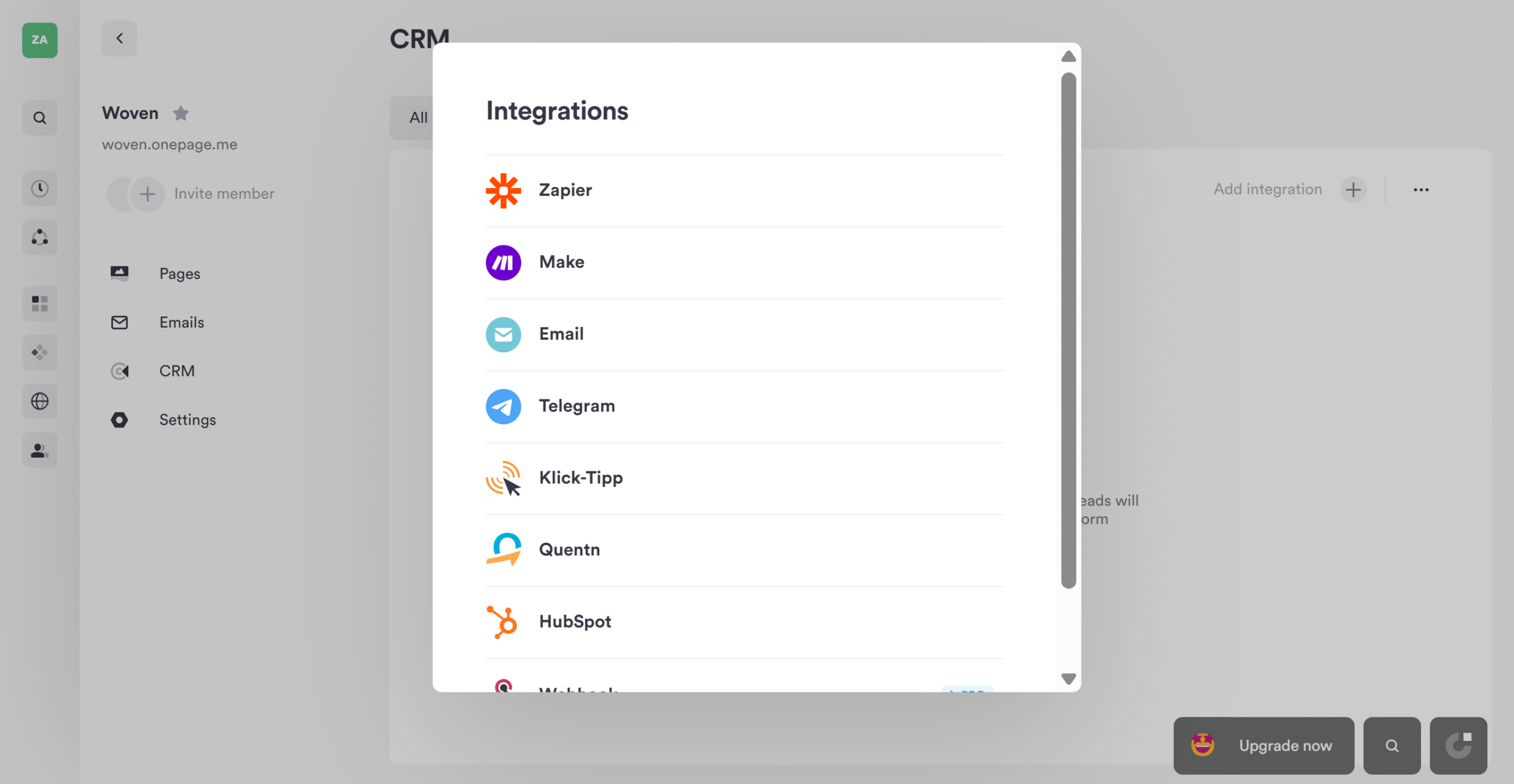
Onepage works well with several third-party business apps, including CRM, email services, e-commerce stores, and payment providers.
For example, you can connect it with HubSpot, Shopify, MailChimp, Google, and TikTok.
If you can’t find any direct integration with your selected app, you can do it through Zapier.
Webhooks are available too for custom workflows. They are included in all the plans.
How To Use Onepage (Demo)
By now, you probably have a good idea of how Onepage works. Let me show you how to actually create a website on the platform.
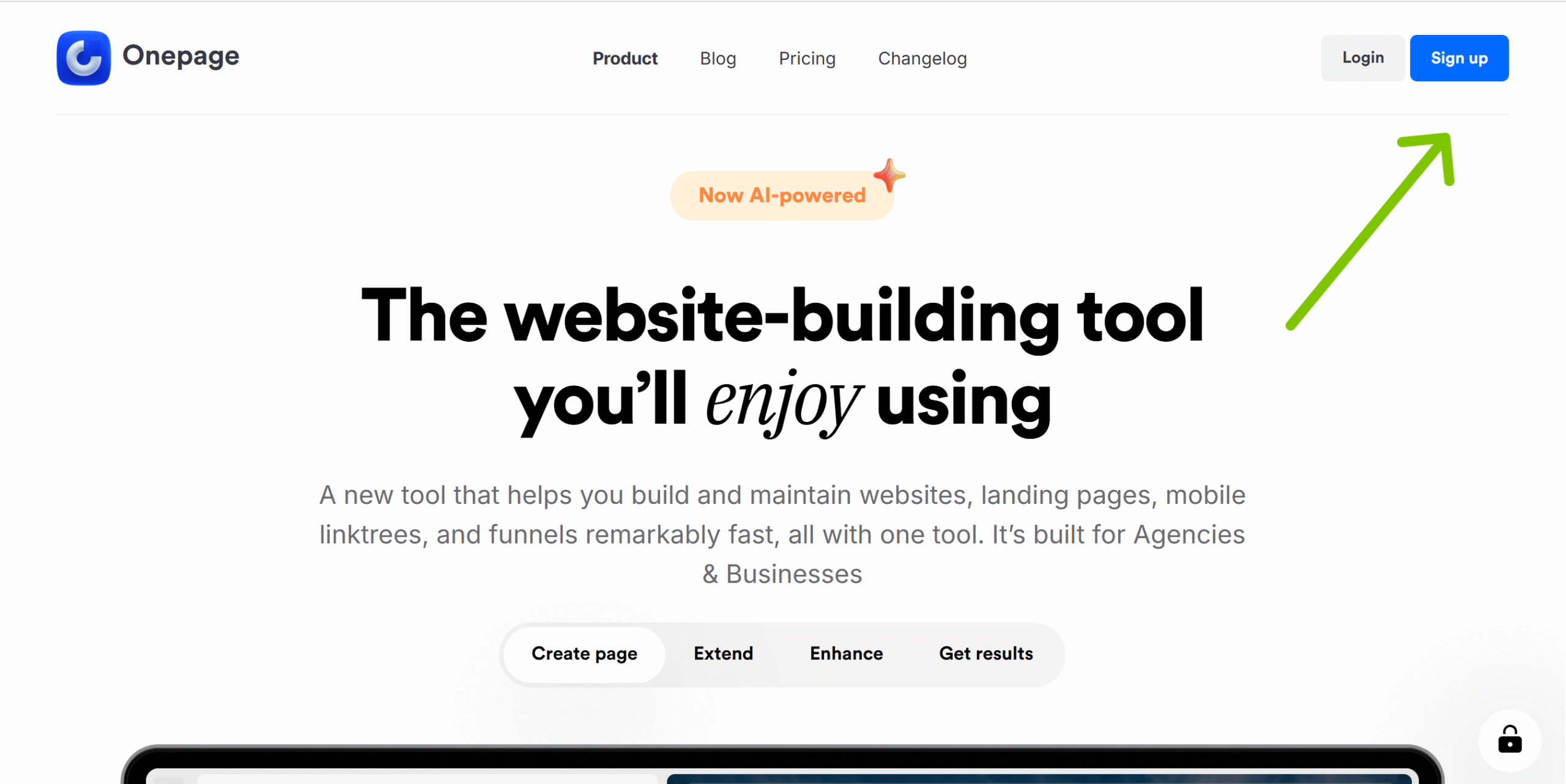
1. Go to the Onepage website and click the sign-up button in the top-right corner. It should lead you directly to the registration page. I used my Google account to sign up, but you can use other emails too.
2. Once you are signed in, you’ll be directed to the main dashboard. The left side of the dashboard is the editor, and the right side is the preview. You’ll also notice the chat window on the left side. This is where you share your prompts with the AI bot.
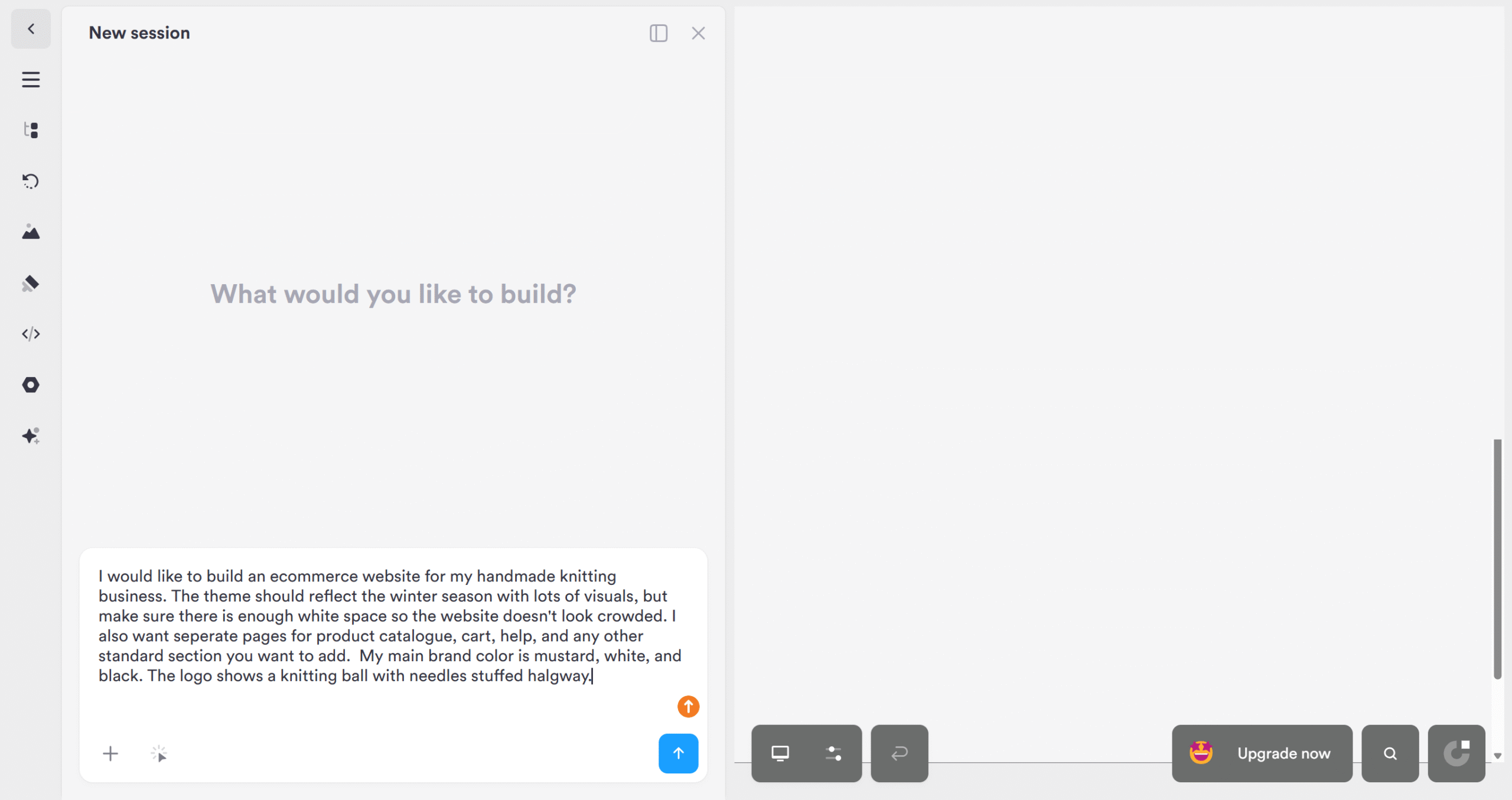
3. I gave basic instructions describing my brand and the elements I wanted in my website. Onepage analyzed my requirements and generated a one-page professional e-commerce page. (You can use preset templates to get started.)
4. After checking out the results, I realized Onepage only generated part of the main page. I had to give separate prompts for each section. It wasn’t an issue because the AI already suggested what I should add to optimize my page.
5. I approved the AI suggestions, and Onepage generated more sections on the main page.
6. This is how my website looked after completion.
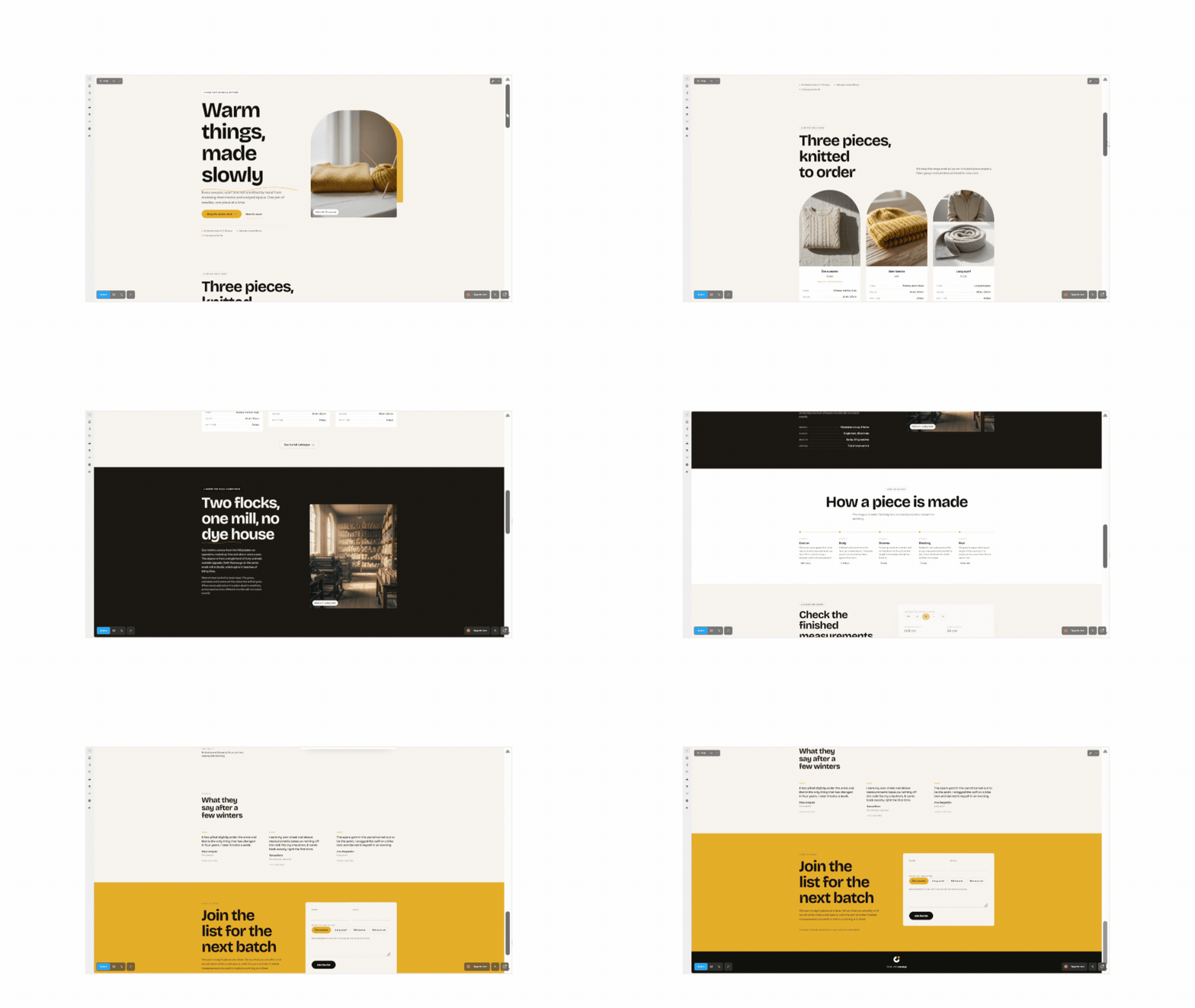
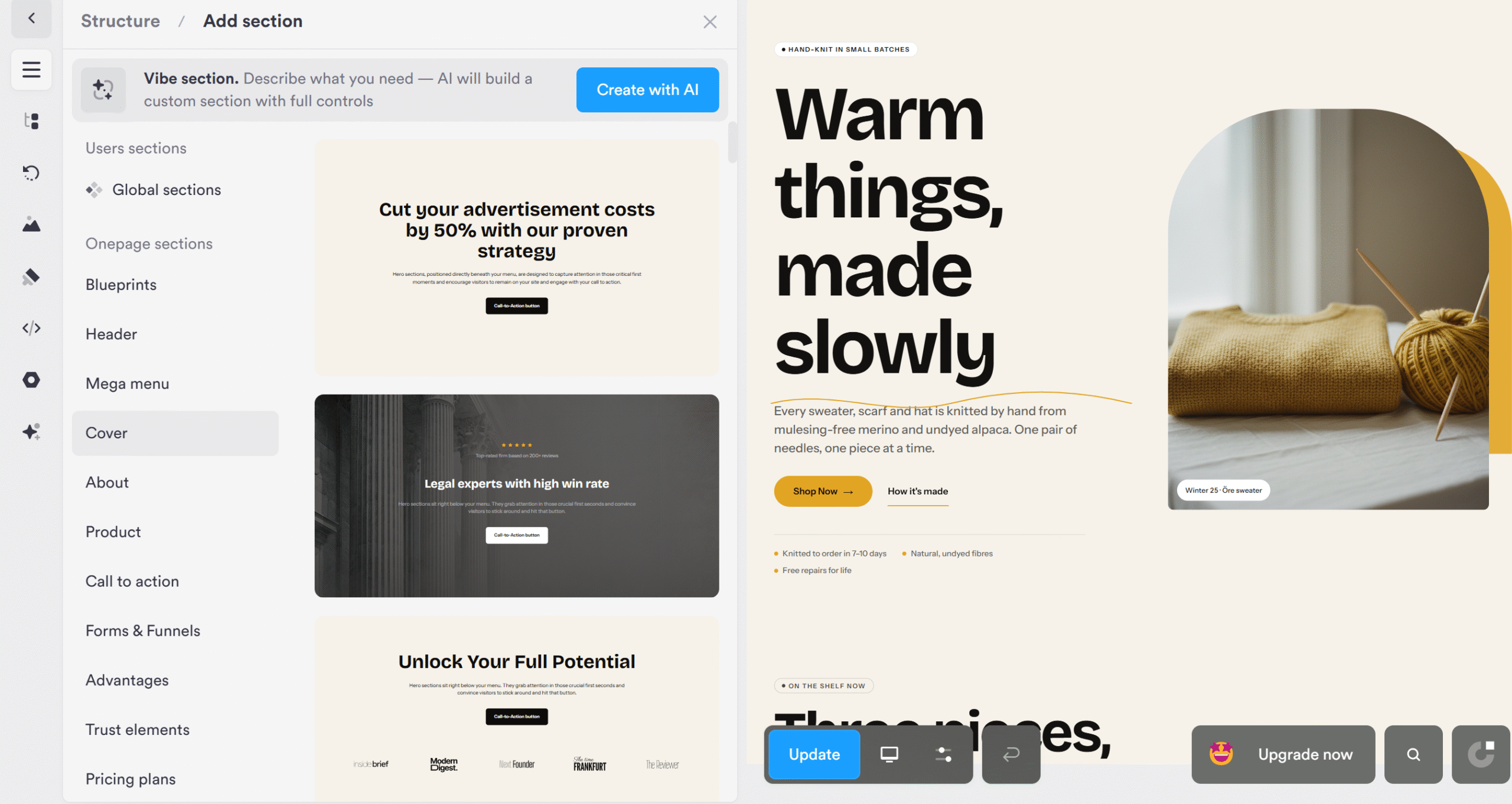
7. I created another page just to see if it could be successfully linked and embedded it into the main CTA button. When the website went live, the button was working accurately. You can move the sections up and down with a simple drag-and-drop and add a footer and header. Each element inside the section is editable.
8. I previewed the page on desktop and mobile screens to see how it looked on both devices and hit publish.
9. These were the final results. You can create and retrieve more projects in the main library.

I genuinely enjoyed building a website on Onepage.
I had previously built a simple website on WordPress for my portfolio, and it took me hours just to get the basics right. Onepage is genuinely fast and easy.
I also explored the forms and funnels and decided to try one using templates and AI.
How I Built a Funnel In Onepage
1. I opened the main page I was working on and pressed the + button under the last section. Onepage displayed a list of things I could add to my webpage.
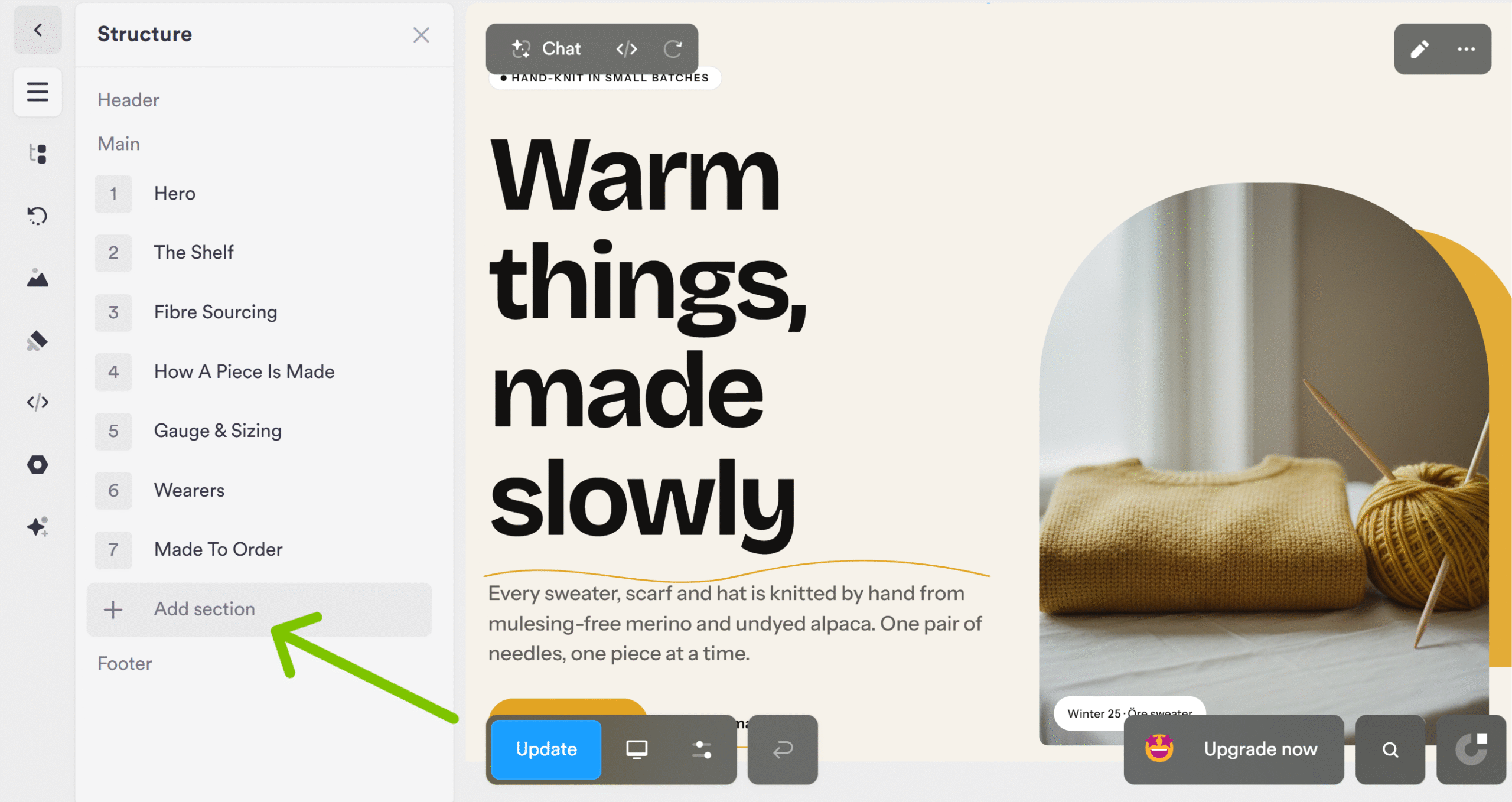
2. I picked a random template and instructed AI to use my page theme and content as context and personalize the template.
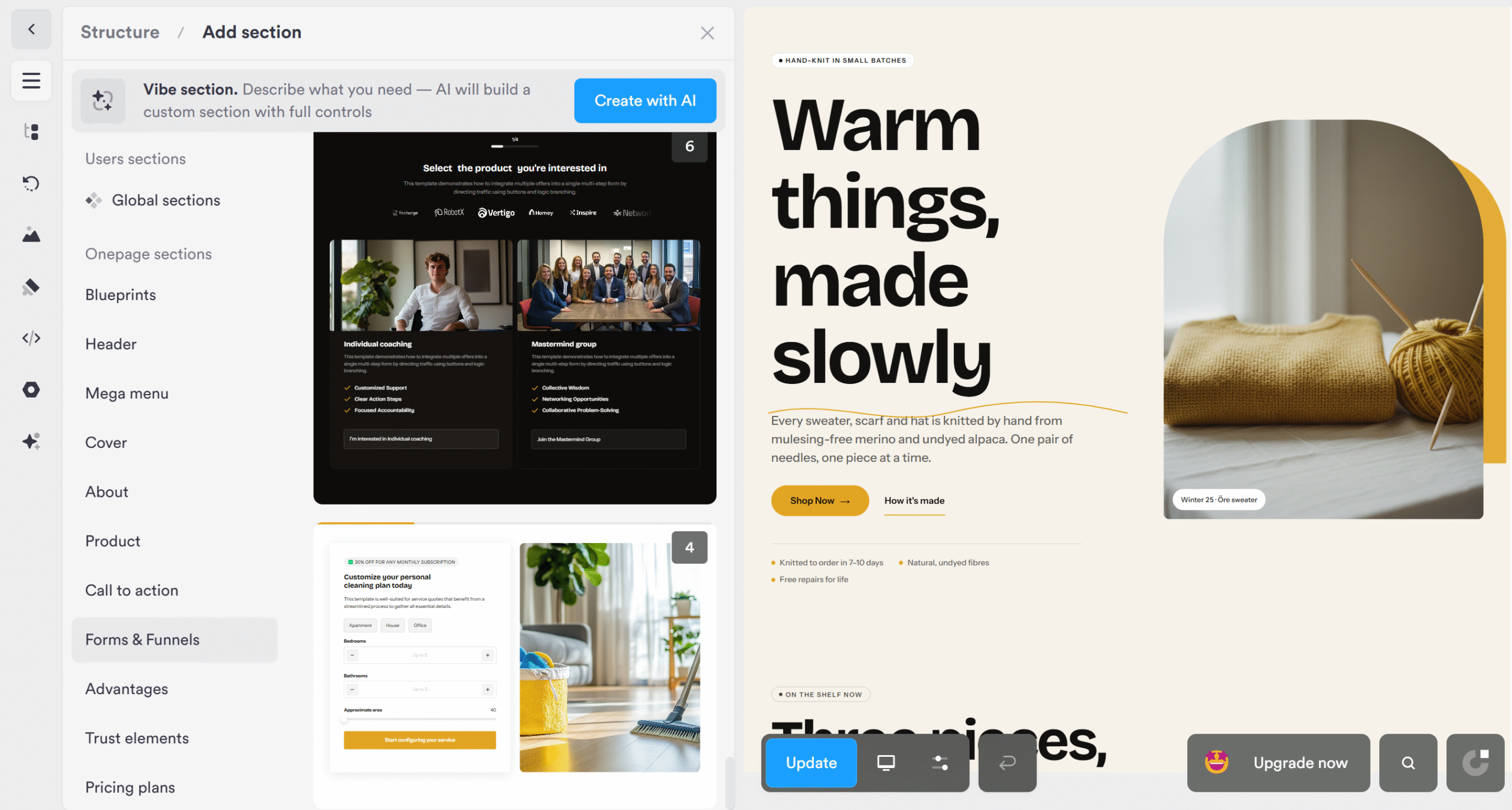
3. The AI tailored the template and generated a multi-step order form for me.
The tailored version was a bit different from the template, but it still contained every necessary field.
That’s how easy it is to build a funnel in Onepage.
You can create forms and funnels manually through the editor, but AI is much quicker.
Pricing
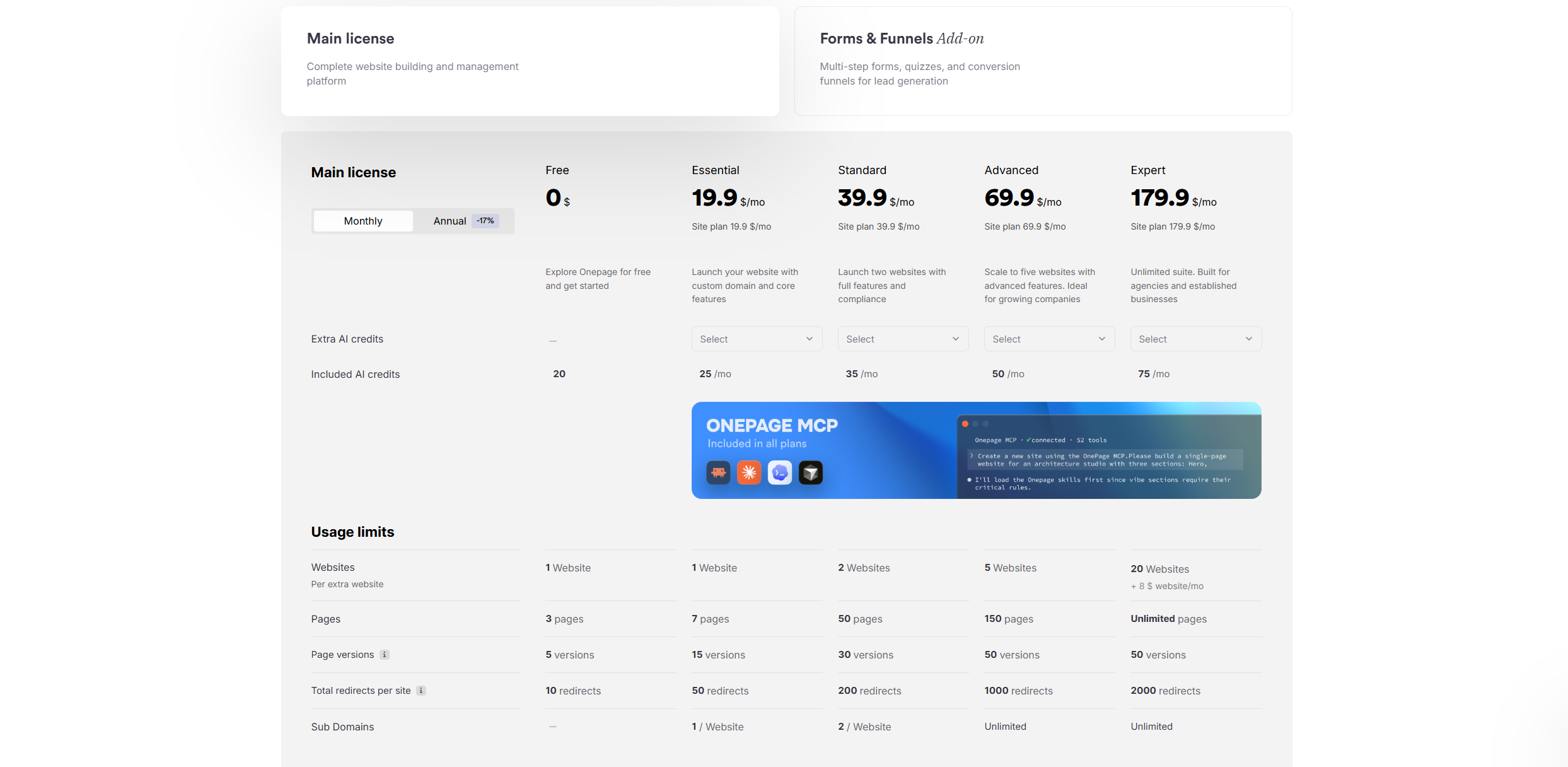
Onepage prices start at $20 per month.
You can choose from four subscription plans and buy monthly or annual subscriptions.
Funnels and forms are not part of the package. The main license only gives you access to the basic form feature. For multi-step funnels, you’d have to pay extra. Their prices start at $40 per month.
Here’s the summary of the core plans.
- Essential: It costs $20 per month and includes 25 AI credits, one website, 7 pages, and one subdomain.
- Standard: It costs $40 per month and allows two websites with around 50 pages.
- Advanced: It costs $70 per month and can support five websites. All the features are included in the plan except for access management. That means you can’t set custom permission levels for your team.
- Expert: It costs $180 per month and includes everything. You can build 50 websites and unlimited pages.
Pros And Cons
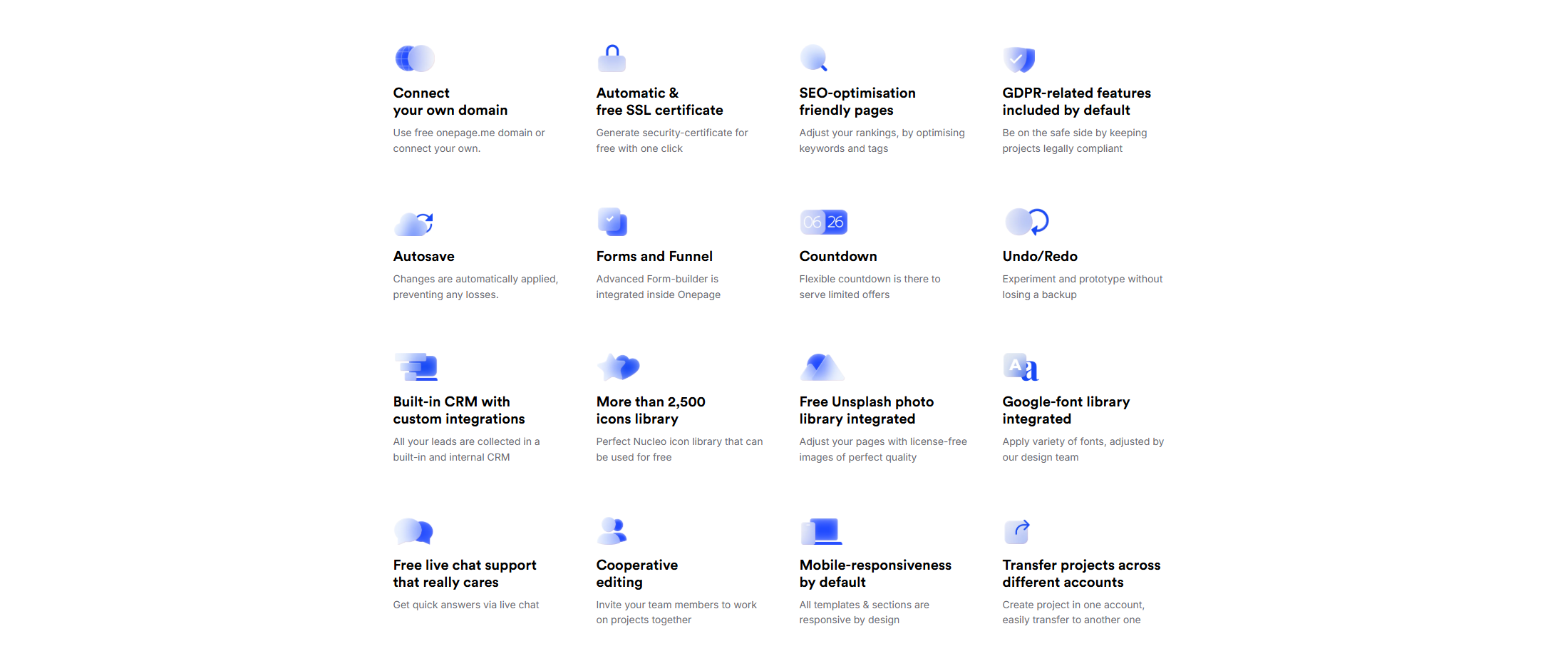
Onepage has a lot to offer, but it has its limitations. Some of its advanced features can also get expensive.
Let me share its main pros and cons, so know what to expect.
Pros
- You don’t need any technical skills to build a website on Onepage. Anyone can use it.
- The AI makes the editing process incredibly fast.
- You get hosting and infrastructure in the package.
Cons
- The designs are basic. It’s mostly suitable for small niche sites.
- The funnel building can get expensive. While you can create forms for free, most of the good stuff is locked behind the paywall.
Things To Know Before Buying Onepage
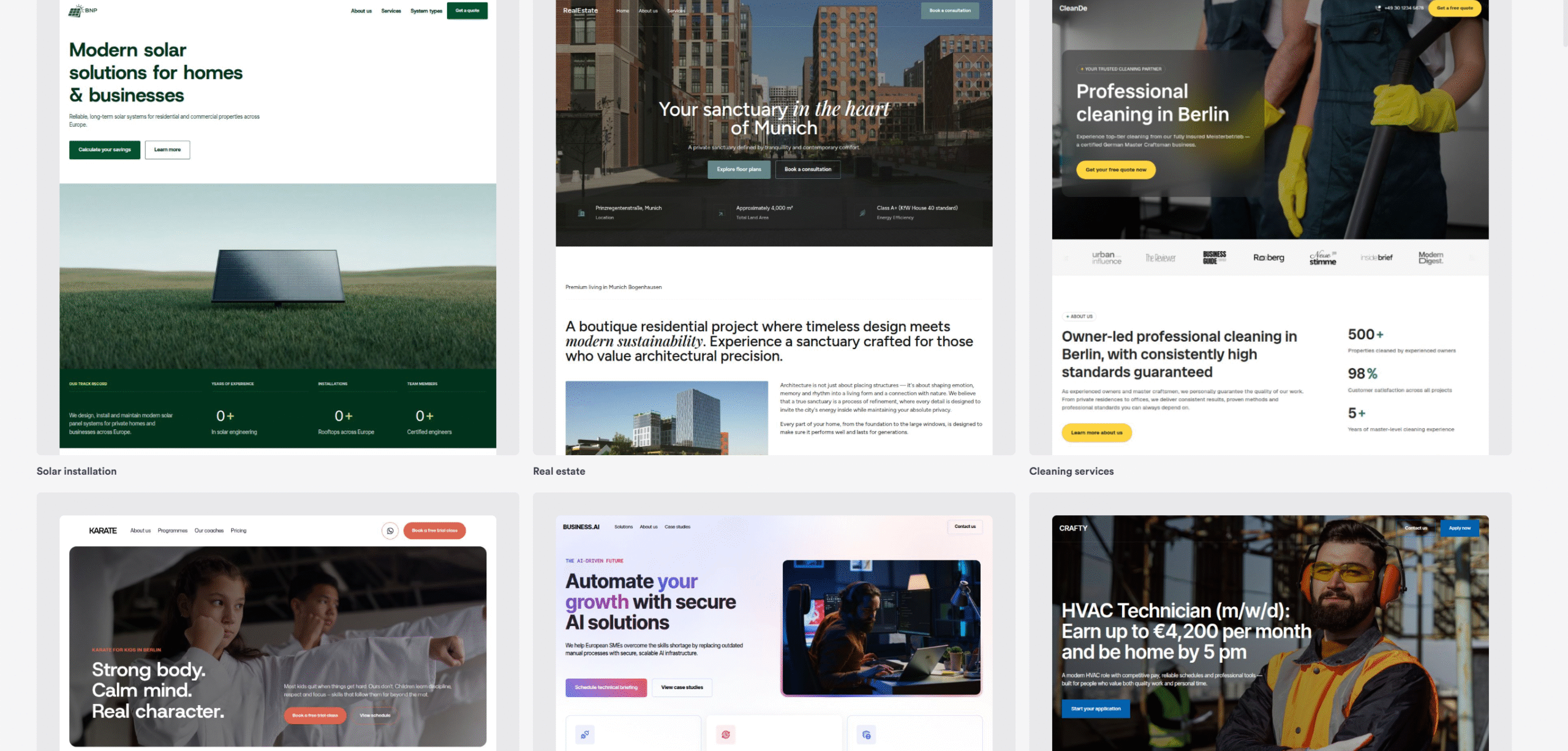
Onepage might not be the cheapest of options; it’s still a good investment.
But before you try Onepage, there are two things you should know.
1. You Can’t Build Every Website With Onepage
My overall impression of Onepage is that it prioritizes speed and efficiency over flexibility.
It generates very professional-looking websites, but customization options are limited.
Onepage feels a bit like a Canva for website builders.
You get a simple editor, ready-made elements, and an AI to help you design pages, but you’re limited to the preset blocks.
That being said, I built the page on the free plan, and some advanced features were restricted, so I might not have seen everything it offers.
I still think you should keep this limitation in mind before making your purchase decision.
2. AI Has A Limited Scope
If you are used to AI engines like Claude or ChatGPT, you’ll probably find Onepage AI a bit basic.
It isn’t necessarily a limitation on Onepage’s part because the AI does exactly what it was designed to do. But you can’t have the same kind of open-ended conversations with it, and you need to be particularly specific to get the results you want.
Onepage does, however, integrate with ChatGPT and Claude, so that’s a plus.
Conclusion
Building a website on Onepage is simple and quick.
I tested it to see how well it works in practice and whether it can actually make the process easier. And so far, Onepage has lived up to my expectations.
I built a professional website within 15 minutes, and the whole process was incredibly smooth.
My suggestion?
Give it a try and see if it works for you. You don’t have to provide credit card details to use the free plan.


 A better way to manage projects and clients for freelancers
 Get through busy days like a breeze with Reclaim.ai