
Planning sounds good in theory, but in practice, it’s often a pain.
You open a blank calendar, add a couple of tasks, stare at the empty week… then close the tab and move on.
Some people love the process. They build templates, use tags, and color-code everything. The rest of us are just trying not to forget lunch.
If that’s you, you’re not lazy. You just need the right kind of tool.
One that’s flexible. One that doesn’t make planning feel like work. One that gets out of your way.
This list is for you: twelve tools that help you plan even if you hate planning. Try a couple, stick with one, and finally get organized without hating the process.
How I Tested These Tools
Each tool was tested over several days, sometimes weeks, with real schedules, daily tasks, weekly planning, and calendar blocks.
The goal was to see how well they worked in the middle of actual chaos.
Here’s what I paid attention to:
- Ease of use: Can you start planning without watching tutorials?
- Flexibility: Can the tool adapt to your workflow, or force a new one?
- Integrations: Can you connect it with apps you already use, Google Calendar, Notion, Gmail, Trello, etc.?
- Mobile experience: Can you rely on it from your phone without frustration?
- Customization: Can you make it suit how you plan, not how the app wants you to?
- Cost: Does the value match the price, or are you paying for extras you’ll never touch?
The ones that made this list reduced noise, helped me stay on track, and didn’t make planning feel like a chore.
Best Tools for Planning: TL;DR
- Sunsama: Best for mindful daily planning
- Notion: Best for creative & flexible planners
- Motion: Best for automated scheduling
- Trello: Best for visual task tracking
- Todoist: Best for minimalist to-do lists
- ClickUp: Best for all-in-one work management
- Akiflow: Best for calendar & task unification
- Google Calendar: Best for simple scheduling
- Asana: Best for collaborative planning
- Evernote: Best for note-based planning
- Structured: Best for time-blocking beginners
- Obsidian: Best for networked thinking
Here’s Our Pick for The 12 Best Planning Tools
1. Sunsama: Best for mindful daily planning
TL;DR
Sunsama pulls in tasks, meetings, and emails from multiple tools into one clean dashboard, making daily planning calmer, more focused, and less overwhelming.
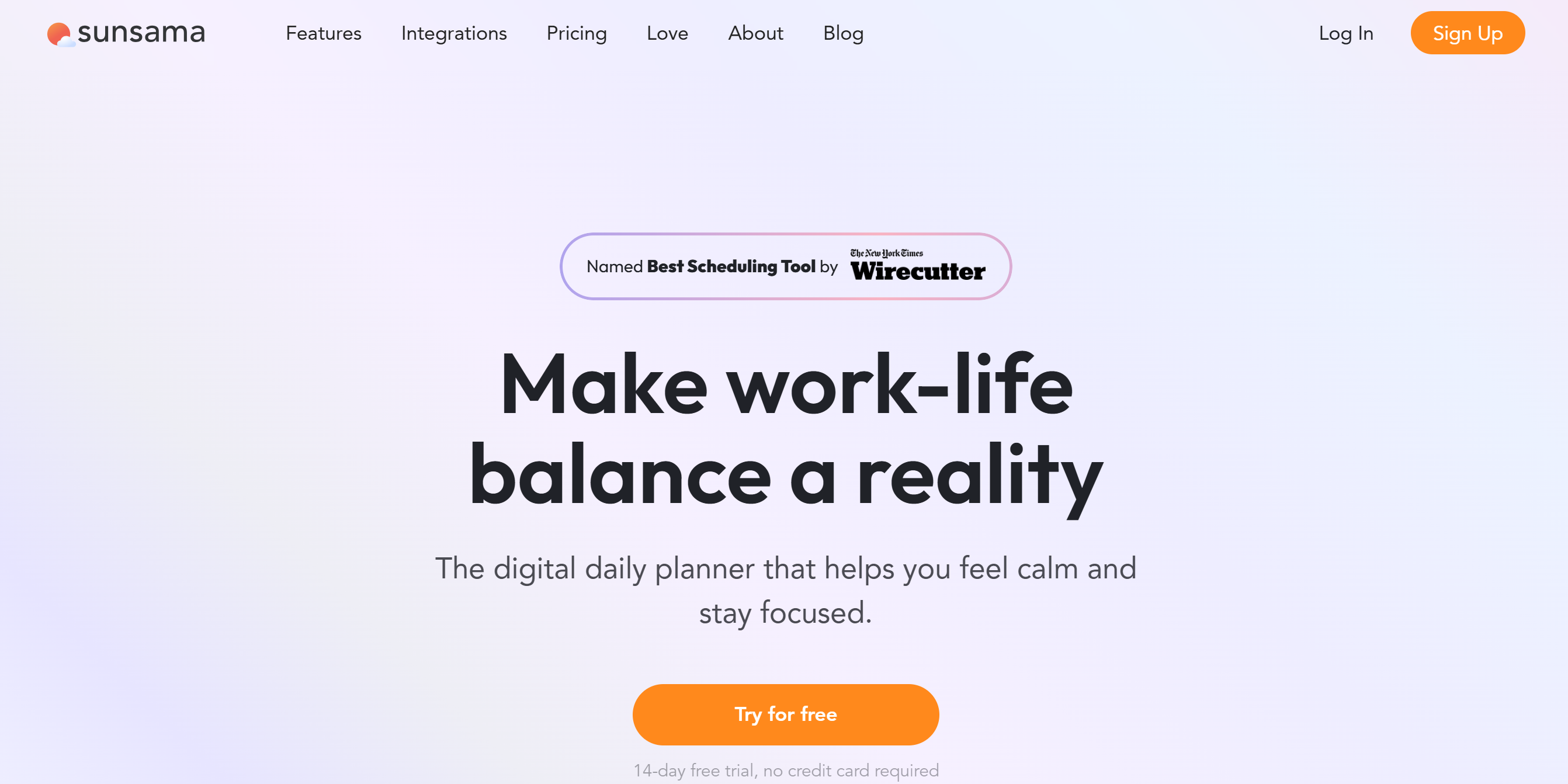
Sunsama isn’t your typical planner. It’s built around a daily ritual that gently guides you through planning, step by step.
Open Sunsama in the morning and you’ll see today’s meetings, tasks, and even emails pulled into a single clean view. Instead of juggling apps, you drag items into your calendar until the day feels balanced.
It’s ideal for people who want calm, structured days without overload.
Each morning starts with a short ritual: jot down what you finished yesterday, pull in today’s tasks from Notion or Gmail, drag them onto your calendar, and estimate how long they’ll take. In five minutes, your day feels mapped out.
You can even easily drag in tasks from Notion, Trello, Gmail, or Asana. I remember how my meetings synced instantly, and the interface stayed clean and distraction-free. The end-of-day “shutdown” reminder was surprisingly helpful; it forced me to reflect and stop working.
New features make it even smarter. “Task projections” (still in beta) can automatically place your tasks into free slots, so you don’t have to schedule everything manually. Recurring tasks now appear on your calendar even if you forget to add them.
Focus Mode hides distractions, showing only the task at hand with a floating timer and auto-updating Slack status.
Weekly planning is built in as well. Every Friday, there’s a guided review, check what worked, carry over unfinished tasks, and set objectives for the week ahead.
AI features are quietly powerful. When you create a task, Sunsama suggests a time estimate and assigns a channel based on your past work. It even auto‑fills recurring tasks or fills your day with task projections if you don’t schedule them manually.
In one tool, you get daily structure, focus rails, weekly reflection, and AI that learns your rhythm. It doesn’t overwhelm; it simplifies.
Pros
- Clear, guided end-of-day review
- No ads, upsells, or distracting pop-ups in the UI
- Regular updates with genuinely useful new features
Cons
- Learning curve for non-planners
- Limited team management features
Pricing
- 14-day free trial (no credit card required)
- $20/user/month (monthly billing)
- $16/user/month (annual billing, $192/year)
2. Motion: Best for automated scheduling
TL;DR
Motion uses AI to automatically schedule tasks, meetings, and priorities, constantly reshuffling your day so you always know what to work on next.
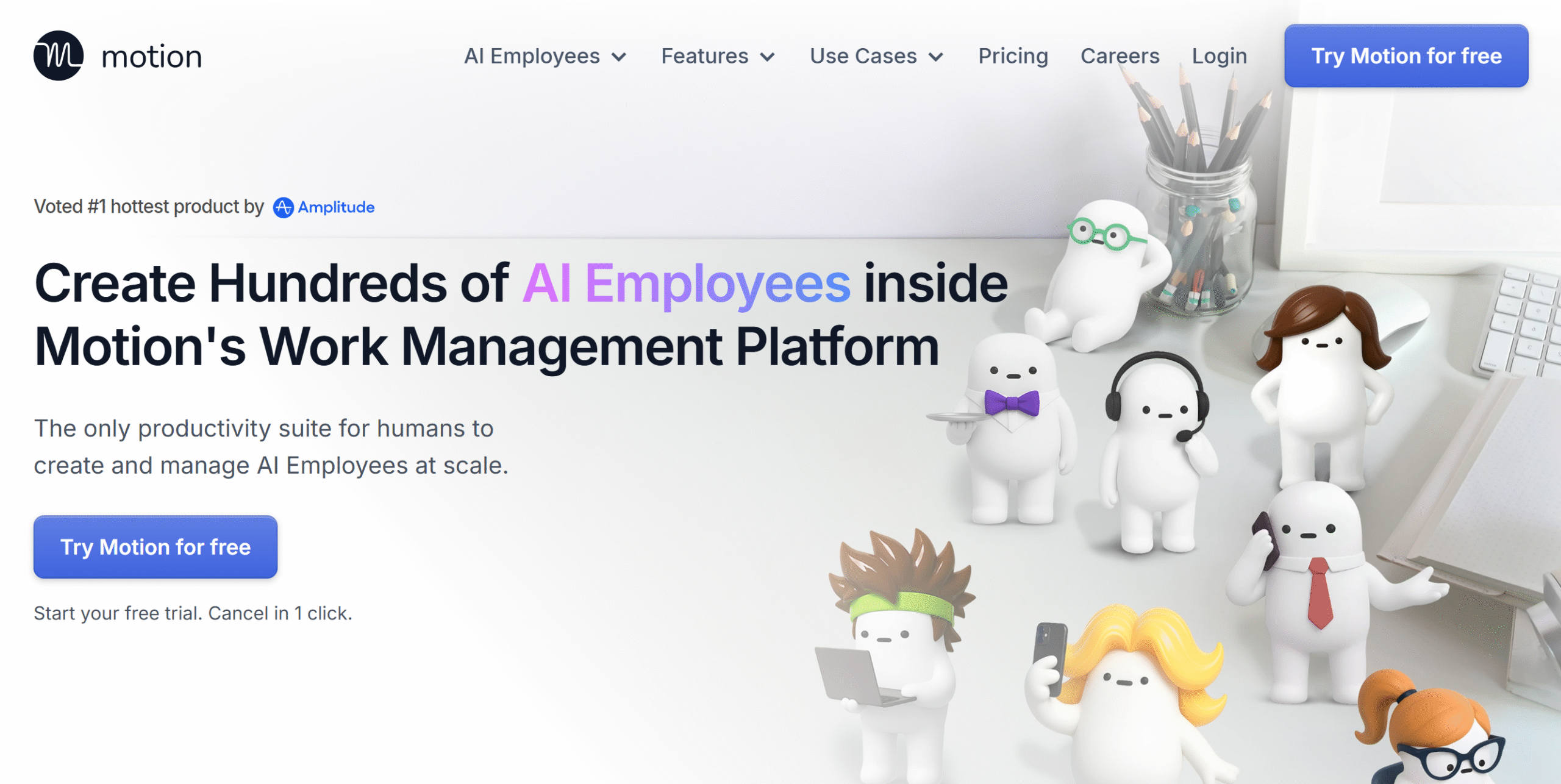
Motion isn’t just a calendar app, but an AI scheduler that thinks ahead for you. Motion’s AI plans your day, schedules meetings, and manages tasks so you don’t have to.
It’s built for busy professionals who want their calendar managed for them, down to the minute.
Type in a task and within seconds Motion slips it into your calendar, right between a client call and lunch, without you lifting a finger.
It takes into account deadlines, meeting times, and even your preferred work hours, handling all the arranging for you so there’s no manual drag-and-drop or switching between apps.
When a meeting runs long, you’ll see the rest of your calendar quietly shift, emails get pushed to the afternoon, deep work blocks slide to tomorrow, without you having to re-plan a thing.
The built-in task manager is simple but tightly connected to your calendar. Urgent items are given priority, and projects can be viewed in kanban format, and tasks drop straight into your calendar.
One of Motion’s strongest features is how it protects time for important work. It carves out distraction-free blocks, ensuring big priorities don’t get buried under smaller tasks. Even on chaotic days, you can make meaningful progress.
Pros
- Clean, minimal interface with no visual clutter
- Reliable cross-device sync for desktop and mobile
- Color-coded schedule view makes priorities easy to spot
Cons
- Limited offline functionality
- Steeper learning curve for casual users
Pricing
- 7-day free trial (full feature access)
- AI Workspace: $19/user/month (annual billing)
- AI Employees: $29/user/month (annual billing)
- Enterprise: Custom pricing for large organizations
3. Notion: Best for flexible, all-in-one organization
TL;DR
Notion combines notes, tasks, databases, and collaboration in one customizable workspace, letting you organize everything from projects to personal goals your way.
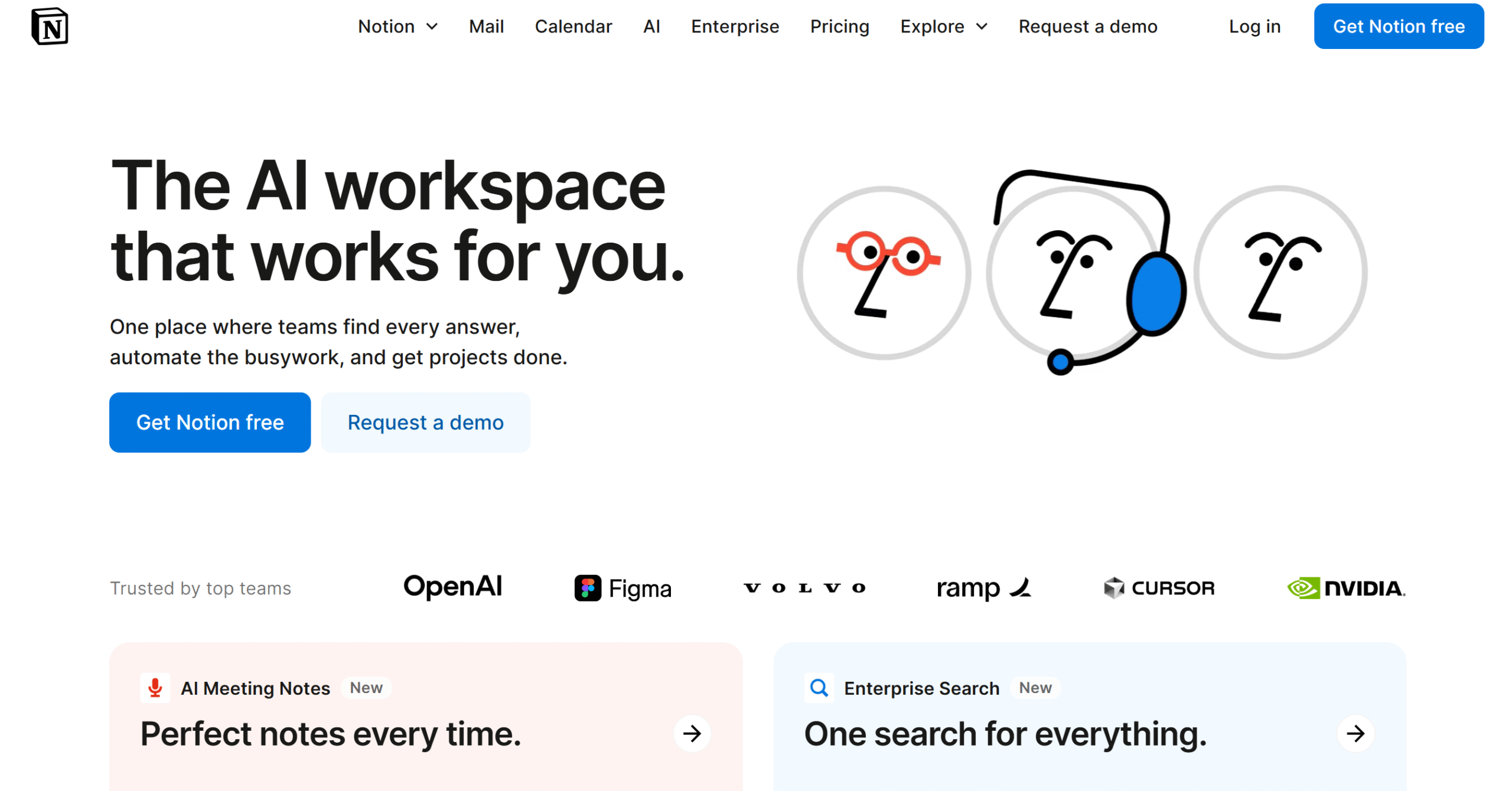
Notion is a collaborative productivity platform that blends note-taking, project management, databases, and wikis into a single, fully customizable workspace.
It’s perfect for anyone who wants complete control over their workflow, whether that’s managing personal goals, running projects, or coordinating with a team.
Context-switching is a productivity killer. One minute you’re writing onboarding docs, the next you’re replying to leads or mapping a launch plan. Notion fixes that by keeping everything in one place, so you can move between tasks without breaking your focus.
Now, when you move to the basics, like building to-do lists, content calendars, and a project wiki, you quickly realize the flexibility here.
You start with a blank page, type “/todo” to drop in a checklist, drag a table beside it, then embed a Google Doc underneath. Shift things around like Lego blocks until the page looks like your workflow.
Turn a simple task list into a kanban board with one click, then flip the same data into a calendar to see deadlines. Switch back to a table when you need details, all synced automatically.
Collaboration feels natural; you can tag a teammate with “@” inside a doc, drop feedback as comments in the margin, and roll back to a previous version if someone edits too much.
The only downside is that Notion’s AI tools are now limited to Business and Enterprise plans, which makes the Plus plan feel like a downgrade in that area.
Setup takes some time, and it’s easy to get lost tweaking layouts, but for anyone who hates rigid planning systems, Notion offers structure without killing flexibility.
Pros
- Real-time editing and commenting
- Huge template library to save setup time
- Rich media embeds without coding headaches
Cons
- No offline mode
- No built-in chat or video calling
Pricing
- Free: Get started with unlimited pages and blocks
- Plus: $10/month (Level up with larger file uploads)
- Business: $20/month (Unlock the good stuff, such as Notion AI, page analytics, and conditional logic)
- Enterprise: Custom pricing for enterprise-grade controls, zero data retention, dedicated support
4. Trello: Best for visual task tracking
TL;DR
Trello organizes projects into visual boards, lists, and cards, making it easy to track progress, assign tasks, and adapt workflows to any project size.
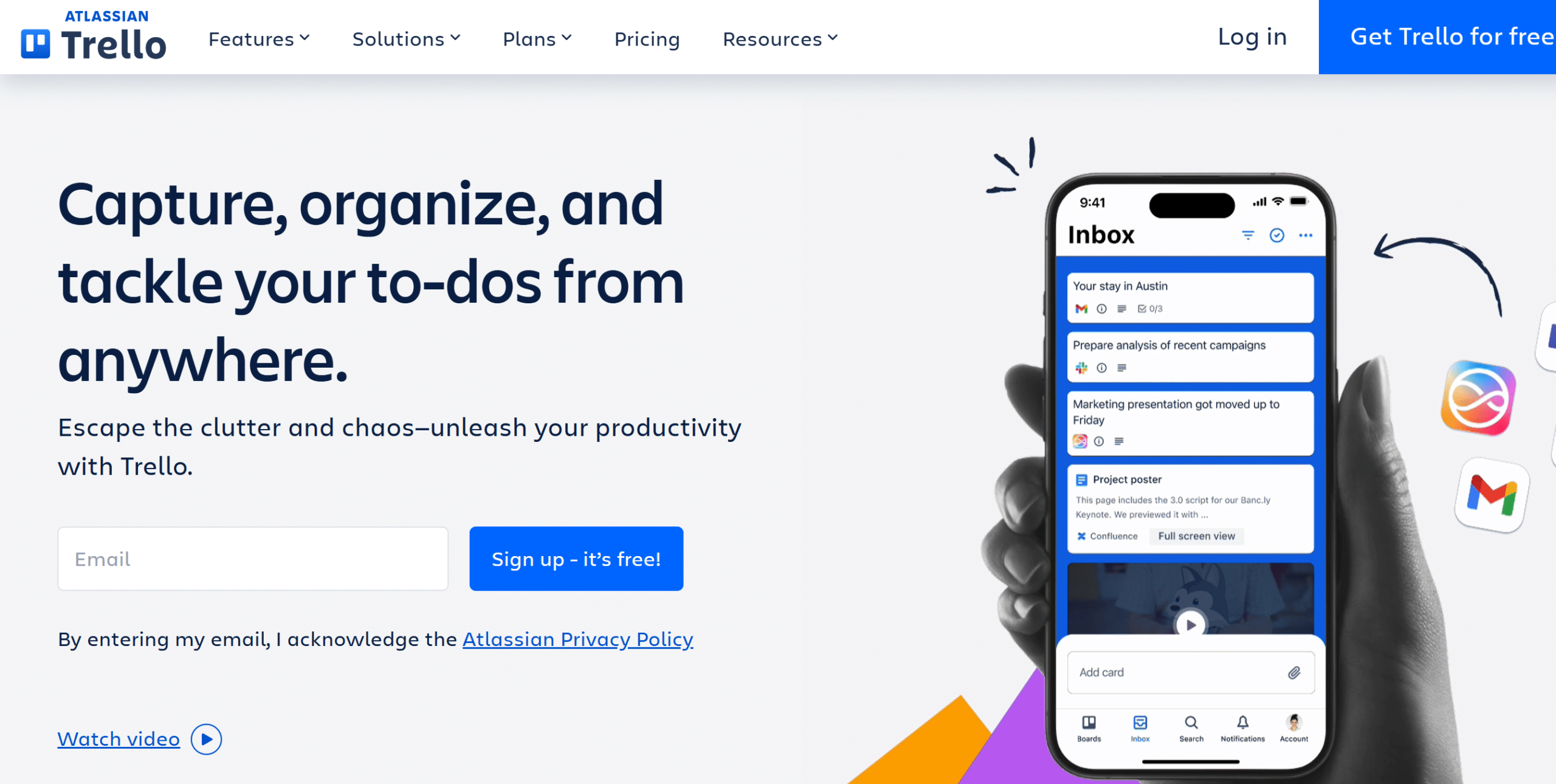
With its intuitive drag-and-drop boards, lists, and cards, Trello makes it easy to visualize workflows and stay organized across any type of work, from personal to-do lists and event planning to full-scale team projects.
It works well for both simple and complex setups.
A basic “To-Do, Doing, Done” board can evolve into a fully connected system. Each card becomes a central hub for links, files, subtasks, checklists, and deadlines, keeping everything tied to the task it belongs to.
Switching between Calendar, Timeline, Map, Dashboard, and Table views gives you an instant perspective, which is especially helpful for larger, multi-layered projects. Many of these options come via Power-Ups or upgraded plans, letting you scale your setup without changing tools.
Butler automation takes over the repetitive stuff, for example, when you move a card to “Done,” Trello can auto-assign the next task, set a due date, or even drop a reminder in Slack.
Trello’s new AI-powered Inbox columns pull in tasks from Slack, email, and even Siri, automatically organizing and summarizing them into actionable cards.
With the Trello Planner (currently in beta), syncing your calendar directly into Trello is possible, making it easier to stay on top of schedules.
While the AI features are impressive, Trello’s real strength is its adaptability. It molds to your way of thinking and working, making the organization feel intuitive rather than forced.
Pros
- Power-ups just got better with native calendar syncing
- Public boards are perfect for community roadmaps or documentation
- Timeline and dashboard views now let you filter by label, assignee, or custom fields
Cons
- Offline functionality is still limited
- Large or complex projects can get cluttered
Pricing
- Free plan: Unlimited cards, up to 10 boards per workspace
- Standard: $6/user/month (monthly billing) or $5/user/month (annual billing)
- Premium: $12.50/user/month (monthly billing) or $10/user/month (annual billing)
- Enterprise: Starts at $17.50/month per user (annual billing), volume discounts available
5. Todoist: Best for minimalist to-do lists
TL;DR
Todoist is a clean, lightweight app for capturing, organizing, and prioritizing tasks. It’s one of those tools you can start using in under five minutes, with almost no learning curve.
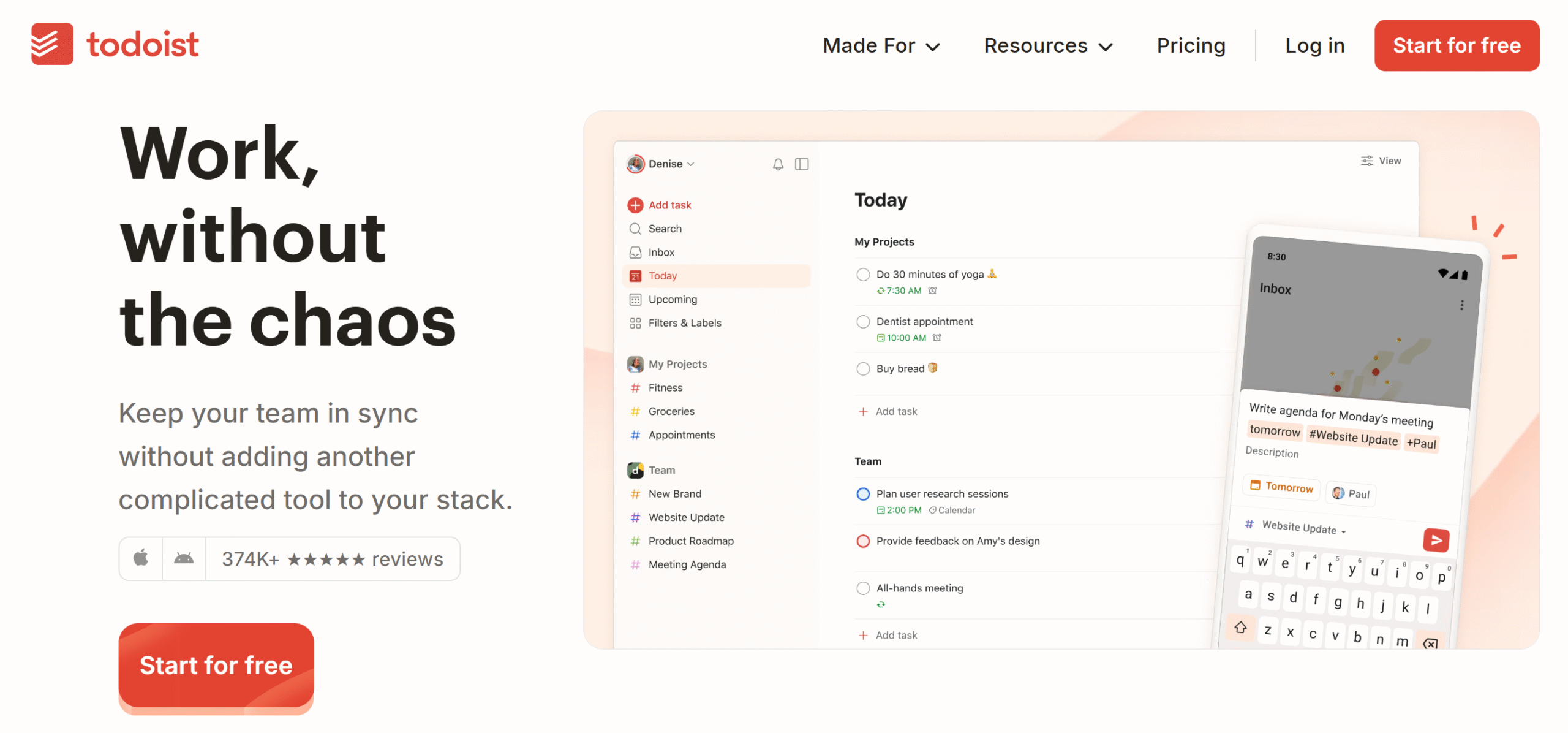
Todoist is perfect for anyone who just wants a simple, reliable to-do list that works anywhere.
Type in “Pay bills every 1st of the month” and Todoist instantly turns it into a recurring reminder. Add deadlines, priorities, or labels, and it automatically sorts everything so the important stuff doesn’t get buried.
I like how distraction-free the interface feels. Tasks are grouped by projects, and you can add labels, filters, or priorities to keep them organized.
Open the “Today” tab and you’ll see only what’s due before midnight. Switch to “Upcoming” and a scrollable timeline lays out the week ahead, so you’re never blindsided by deadlines.
Syncing is instant across devices; you can add a task on your phone while commuting and have it ready on your laptop when you sit down to work.
Collaboration is lightweight but effective, letting you share lists, assign tasks, and leave comments without turning it into a full project management system.
A small but motivating touch is the “Karma” streak tracker. Seeing those streaks build over time gives you a subtle nudge to keep checking things off, even on days when your motivation is low.
Pros
- Offline mode works smoothly across devices
- Natural language input for quick task creation
- Minimal learning curve, even for first-time users
Cons
- No built-in time tracking
- Free plan limits active projects
Pricing
- Free Plan: Up to 5 active projects, basic features
- Pro: $5/month (monthly billing) or $4/month (annual billing)
- Business: $6/user/month (annual billing) or $8/user/month (monthly billing)
6: ClickUp: Best for all-in-one work management
TL;DR
ClickUp replaces multiple tools with tasks, docs, goals, and dashboards in one place, giving you a fully customizable system for any type of work.
ClickUp is one of the most feature-rich productivity tools available, bringing tasks, docs, goals, and time tracking together in one customizable workspace.
It works equally well for teams managing complex projects and individuals looking to centralize their work.
At first, the menus feel crowded, but once you’ve set up a project, switching views, kanban board, list, or calendar takes one click. Suddenly, you’re tracking progress without jumping tools.
You can view the same project as a kanban board, a list, a calendar, or even a mind map, depending on how you prefer to work.
A dashboard can show one teammate’s workload as a bar chart, a deadline countdown as a widget, and project status in a pie chart, all on the same screen.
For example, when you change a task from “In Progress” to “Done,” ClickUp can auto-assign the next one and ping the team in Slack. ClickUp Brain can then summarize yesterday’s meeting notes into a bulleted action list.
ClickUp also integrates with over 1,000 apps through native connections and Zapier, ensuring that Google Calendar, Slack updates, and project timelines stay synced automatically.
Pros
- Embeds tasks, docs, and chats into one view
- Multiple view options for the same project data
- Generous free plan for individuals and small teams
Cons
- Occasional slow load with large projects
- Can feel heavy if you only need basic tasks
Pricing
- Free Forever: Unlimited tasks, members, and docs
- Unlimited: $7/user/month (annual) or $10/user/month (monthly)
- Business: $12/user/month (annual) or $19/user/month (monthly)
- Enterprise: Custom pricing with advanced controls and support
7. Akiflow: Best for calendar & task unification
TL;DR
Akiflow unifies tasks, calendars, and integrations into one fast, command-driven workspace, so you can plan and act from a single screen without switching apps.

Akiflow is built for anyone tired of bouncing between a task manager and a calendar.
Hit “⌘K” (or Ctrl+K) and type “new task”, Akiflow drops it into your inbox instantly. From the same bar, you can schedule it for tomorrow at 3 PM without leaving the screen.
It’s especially useful for busy professionals who want to see everything, including meetings, deadlines, and reminders, all in one place.
The interface is clean, and almost everything can be done from the command bar. Creating tasks, scheduling them, and setting priorities takes seconds, which makes daily planning feel quick instead of like another chore.
Integrations are its real power. Connect Google Calendar, Outlook, Slack, Todoist, Asana, Trello, and even email. Once linked, Akiflow pulls all events and tasks into one clean, scrollable view.
I liked being able to drag tasks and events around to time-block my day without jumping between apps.
The Inbox becomes a holding pen; emails from Gmail, pings from Slack, or tasks from Trello all land here. You just drag them into the timeline when you’re ready to deal with them.
The “Plan My Day” feature then helps you sort through it, choose what matters most, and place it neatly into your schedule, and if plans change, reshuffling is just a quick drag away.
Pros
- Unified inbox for all task sources
- Command bar speeds up every action
- Two-way sync with Google and Outlook calendars
Cons
- No permanent free plan
- Mobile app is less capable than the desktop version
Pricing
- Free Trial: 7 days, all features
- Pro: $34/month (monthly billing) or $9.5/month (annual billing)
8. Google Calendar: Best for simple scheduling
TL;DR
Google Calendar syncs automatically with Gmail, pulling in events, meetings, and reminders, and keeps your schedule up to date across all devices.

Google Calendar gives you a clean, email-linked calendar for scheduling time and syncing events. It’s the kind of tool you can open for the first time and instantly use, no setup beyond signing in.
Book a flight, and the confirmation email drops straight into your calendar with the time, gate, and check-in link already filled in.
It works perfectly for anyone who needs a reliable, no-fuss calendar that stays in sync with their Gmail.
During a packed client week, I barely had to touch it. Flight details, hotel reservations, and call links were pulled straight from confirmation emails and dropped neatly into place. Everything was ready without manual entry, color-code, work events versus personal stuff, so Mondays don’t feel like a blur.
The layout is flexible. You can switch between day, week, month, or agenda view depending on how detailed you want to get. Dragging and dropping events makes rescheduling painless.
Instead of emailing back and forth, “Find a time” shows both calendars side by side. You click the free slot, send the invite, and you’re done.
And the best part, it just works. No app learning curve, and on mobile, it’s rock solid, reliable even when you’re switching platforms.
Pros
- Layers multiple calendars without visual clutter
- Smart timezone handling for frequent travelers
- Works offline with automatic sync when reconnected
Cons
- No built-in task management
- Limited customization beyond color coding
Pricing
- Free Plan: Full access with a Google account
- Business Starter: $7/user/month (30 GB storage, basic apps, Gemini in Gmail)
- Business Standard: $14/user/month (2 TB storage, full Gemini access)
- Business Plus: $22/user/month (5 TB storage, Vault, enhanced security)
9. Asana: Best for collaborative planning
TL;DR
Asana maps projects into clear, trackable workflows with tasks, owners, and deadlines, making it easy for teams to stay on track and hit goals.
Asana organizes projects and tasks into clear, trackable workflows that make teamwork feel more structured and predictable.
It’s designed to give everyone on the team the same clear picture of what’s happening and what comes next.
When I worked with it on a small project group, the clarity was instant.
You can plan a product launch as a list of tasks, flip the same work into a kanban board for weekly stand-ups, and then open a timeline to see how deadlines overlap, all synced automatically.
That flexibility makes it easy for different team members to work in the format they prefer without breaking the flow.
Every task has an owner, a deadline, and space for notes, files, and comments, keeping all the context tied to the work instead of buried in email threads.
If you drag a task two days later on the timeline, Asana instantly shifts all dependent tasks down the chain, so you don’t have to re-schedule everything by hand.
Automation rules save time by taking care of repetitive tasks. Completing a task can trigger updates, assignments, or even new tasks. And with integrations for Google Drive, Slack, Zoom, and more, Asana fits neatly into most workflows.
For solo work, it might be more than you need. But for teams, especially remote ones, it’s like having a shared control panel that keeps every moving part visible and connected.
Pros
- Automations reduce repetitive admin work
- Consistent interface across web and mobile
- Team-wide transparency keeps everyone in sync
Cons
- Onboarding can feel slow for new users
- Advanced functionality locked to paid tiers
Pricing
- Personal (Free): Unlimited tasks, projects, and integrations
- Starter: $13.49/user/month (monthly billing) or $10.99/user/month (annual billing)
- Advanced: $30.49/user/month (monthly billing) or $24.99/user/month (annual billing)
- Enterprise: Custom pricing for large organizations
10. Evernote: Best for note-based planning
TL;DR
Evernote captures, organizes, and syncs notes, tasks, and documents across devices, making all your ideas and information instantly searchable.
Evernote is for people who plan by writing things down and want those notes to stay organized, searchable, and accessible everywhere.
Jot a note on your phone during a commute, add a PDF contract on your laptop, and record a voice memo on your tablet. Evernote syncs them all, so everything’s waiting when you switch devices.
When I used it for a week, it quickly became my go-to space for meeting notes, research, and quick brain dumps.
Everything lives in notebooks and can be tagged for faster searches, pulling up a note from months ago in seconds just by typing a keyword.
Spot an article worth saving? Hit the web clipper, and Evernote saves the full page, images, text, and layout intact, into your “Research” notebook for later.
Evernote has added new tools that make notes even more fun. Messy text can be cleaned up automatically, tags can be suggested, and AI Transcribe can turn audio into clean, searchable text. I tried it with a quick voice memo, and it was ready to use in minutes.
Syncing is reliable. Start a note on your phone during your commute and finish it on your laptop without losing a word. Even offline, your notes stay accessible until you reconnect.
For anyone whose planning begins with jotting things down, Evernote turns that habit into an organized, actionable system.
Pros
- Lightning-fast note search, even in images
- Bulk note export for easy backups and migrations
- Supports multiple file types, including PDFs and scanned documents
Cons
- Free plan has limited monthly uploads
- Interface feels dated compared to newer tools
Pricing
- Free Plan: 50 notes, 1 notebook, 250 MB/month upload, 1 device
- Personal: $14.99/month (monthly billing) or $10.83/month (annual billing)
- Professional: $17.99/user/month (monthly billing) or $14.17/user/month (annual billing)
- Enterprise: Custom pricing
11. Structured: Best for time-blocking beginners
TL;DR
Structured turns your task list into a color-coded daily timeline, making time-blocking easy and approachable without the complexity of heavier tools.

Structured is designed for people who like their day mapped out visually, but don’t want to wrestle with a heavy-duty project manager.
It takes your to-do list and turns it into a clean, color-coded daily timeline.
When I used it for a week, it felt more like a friendly planner than a productivity app.
Add “Finish report” at 10 AM and “Gym” at 7 PM, and Structured paints them into your daily timeline with distinct colors, so your day looks like a clean visual map.
Tasks show up in a timeline so you can see exactly when things happen and where gaps are.
Notifications and “Live Activities” become part of your daily rhythm. As you tick off a task, that bubble fills in, visually rewarding and subtly motivating.
Adding an item is quick; you can type naturally (“Lunch at 1 PM” or “Email report in 30 minutes”), and Structured will place it correctly. You can set recurring tasks, reminders, and deadlines without leaving the main view.
Add a meeting in Apple Calendar and it instantly shows in Structured, no duplicate typing. A soft notification buzzes when it’s time to switch from “Emails” to “Lunch.”
It’s not packed with advanced features, and that’s the point. Structured is about simplicity. If you’ve ever wanted to try time-blocking but felt intimidated by complex tools, this is a great place to start.
Pros
- Smart AI assistant helps auto-schedule tasks
- Lightweight yet vivid, keeping overwhelm at bay
- Instantly shows how your day flows, not just a list
Cons
- Android notifications can be inconsistent
- Rescheduling chains manually can be tedious
Pricing
- Free Plan: Basic scheduling and recurring tasks
- Pro: $2.99/month or $9.99/year
- Lifetime: One-time $29.99 purchase
12. Obsidian: Best for networked thinking
TL;DR
Obsidian connects your notes into a visual web, revealing patterns and links, and turns your knowledge into a private, customizable second brain.
Obsidian turns your notes into a visual web, where ideas link, grow, and make sense in a bigger picture.
It’s built for people who think in links rather than straight lines, like writers, researchers, and anyone who builds insight by connecting concepts.
When I spent a week using it as my main note hub, I quickly saw why it stands out. Notes are stored as plain Markdown files on your device, meaning you own your data completely, no hidden storage or cloud lock-in.
Type [[idea]] inside a note and Obsidian instantly links it. Switch to Graph View and a web of dots lights up, showing how your notes branch and connect like neurons.
It’s impressive how quickly you spot patterns or gaps in your thinking.
Open Canvas and drag notes around a blank board, pin key ones in the middle, cluster related ones to the side. It feels like arranging sticky notes across an endless desk.
What sold me most? Plugins.
You can add kanban boards, daily journals, calendar widgets, dataview queries, and the list goes on.
Obsidian is private, customizable, and evolves with you. If you enjoy organizing thoughts in a way that matches how your mind works, not the other way around, it feels like a second brain in the making.
Pros
- Masterful visual mapping of linked ideas
- Offline-first setup keeps your thoughts private
- Canvas + graph tools make brainstorming intuitive
Cons
- Steep learning curve if you’re new to Markdown
- No built-in web clipper without third-party plugins
Pricing
- Free Plan: Full personal access
- Catalyst License: One-time $25 (includes early access builds)
- Commercial License: $50/year (for business use)
- Obsidian Sync: $5/user/month (monthly billing) or $4/user/month (annual billing)
Why You Need a Planning Tool if You Hate Planning
Hating planning doesn’t mean you can’t be organized. It just means you need tools that make the process painless.
The right planning tool opens to a clean page that already shows what’s next: your morning call, the report deadline, and the workout you promised yourself. No more burning energy deciding where to start.
It also makes tasks feel less overwhelming. Big projects get broken into small, actionable steps you can tackle without panic.
And the right tool helps you keep commitments without pushing you into over-planning. You know what’s important, what’s possible, and what can wait without cramming every second full.
When the tool does the heavy lifting, you just follow the plan and get things done.
How to Choose the Right Planning Tool
The best tool for you isn’t the one with the most features, it’s the one you’ll use.
Start by thinking about how you naturally work. If you like seeing everything laid out visually, you might enjoy a tool with boards or timelines. If you prefer a straightforward approach, a clean list-based app can be enough.
Pick something that can grow with you. Over time, you might want to add more projects, connect other apps, or automate repetitive steps. The right tool will make those changes easy without forcing you to start from scratch.
It should also be accessible wherever you are, on your laptop at work, on your phone during errands, or on a tablet when you’re traveling.
And above all, it should feel simple to use. If it takes longer to set up than to do the actual work, it’s going to gather digital dust.
A good planning tool should quietly support you, not become another task on your list.
Final Words
You don’t have to commit to one tool right away. Try one or two for a week and see how they fit into your routine.
The best choice isn’t the one everyone recommends, it’s the one you actually enjoy opening. If it makes your day easier and helps you stay on track without adding stress, you’ve found your match.
Planning doesn’t have to feel like a chore. With the right tool, it can be quick, painless, and even enjoyable. Start small: pick one free trial this week, and see if it helps you move through your day with less friction.


 A better way to manage projects and clients for freelancers
 Get through busy days like a breeze with Reclaim.ai