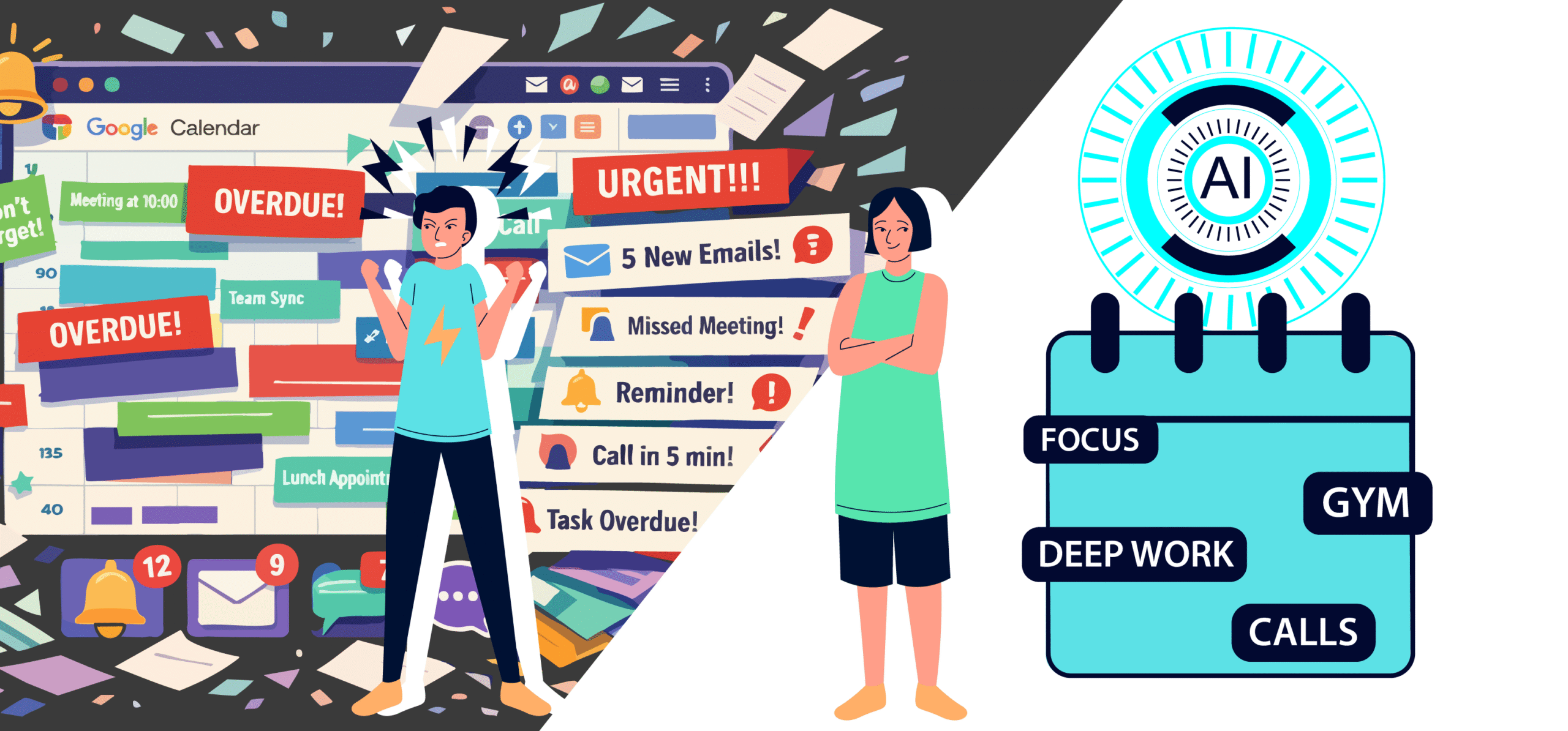
An average knowledge worker gets 2 to 3 hours of genuine deep focus per day.
The rest gets swallowed by meetings, context-switching, and the mental overhead of constantly re-planning a schedule that keeps falling apart.
Habits like reading or working out don’t stand a chance. Even lunch ends up squeezed between calls.
Reclaim uses AI to fix that.
It automatically builds your day around what matters and defends it when things shift. It helps you plan your week and save time.
I’ve been using it on and off for six months across all kinds of weeks; back-to-back meeting weeks, fully async weeks, and everything in between.
In this article I’m going to share my honest review of Reclaim, its features, pricing, pros and cons, and whether you should use it.
Let’s begin.
TL;DR
Reclaim turns a chaotic calendar into a defended plan without constant manual tweaks.
It’s a calendar operating system that builds your day around what actually matters, balancing meetings, deep work, and habits automatically.
It’s the right tool if your calendar is chaotic and you need something to bring order to it. It’s the wrong tool if you want a daily planner or a task manager.
What Is Reclaim?
Reclaim is a step above calendars and scheduling tools.
It’s an AI layer on top of Google Calendar or Outlook that auto-schedules your tasks, habits, focus blocks, and meetings based on priorities and deadlines, so your day doesn’t collapse the moment a new meeting gets booked.
You get a shareable meeting link, time blocking features, and analytics that tells you where your week actually went.
The AI handles the reshuffling. You just show up.
Setup takes about 5 minutes, and there’s a free plan to start.
If you’re constantly context-switching between meetings and focus work, and your calendar feels like something that happens to you rather than for you, Reclaim is worth a serious look.
How to Get Started with Reclaim?
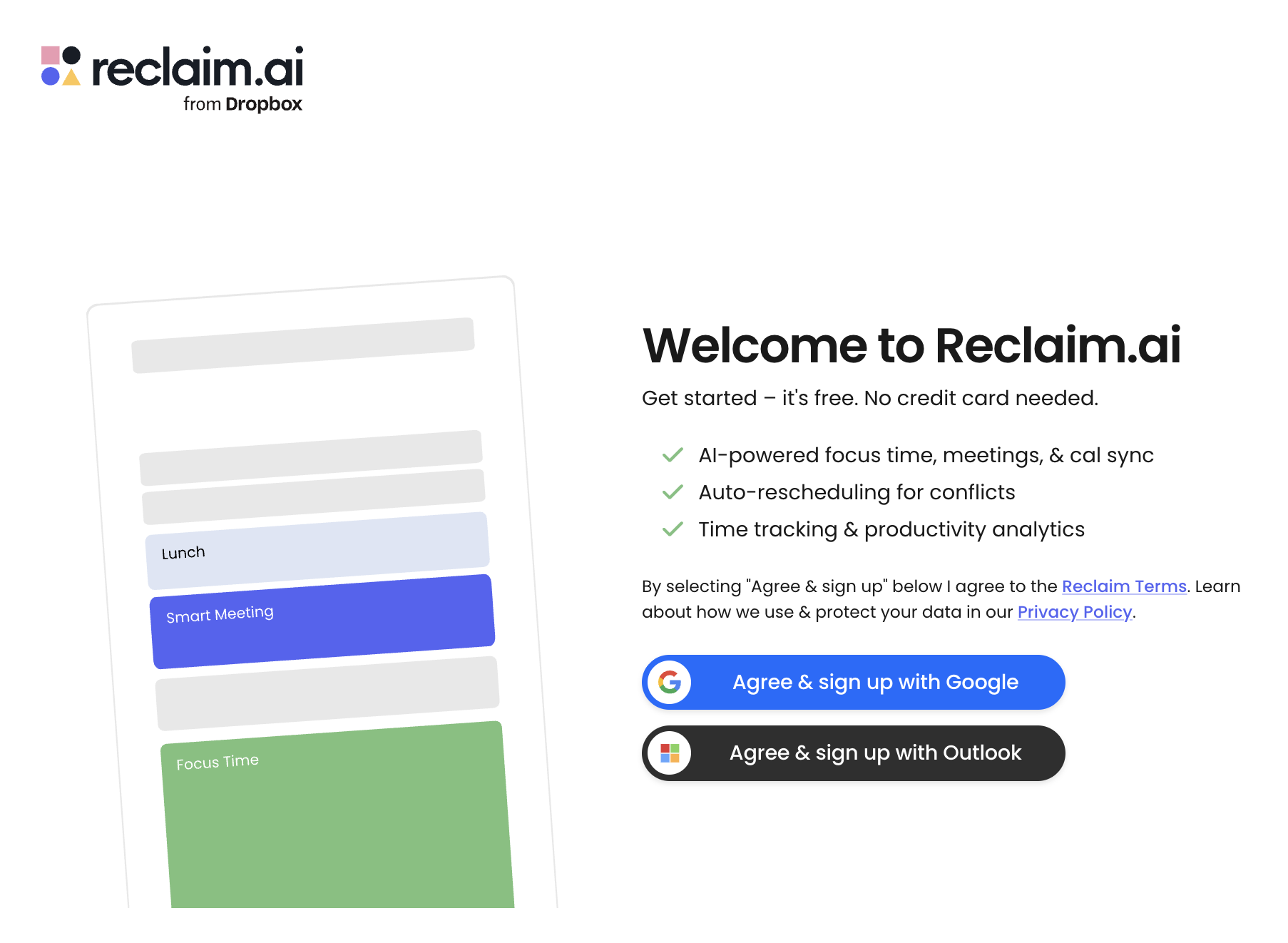
Getting in takes under five minutes.
Head to Reclaim’s website, sign up with Google or Outlook, and connect your calendar.
If you have a personal calendar you want to keep separate, you can connect that too. Reclaim will sync both to map your availability correctly.
During setup, Reclaim asks what you do and why you’re here, then uses your answers to configure your preferences. You can also invite teammates before you finish.
Once you’re in, the dashboard is clean and everything is reachable from the home screen.
Reclaim also walks you through each feature on your first visit, so the basics are covered.
What Features Does Reclaim Offer?
1. Planner
The Planner is your command centre.
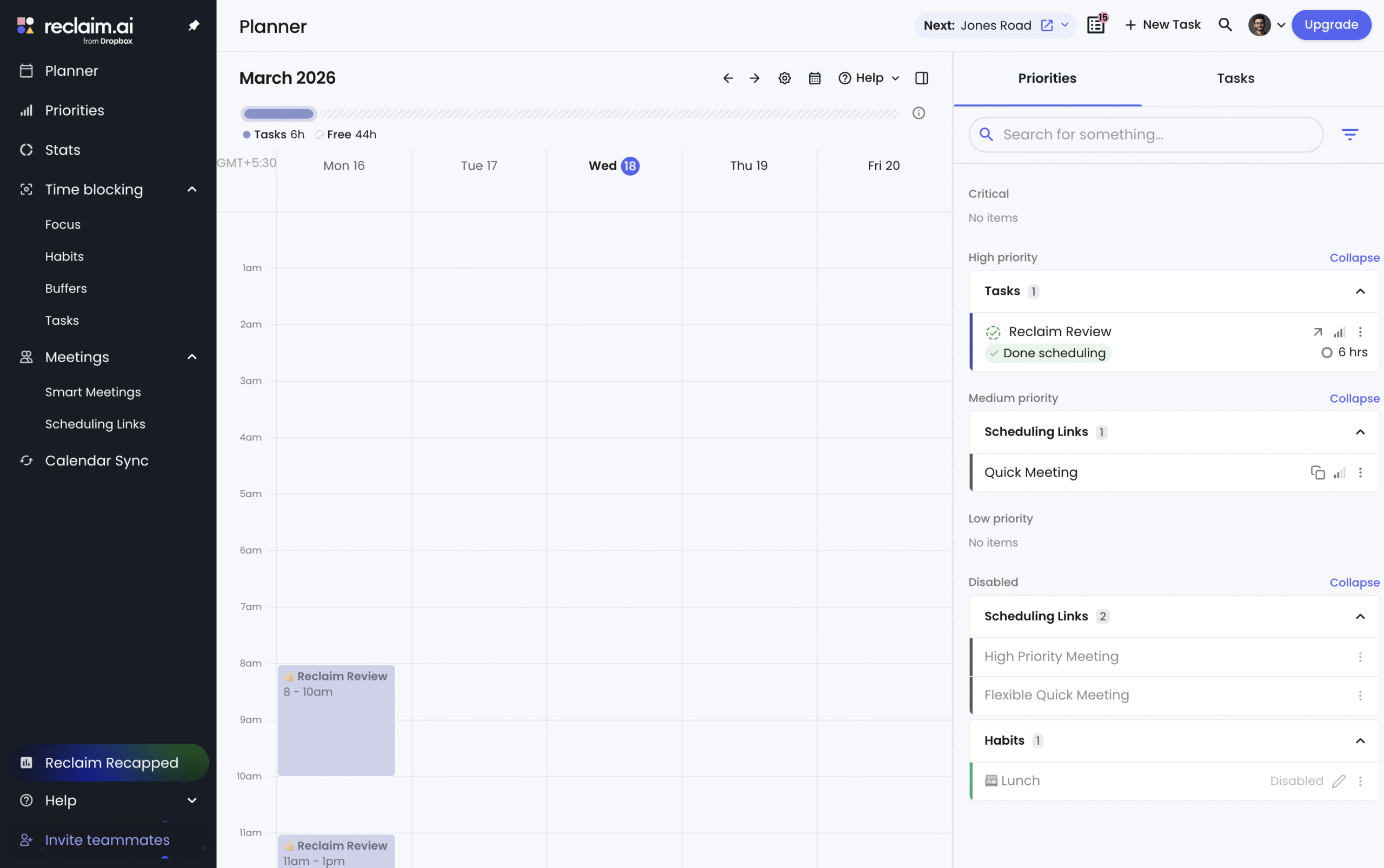
It’s the first thing you see when you log in, a weekly calendar view on the left and a prioritised task list on the right. You can see exactly what’s scheduled, what still needs a slot, and how much free time you actually have left in the week.
2. Time Blocking
Reclaim splits time blocking into four types.
- Focus
Reclaim carves out focus time in your calendar and protects it when new meetings come in.
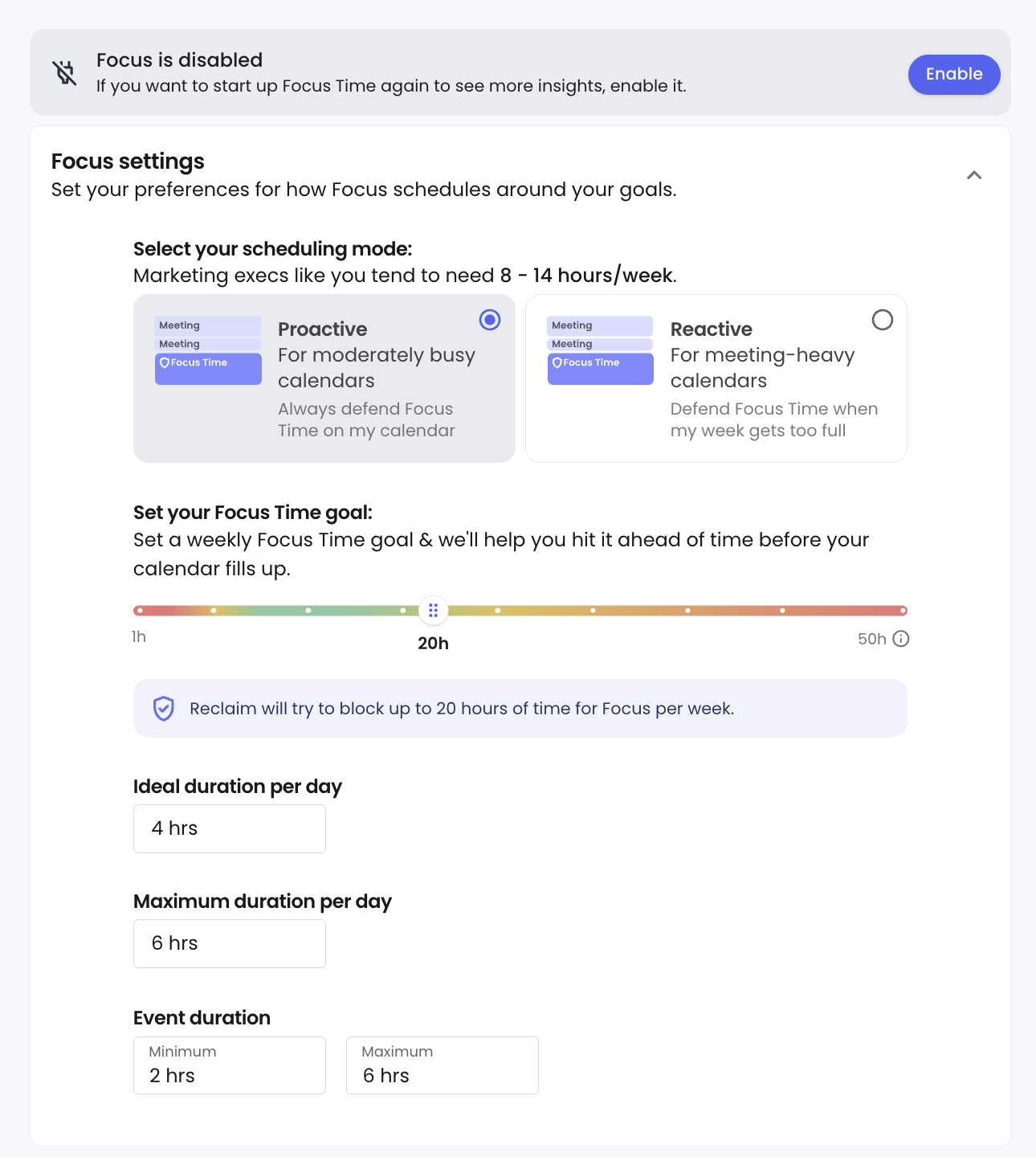
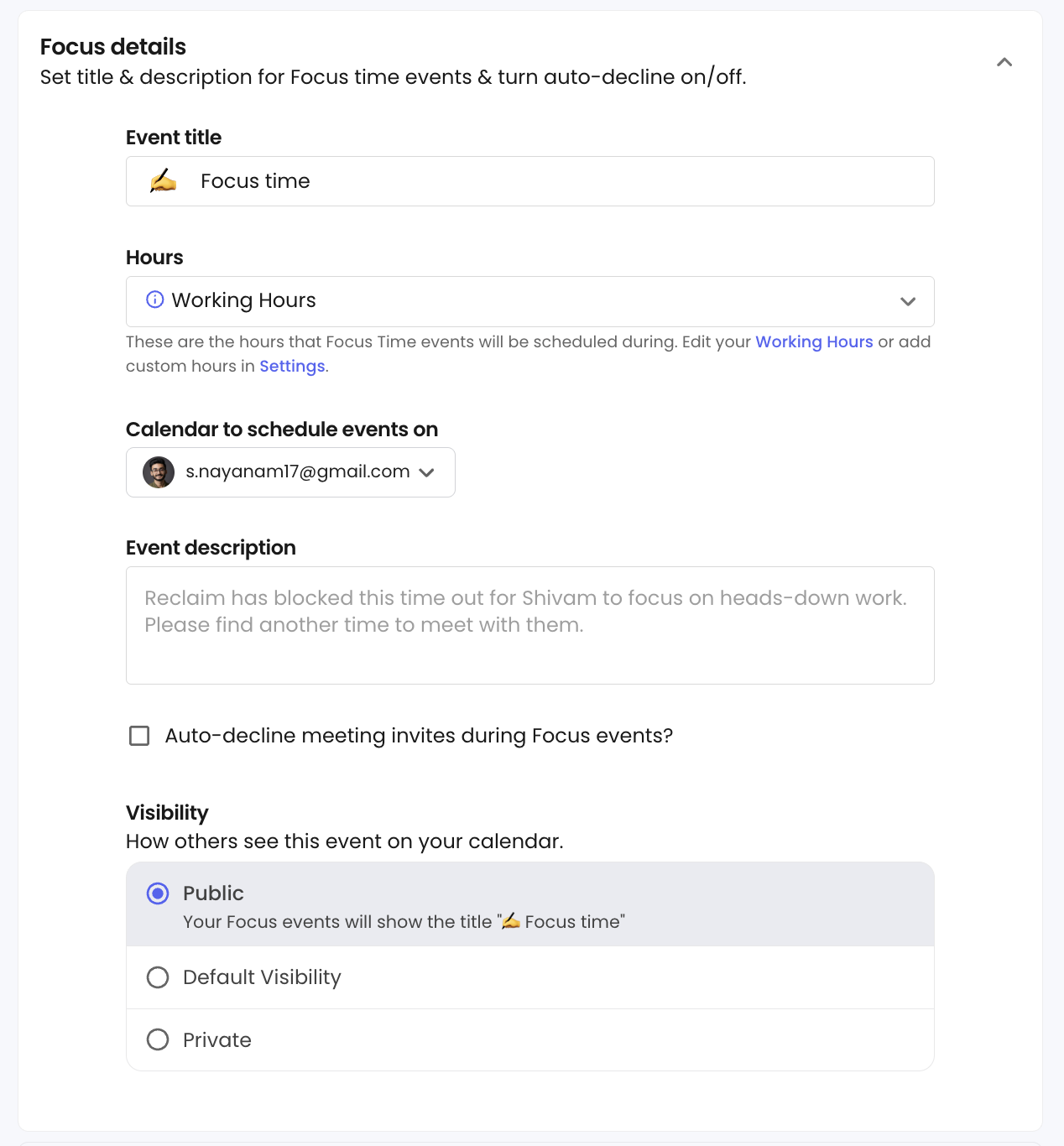
You set how many hours you want per week, the ideal session length, and the minimum block it should schedule.
You can also name the block whatever shows up on your calendar, and choose whether it pulls from work hours, personal hours, or both.
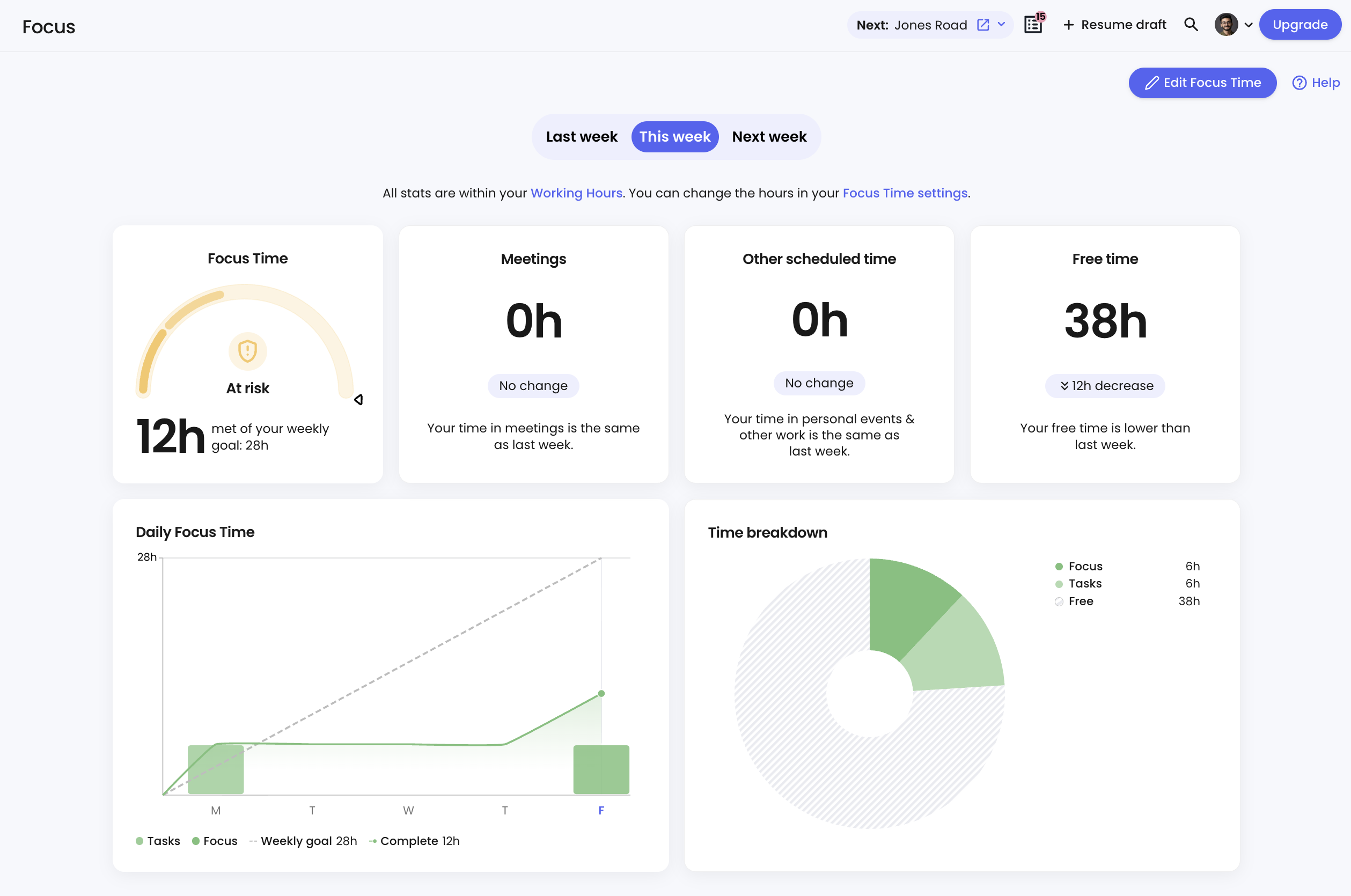
A weekly metrics view lets you see how much focus time you actually got versus what was planned.
- Habits
Habits let you protect recurring personal commitments like lunch, a reading block, or a workout the same way you’d protect a meeting.
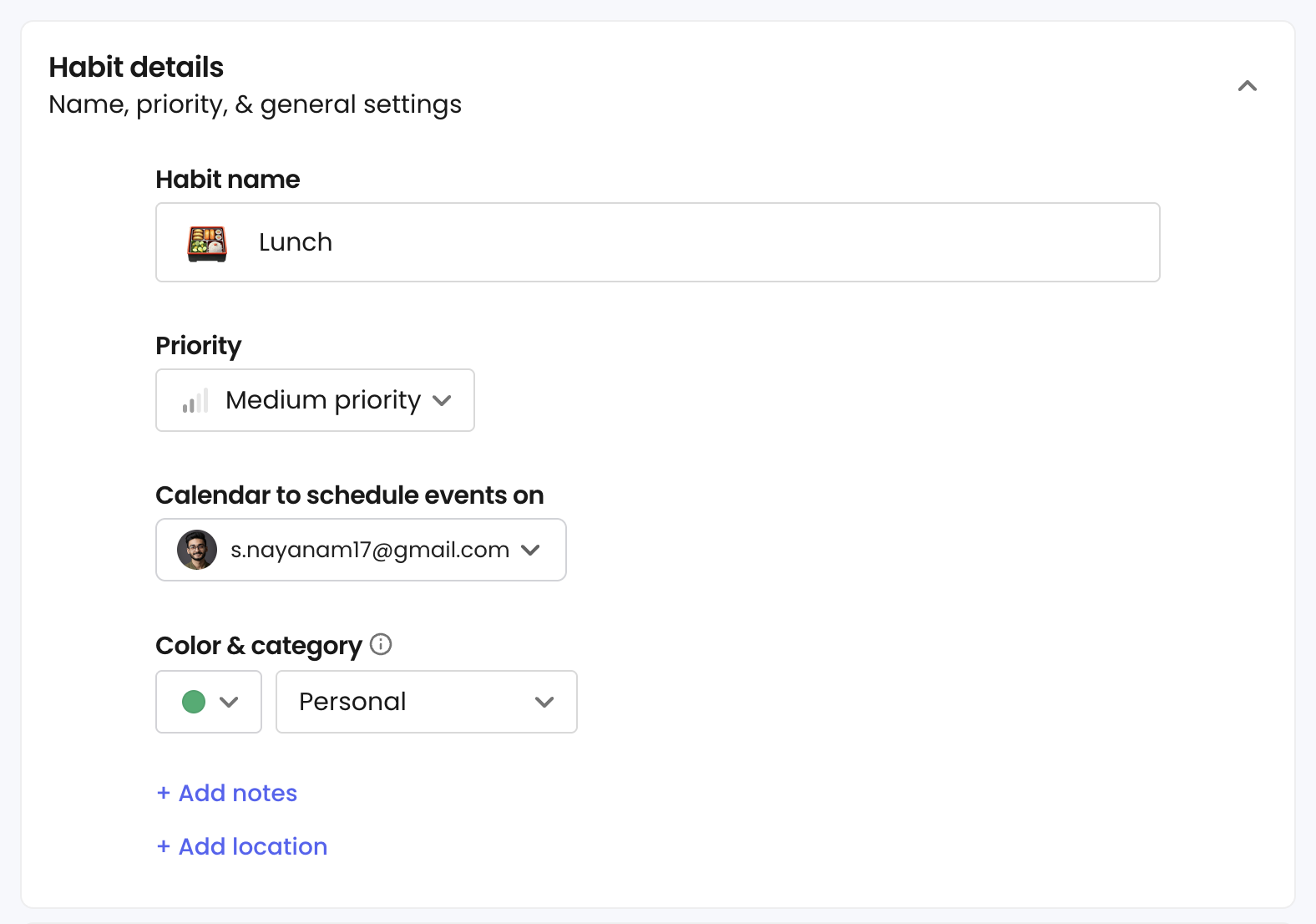
You set the ideal time, duration, and which days it runs. Assign a priority level and Reclaim fits it into your calendar automatically, adjusting around everything else. Your availability updates to reflect it too, so no one books over your lunch.
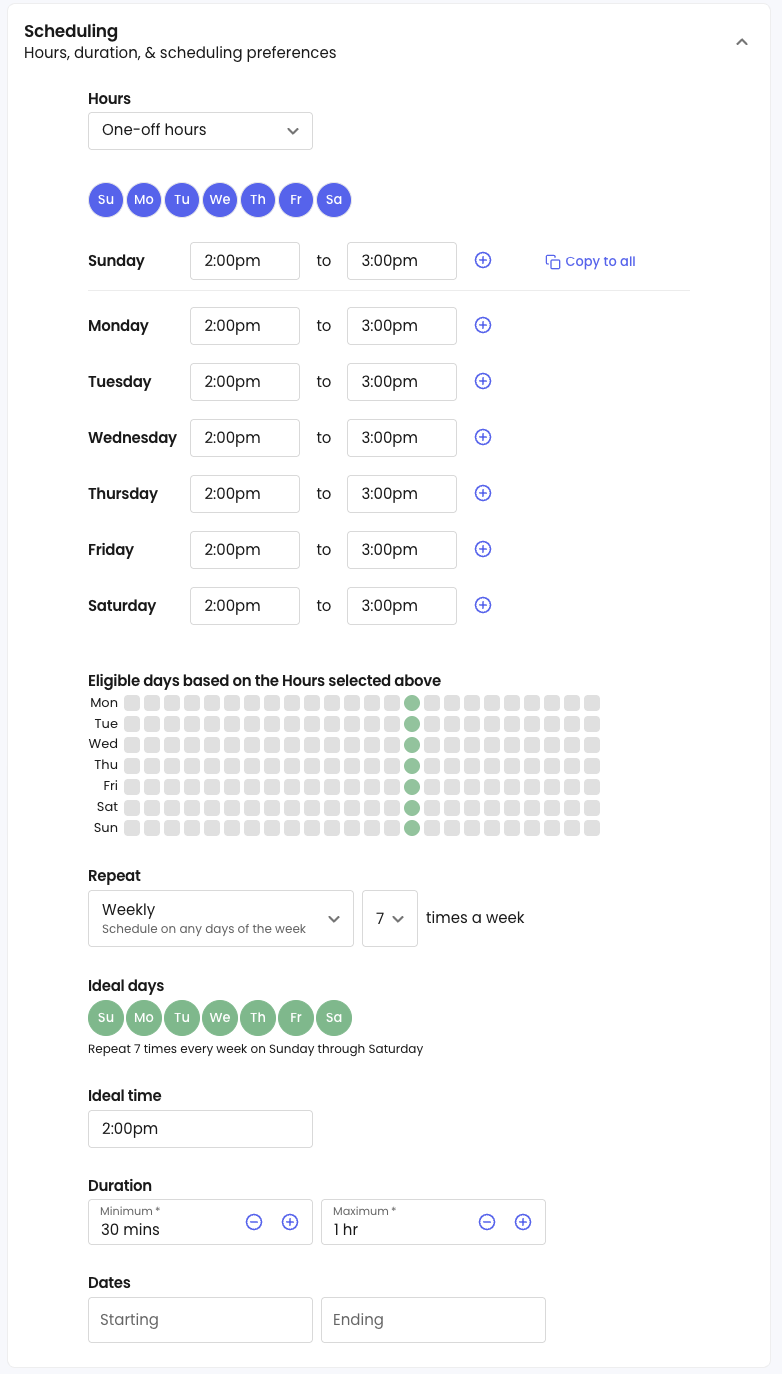
The free plan limits you to one habit. You need the Starter plan for unlimited.
- Buffers
Most calendars let you get booked back-to-back until you’re running on empty. Buffers is Reclaim’s way of fighting that.
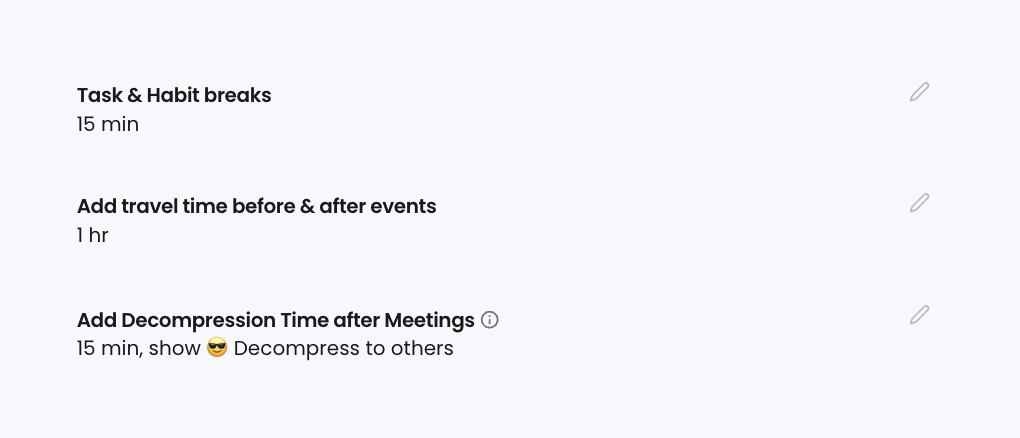
It gives you three types of automatic breathing room:
– Task & Habit breaks: Reclaim adds a gap between your tasks and habits so they don’t stack directly against each other. The default is 15 minutes, and you can adjust it.
– Travel time: Reclaim blocks time before and after any event that has a location, so you’re not teleporting between a meeting and your next commitment. It stays in sync. If the event moves, the travel block moves with it.
– Decompression time: A buffer added after meetings so you can actually process what happened before jumping into the next thing. But, decompression time won’t schedule if another event is already sitting directly after your meeting.
- Tasks
Add a task and Reclaim finds the time for it automatically.
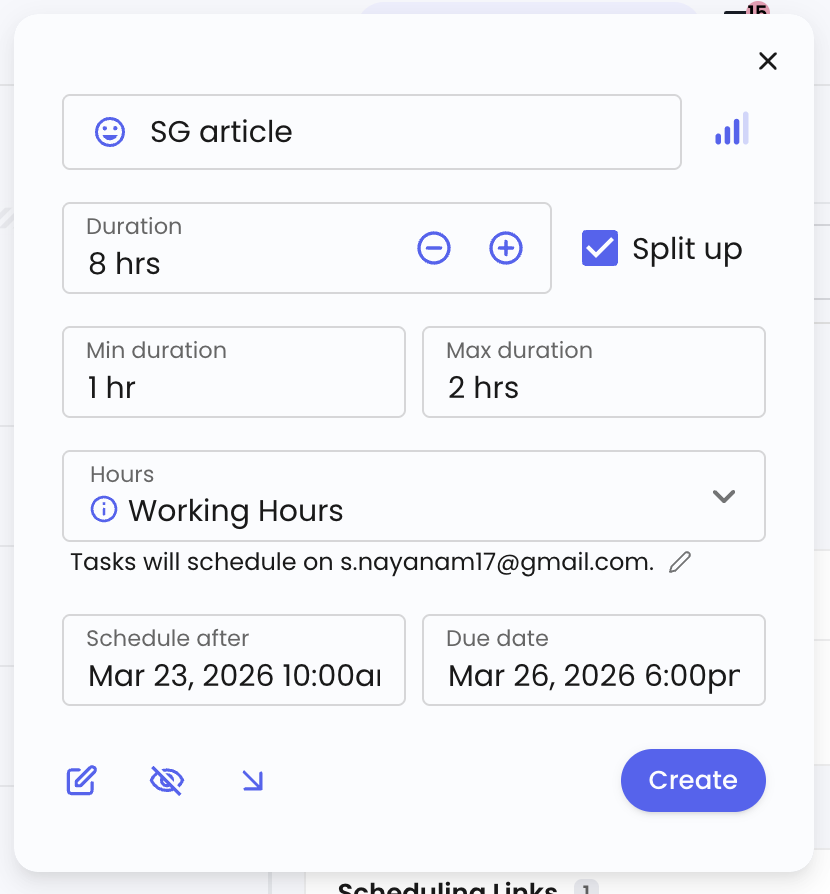
You set the total hours needed, a minimum and maximum session length, and a due date.
Turn on “Split up” and Reclaim breaks the task into smaller blocks across your schedule instead of looking for one long uninterrupted slot.
You can also set a start window so it doesn’t schedule the work before you’re ready to begin.
Once created, it lands on your calendar without you touching a thing.
3. Priorities
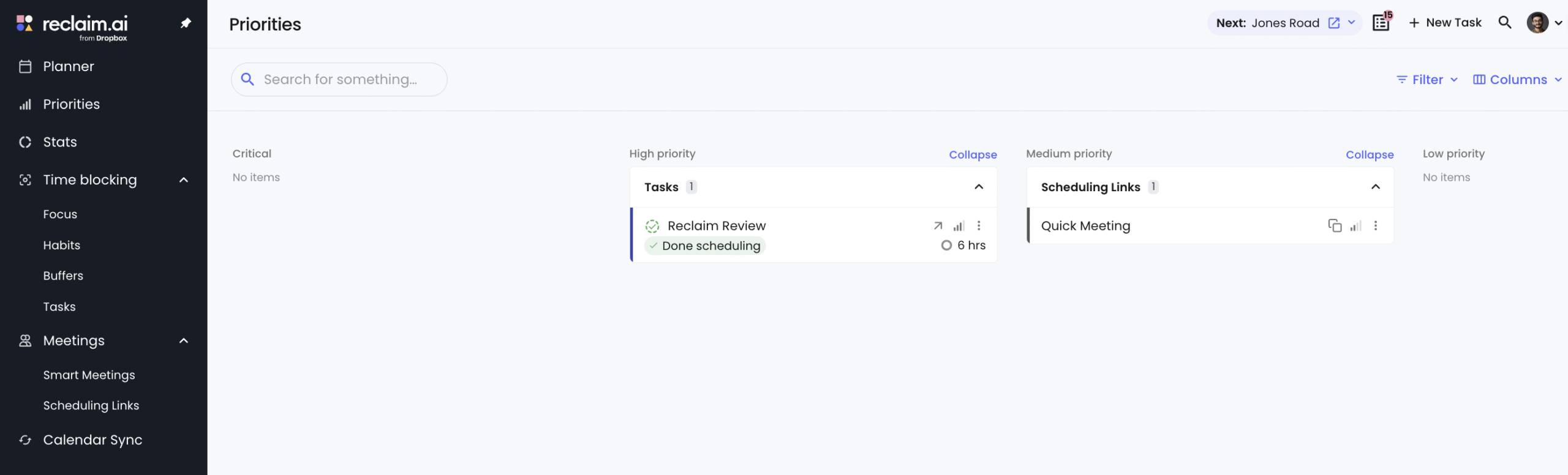
Every task, habit, and meeting link you create gets a priority level: Critical, High, Medium, or Low.
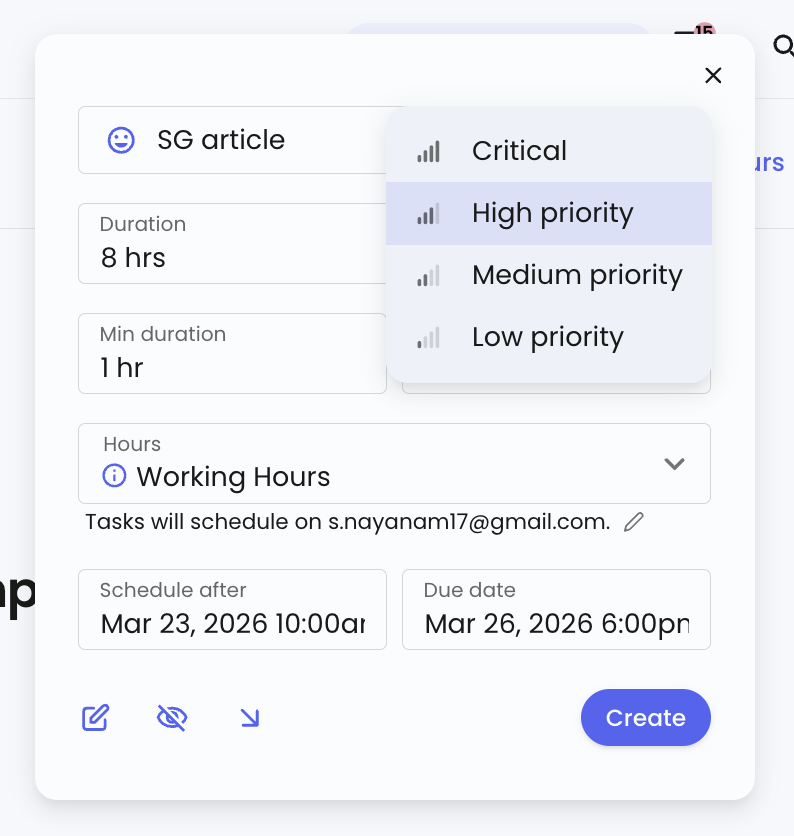
Reclaim uses these to decide what gets the best slots in your calendar. A Critical task gets scheduled before a Medium one. If your week fills up, lower priority items get pushed, not your most important work.
The Priorities panel in the left sidebar gives you a filtered view of everything sorted by level, so you always know what needs your attention first.
4. Stats
Stats is where you find out where your time actually went.
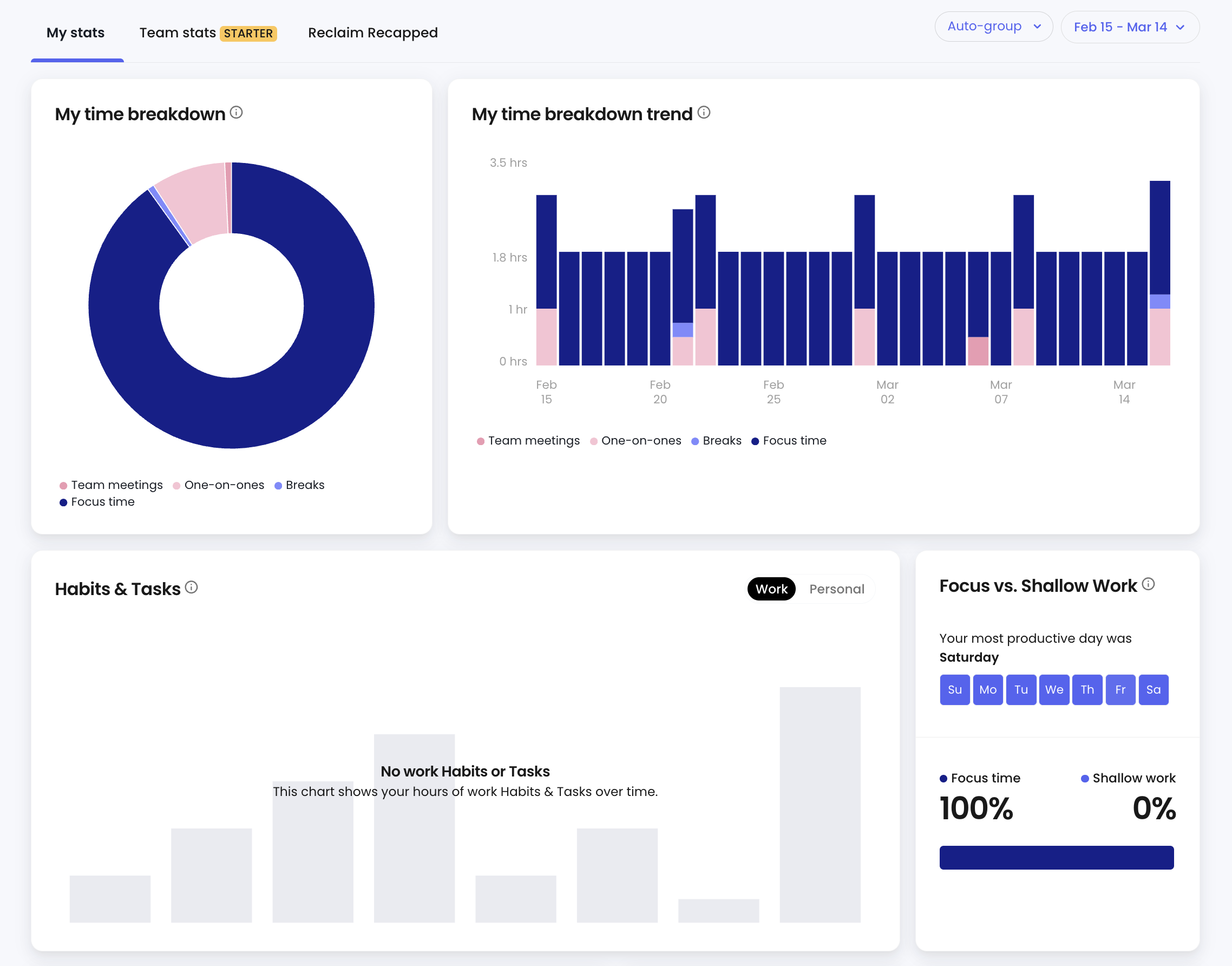
The dashboard breaks your week down into focus time, meetings, one-on-ones, breaks, and shallow work. You get a donut chart for the snapshot and a trend graph going back weeks so you can spot patterns over time.
The Focus vs. Shallow Work chart is the one worth checking regularly. It tells you what percentage of your day was deep work versus low-value tasks, and which day of the week you’re most productive.
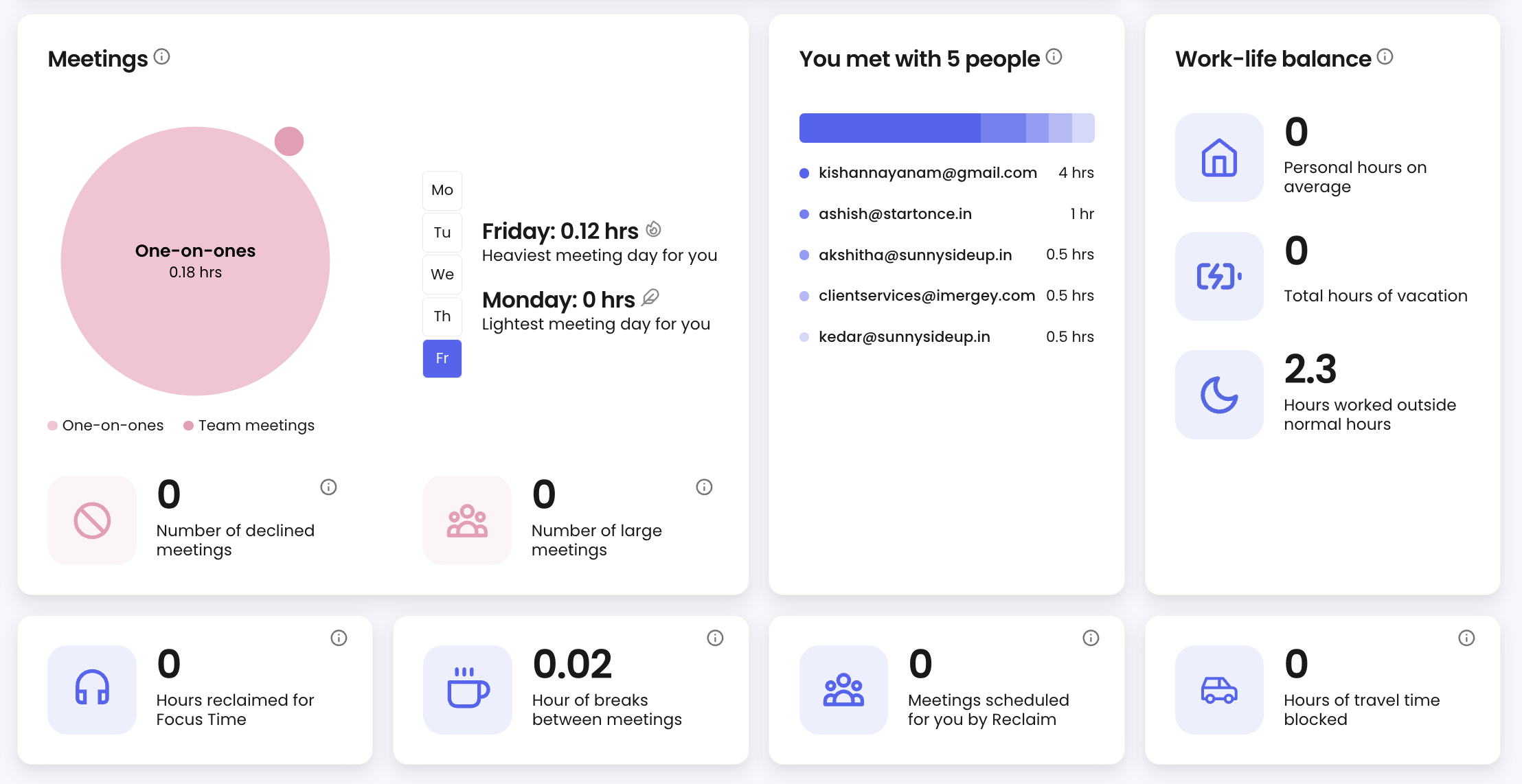
You can see your heaviest meeting day, who you’re spending the most time with, how many large meetings you declined, and how many hours you worked outside normal hours. There’s even a work-life balance card that tracks personal hours and vacation time.
Team stats are available on the Starter plan and above.
5. Meetings
Reclaim splits meetings into two features: Scheduling Links and Smart Meetings.
Scheduling Links
Scheduling Links are Reclaim’s version of Calendly booking pages.
The difference is in how availability works. Standard scheduling tools only show your existing free slots. Reclaim’s links also consider your flexible time blocks reserved for tasks and habits, so it surfaces times that genuinely work for you without gutting your focus time.
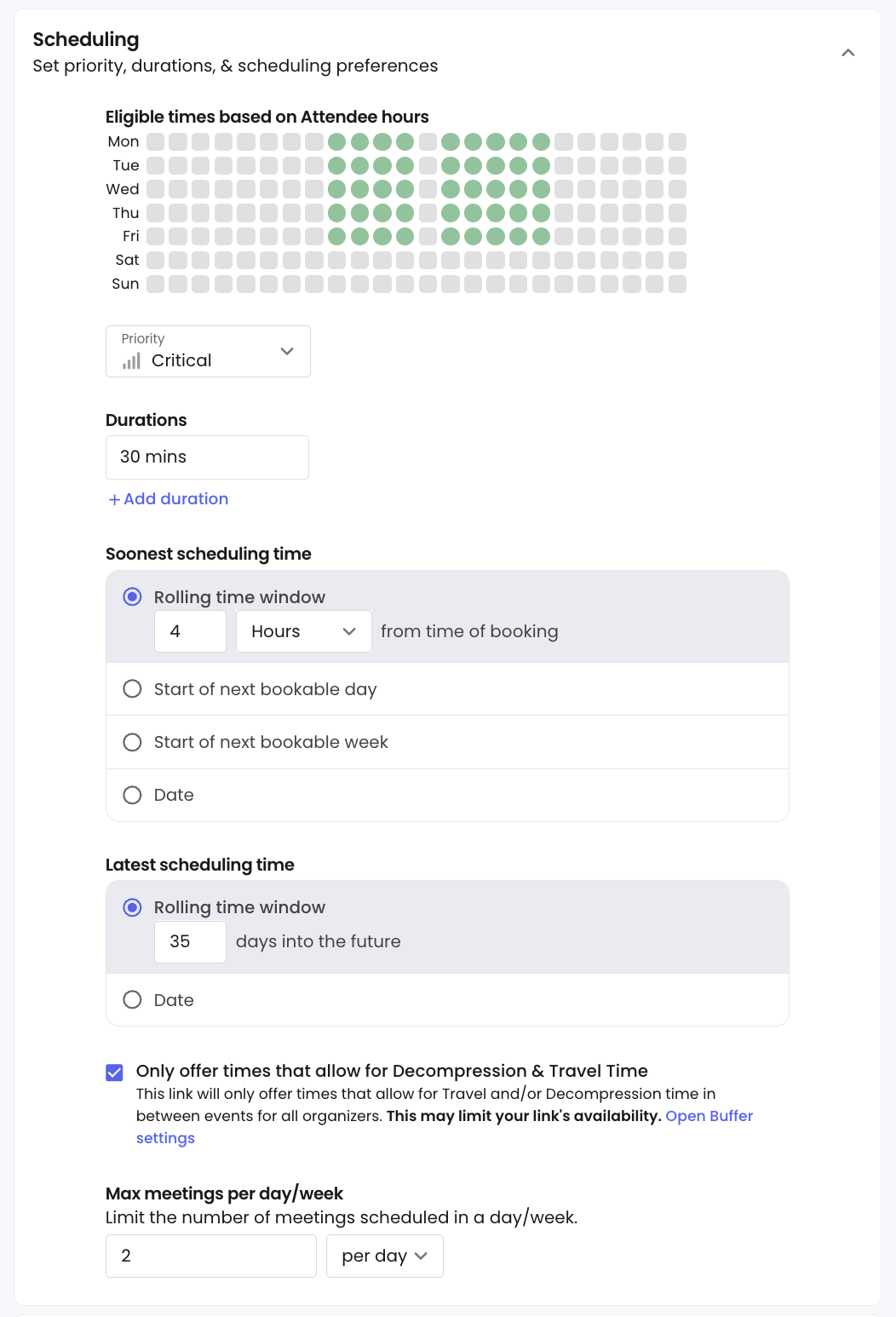
You can assign a priority level to each link and Reclaim weighs that against everything else on your calendar when showing availability. A high-priority meeting link won’t get buried behind a low-priority task block.
You can also set meeting length options, cap how many meetings get booked per day or week, and ask custom screening questions before anyone locks in a slot.
Customisation options are limited though. No custom forms, no payment collection like Calendly.
The free plan gives you one scheduling link. Paid plans unlock multiple links with different priority settings and configurations.
Smart Meetings
Smart Meetings are built for teams. Instead of the usual back-and-forth about who’s free when, you create a one-on-one or team meeting in a few clicks and Reclaim finds the best time across all attendees’ calendars automatically.
It works particularly well for recurring meetings since it keeps finding the optimal slot as everyone’s schedules shift.
6. Time Defence
Most calendar tools mark your time as either busy or free. Time Defence gives Reclaim a third option.
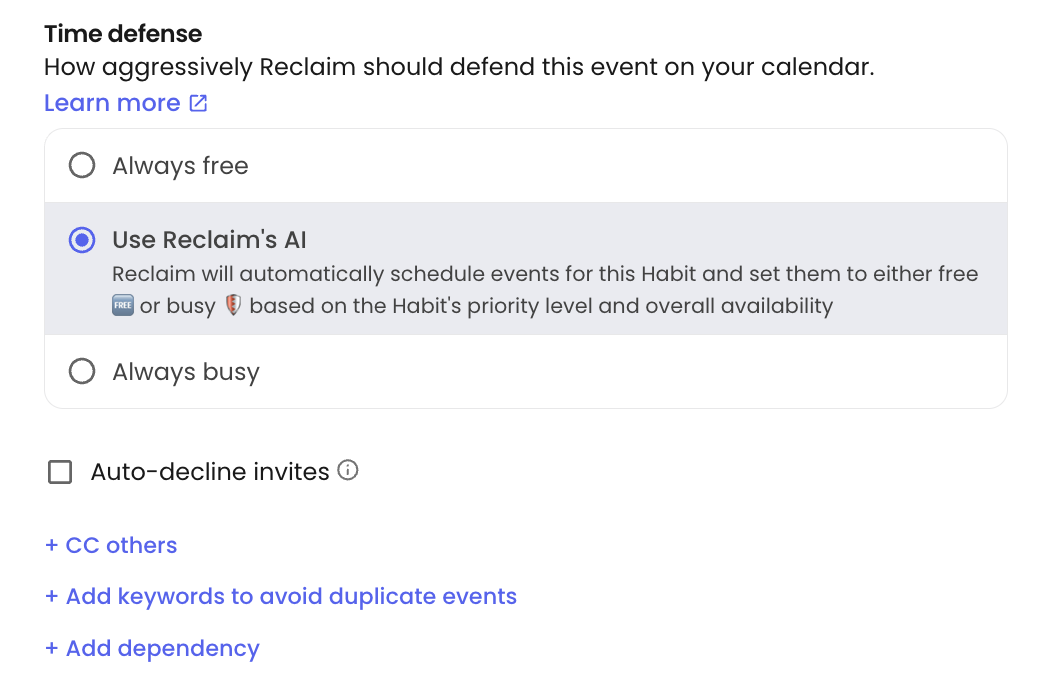
On any task, habit, or event, you choose how aggressively Reclaim protects that slot:
- Always free: The slot stays open. Anyone can book over it.
- Use Reclaim’s AI: Reclaim decides based on priority and your current availability. A high-priority habit blocks the slot. A low-priority one gets bumped if something more important needs the time.
- Always busy: The slot is locked. Nothing gets scheduled over it.
You can also turn on auto-decline for any event, so meeting invites that land on that block get declined automatically without you touching anything.
7. Calendar Sync
If your work and personal calendars live separately, Reclaim connects them so nothing overlaps.
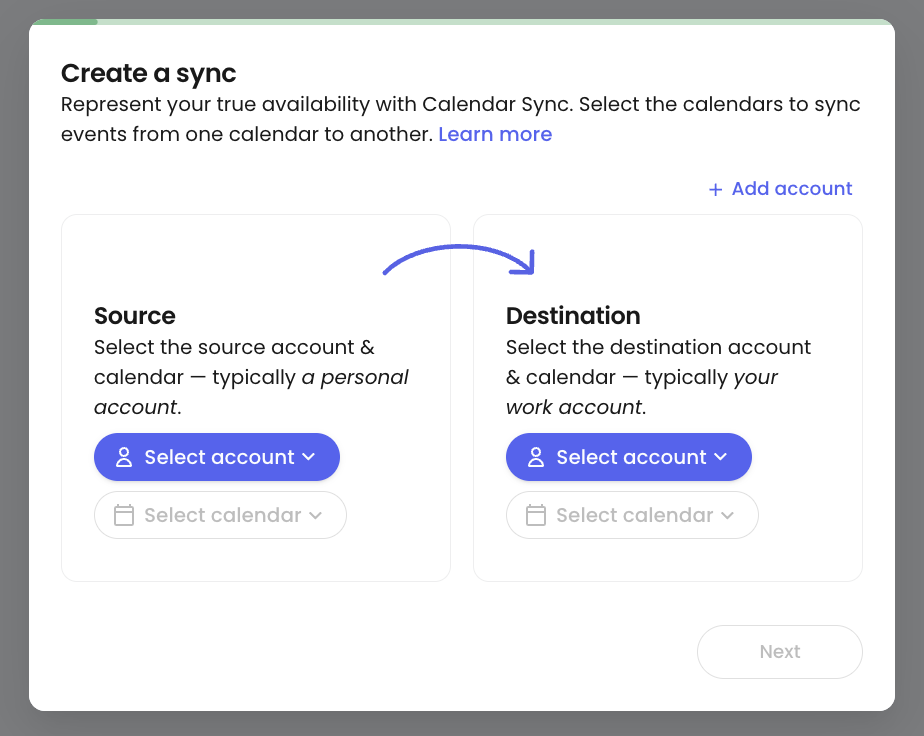
Link both calendars and Reclaim treats your personal commitments as real blocks when scheduling work. No more meetings landing on time you already had claimed elsewhere.
The free plan supports two calendars. The Starter plan covers up to four.
How user friendly is the Reclaim user experience?
Reclaim offers intuitive and effective calendar management.
The interface is clean and everything is reachable from the sidebar without digging through menus. The dashboards load fast and the layout makes sense from day one.
But, Reclaim has no native app on the App Store or Google Play. Instead, you need to install it as a Progressive Web App on both desktop and mobile.
On the desktop, open Reclaim in Chrome, click the three-dot menu, and select “Save and share.” You’ll see the option to install it.
On iPhone, open Reclaim in Safari, tap Share, and select “Add to Home Screen.”
It behaves like a native app on both.
How Much Does Reclaim Cost?
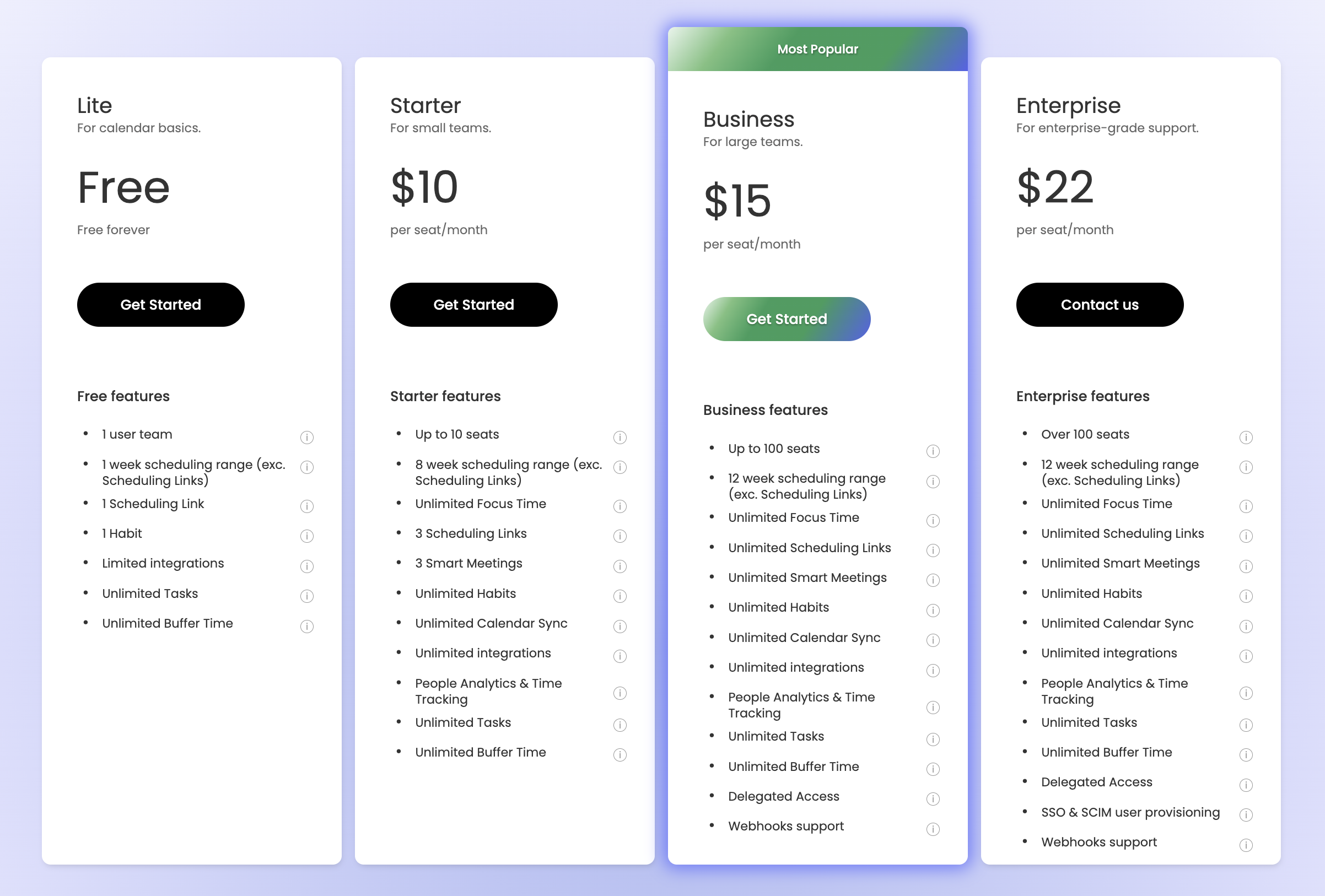
- Lite: Free
- Starter: $10/month (billed annually) or $12/month (billed monthly)
- Business: $15/month (billed annually) or $18/month (billed monthly)
- Enterprise: $22/month (billed annually) [no monthly plans available]
Once you sign in, you get a 14-day free trial of the business plan, no credit card required.
After that, you may pick any of the 4 plans.
The free plan is genuinely useful, not a stripped-down teaser.
You get two calendar syncs, one habit, one scheduling link, one Smart Meeting.
But the free plan leaves out task integrations with tools like Asana, ClickUp, and Todoist, and gives you no control over booking page branding or customisation.
Starter covers most of what an individual or a small team needs: Time tracking, unlimited habits, unlimited calendars, multiple scheduling links, task integrations and advanced analytics.
For teams, Business adds people analytics, more admin controls, and deeper reporting.
My thoughts on Reclaim
What’s so good about Reclaim?
- It reschedules your day so you don’t have to.
When a meeting drops in, Reclaim moves your tasks around it automatically. No manual juggling every time something shifts.
- Everything talks to each other.
Tasks from ClickUp, Asana, and Todoist. Calendars from Google and Outlook. Habits, meetings, and focus blocks all in one place.
- The free plan holds up.
For freelancers and solo users, the free tier covers the core use case without pushing you toward a paid plan on day one.
- Priority-based scheduling that actually works.
You set what matters most and Reclaim protects it. Critical tasks get the best slots, everything else still meets the weekly goals.
What’s not so good about Reclaim?
- If you’re not in the app, you’re mostly not in Reclaim.
Notifications come through Google Calendar rather than a native system, and there’s no quick-access widget or timer to keep you aware of what’s on your plate.
- It’s a scheduler, not a planner.
Tasks and habits exist, but they’re shallow. No subtasks, no notes, no dependencies. If you want to replace your task manager, Reclaim isn’t it.
- No built-in payment collection.
You can’t collect payment through a Scheduling Link. The workaround is dropping a payment link in your meeting description or the follow-up email, or using Zapier to automate it.
- Teams get a basic experience.
Smart Meetings help, but that’s about it. No shared task tracking, no workload visibility, no project coordination. Tools like Motion offer teams much more than just a shared calendar.
Verdict: Should You Use Reclaim?
If you’re constantly context-switching between meetings and deep work, losing focus time to last-minute bookings, struggling to keep up with personal commitments and manually reshuffling your schedule every time something moves, Reclaim fixes that.
It does the rescheduling work automatically, and it does it well.
The trade-off is depth. Reclaim touches a lot of things: tasks, habits, meetings, analytics but it doesn’t go as deep as dedicated tools in any single category. It’s a coordination layer, not a replacement for your calendar, task manager or personal planner.
Use Reclaim if:
- Your week is a constant mix of meetings and focused work you need to protect
- You’re a freelancer, consultant, or someone who lives in their calendar
- You want one tool to handle scheduling, habits, and task blocking without stitching three apps together
Skip Reclaim if:
- Your schedule is mostly fixed and doesn’t need dynamic rescheduling
- You want a deep personal planner with journaling, daily reviews, or structured routines
- You have no real meetings and scheduling problem to solve
And we’re done.


 A better way to manage projects and clients for freelancers
 Get through busy days like a breeze with Reclaim.ai