
Your brain wasn’t built to remember every meeting note, link, and half-formed idea.
That’s why details slip through the cracks: the name your colleague mentioned yesterday, the deadline you swore you wouldn’t forget, the article you meant to save for later.
That’s where a “second brain” comes in.
These apps act like external memory: they capture what you don’t want to lose, connect it to what you already know, and bring it back when you need it.
The result?
Less mental clutter, fewer decisions draining your energy, and more focus on the work that matters.
How I Tested These Tools
Every app on this list was tested in real, day-to-day use.
From capturing ideas the moment they popped up to organising them into a clear system, and then retrieving them later when they were needed.
Testing wasn’t limited to work tasks. Personal notes, quick reminders, creative ideas, and long-term project plans all went into the mix, showing which tools could handle everything without feeling clunky or scattered.
Here’s what I paid attention to:
- Ease of use: Can you start planning without tutorials?
- Automation: Does it remove routine choices automatically?
- Integrations: Can it connect to apps you already use (Calendar, Notion, Gmail, Trello, etc.)?
- Flexibility: Does it adapt to your workflow, or force a new one?
- Mobile experience: Can you rely on it from your phone without frustration?
- Value for price: Does it save enough time and energy to justify the cost?
These criteria separated the apps that genuinely reduce decision fatigue from those that just look good on paper.
Best Second Brain Apps in 2025: TL;DR
- Sunsama: Best for connecting tasks with a knowledge base
- Logseq: Best for local-first outlining and backlinks
- Tana: Best for flexible tagging and daily notes
- Mem: Best for AI-powered memory recall
- Roam Research: Best for networked, non-linear thinking
- Craft: Best for beautifully structured documents
- Bear: Best for minimalist Apple-only workflows
- RemNote: Best for note-taking with spaced repetition
- Heptabase: Best for visual mind maps and deep research
- Milanote: Best for visual boards and creative projects
- Amplenote: Best for combining tasks, notes, and priorities
- Nimbus Note: Best for team knowledge and client workspaces
12 Best Second Brain Apps and Tools: Detailed Reviews
1. Sunsama: Best for connecting tasks with a knowledge base
TL;DR
Sunsama turns your to-do list and calendar into one calm, focused view. Ideal for people who want their tasks tied directly to their knowledge base without feeling overwhelmed.
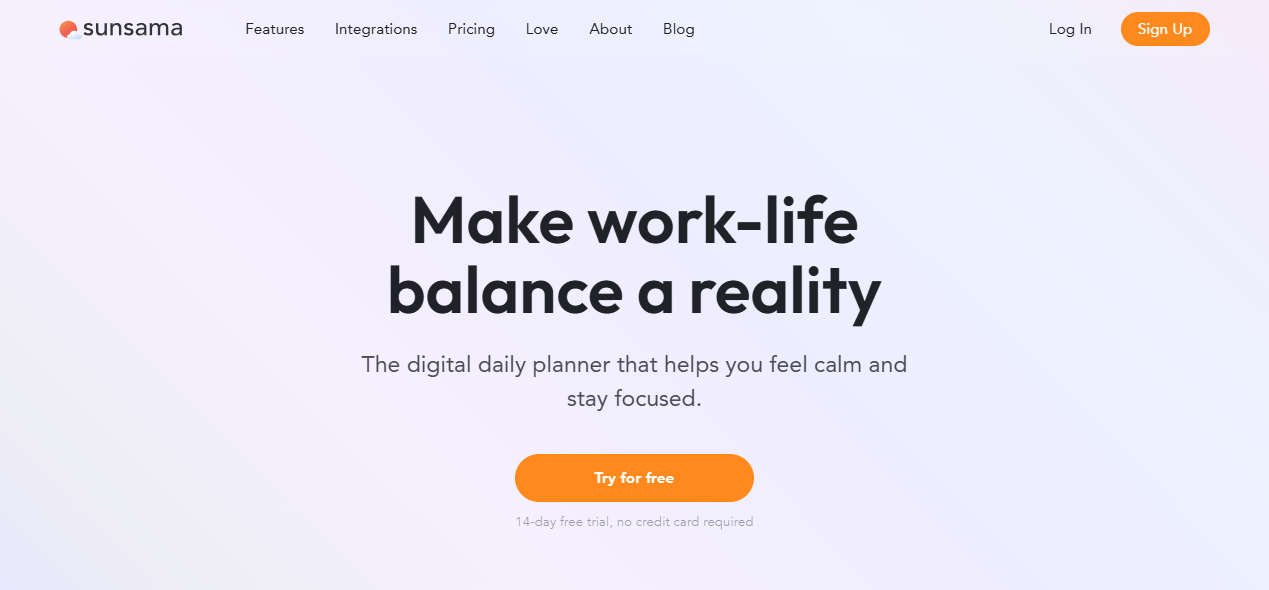
Sunsama isn’t just another productivity tool; it works like a daily decision filter. Rather than overwhelming you with an endless list of tasks, it walks you through a simple planning ritual.
You look back at yesterday, pick only the most important items for today, estimate the time needed, and drop them directly onto your calendar.
By bringing tasks, meetings, and emails into one streamlined flow, Sunsama cuts down on mental juggling. For example, you can drag an email straight into your 2 PM slot and it instantly shows up on your calendar, no second-guessing what to do next.
What stood out to me was how smoothly it pulled tasks from Notion, Trello, Gmail, and Asana without any friction. Meetings synced right away, but the interface stayed uncluttered and clean.
The end-of-day shutdown reminder was another subtle touch that helped me avoid pushing tasks into the evening.
Recent updates make Sunsama even stronger. “Task projections” (currently in beta) can auto-schedule work into available slots, while recurring tasks now show up automatically.
Focus Mode narrows your view to just one task, with a floating timer and even an auto-updating Slack status to keep interruptions at bay.
Weekly reviews are built in as well, so unfinished work carries over easily, and objectives can be set without reworking your entire plan. And since it integrates with the tools you already use, your schedule stays updated without constant tab-switching.
At the end of each day, Sunsama offers a gentle recap, a progress check that celebrates what you finished without punishing you for what you didn’t.
Pros
- Clear, guided end-of-day review
- No ads, upsells, or distracting pop-ups in the UI
- Regular updates with genuinely useful new features
Cons
- Learning curve for non-planners
- Limited team management features
Pricing
- Free: 14-day free trial (no credit card required)
- Monthly subscription: $20/user/month (monthly billing)
- Yearly subscription: $16/user/month (annual billing, $192/year)
2. Logseq: Best for local-first outlining and backlinks
TL;DR
Logseq is a privacy-first outlining powerhouse. Perfect if you love linking thoughts, building a local graph of ideas, and working entirely offline.
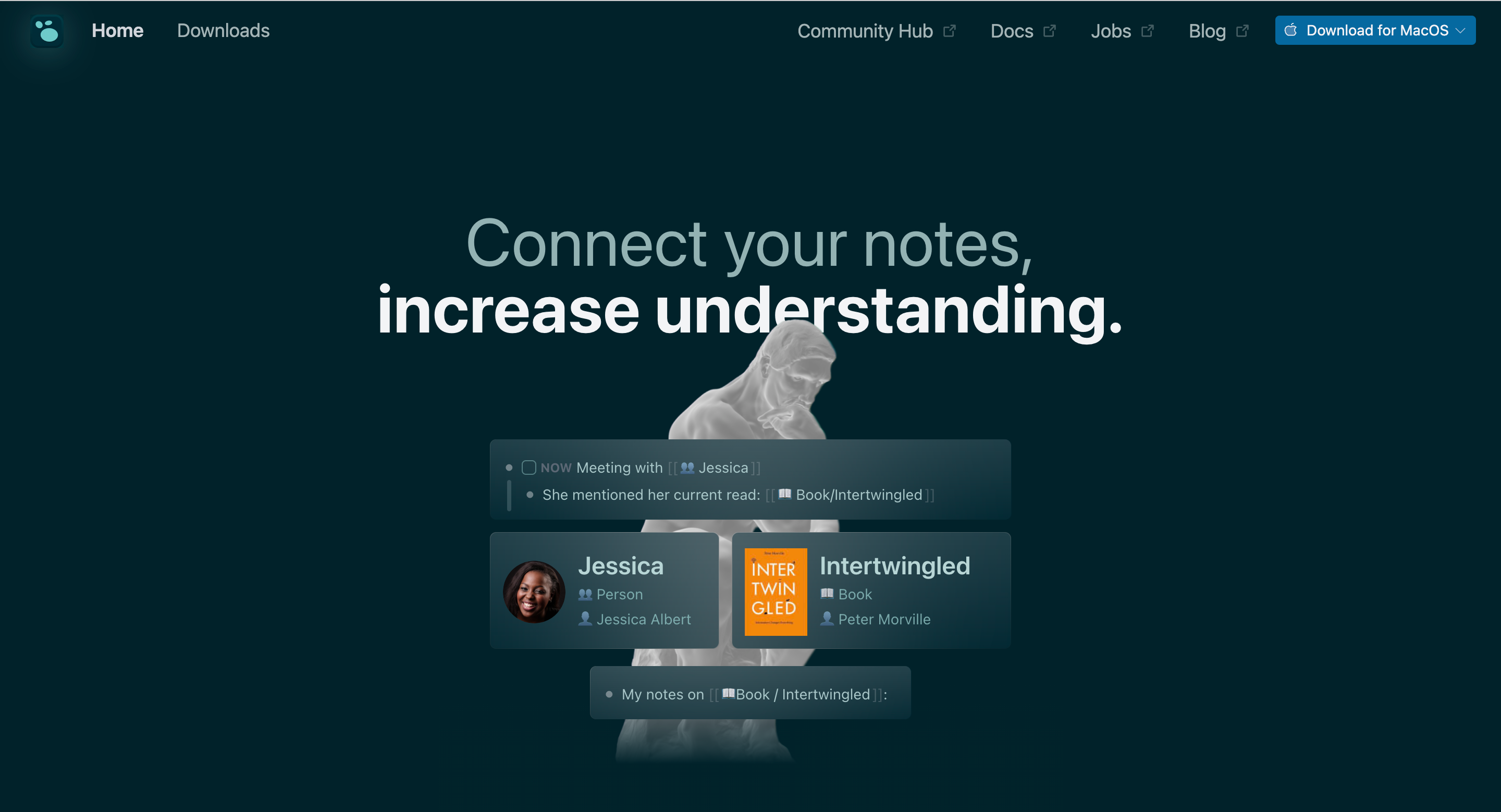
Logseq turns note-taking into a living map of your thoughts. Everything starts with bullet points that can branch endlessly, making it perfect for outlining projects, journaling, or breaking down research.
The real power is in backlinks. Mention an idea once, and Logseq connects it across your notes automatically.
Over time, Logseq doesn’t just store your notes; it surfaces them in useful ways. I searched for “marketing ideas,” and a half-written note from last year appeared, already linked to a project I had started this week. Forgotten thoughts return right when they matter.
Forgotten thoughts reappear, and connections you didn’t plan suddenly become useful. It’s like having a knowledge graph that quietly works in the background, turning scattered notes into a web of insights.
I found that its local-first design is a big relief. Notes live on your device, not on someone else’s servers.
If you want to sync, you choose the service: Dropbox, GitHub, or iCloud. That sense of control and ownership makes it stand out from cloud-only apps.
Logseq can feel overwhelming at first, especially if you’re new to graph-based tools. But once you get comfortable, it’s like having a second layer of memory, one that doesn’t just store ideas, but actively links them together.
Pros
- Strong privacy without cloud lock-in
- Knowledge graph grows automatically
- Whiteboards expand beyond plain notes
Cons
- Learning curve for new users
- Mobile app lacks advanced features
Pricing
- Free: Available for personal use
- Pro: In development (for syncing & collaboration, pricing TBA)
3. Tana: Best for flexible tagging and daily notes
TL;DR
Tana is the “everything has a tag” workspace. Great for fast daily journaling, flexible categorisation, and finding any piece of information in seconds.
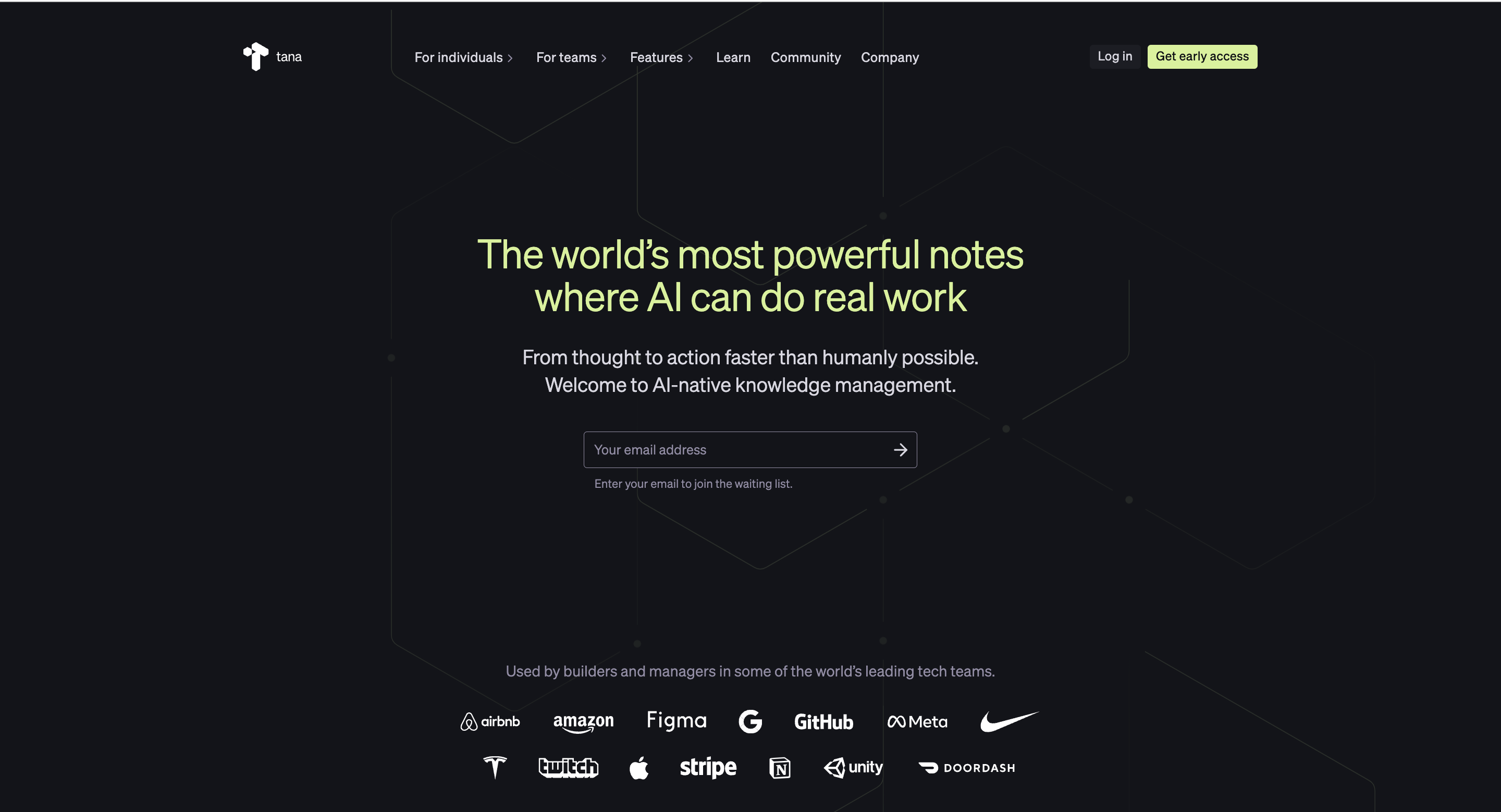
Tana is a note-taking app built around a simple principle: everything can be tagged and linked.
Instead of organizing ideas into fixed folders, you build a flexible system where projects, tasks, and references connect naturally. The backbone is the daily note, a fresh page that opens every morning to capture thoughts, reminders, and ongoing work.
Over time, these pages link back to bigger projects, so even casual notes become part of a larger structure.
The tagging system is what makes Tana feel handy in action.
When I typed “#launch” into a note, it instantly pulled together design drafts, research snippets, and task lists into a single view. Grouping such information without planning turns scattered text into patterns you can act on.
Switch to graph view and you will see those connections mapped out visually, with related notes clustering together so you can spot themes and links at a glance.
Tana is still new and evolving quickly.
The clean interface makes capturing information easy, but some workflows feel rough around the edges, and updates can introduce change faster than you expect. It takes practice to master, and the flexibility can be intimidating at first.
Once you settle into it, though, Tana grows with you instead of locking you into a rigid system.
Pros
- Graph view for visual thinkers
- Fast at surfacing related ideas
- Daily notes encourage steady capture
Cons
- Learning curve for complex setups
- Still maturing with frequent changes
Pricing
- Free: Get up to 20000 nodes, 2 workspaces, and 0.5 GB file storage
- Plus: $10/month (monthly billing) or $8/month (annual billing)
- Pro: $18/month (monthly billing) or $14/month (annual billing)
4. Mem: Best for AI-powered memory recall
TL;DR
Mem is your AI memory assistant. It recalls old notes, links related ideas automatically, and makes your knowledge feel alive.
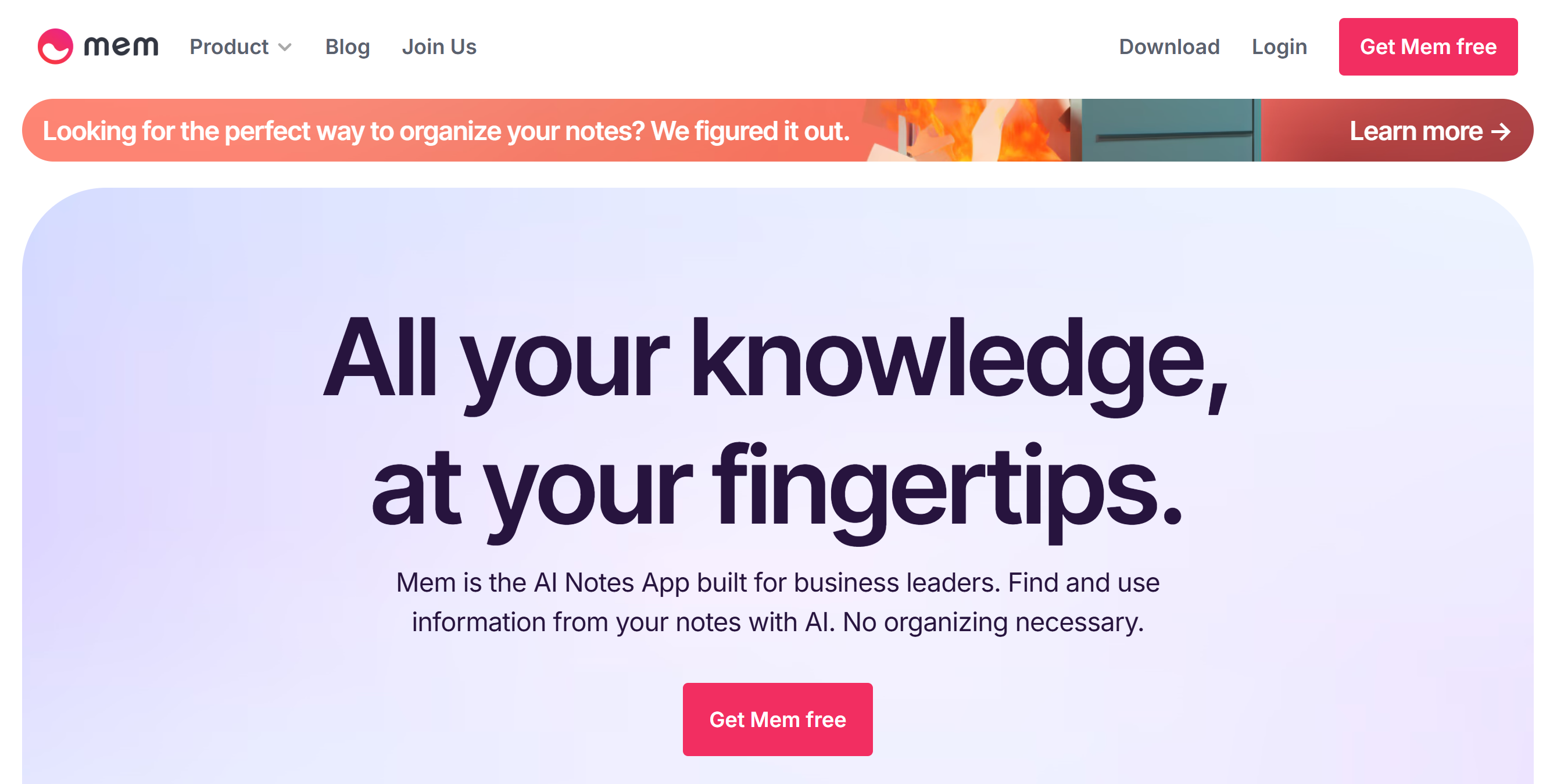
Mem is designed to work like a personal memory assistant powered by AI. Instead of forcing you to set up folders or rigid systems, it lets you capture ideas quickly and then organizes them automatically in the background.
Over time, it learns your habits, surfaces related thoughts, and makes old notes feel instantly accessible.
The strength of Mem lies in its automation. Search feels less like digging through folders and more like asking someone who remembers everything you’ve ever written.
I found it surprisingly good at pulling up old notes I had forgotten, especially when searching by context rather than exact keywords.
Typing “budget ideas” instantly surfaced a note from months ago where I had scribbled a quick thought during a meeting, even though I never tagged it or filed it neatly. It’s like asking an assistant, ‘What did I think about pricing last spring?’, and Mem produces the exact note in seconds
Mem also works well for people who dislike rigid systems. There are no folders to manage, no complex setup to maintain. You just type, tag if you want, and trust the system to make connections in the background.
It’s an approach that favours speed and spontaneity over structure.
Since it’s still under development, some features feel experimental, and occasional rough edges show through.
Pros
- Clean, minimalist interface design
- Collaboration features built for teams
- Quick capture on desktop and mobile
Cons
- Limited offline functionality
- Features still feel experimental
Pricing
- Free plan: Available during Alpha and Beta testing phases (Mem 2.0)
- Pricing plans: To be announced upon full release
5. Roam Research: Best for networked, non-linear thinking
TL;DR
Roam Research is the original networked-thinking app. It is ideal for mapping your brain in a non-linear way and spotting connections you didn’t know existed.
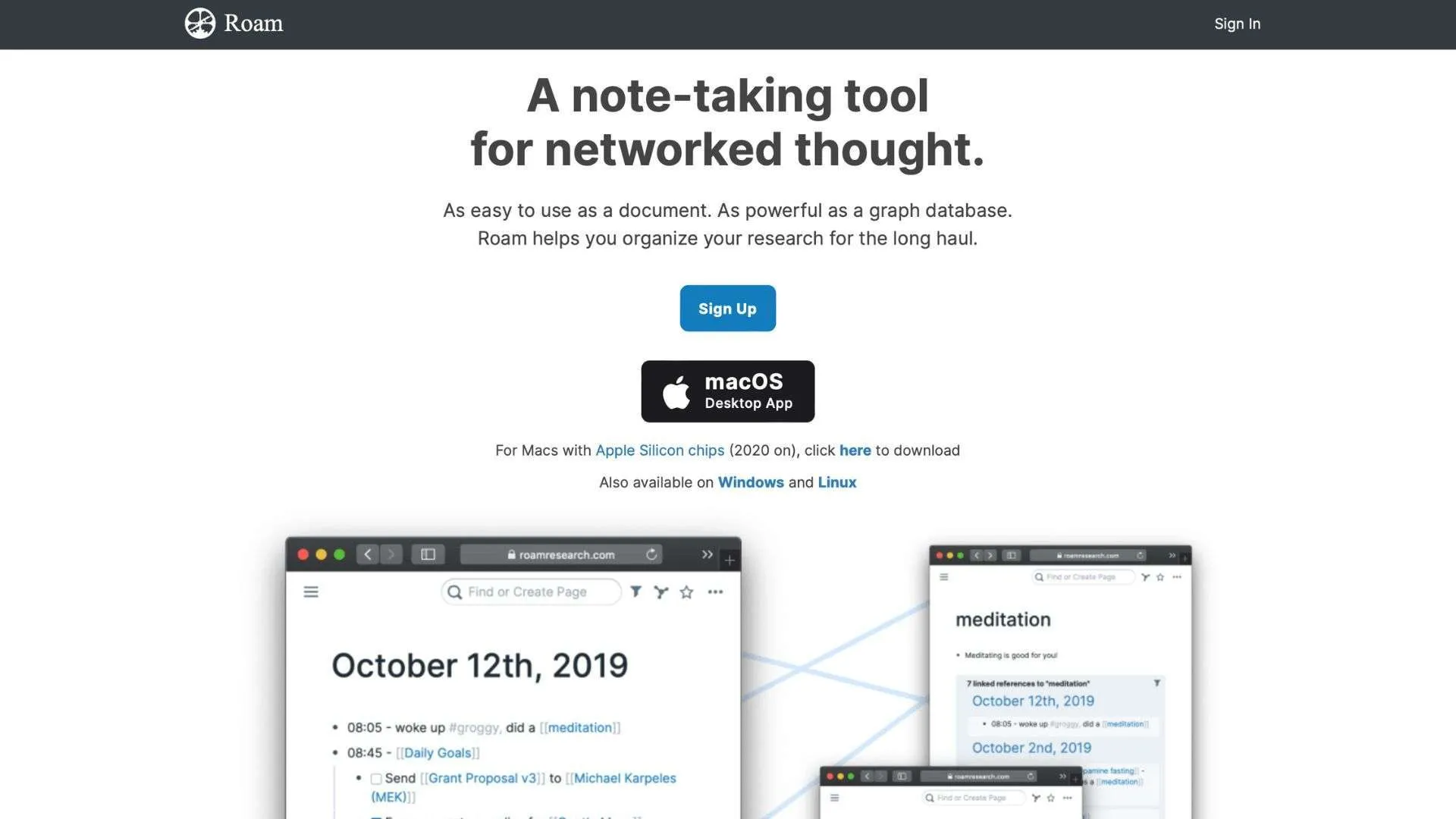
Roam Research is designed for people who think in webs rather than straight lines. Notes aren’t confined to folders; every entry can link to another, creating a living network that grows more valuable over time. It lets you see your thinking in ways folders never could.
Daily notes are the starting point.
They are a low-pressure space to capture tasks, reflections, or half-formed thoughts. Over time, these pages link into larger projects, forming a knowledge base without requiring heavy setup.
As you write, backlinks stitch everything together.
Link one note to another, and Roam instantly fills the sidebar with every connected page. While drafting a project plan, I saw past meeting notes and scattered research reappear, turning what felt like a blank start into a web of ready context.
This makes Roam feel less like a static notebook and more like a tool for insight. Connections appear that you wouldn’t have spotted on your own, turning scattered notes into a web of knowledge.
The trade-off is simplicity. Roam is not the most polished tool, and offline support is limited.
It also takes time before the graph pays off, and the interface can feel plain compared to newer competitors.
Pros
- Excellent for deep, exploratory research
- Keyboard shortcuts speed up writing flow
- Backlinks foster unexpected idea connections
Cons
- Limited offline functionality
- Collaboration features feel limited
Pricing
- Free: 31 days free trial
- Pro: $15/month (monthly billing) and $13.75/month (annual billing)
- Believer: $500 one-time (5 years)
6. Craft: Best for beautifully structured documents
TL;DR
Craft is an elegant, structured document app that looks as good as it reads. It is designed for people who care as much about presentation as organisation.

Craft is a note-taking and document app that stands out for its design.
Everything is built from cards you can rearrange, link, or expand into full pages. The result is documents that look structured and polished, closer to a finished deliverable than a rough draft.
The appeal of Craft is in the experience of writing.
I started a set of meeting notes, then converted one section into a card and linked it to a separate project page without breaking focus. The text stayed clean, the layout stayed clear, and when I shared the document, it looked presentation-ready without extra formatting.
For client-facing work, this design-first approach feels like an advantage.
Collaboration is equally smooth.
You can co-edit pages in real time, add comments, or publish a document to the web with a single link.
Integration with Calendar and Slack ties notes back to your daily workflow, while Apple features like Handoff and widgets make it feel natural across Mac, iPad, and iPhone.
The drawback is that Craft feels Apple-first, and the Windows app lags. For anyone who values aesthetics and structure, Craft is a tool that makes notes feel like polished documents.
Pros
- Easy export to multiple formats
- Offline mode works seamlessly
- Fast, reliable syncing across devices
Cons
- Best experience only on Apple devices
- Limited advanced project management features
Pricing
- Free plan: Available (limited documents and features)
- Plus (Personal): $5.99/month (monthly billing) or $4.79/month (annual billing)
- Plus (Friends & Family): $10.79/month (monthly billing) or $8.99/month (annual billing)
7. Bear: Best for minimalist Apple-only workflows
TL;DR
Bear is sleek and minimalist, made just for Apple users. It is perfect for quick, beautiful note-taking on Mac, iPad, or iPhone.

Bear is a minimalist writing app designed exclusively for Apple users. Its focus is speed and simplicity, making it ideal for quick notes, journal entries, or longer drafts without distraction.
The clean interface puts writing first, while tags replace traditional folders, giving you a flexible way to organize notes.
A single draft can live under multiple tags like “work,” “writing,” and “ideas,” and instantly become part of different collections without duplication.
In practice, Bear makes daily writing feel effortless.
I drafted an article on my Mac, tagged it under #drafts and #ideas, then picked it up later on my iPhone with everything synced instantly through iCloud.
Markdown support keeps formatting fast, while themes and typography options make notes easy to read. Exporting is another strength: whether you need a PDF, Word file, or even HTML, Bear produces polished outputs with minimal effort.
The experience across iPhone, iPad, and Mac is consistent and reliable, but the limitation is platform lock-in.
Bear does not work on Windows or Android, and it lacks some of the advanced features found in larger tools. Still, for Apple users who want a fast, beautiful, and distraction-free writing space, Bear delivers exactly that.
Pros
- Works offline without interruptions
- Biometric lock for extra note security
- Intuitive interface for distraction-free writing
Cons
- A few advanced organizational features
- Not available on Windows or Android
Pricing
- Free plan: 7-day free trial with basic version
- Pro plan: $2.99/month (monthly billing) or $29.99/year (annual, $2.50/month equivalent)
8. RemNote: Best for note-taking with spaced repetition
TL;DR
RemNote is a learning machine. It blends note-taking with spaced-repetition flashcards to help you remember what you write down.
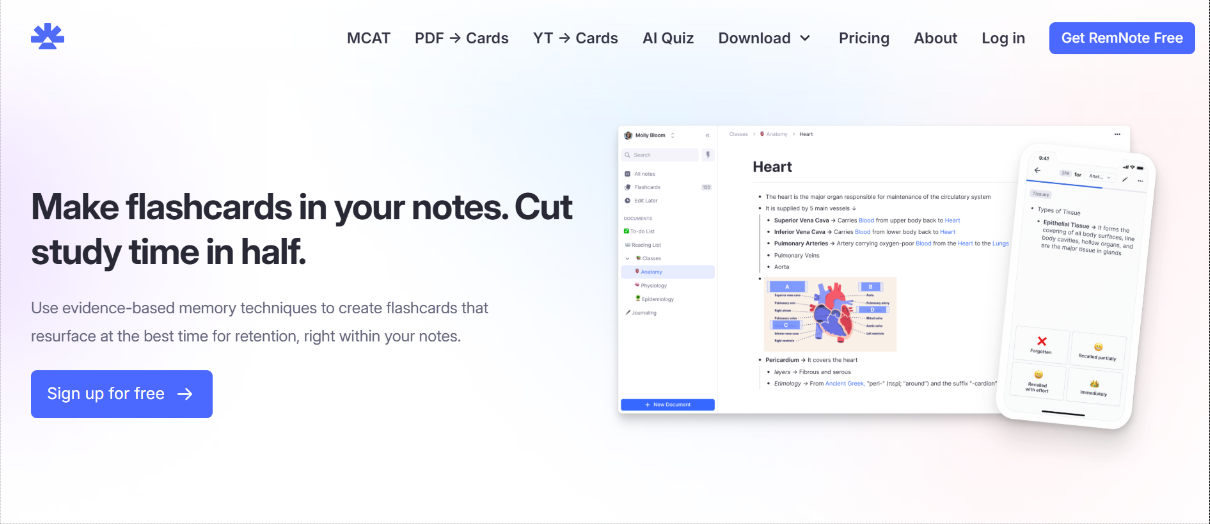
RemNote blends note-taking with flashcards, making it a strong choice for students, researchers, or anyone learning complex material.
Notes can be written as usual, then instantly turned into flashcards that feed into a built-in review system.
Instead of rereading entire pages, you see the most important points resurface right before you are likely to forget them, which makes studying more efficient.
I tried this while working through a dense technical paper.
Key definitions I highlighted in the notes reappeared as flashcards during later study sessions, and the timing of reviews made the information stick far better than reading the same page again.
Beyond flashcards, RemNote also supports backlinks, outlines, and PDF annotations, so lecture notes and research documents can all stay connected inside one system.
The flexibility makes RemNote more than just a study tool.
You can outline ideas, embed media, and link notes into a knowledge graph that grows richer over time. The trade-off is that the interface can feel cluttered, and the learning curve is steep.
Once you adjust, though, RemNote turns everyday notes into a long-term memory companion that actively supports retention and deep learning.
Pros
- PDF highlighting and annotation
- Built-in spaced repetition system
- Syncs across web and desktop apps
Cons
- The interface can feel cluttered
- Occasional sync issues reported
Pricing
- Free: Available
- Pro: $8/month (monthly billing)
- Pro with AI: $18/month (monthly billing)
- Life-Long Learner plan: Available at a one-time payment of $395
9. Heptabase: Best for visual mind maps and deep research
TL;DR
Heptabase is visual thinking at its finest. It lets you map out ideas, research, and connections on a giant canvas you can rearrange anytime.

Heptabase is built for visual thinkers who prefer mapping ideas over writing them in lists. It gives you a giant canvas where notes can be arranged, linked, and reorganized like sticky notes on a wall.
Each note can hold text, images, or links, and once placed on the board, it becomes part of a larger map. This approach makes it especially effective for research, brainstorming, and exploring complex problems where relationships matter as much as the ideas themselves.
I used Heptabase to outline a research project. Within minutes, related notes clustered together naturally, and I could see which areas needed more attention.
Drawing links between clusters revealed connections I had not considered, insights that would have been harder to spot in a traditional document. Switching to the timeline view showed how research threads developed over time, adding another layer of perspective and clarity.
Heptabase also supports tags and backlinks, combining the strengths of a knowledge graph with the flexibility of visual mapping.
However, using Heptabase did feel overwhelming at first, and even the interface can be resource-heavy on some devices. Still, for people who think visually, Heptabase transforms note-taking into a dynamic and engaging space for discovery.
Pros
- Timeline view adds research depth
- Frequent updates with new features
- Canvas makes complex ideas easy to explore
Cons
- Heavy on system resources
- Onboarding feels confusing for beginners
Pricing
- Free: 7-day free trial
- Monthly plan: $11.99/month
- Yearly plan: $8.99/month ($107.88/year)
10. Milanote: Best for visual boards and creative projects
TL;DR
Milanote is a playground for creative projects. Mix text, images, links, and sketches in visual boards that evolve with your ideas.

Milanote is built for people who like to see their ideas spread out in front of them.
Open it up, and you are greeted with a blank canvas, not a lined notebook.
You can drop in notes, images, links, or files and move them around until the layout makes sense. It feels closer to working on a studio wall or pinboard than typing into a document, which is why designers, writers, and creative teams often gravitate to it.
I used it while planning a campaign, and the difference was immediate.
Mood images sat next to draft headlines, reference links were pinned beside early sketches, and as I shifted things around, patterns began to form. The clutter of scattered files and docs disappeared into one board, and the project direction became easier to spot.
Collaboration works just as smoothly.
Teammates can open the same board, leave comments, or move elements themselves, which makes it a good fit for workshops or client feedback.
Templates help you get started quickly, whether you are storyboarding, outlining a brief, or creating a mood board. The free plan limits storage, and offline access is still missing, but if you think visually, Milanote feels like a digital workspace made to match that style.
Pros
- Drag-and-drop interface feels natural
- Boards are ideal for brainstorming sessions
- Templates speed up creative project setup
Cons
- Exporting options are limited
- No advanced search capabilities
Pricing
- Free Plan: No time limit with 100 notes, 10 uploads, and unlimited shared boards
- Individual plan: $12.50/month (monthly billing) or $9.99/month (annual billing)
- Team plan: $49/month (annual billing) for up to 10 users
11. Amplenote: Best for combining tasks, notes, and priorities
TL;DR
Amplenote is where notes meet priorities. Capture ideas, turn them into tasks, and decide what to work on next without switching apps.
Amplenote brings notes and tasks together in one space.
You do not have to jump between a to-do list and a writing app because everything lives in the same place.
A note can turn into a task list with a click, and tasks can be linked back to the notes they came from. This makes it easy to move from brainstorming to execution without breaking focus.
The “Jots” feature stands out in daily use. It is a scratchpad for quick captures, a spot to drop half-formed ideas, meeting notes, or reminders without worrying about structure. Later, you can sort those jots into projects, connect them to tasks, or archive them.
During a busy week, I used it to capture scattered thoughts, and nothing slipped through the cracks because everything was waiting when I had time to organize.
Amplenote also has priority modes that let you filter tasks by importance rather than just by deadlines. This keeps your attention on what matters most instead of being pulled into the noise of small, urgent tasks.
You may save some time, switching to the calendar view since it ties it all together by showing tasks alongside events, bridging planning with execution.
The interface feels dated and integrations are limited, but the combination of notes, tasks, and priorities makes Amplenote a strong all-in-one option.
Pros
- Strong security with end-to-end encryption
- Notes and tasks sync instantly across devices
- Calendar view bridges planning and execution
Cons
- Interface feels dated
- Limited third-party integrations
Pricing
- Personal: Free forever plan
- Pro: $5.84/month (annual billing) or $7.99/month (monthly billing)
- Unlimited: $10/month (annual billing) or $11.99/month (monthly billing)
- Founder: $20/month (annual billing) or $24.99/month (monthly billing)
12. Nimbus Note: Best for team knowledge and client workspaces
TL;DR
Nimbus Note is a team-friendly powerhouse. You can store documents, share notes with clients, and keep all project information in one organised space.
Nimbus Note is built for teams that need more than just a place to store notes. It doubles as a client-facing workspace, making it easy to organise knowledge, share updates, and collaborate in a structured way.
Notes can include text, images, documents, and even video or audio recordings.
Everything lives inside workspaces that can be customised for different projects or clients, which keeps information neatly separated and easy to manage.
What stood out to me was how easy it was to spin up a workspace for a client project. I set one up to share design drafts and progress notes, and being able to give the client access only to those folders, without exposing the entire backend, felt like a small but powerful detail.
Nimbus also shines in formatting and organisation. You can build documents that feel polished enough to replace slides or reports, and the nested folder system makes it easy to scale from a single project to a whole company knowledge base.
The weaker points are integrations and polish. It doesn’t connect as smoothly with external tools as some competitors, and the interface can feel busy.
But if you need one app that can manage knowledge, projects, and client communication in one place, Nimbus Note is well worth considering.
Pros
- Advanced permissions for secure sharing
- Built-in web clipper captures content easily
- Custom branding for client-facing workspaces
Cons
- Mobile app feels less refined
- Learning curve for workspace setup
Pricing
- Free Plan: Available
- Solo: $32/month (annual billing) or $39/month (monthly billing)
- Essentials: $82/month (annual billing) $99/month (monthly billing)
- Advanced: $332/month (annual billing)
- Unlimited: Custom pricing
Why You Need a Second Brain App
The human brain is great at thinking but terrible at storing details. Ideas and tasks pile up fast, creating mental clutter that slows you down. A second brain app takes that weight off your mind.
With one in place, every thought has a home. You capture ideas the moment they appear, no more lost notes, half-remembered conversations, or scraps of paper buried on your desk.
And those ideas don’t just sit in storage. The best tools connect them, turning isolated notes into a network of knowledge you can navigate with ease. When it’s time to retrieve something, it’s instant, whether it’s a project detail from last week or a note you saved a year ago.
The result is a lighter mind, sharper focus, and more energy for the work that matters.
How to Choose the Right Second Brain Tool
The best tool is the one you want to open every day. If it feels clunky, you will abandon it no matter how many features it has.
Pick an interface that feels natural and inviting.
Search and linking features make the difference between a basic notepad and a genuine second brain. An app that pulls up what you need and surfaces forgotten ideas at the right moment changes how you work.
Data safety is another factor. Export options and backups ensure your ideas are not trapped, and you are not locked into a single platform.
Integration matters too. If it works smoothly with your calendar, task list, and cloud storage, you spend less time switching between apps.
In the end, the right tool should feel like an extension of your mind, one that takes work off your plate and quietly keeps everything organised in the background.
Final Words
A second brain should never feel like extra work. The best tools fade into your routine until they resurface exactly what you need.
Start simple. Pick the tool that feels natural and let it grow with you.
Over time, it will shape itself around your projects and ideas.
You do not need every feature on day one. What matters is the habit of capturing and organising thoughts before they disappear.
Once that habit sticks, the payoff is clear: less clutter, more focus, and the confidence that nothing important will slip through. A second brain is not about storing more; it is about creating space for the work and decisions that matter.


 A better way to manage projects and clients for freelancers
 Get through busy days like a breeze with Reclaim.ai