
Most of my work happens inside Chrome, including writing, researching, attending meetings, and managing tools.
But over time, the small stuff started dragging me down: copying links between tabs, reopening the same pages over and over, and searching for things I’d already looked at ten minutes ago.
I started exploring Chrome extensions to fix those daily annoyances. Not the ones everyone already uses, but the low-key tools that solve small, everyday problems.
A few turned out to be buggy or outdated. But others? Surprisingly handy. Quick. Lightweight.
And useful from day one.
Why Chrome Extensions Deserve More Attention
Chrome extensions often feel like an afterthought. Most people install a couple, maybe an ad blocker or Grammarly, and leave it at that. But in my experience, smart extensions do much more than fix minor annoyances. They can transform how you work.
Here is what I mean.
A good Chrome extension does not just sit quietly on your toolbar. It cuts steps, lightens your mental load, and saves time without demanding your attention. Unlike full applications, extensions fit seamlessly into your existing habits, no switching tools, no extra logins, no onboarding hassles.
Once I found the right mix, I stopped hopping between tabs just to shorten URLs or jot quick notes. I no longer had to dig through my calendar or inbox for meeting links. Instead, I could track tasks, manage distractions, and capture ideas right inside the browser I was already using.
It is not about doing more work, but about doing the same work faster and with less friction.
If your browser is your workspace, these extensions are like subtle upgrades to your desk, tools that keep everything running smoothly without getting in your way.
9 Underrated Chrome Extensions in 2025: TL;DR
- OneTab: Best for reducing tab clutter and speeding up your browser
- Coupert: Best for automatic coupons and cashback while shopping
- Grammarly: Best for AI-powered writing assistance across the web
- Todoist: Best for managing tasks and projects without leaving your browser
- StayFocusd: Best for blocking distractions and enforcing deep work
- Momentum: Best for turning your new tab into a calming productivity space
- Loom: Best for recording and sharing videos without the back-and-forth
- News Feed Eradicator: Best for blocking social media feeds and avoiding distractions
- Instapaper: Best for saving articles to read offline in a clean layout
1. OneTab: Best for reducing tab clutter and speeding up your browser
TL;DR
OneTab instantly transforms your cluttered browser tabs into a neat, scrollable list, freeing up memory and clearing your workspace.
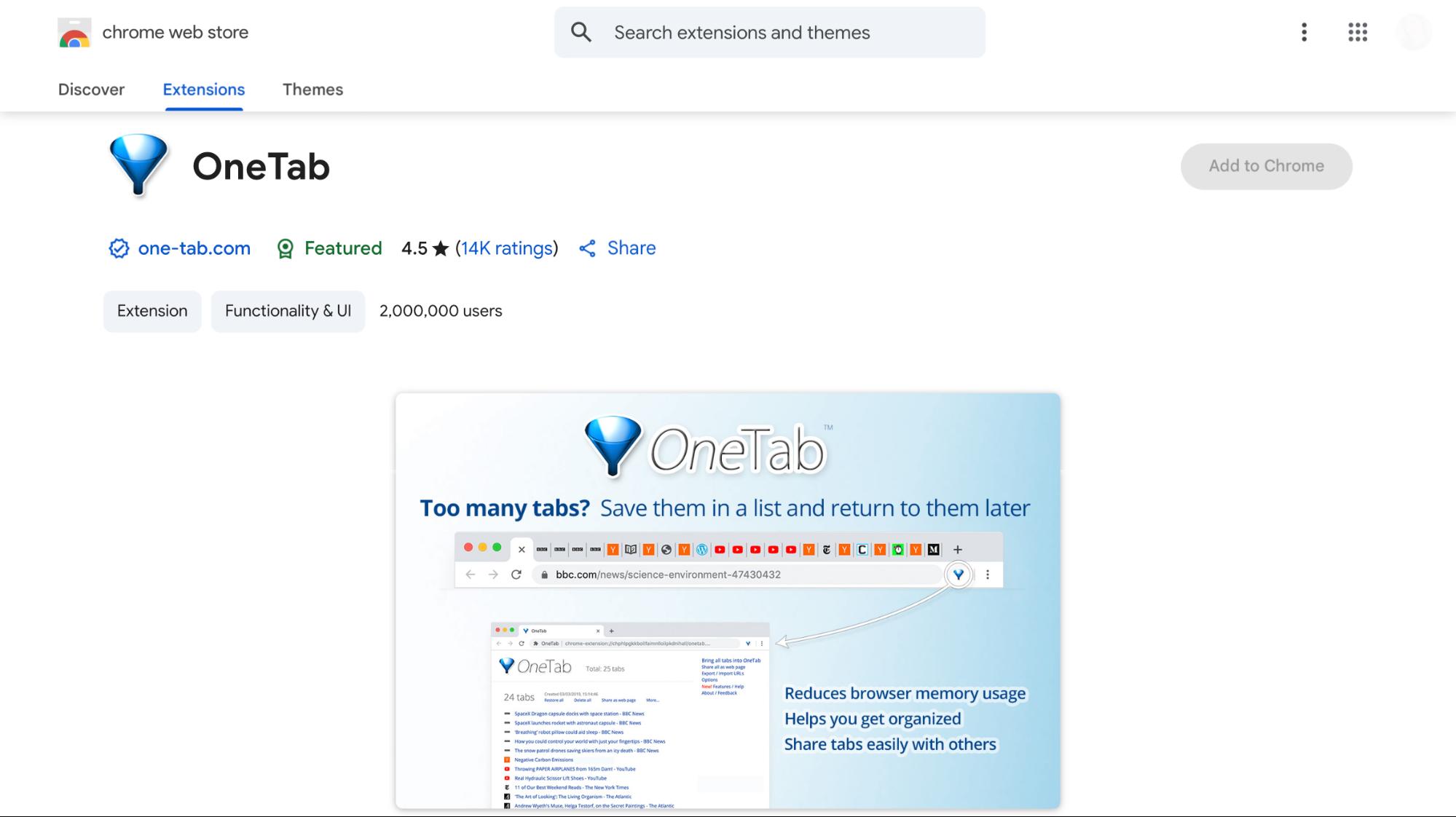
There’s a quiet kind of clutter that builds up when you’ve got too many tabs open. Your browser slows down, your fan kicks in, and everything feels heavier than it should. That’s usually when OneTab comes in handy. One click, and the mess is gone.
The way it works is simple.
Tap the extension, and every open tab collapses into a single list on one clean page. You’re not closing anything. Just clearing the visual noise.
No more scrolling through a mile of tab titles or wondering where that blog post went; it’s all tucked into one place.
More than just organizing, OneTab suspends tabs to free up memory instantly, speeding up your browser. This makes a noticeable difference on older laptops, where running Google Docs and Spotify at once can otherwise be a struggle.
When you’re ready, restore tabs individually or all at once. It leaves pinned tabs untouched, so your workspace stays intact. Chrome tab groups also reload with their labels and colors preserved, a detail that helps keep your workflow moving.
OneTab also offers a tab sharing feature, letting you convert any saved tab list into a shareable webpage. This is handy for sharing research with teammates or continuing work on another device, no account or sync needed.
There’s more here than it first seems. You can drag and drop to reorganize lists, keep tab groups persistent through restarts or crashes, and even export your whole stash if you’re the type who never closes anything.
It has some limitations: no search function within saved tabs, making large lists harder to navigate. Also, when restoring tabs, only the last page is recovered, not your full browsing history.
Still, OneTab solves a common problem with minimal effort. If your browser often feels like a digital junk drawer, it’s a simple, effective tool that lightens your browsing experience.
Pros
- No sign-in or account setup required
- Lightweight compared to full-featured tab managers
- Great for researchers who open many tabs in one sitting
Cons
- Mobile browser support is still missing
- Some users may need to refresh the extension after Chrome updates
Pricing
- Free: Includes all core features
2. Coupert: Best for automatic coupons and cashback while shopping
TL;DR
Coupert automatically finds and applies valid coupons at checkout, plus offers cashback at over 200,000 retailers. It’s free, works across major browsers, and saves you money effortlessly.
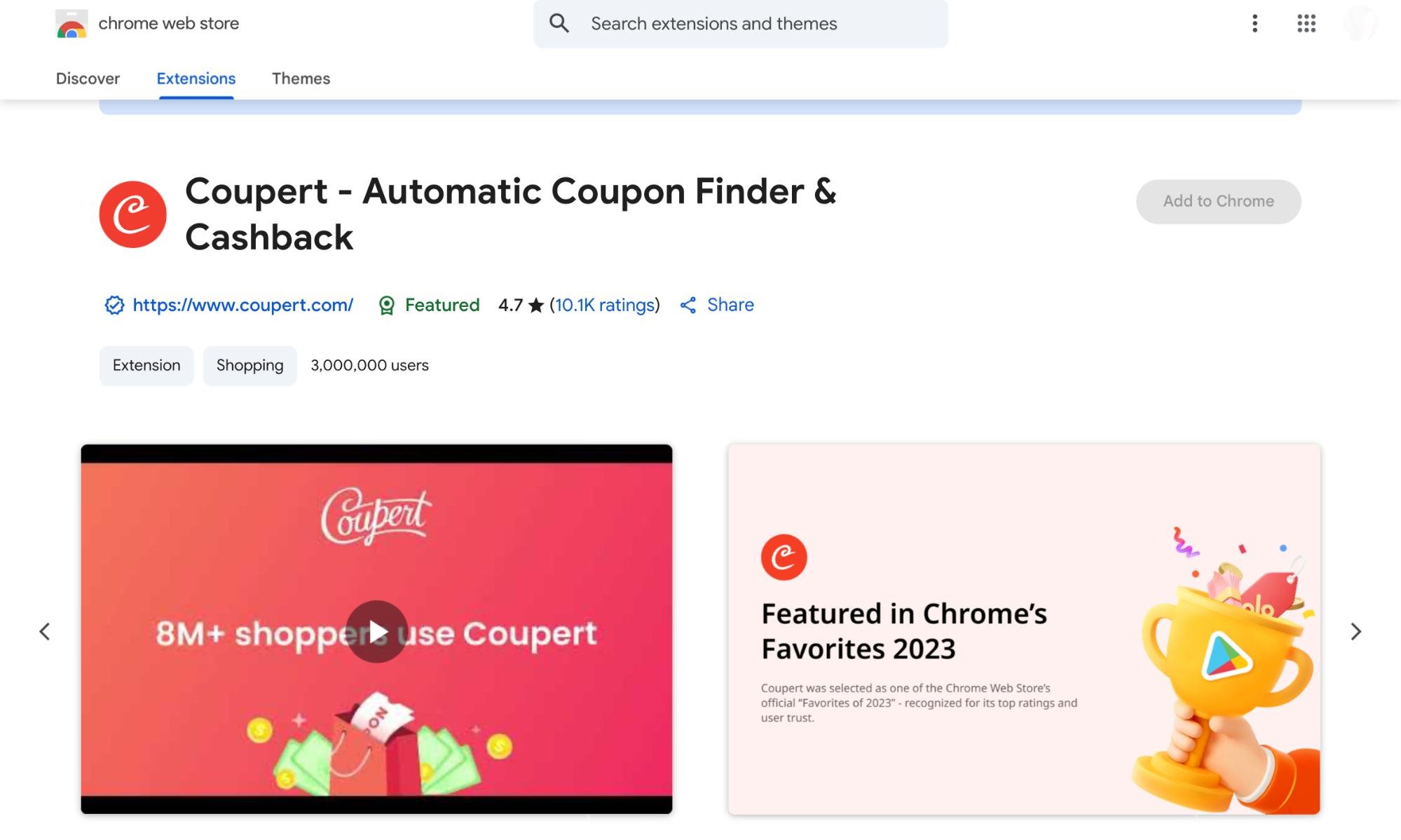
Trying to save money online sounds easy until you’re copying coupon codes from some blog, pasting them at checkout, and watching half of them fail. I’ve done that more times than I can count.
Coupert skips all that. It just works in the background and finds discounts that apply.
Once it’s installed, Coupert stays out of your way until you hit a checkout page. Then it scans for valid coupon codes, testing them one by one, and applying the best one automatically.
You don’t have to open anything or click around. It just shows the price drop when it finds one. No noise, no redirects, no weird pop-ups.
Coupert excels on smaller sites where discounts are rare. On big stores like Amazon, it compares prices across sellers and platforms, factoring in delivery fees and seller ratings, so you avoid chasing misleadingly low prices.
There’s a companion tool, Coupert Guard, which blocks ads and banners for a cleaner shopping experience. It’s optional but useful if you want less clutter.
While Coupert works on all major platforms, the desktop and iOS versions feel the most polished. The Android app is still a bit behind, especially with real-time coupon tests and price comparisons.
I think Coupert’s only drawbacks are limited customer support and privacy concerns around data sharing, which might deter privacy-focused users. Still, for hassle-free savings, it quietly gets the job done.
Pros
- Low minimum cashout ($2), with multiple payout options
- Offers cashback across 200,000+ retailers with fast payouts
- Coupon testing is fast and doesn’t interrupt the checkout flow
- Offers browser alerts when cashback is available on a site you’re visiting
Cons
- 2% withdrawal fee for PayPal and card transfers
- Cashback can be voided if you use other discount extensions simultaneously
Pricing
- Free: Core features like coupons, cashback, and price tracking
- Coupert Pure ($2.99/month): Includes advanced price comparison, ad-free shopping, and faster automation
3. Grammarly: Best for AI-powered writing assistance across the web
TL;DR
Grammarly’s Chrome extension improves your writing wherever you’re typing online. It fixes grammar, sharpens tone, and now even helps draft or rewrite content using AI.
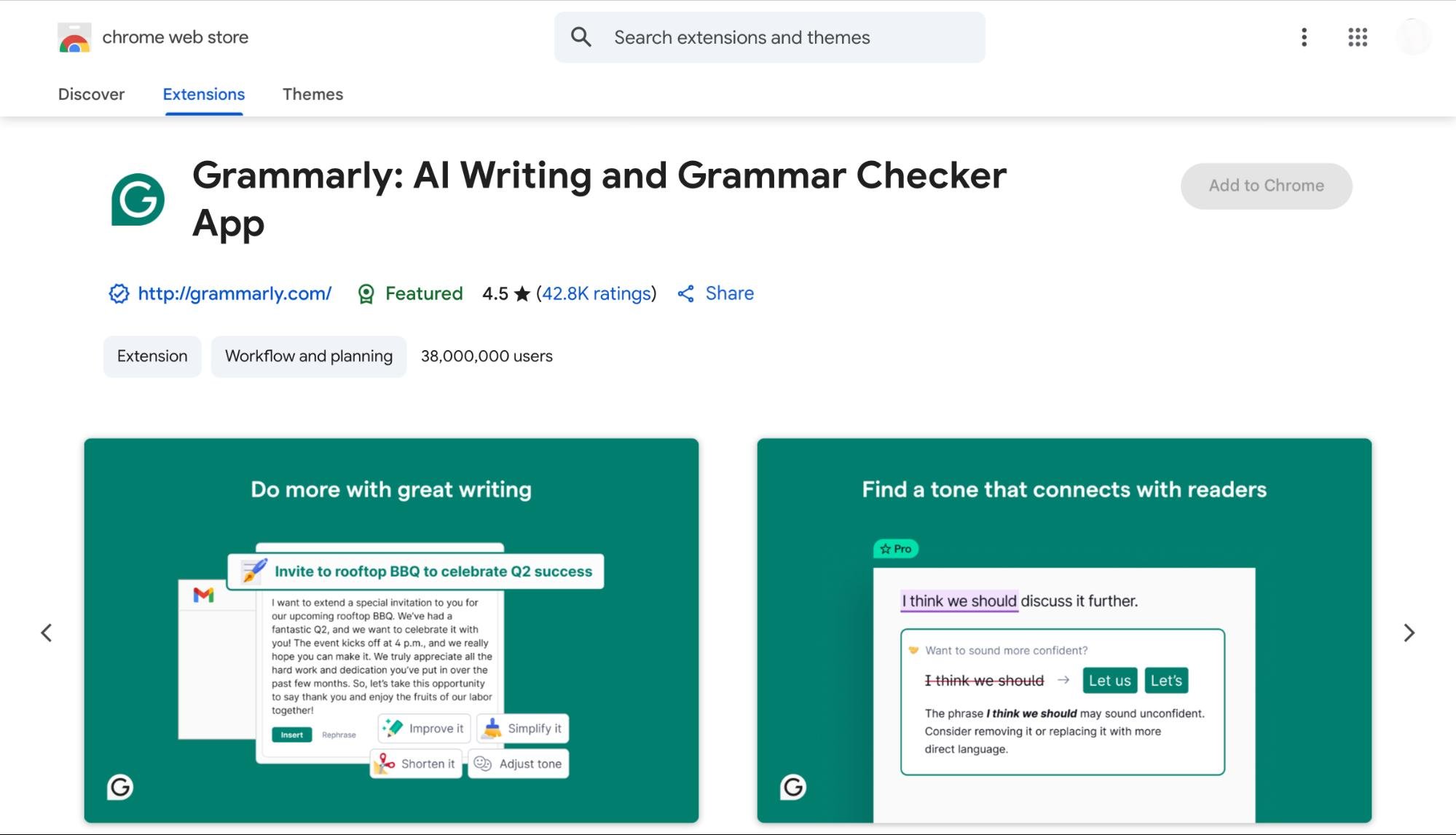
Grammarly’s always been known for grammar checks, but once I started using the Chrome extension regularly, it became much more than that.
It’s now a quiet writing assistant that shows up exactly where you need it, whether you’re replying to emails, working on a doc, or firing off a quick LinkedIn post.
It works almost everywhere I write, Gmail, Google Docs, Notion, and even inside scheduling tools or CMS editors.
It flags grammar issues in real time, suggests smoother phrasing, and gives clarity feedback without slowing me down.
The underlines are color-coded, the fixes are one-click, and the tone feedback feels on point.
The newer AI features take it a step further.
I can now highlight a clunky sentence and ask Grammarly to rewrite it, make it sound more confident, or expand it when I’m stuck.
The prompts are contextual and fast. No overthinking, no tab switching.
There’s also a full generative writing tool built in when you need to kickstart an email or caption from scratch.
Grammarly adapts to your intent. It doesn’t just fix what’s “wrong”. It helps the writing feel more natural, more deliberate.
For business users, it can even follow a company’s internal style guide, which makes it useful across teams who need consistency without sounding robotic.
It’s not trying to replace how you write. It just gives you sharper options when you need them.
Once it’s installed, you stop noticing it’s there, until you realize your writing has quietly improved across every app you use.
Pros
- No data selling, no training on your content
- Supports keyboard navigation for faster suggestion handling
- Sends weekly email reports to track writing trends and progress
- Lets you build a personal dictionary to skip flagging custom terms
Cons
- Needs internet access
- Occasionally suggests overly formal changes in casual writing
Pricing
- Free Plan: Basic grammar, spelling, punctuation, and clarity suggestions
- Premium Plan ($12/month): Unlocks AI rewriting, tone adjustments, vocabulary enhancements, and full-sentence rewrites
4. Todoist: Best for managing tasks and projects without leaving your browser
TL;DR
Todoist’s Chrome extension turns your browser into a powerful task manager. It lets you capture ideas, plan your day, and manage projects without switching apps.
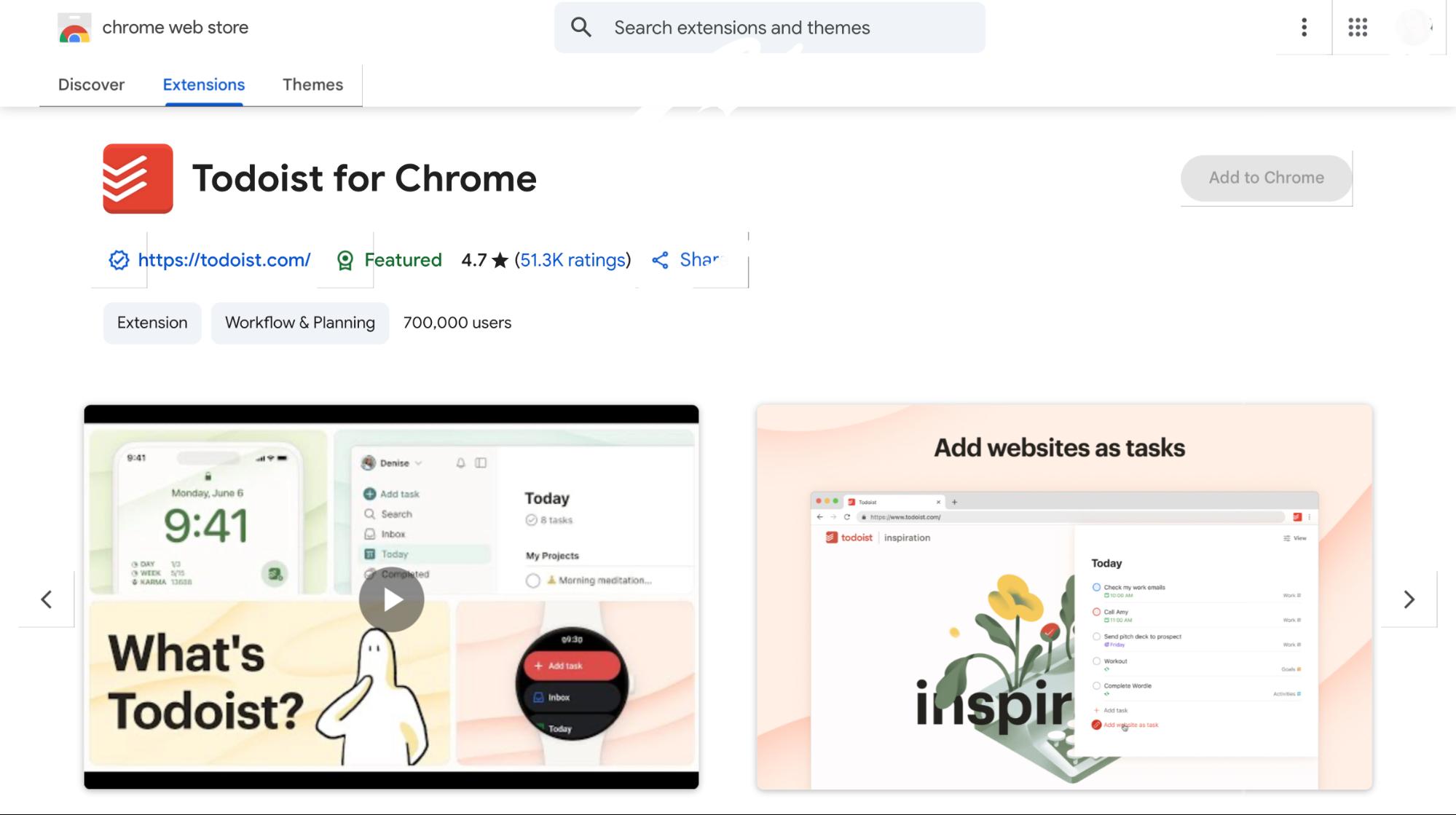
A lot of task managers feel like extra work. You write something down, forget about it, and never really come back.
But Todoist, especially with the Chrome extension, manages to feel like part of your flow instead of a separate thing to maintain.
It’s simple to add a task no matter what you’re doing.
You’re reading something useful? Highlight it and send it to Todoist in two clicks.
Found a page worth revisiting? Save it as a task without breaking focus. The natural language input makes a big difference.
Type “next Thursday at 4 pm” or “every Monday” and it knows what you mean.
It doesn’t interrupt your work; it joins it.
I didn’t need to open a separate app to check what’s due, mark things off, or reorganize my week.
Everything, from rescheduling to labeling, happens in Chrome. The interface is smooth, the sync is instant, and it never feels heavy.
Todoist is flexible without being overwhelming.
You can switch between list, board, or calendar views depending on how you prefer to plan.
It also plays nicely with Google Calendar, Dropbox, and Zapier if you’re the kind of person who likes automation but doesn’t want to build it from scratch.
It’s not just built for solo work, either. You can share projects, assign tasks, and manage small team workflows just as easily.
What makes it feel underrated is how invisible it becomes. It doesn’t constantly push popups or try to gamify your productivity.
It’s just reliable, quick, and there when you need it, and that’s what keeps it in my browser toolbar.
Pros
- Offers keyboard shortcuts for faster task management
- Color-coded priority levels improve task visibility at a glance
- Quick Add supports due dates, labels, and priorities in a single line
- Includes ready-to-use templates for various personal and team workflows
Cons
- No offline mode for the extension
- Chrome extension doesn’t support voice input or dictation
Pricing
- Free: 5 projects, 5 collaborators per project, 1-week activity history, 3 filter views
- Pro ($4/user/month): 300 projects, calendar view, reminders, AI assistant, 150 filter views
- Business ($8/user/month): Everything in Pro plus team inbox, admin roles, priority support
5. StayFocusd: Best for blocking distractions and enforcing deep work
TL;DR
StayFocusd is a strict, no-excuses site blocker built for people who want to stay off time-wasting websites. You set limits, and once they’re up, access is cut off, even if you change your mind.
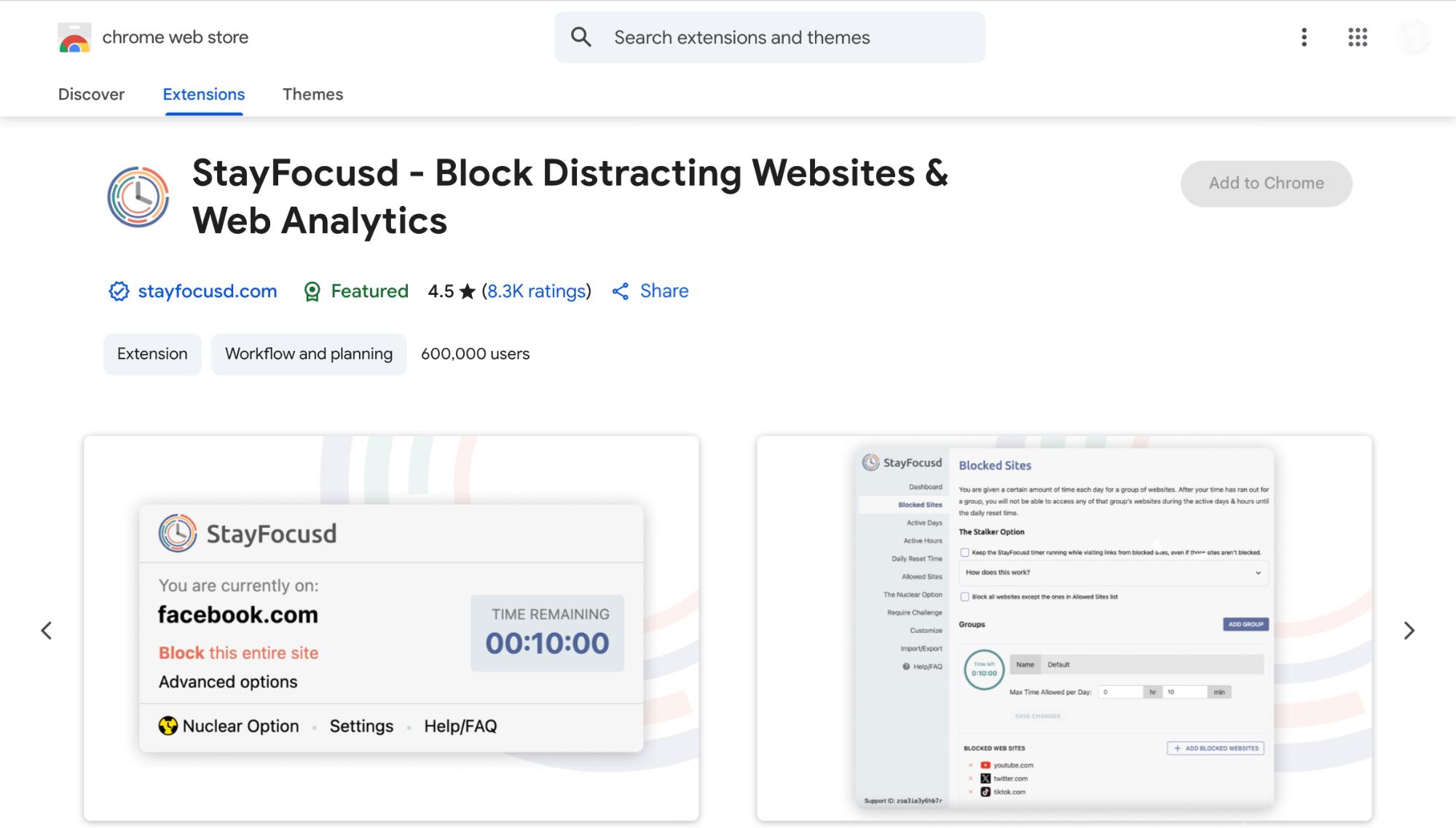
Most site blockers let you cheat. You can disable them, snooze timers, or tweak the settings until they’re pointless.
StayFocusd takes a very different approach and values your long-term focus over momentary comfort.
Once installed, it gives you control over what to block and when. Entire sites, specific URLs, subdomains, or even page elements like videos, forms, or YouTube comments.
You can whitelist only the essentials or block everything except your work apps.
The control is granular, and the goal is simple: limit digital distractions where they start.
StayFocusd is also unreasonably hard to override.
If you try to change the settings during a blocked window, you’ll be met with a deliberately difficult challenge like typing out a long passage with no typos or solving a logic task. It’s just annoying enough to make you think twice, and that’s the point.
Then there’s the Nuclear Option: a setting you activate when you need to go heads-down for a sprint. It locks you out of your chosen sites for a set period and can’t be undone once triggered.
No snoozing. No turning it off. Even restarting your browser won’t help. If your goal is real, uninterrupted focus, this mode gets you there fast.
For YouTube, StayFocusd can remove only Shorts, comments, and “Up Next” videos so you can watch what you came for without falling into the endless scroll.
It’s a thoughtful touch that doesn’t force an all-or-nothing decision.
There’s now sync support across Chrome and Android, which means your time limits follow you even if you switch devices.
The interface is basic but works well, and there are subtle bits of dry humor baked in. A small reward when you’re resisting the urge to break your own rules.
If you’ve ever said, “I’ll just scroll for five minutes” and regretted it 45 minutes later, StayFocusd doesn’t just help; it holds the line for you when willpower gives out.
Pros
- Works in incognito mode when enabled
- Lightweight and doesn’t impact browser performance
- Lets you set a daily max time limit across all blocked sites
- Shows motivational or guilt-trip messages on blocked pages
Cons
- Not ideal for shared devices where rules need to vary by user
- Settings can be tedious to adjust if you work with dynamic URLs
Pricing
StayFocused is available for free
6. Momentum: Best for turning your new tab into a calming productivity space
TL;DR
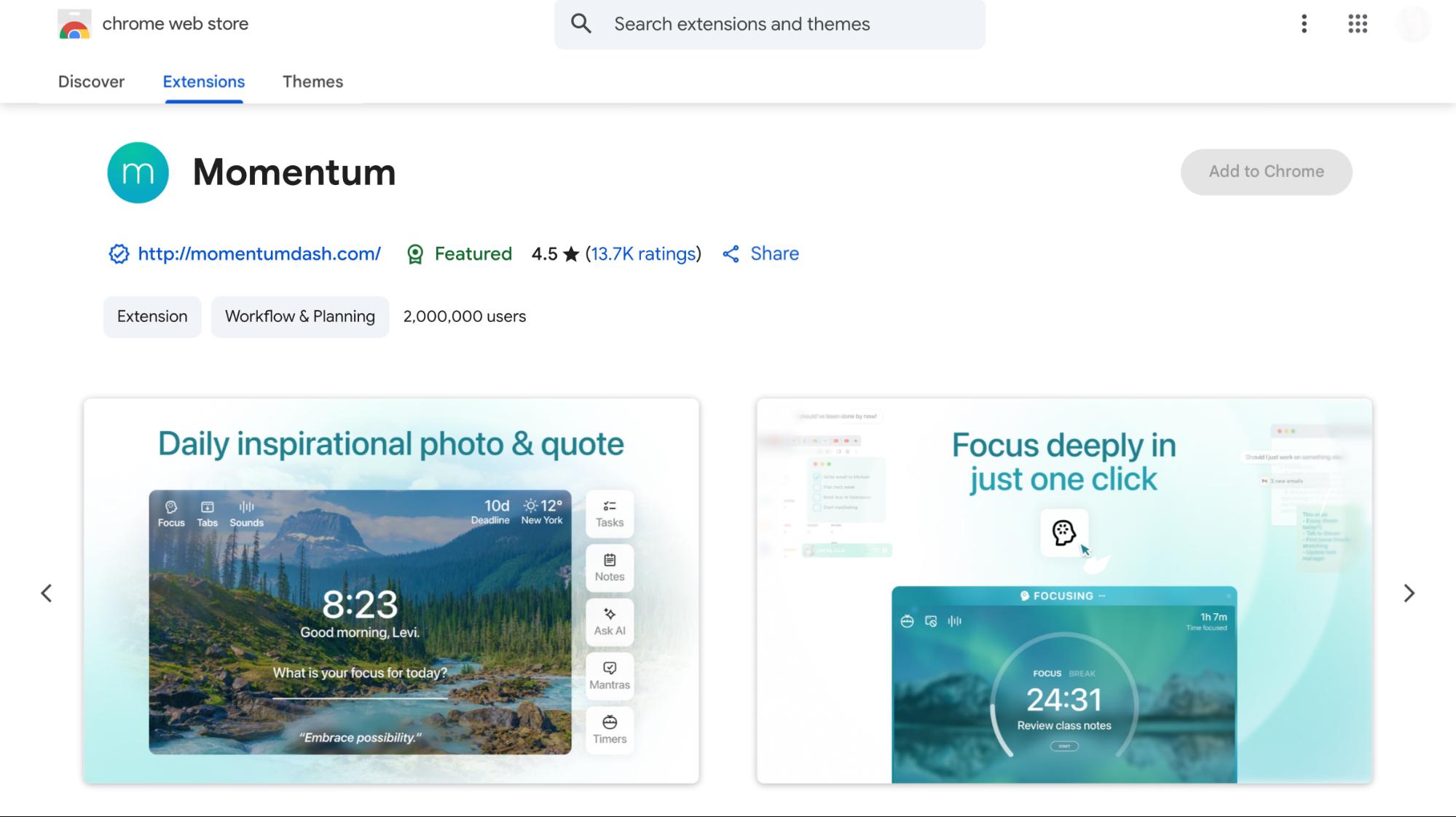
Momentum replaces your new tab with a personal dashboard that’s part wallpaper, part journal, part planner.
It’s clean, visual, and helps you reset your focus every time you open a new tab without feeling like another productivity app.
Momentum doesn’t push tasks at you. It doesn’t throw up timers or dashboards full of widgets.
Instead, it opens with a question: “What’s your main focus today?” This one line combined with a calming photo and quiet quote has a way of bringing you back to intention without adding pressure.
The Chrome extension transforms your new tab into something peaceful and useful at the same time.
You get a real-time clock, the weather, a to-do list, and quick links to your most-used sites laid out in a minimalist, centered design that’s grounding.
For something you see dozens of times a day, Momentum puts the right kind of signal in front of you.
You can customize it as much or as little as you want.
Don’t care about quotes? Hide them. Want your custom mantra? Add it.
The goal isn’t to overwhelm but to quietly support your day. I’ve found that even just setting a one-line focus in the morning changes how I move through the afternoon.
There’s also a paid version. But even without upgrading, Momentum feels complete on its own.
Unlike many “productivity dashboards,” this one doesn’t demand anything. There are no streaks, no gamified nudges, no pressure.
It just offers a calm space that’s visually beautiful and quietly functional which, when you’re toggling between 15 tabs, actually makes a difference.
Pros
- Encourages daily reflection through a single-focus prompt
- Background photos are curated from photographers around the world
- Extremely low memory usage compared to full dashboard extensions
- Search bar supports multiple engines (Google, Bing, DuckDuckGo, etc.
Cons
- Syncing across devices can be inconsistent without a login
- Not ideal for users who prefer data-heavy or detailed dashboards
Pricing
- Free Plan: Daily focus, to-do list, quotes, weather, limited Focus Mode
- Momentum Plus ($3.33/month): Unlimited Focus Mode, AI tools, vision board, tab management, integrations, soundscapes, and premium support
7. Loom: Best for recording and sharing videos without the back-and-forth
TL;DR
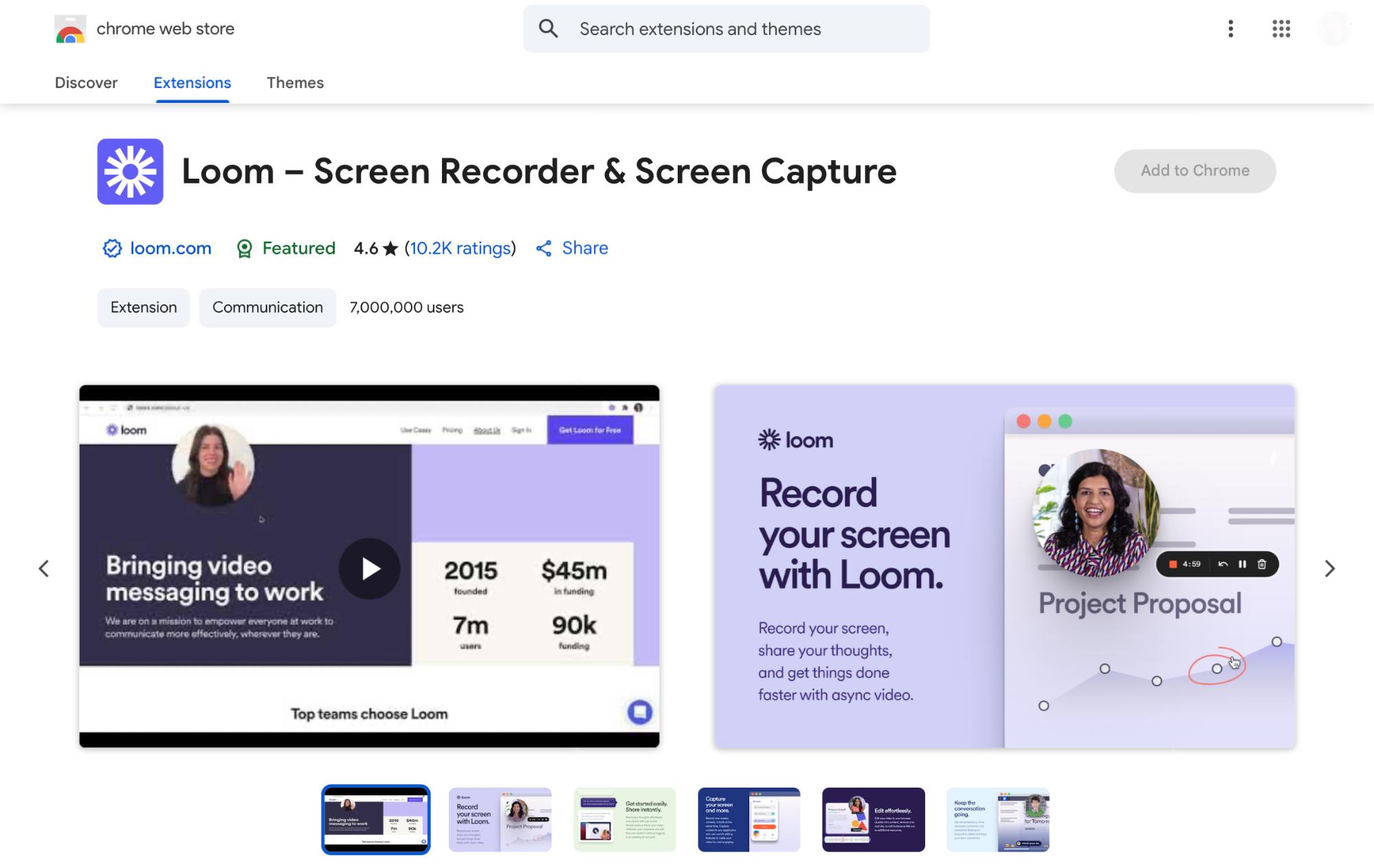
Loom’s Chrome extension makes it easy to record your screen, webcam, or both and then share the video instantly with a link.
When most people think of screen recording, they picture long setups, clunky software, and files too large to share.
Loom flips that entirely and its Chrome extension strips away the friction.
You click, you talk, you send and suddenly, you’ve replaced a 30-minute meeting with a 2-minute video.
The first time I used Loom, it took less than 10 seconds to start recording.
No waiting, no separate app to launch.
You can record your full screen, a browser tab, or just your webcam from the Chrome toolbar.
Once you’re done, Loom auto-generates a link and opens it in a new tab. That’s it. No exporting, no uploading, no attachments.
After recording, you can trim awkward silences, stitch clips together, and get an instant transcription.
AI-generated titles, summaries, and chapters help make the video easier to digest, especially if you’re sending it to busy teammates or clients.
You can even pull out tasks or turn a video into a shareable doc, which is surprisingly helpful for async collaboration.
It’s clear Loom was built with modern, distributed teams in mind.
It plays well with Slack, Google Workspace, Notion, Atlassian tools, and now, thanks to its Atlassian acquisition, there’s even tighter integration with Jira, Confluence, and advanced admin controls.
Despite being packed with features, Loom still feels simple.
You’re not forced to use the AI tools, but they’re there when you need a bit of polish or clarity. And for all its capabilities, the extension itself runs light. No slowdowns, no clutter.
If you’ve ever sent an email that should’ve been a quick video, Loom fixes that. And it does it better than most people expect from a browser extension.
Pros
- Auto-saves videos to your Loom library instantly
- Allows custom thumbnails and video descriptions
- Lets you record full screen, window, or browser tab
- Supports keyboard shortcuts for quick recording control
Cons
- Editing tools are lightweight
- Requires a strong internet connection for smooth uploads and playback
Pricing
- Free Plan: Up to 25 videos/user, 5-minute limit per video, basic recording and sharing
- Business Plan ($12.50/month/user): Unlimited videos, advanced analytics, AI features, custom branding, admin tools
8. News Feed Eradicator: Best for blocking social media feeds and avoiding distractions
TL;DR
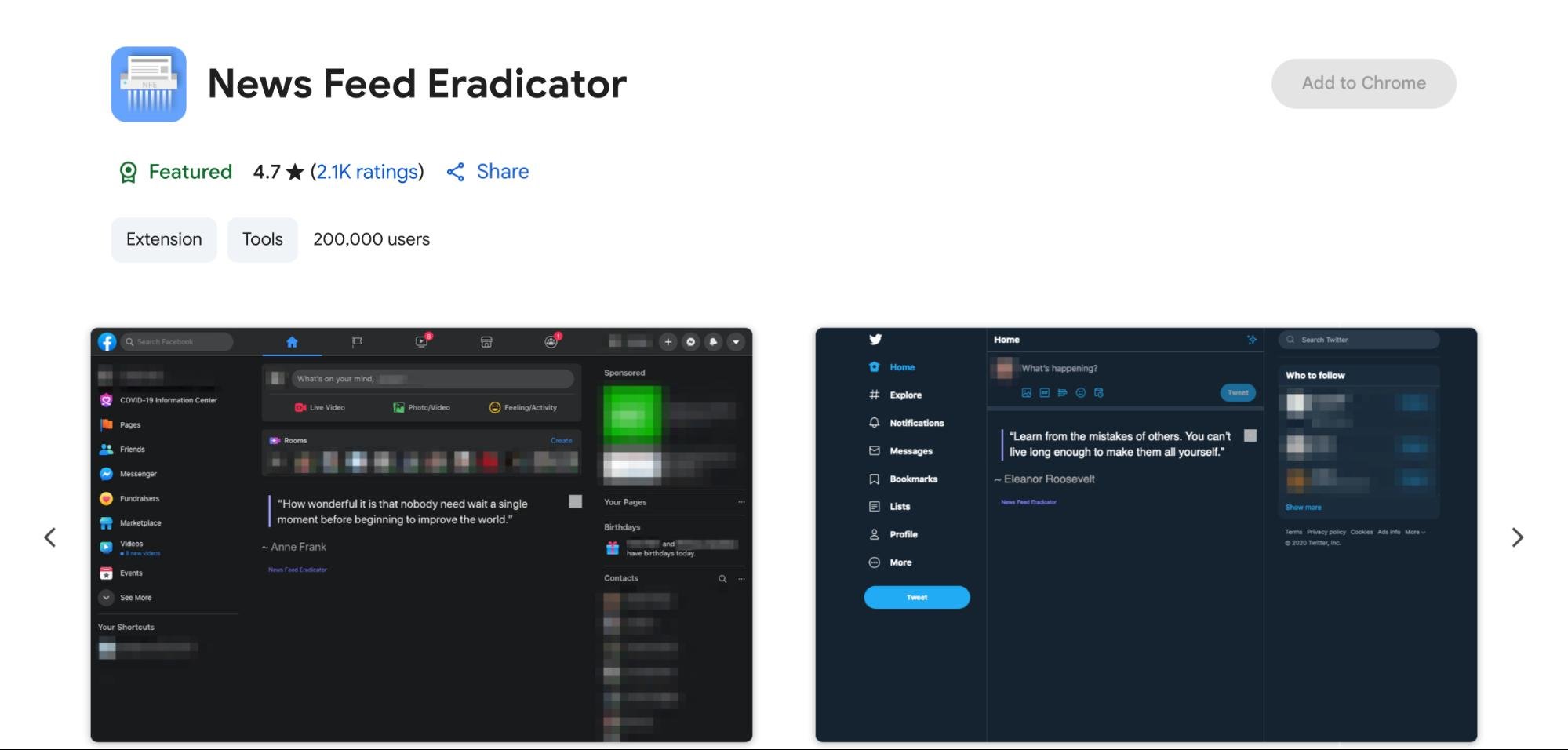
News Feed Eradicator removes the endless scroll from sites like Facebook, Twitter/X, YouTube, and replaces it with motivational quotes. You still get messages and notifications, but without the rabbit holes.
We’ve all fallen down the social media rabbit hole. Checking Facebook or YouTube for a quick while and then losing track of time. News Feed Eradicator doesn’t alter site functions; it simply removes the endless feed that pulls you in.
Once it’s installed, it runs quietly in the background. You can still reply to messages, check notifications, comment, or post.
But the scrollable feed is gone. In its place, you’ll see a simple motivational quote.
Nothing flashy, just enough to remind you why you opened the site in the first place.
It’s especially useful if your job involves social media, or if you use platforms like GitHub or Hacker News, but often get sidetracked.
I’ve had days where I’d open YouTube to look up a tutorial and end up watching three unrelated videos instead. With this running, that doesn’t happen.
There’s no setup or sign-in. You just choose which sites to block, and you’re done.
And if you do want to scroll, you can disable it for a few minutes or the whole day with one click.
It doesn’t nag or display popups, just quietly blocks distractions without dashboards or timers.
That said, it only works on the desktop. If most of your time-wasting happens on your phone, this won’t cover that.
News Feed Eradicator also doesn’t block every platform. TikTok, Threads, and Snapchat aren’t supported, which makes sense since they’re mostly mobile apps. And once in a while, when social sites change their layout, things can break, but updates usually follow pretty fast.
There are no hidden catches here.
It’s open source, doesn’t track you, and doesn’t ask for extra permissions either.
Pros
- Works immediately after installation
- Reduces cognitive overload by removing the temptation of infinite scroll
- Helps maintain healthier social media habits without deleting your accounts
- The custom quotes feature allows users to add personal affirmations or reminders
Cons
- No official support for browsers like Safari or Edge
- Some site updates (like new UI layouts) can temporarily break feed blocking
Pricing
- Free: 100% open-source with no hidden features or upgrade prompts
9. Instapaper: Best for saving articles to read offline in a clean layout
TL;DR
Instapaper lets you save articles and videos for later, stripping out clutter for distraction-free reading. With cross-device sync, folders, highlighting, and speed reading, it’s a must-have for readers and researchers.
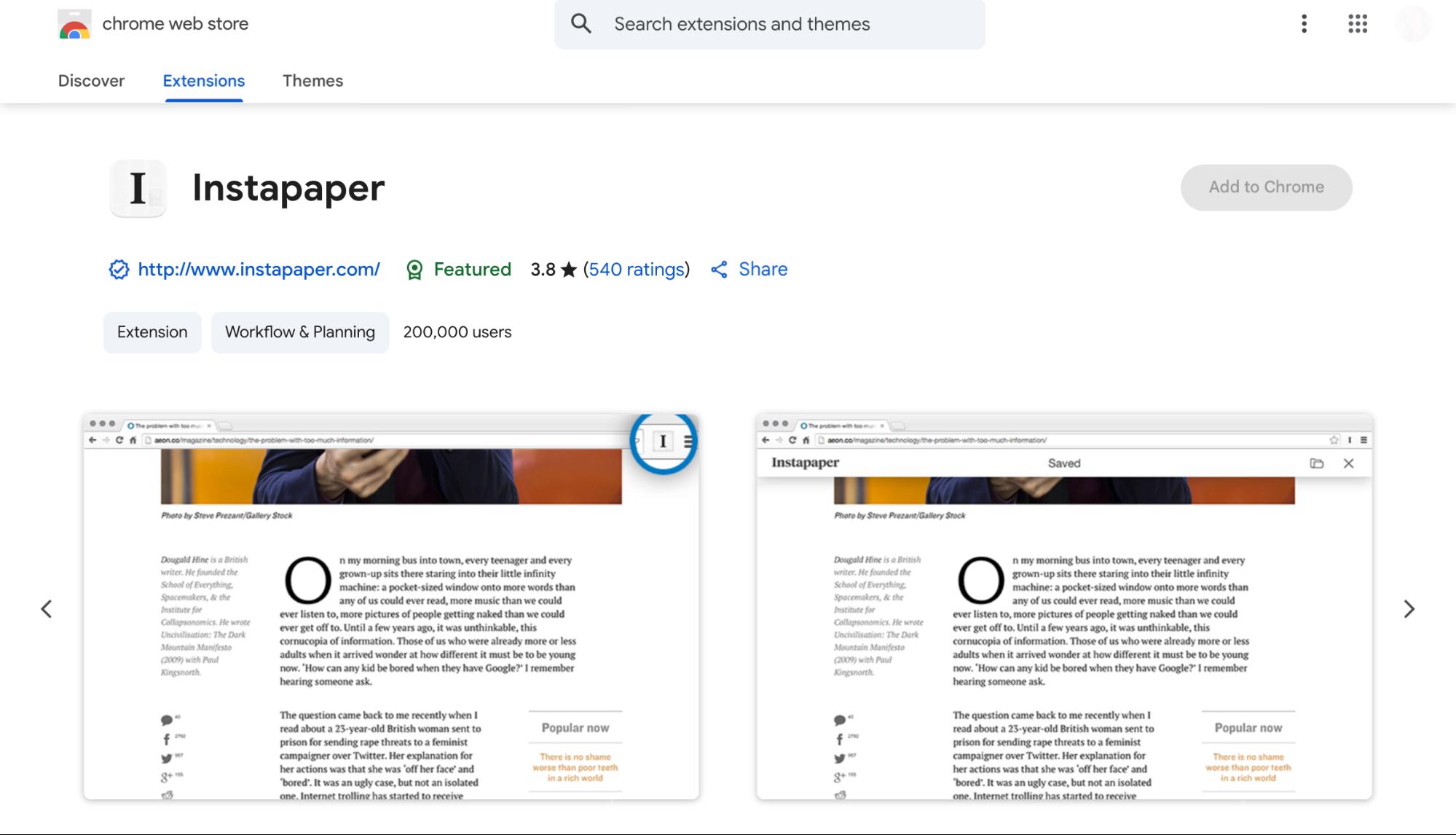
Not everything you come across online needs to be read right away. Some articles are too long to skim, too thoughtful to rush, or just show up at the wrong time. Instapaper gets that.
It gives you a clean, distraction-free way to save web content, including blog posts, essays, how-tos, and recipes, so you can come back to them when you’re ready to read.
With one click, save the full text of any page.
Instapaper syncs instantly across devices, including laptops, phones, tablets, and Kindle, making it ideal for travel or offline reading.
You can download articles ahead of time, which means you’re never stuck without something to read, even offline.
What sets Instapaper apart is its organizational tools: folders, highlights, and notes. It’s useful for tracking research, saving important interviews, or building a personal archive. There’s also a speed reading option if you want to get through pieces faster, and a text-to-speech feature on mobile.
It’s great when you’re on a walk or commute and want to listen instead of scroll. It’s not the same as a polished audiobook, but it gets the job done without needing your full attention.
The overall experience is minimal, in a good way. No clutter, no unnecessary features. Just the tools you need to save, read, and reflect.
Whether you’re a casual reader or someone who likes to collect ideas over time, Instapaper makes space for it without getting in the way.
Pros
- Web clipper supports saving full pages or selected text only
- Minimal design makes it ideal for long-form, distraction-free reading
- Keyboard shortcuts are available for faster article navigation on desktop
- Reader view maintains original formatting better than many save-for-later tools
Cons
- No built-in article discovery feed or AI-based recommendations
- Lacks integration with note-taking tools like Notion or Evernote
Pricing
- Free Plan: Unlimited saves, 5 notes/month, 5 highlights/month, 10 speed-read articles/month
- Premium Plan ($5.99/month): Unlimited highlights, notes, speed reading, and full-text search
How I Tested These Chrome Extensions
To find the best Chrome extensions that truly boost productivity, I tested each tool extensively in real-world work scenarios. This approach helped me focus on extensions that offer practical benefits without adding complexity or clutter to daily browsing. Here is how I structured the testing process to separate the genuinely useful from the merely interesting.
Here’s how the testing process was structured:
- Real World Testing: Each extension was tested over several weeks in real-world situations, not in a controlled lab environment. The goal was to find tools that genuinely improved daily browser use by saving time, reducing tab fatigue, cutting distractions, or speeding up repetitive tasks.
- Isolated Installation: I added one extension at a time to avoid mixing effects. This made it easy to see the true impact of each tool. If it smoothed tasks like tab management, focus, or reading, that benefit was clear. If it ran in the background without adding value or adding clutter, that was easy to spot, too.
- Varied Use Cases: Testing included writing, researching, attending meetings, managing more than twenty tabs, and doing e-commerce checkouts. Each extension was put through real, unpredictable workflows to assess performance in multitasking and context switching.
- Focus on Practical Usefulness: Instead of long feature lists, I prioritized extensions that made the browser feel lighter and more intentional without complicated setup or explanations.
- No Friction Allowed: Extensions that slowed performance, glitched on key sites, or needed constant tweaking were disqualified. I paid close attention to smoothness, intuitiveness, and whether I could trust the extension to work without oversight.
- Long Term Value: Some tools are exciting for a day but lose relevance quickly. I revisited each extension after a week or more to confirm it continued solving a problem and was integrated into my default workflow. Those that felt like extra work were removed.
- Simplicity and Default Usability: Customization is helpful, but I focused on how well each extension worked straight out of the box. If it required digging through settings or hunting for features to be useful, that counted against it. The best tools just worked as expected without extra thought.
Final Words
You don’t need a complicated setup to save time and stay focused.
A few smart Chrome extensions can cut clutter, block distractions, and speed up everyday tasks without getting in your way. If you spend hours in your browser daily, even one of these tools can make a noticeable difference.
Start with the one that solves your biggest problem, keep what works, and drop what doesn’t.
Sometimes, better productivity is simply about clearing the small obstacles from your path.


 A better way to manage projects and clients for freelancers
 Get through busy days like a breeze with Reclaim.ai