
Remote SaaS teams depend entirely on digital systems to stay organized. Without a physical office, tasks can slip through, updates can be delayed, and communication can become scattered.
That’s where workflow tools come in.
The right tools give your team structure. They show what needs to be done, who’s doing it, and what’s falling behind without constant follow-ups.
I’ve tested dozens of workflow platforms to find the ones that improve team coordination, automate repetitive work, and help you focus on results.
If your current setup feels messy or manual, these 12 tools can make remote work smoother and more connected.
Why Workflow Tools Matter for Remote SaaS Teams
Before we get into the tools, let’s break down what workflow management tools do.
A workflow tool is software designed to manage and automate the tasks involved in a business process. It helps coordinate people, data, and systems to ensure tasks are completed efficiently and effectively.
In a remote SaaS team, where people are working from different locations and time zones, these tools are essential. They replace the in-office whiteboards, sticky notes, and face-to-face updates with a clear digital system everyone can access.
Here’s why they matter:
- They show exactly what needs to be done and who’s responsible
- They track progress in real-time, so nothing gets forgotten
- They reduce the need for constant check-ins and follow-ups
- They automate repetitive tasks like reminders, status updates, or approvals
Without a proper workflow tool:
- Tasks get lost in chats or emails
- Deadlines are missed because no one is tracking them
- Team members duplicate work or wait around for the next step
- You spend more time managing work than actually doing it
For SaaS teams, this leads to slow product updates, poor cross-team collaboration, and messy client delivery. A good workflow tool solves these issues by creating one shared space where everyone knows what’s happening, what’s next, and what’s done.
Best Workflow Tools for Remote SaaS Teams in 2025: TL;DR
- Asana: Best for structured project tracking and workflow automation
- Monday.com: Best for building visual workflows across departments
- Jira: Best for agile sprint planning and issue tracking
- Trello: Best for simple task management using Kanban boards
- ClickUp: Best for all-in-one task, doc, and goal tracking
- Basecamp: Best for centralizing communication and task lists
- Wrike: Best for managing complex, multi-layered workflows
- Airtable: Best for creating custom workflows with spreadsheet simplicity
- Miro: Best for visualizing workflows and team brainstorming
- Slack: Best for automating workflows through team chat
- Planable: Best for content approvals and publishing workflows
- Pebb: Best for small teams needing an affordable all-in-one workspace
Top Workflow Tools for Remote SaaS Teams
1. Asana: Best for Structured Project Tracking and Workflow Automation
TL;DR
Asana helps you organize tasks, automate workflows, and link daily work to company-wide goals while also keeping communication in context. It’s not the cheapest, but it delivers serious value if you’re managing complex projects.
Asana works across content calendars, product launches, and even cross-functional marketing sprints. What I’ve noticed over time is that once you take the time to set it up properly, it brings a level of order that’s hard to find in a basic to-do list or spreadsheet.
You build out a project, break it into tasks, and from there, you can get as detailed as you want with subtasks, due dates, assignments, and dependencies.
Dependencies have come in handy more times than I can count. In content workflows, for example, it ensures editing starts only after a draft is approved. Simple idea, but it saves a lot of back-and-forth.
The way you can switch between list, board, calendar, and timeline view brings a lot of flexibility. For example, when deadlines are tight and things are overlapping you can try the Timeline view. Worried about day-to-day check-ins or standups? Then try switching to the board view. .
When tasks get stuck, you can set a few basic rules and automate stuff like auto-assigning follow-ups or sending reminders.
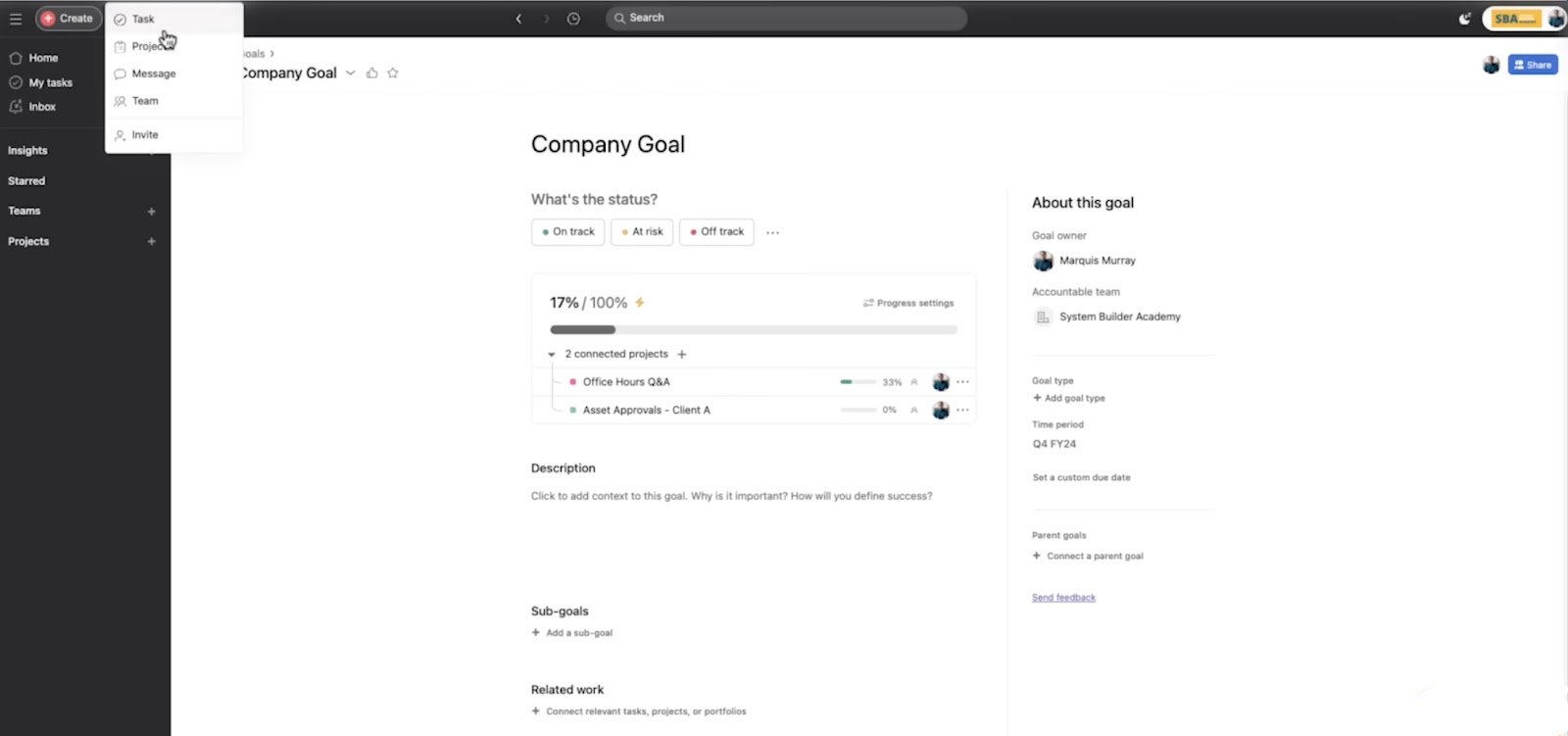
Goals was the sleeper hit: it tied code freeze dates to revenue targets in a single view.
I wouldn’t say it changes how you work, but you do get some context while fixing pieces that are part of something bigger.
But do watch out for the learning curve.
Some of my new teammates got overwhelmed trying to build their first workflow from scratch. And while the free version covers basics, you’ll eventually need to upgrade if you want access to automations, reporting, or multiple dashboards.
Pros
- Portfolios allow tracking multiple projects at once
- Tasks can be added to multiple projects without duplication
- Pre-built templates and task duplication save time on recurring work
- Mobile app supports almost all major features and is highly rated across platforms
Cons
- No built-in chat or messaging
- Notification volume can get overwhelming without manual adjustment
Pricing
- Personal (Free): Unlimited tasks, unlimited projects, unlimited messages, unlimited activity log, list view projects
- Starter ($10.99/user/month): Asana AI, AI studio, no user seat limits, timeline and Gantt view, custom fields
- Advanced ($24.99/user/month): Adds goals, reporting, more automation, time tracking
2. Monday.com: Best for Building Visual Workflows Across Departments
TL;DR
Monday.com lets you build your workflows with drag-and-drop ease, track real-time progress, and automate the busywork. It’s especially great for teams that need to collaborate across different functions and want full control over how they manage projects.
Monday.com does pretty well for both marketing and product workflows, and its flexibility has to be the biggest plus.
You’re not chained to a fixed structure, but you get to build your workspace around how your team works. Just start with a blank board or use one of the hundreds of ready-made templates. It’s that simple.
The interface is clean, color-coded, and fully customizable.
You can adjust columns, rename fields, and switch between different views such as Kanban, calendar, timeline, and Gantt, depending on the task at hand. Every view stays synced in real-time, which makes standups, project reviews, and handoffs a lot more efficient.
Automations are also easy to set up.
Without any technical background, you can build workflows to send notifications, assign owners, or move items when a status changes.
There’s even an upcoming AI Blocks feature looks especially promising and is meant to take these automations further by offering smart suggestions and actions. If efficient, it could help you scale repetitive processes.
The dashboard reporting is my personal favourite. While working across multiple teams, I built dashboards to track deadlines, workload balance, and overall project progress in one place. It made it easier to catch blockers early without needing to check every board manually.
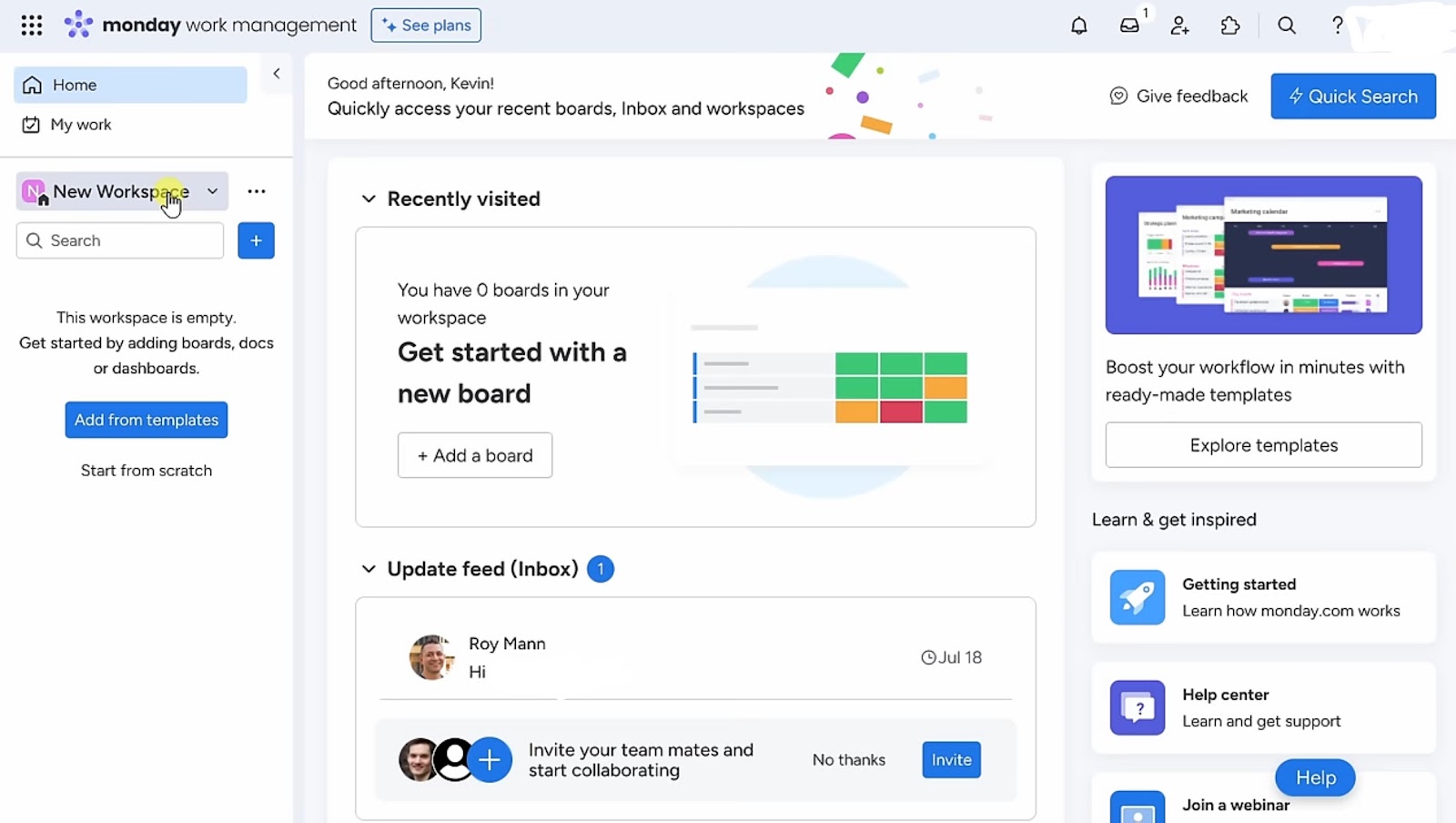
The issue? It too has a learning curve, and that’s just the price that you pay for the flexibility.
Monday.com does take a bit of upfront effort to set things up in a way that fits your team, but once the structure is in place, your team works on a system that feels tailor-made.
Pros
- Built-in collaborative doc editor
- Multi-language support for global teams
- Role-based permissions for better admin control
- Tasks can be created by sending emails to the boards
Cons
- Mobile app lacks some advanced desktop functions
- Limited export options (e.g., no native PDF export for dashboards)
Pricing
- Free: For up to 2 users, 3 boards, 200+ templates, 500MB storage, 8 column types
- Basic ($9/seat/month): Unlimited boards, unlimited items, 5GB storage, basic dashboard, 500 AI credits per month per account
- Standard ($12/seat/month): Includes calendar/timeline views, 250 automations/integrations per month, 20GB storage
- Pro ($19/seat/month): Adds time tracking, private boards, 25K automations/integrations, 100GB storage
3. Jira: Best for Agile Sprint Planning and Issue Tracking
TL;DR
Jira is built for software and product teams that need structure, speed, and flexibility in an agile environment. It handles complex workflows, sprint cycles, and issue tracking with precision. If your team runs on Scrum or Kanban, Jira gives you everything you need to plan, track, and ship work at scale.
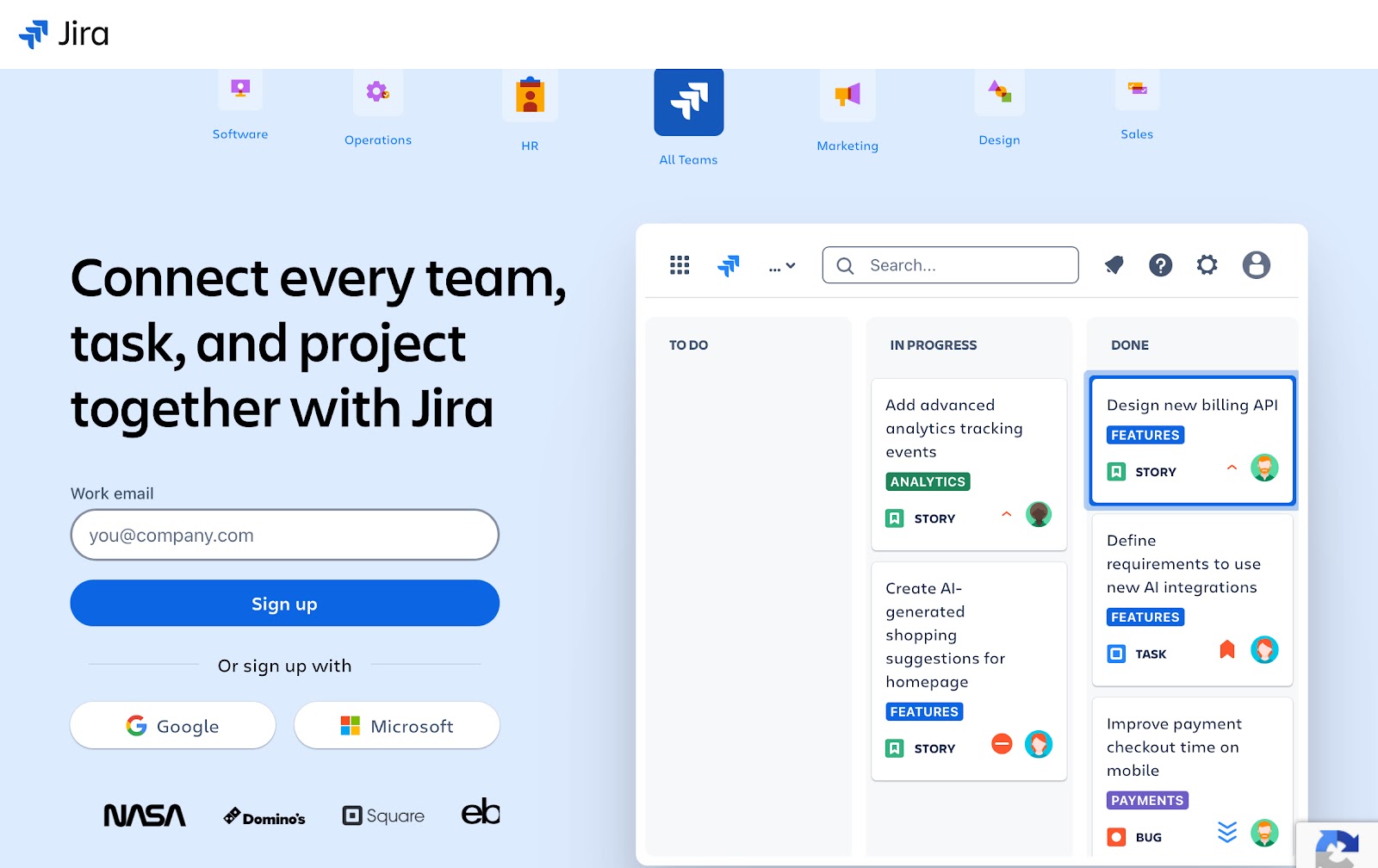
When you first use Jira, it does feel a bit much. The interface, the settings, the workflows, don’t exactly roll out a welcome mat. But once you get the hang of it, Jira makes a place in your tool stack.
See, the core of Jira revolves around boards: Scrum or Kanban, depending on how your team works.
Once you’ve set up your workflow, creating and managing tickets feels pretty straightforward. You can break work down into epics, stories, sub-tasks, assign them, set priorities, and track everything through each stage.
You’re not forced into someone else’s system. You can shape Jira around how your team operates.
Every change, from comments, time logs, to status updates, and even who moved what and when can be tracked. I’ve had to go back and retrace decisions from past sprints more than once, and it’s all there. You’re never guessing what happened or why something was delayed.
The automations can be used to move tickets across stages, auto-assign reviewers, flag blockers, and send reminders when issues go stale. It takes some effort to configure, but once it’s up, it quickly automates the repetitive tasks that would otherwise eat up time.
Reporting is also solid. You get dashboards showing velocity, workload, sprint burndown, and more.
I’ve built a few custom reports as well, mostly for long-term tracking across quarters. It’s been helpful for spotting bottlenecks or workload imbalance before it gets out of hand.
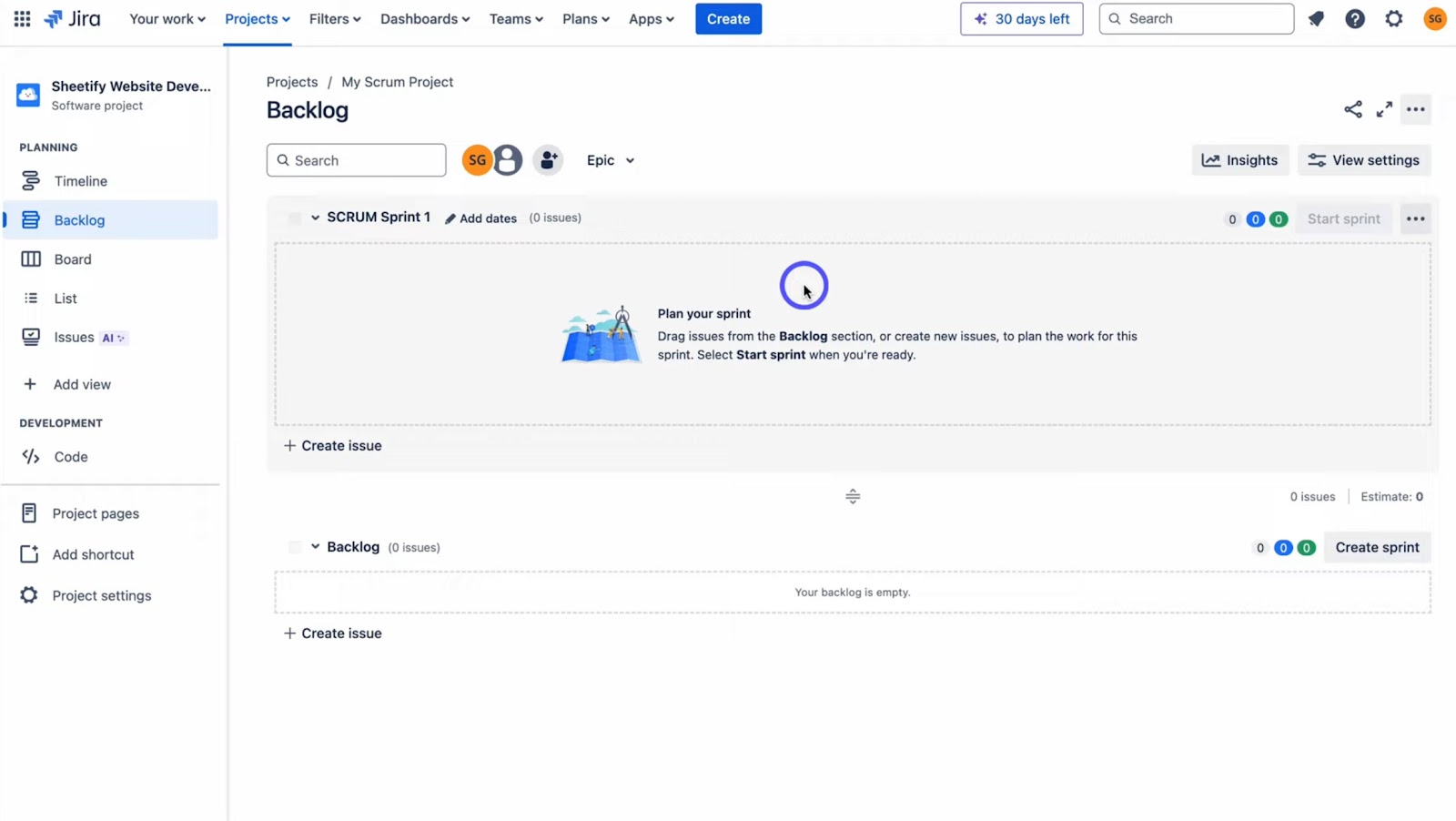
Jira isn’t a plug-and-play tool. The setup might appear a bit complex, especially if you’re trying to support multiple teams with different needs.
And if your project is relatively simple, Jira can easily feel like overkill.
But if you’re managing complex, layered projects and want everything from backlog grooming to post-release tracking in one place, Jira’s depth starts to make sense.
Pros
- Built-in sandbox environments for safe testing before rollout
- Audit logs and admin insights help track changes and user activity
- Marketplace access to 1,000+ apps and extensions for custom use cases
- Offers native roadmapping tools that link epics and initiatives across teams
Cons
- Native time tracking is basic
- Advanced reports like cumulative flow or sprint prediction require manual setup or third-party tools
Pricing
- Free: Up to 10 users, 2GB storage, basic features, 100 automation rule runs per month
- Standard: ($8.60/user/month): 250GB storage, roles/permissions, 1700 automation rule runs per month, 9/5 regional support
- Premium ($17/user/month): unlimited storage, advanced planning tools, approvals, 99.9% uptime SLA
4. Trello: Best for Simple Task Management Using Kanban Boards
TL;DR
Trello is built around boards, lists, and cards, making it easy to map out projects, track tasks, and collaborate in real-time. With its recent AI features and automation, Trello has grown from a basic to-do app into a surprisingly capable workflow solution for remote SaaS teams.
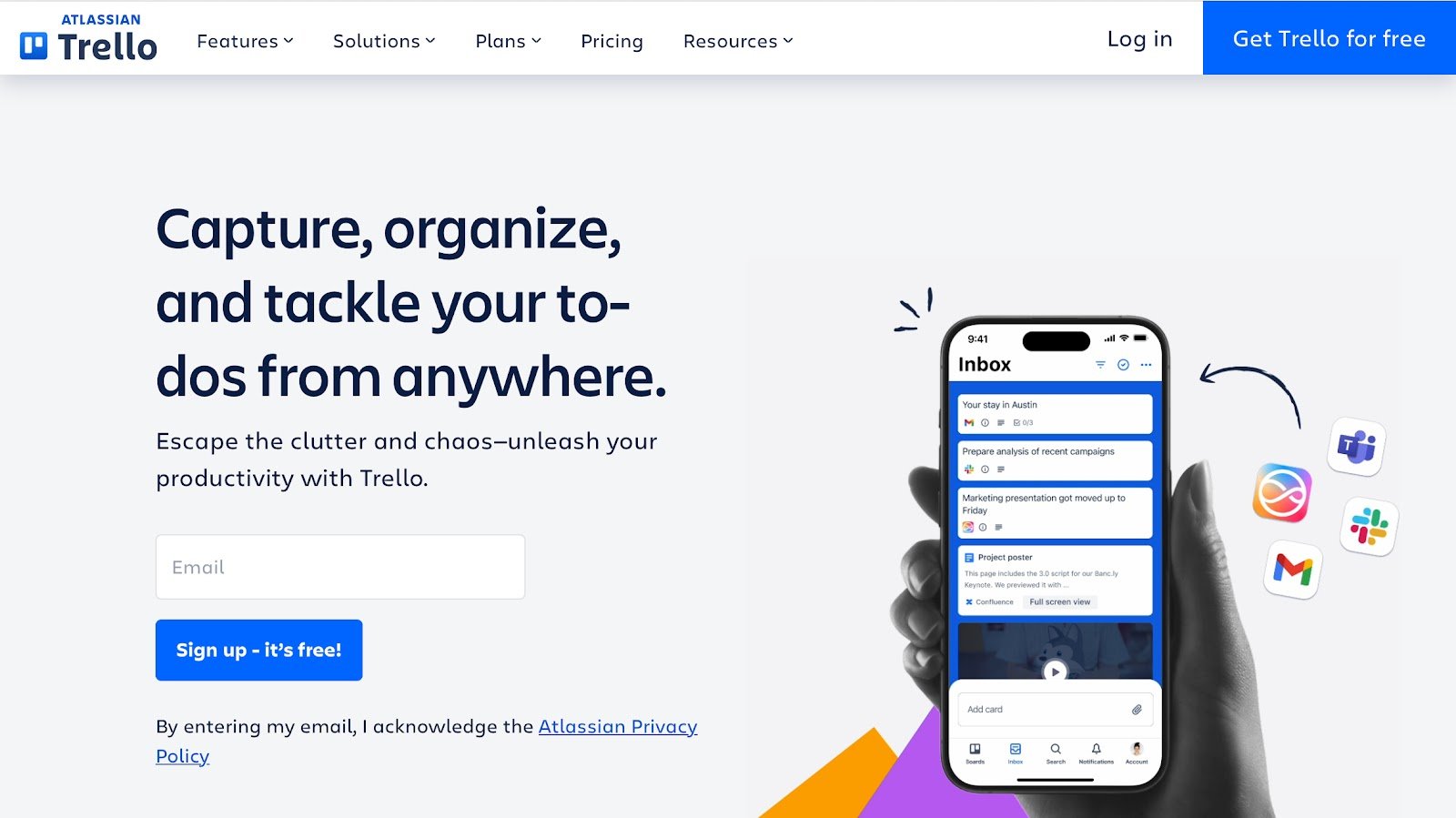
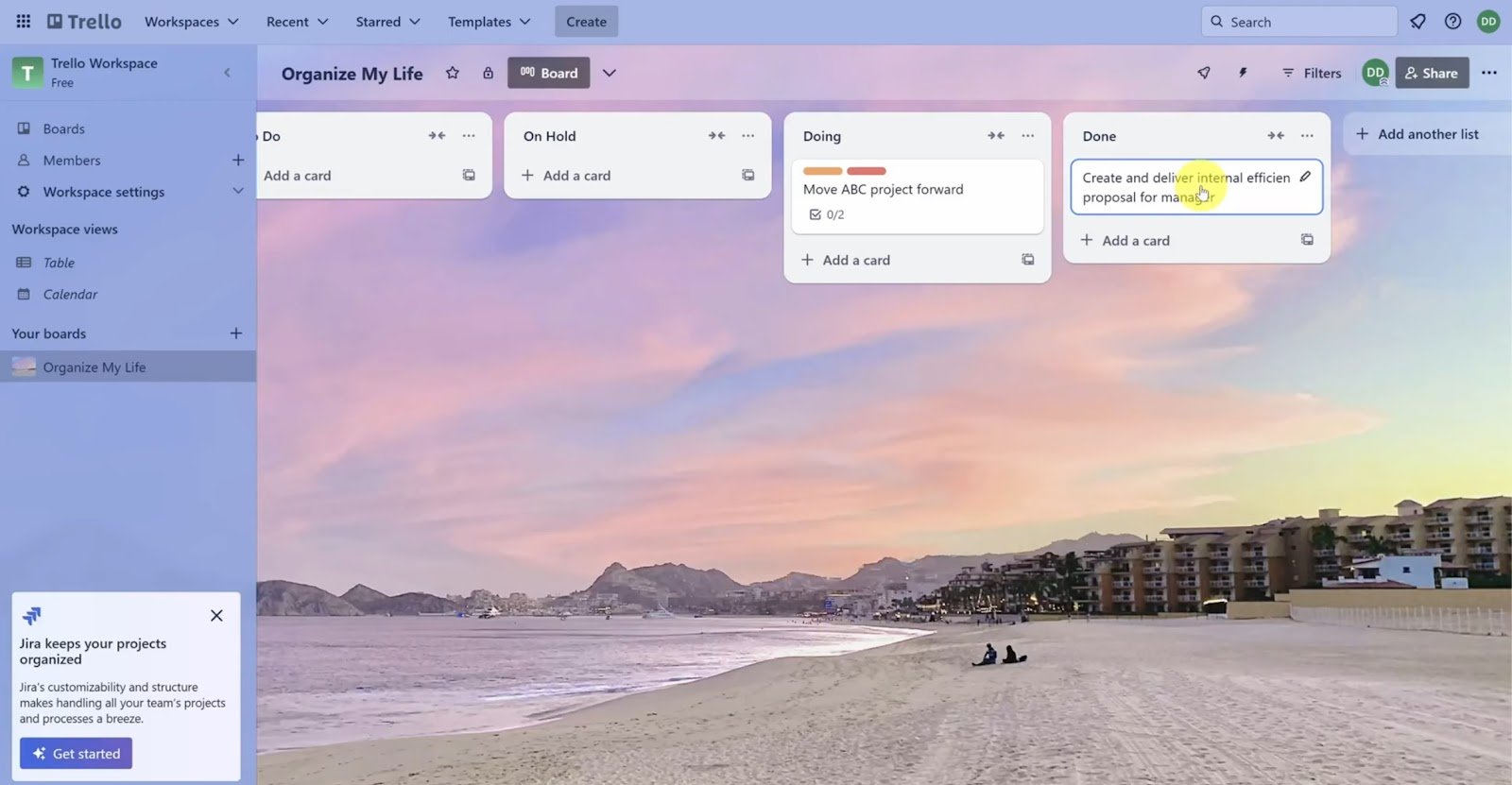
Trello’s always been one of the easiest tools to pick up. You open it, make a board, create some lists, and start dropping in cards.
No tutorial needed, no confusing interface to navigate.
The basic Kanban structure still works just as well as it did years ago and honestly, that simplicity is what makes it so useful for fast-moving teams.
If you’ve got different teams working off separate boards, mirrored cards let you manage shared tasks without constantly copying updates across places. It keeps things aligned without having to rethink your structure.
The classic Kanban view, now, comes with a timeline, calendar, dashboard, table, and even a map view.
Timeline is useful for long-term planning, while the dashboard gives you a quick pulse on how much is happening across the board.
For recurring workflows, I’ve leaned on Trello’s built-in automation tool, Butler. It doesn’t take much to set up rules that shift cards, assign people, or handle weekly resets.
It’s also not something you’ll use for complex logic, but for lightweight routines, it’s solid.
Trello’s AI features are fairly new, but already helpful in small ways. I’ve turned Slack threads into cards, had it summarize scattered messages, and even auto-linked tasks that touched the same topic.
Now, the trade-off is that Trello doesn’t scale as easily when the work gets more complex.
There’s no native support for dependencies or layered workflows unless you start bolting on extras or upgrade to a higher plan. The free version is generous, but in a team setting, those ceilings start showing, especially around automation and board limits.
Still, for teams who need something they can roll out instantly and use without formal training, Trello works quite well.
Pros
- Offers offline access on mobile apps for working without internet
- Bulk card actions are available via browser extensions and Power-Ups
- Card aging and visual cues help highlight inactive tasks over time (via Power-Ups)
- Supports Markdown formatting in card descriptions and comments for better readability
Cons
- No built-in time tracking
- Limited reporting and analytics tools without third-party add-ons
Pricing
- Free: Up to 10 boards, 2 Power-Ups per board, basic automation
- Standard ($5/user/month): Unlimited boards, custom fields, advanced checklists
- Premium ($10/user/month): Timeline, calendar, dashboard views, unlimited automation
- Enterprise ($17.50/user/month): Advanced admin features, priority support, and enhanced security
5. ClickUp: Best for All-in-One Task, Doc, and Goal Tracking
TL;DR
ClickUp combines project management, docs, time tracking, dashboards, chat, and even screen recording into one tool. If your remote team is tired of switching between 5 different apps just to get things done, ClickUp can simplify your entire workflow.
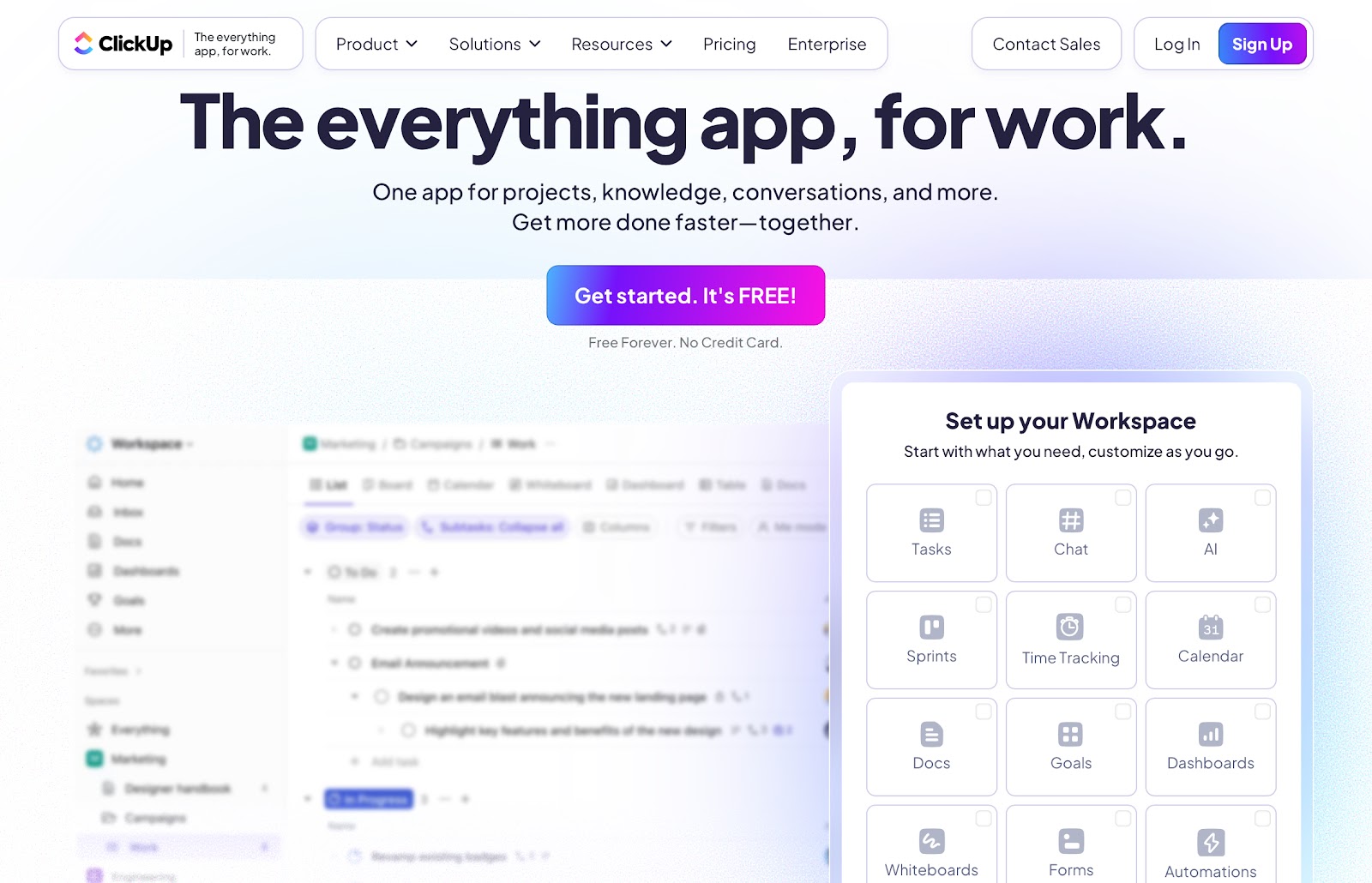
ClickUp gives the impression that it’s trying to replace your entire tool stack and in a lot of ways, it gets pretty close.
Like, I didn’t expect to find task management, docs, chat, dashboards, whiteboards, and even screen recordings all in one platform. But there it was, packed into a single workspace.
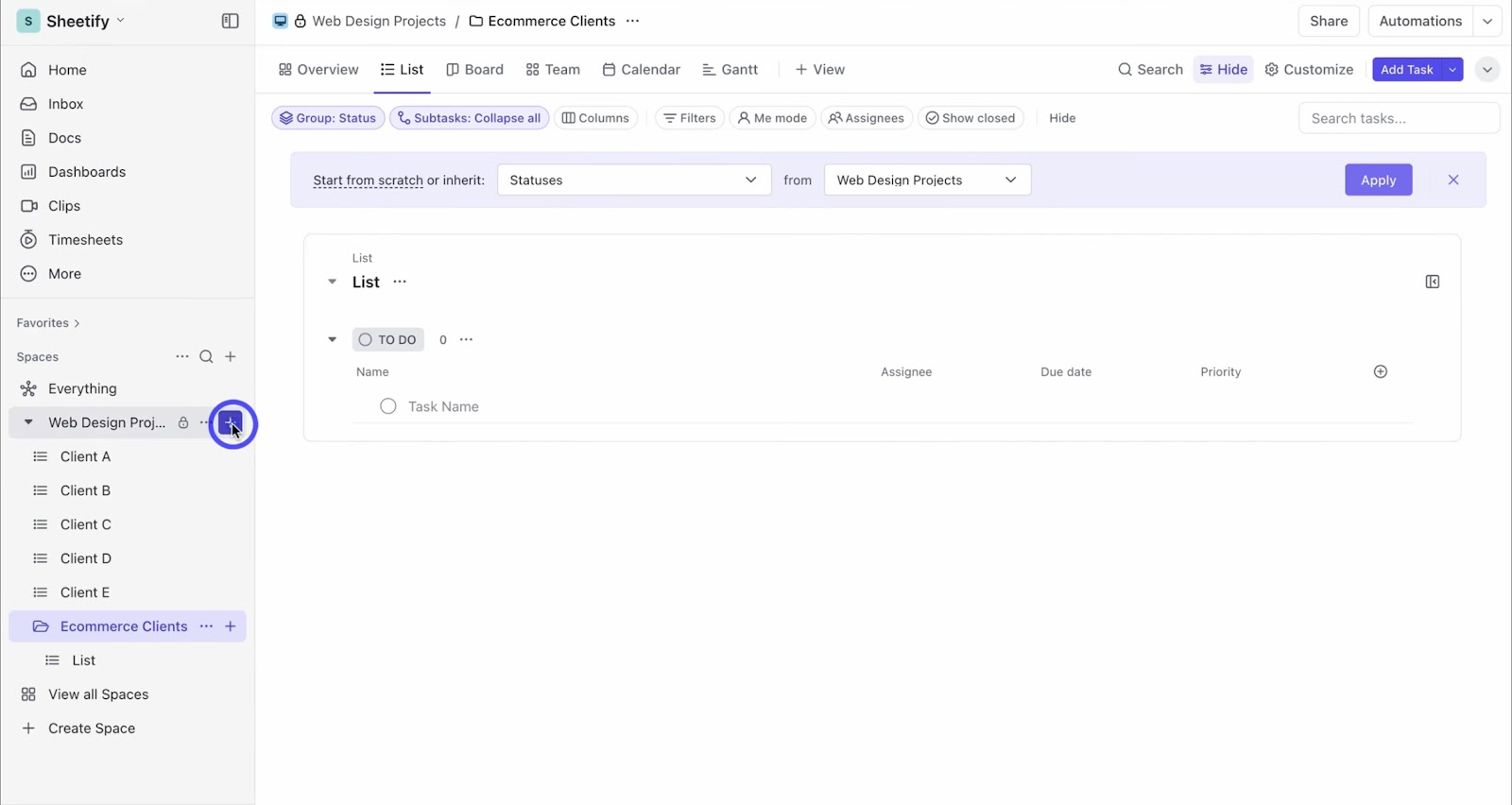
You’re not boxed into one workflow style either and can organize tasks into lists, boards, calendars, timelines, and even box view, which I’ve found useful when trying to see how work is spread across a team.
ClickUp also lets you build your fields, templates, and tagging systems, so it adapts well to different team setups.
I’ve used ClickUp to trigger reminders, update statuses, and manage recurring workflows without having to micromanage them. But I like how the AI features have improved with time. You can use them to summarize comment threads or pull tasks out of notes and do a decent job of cutting down the clutter.
Using the Dashboards feature, you can keep track of everything from deadlines to team workload, without having to bounce between projects. It’s especially helpful when managing several streams of work and trying to get a quick read on progress.
But there’s a flip side to all that functionality.
ClickUp throws a lot at you from the start. Without some initial structure or onboarding, it’s easy for teams to overcomplicate things. And while it generally performs well, I’ve noticed some lag when dealing with really dense projects or heavily loaded views.
Pros
- Supports nested subtasks up to 7 levels deep, ideal for detailed workflows
- Whiteboard view allows freeform brainstorming connected directly to tasks
- Native mind maps and goal tracking help with strategic planning and task alignment
- Offers a built-in screen recording tool (Clip) for visual feedback and asynchronous communication
Cons
- Frequent updates reset layouts
- The notifications system can be noisy without proper customization
Pricing
- Free Forever: Unlimited tasks and members, 100 automation actions/month
- Unlimited ($7/user/month): Unlimited storage, integrations, 1,000 automation actions/month
- Business ($12/user/month): Adds advanced automation, time tracking, and custom dashboards
6. Basecamp: Best for Centralizing Communication and Task Lists
TL;DR
Basecamp brings your team’s tasks, chats, files, and calendars into one space, without overloading you with features. If your remote SaaS team needs a clean, easy way to stay in sync without diving into complex workflows, Basecamp gets the job done.
Basecamp isn’t chasing trends, or trying to mimic tools packed with features or automation. Instead, it gives you a clear, tidy workspace to manage projects, talk to your team, share files, and stay on schedule.
I’ve used Basecamp on distributed teams where the main goal was staying connected and keeping tasks visible. Each project lives in its own space with a message board, task list, group chat (called Campfire), schedule, and file storage.
Now such a structure keeps everything where it belongs.
No tabs buried in side menus, no wondering where a conversation happened.
Task management is as straightforward as it gets. You assign to-dos, set due dates, and check things off when they’re done. There’s no automation, no dependencies but in some cases, that’s a benefit.
And if your team doesn’t need complex workflows, it’s refreshing to just keep things moving without configuration overhead.
Automatic Check-ins are quite practical, too. You can schedule questions like “What are you working on today?” or “Any blockers?” and team members respond directly in Basecamp. This means that you stay in sync without adding meetings to everyone’s calendar.
You can also invite clients into specific projects and control exactly what they can view. It’s simple, but it works, especially for agencies, service teams, or startups collaborating with partners or vendors.
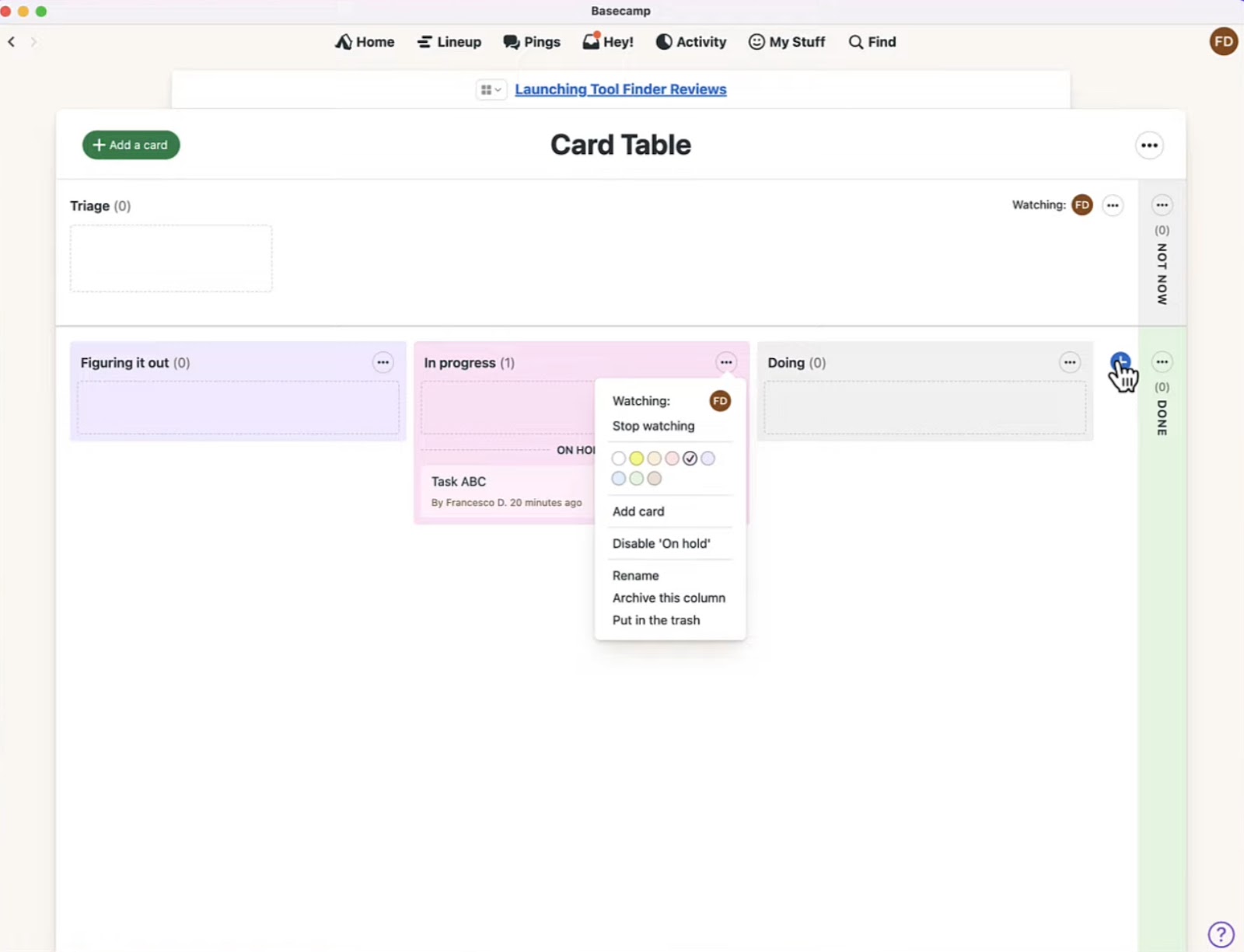
Campfire chat is built for short exchanges and quick check-ins. While not as good as Slack, and it does well when used alongside the to-dos and message threads.
Of course, the simplicity does come with limits.
There’s no built-in support for timelines, detailed reporting, or resource planning. If your team relies on layered workflows, linked tasks, or structured sprint planning, Basecamp might feel a bit too lean.
Pros
- Hill Charts offer a visual way to track project progress
- “Ping” feature enables private 1:1 or group messaging
- Daily recap emails summarize team activity automatically
Cons
- No built-in support for recurring tasks
- No Kanban, Gantt, or timeline views for visual planning
Pricing
- Basecamp Free: 1 project, 1GB storage space
- Basecamp Plus ($15/user/month): Unlimited projects, 500GB storage
- Basecamp Pro Unlimited ($299/month): Unlimited users, 5TB storage, time tracking, admin tools, and priority support
7. Wrike: Best for Managing Complex, Multi-Layered Workflows
TL;DR
Wrike manages large, detailed projects with multiple teams and moving parts. It’s built for remote SaaS, creative, and IT teams that need to centralize planning, automate busywork, and collaborate across functions without jumping between a dozen tools.
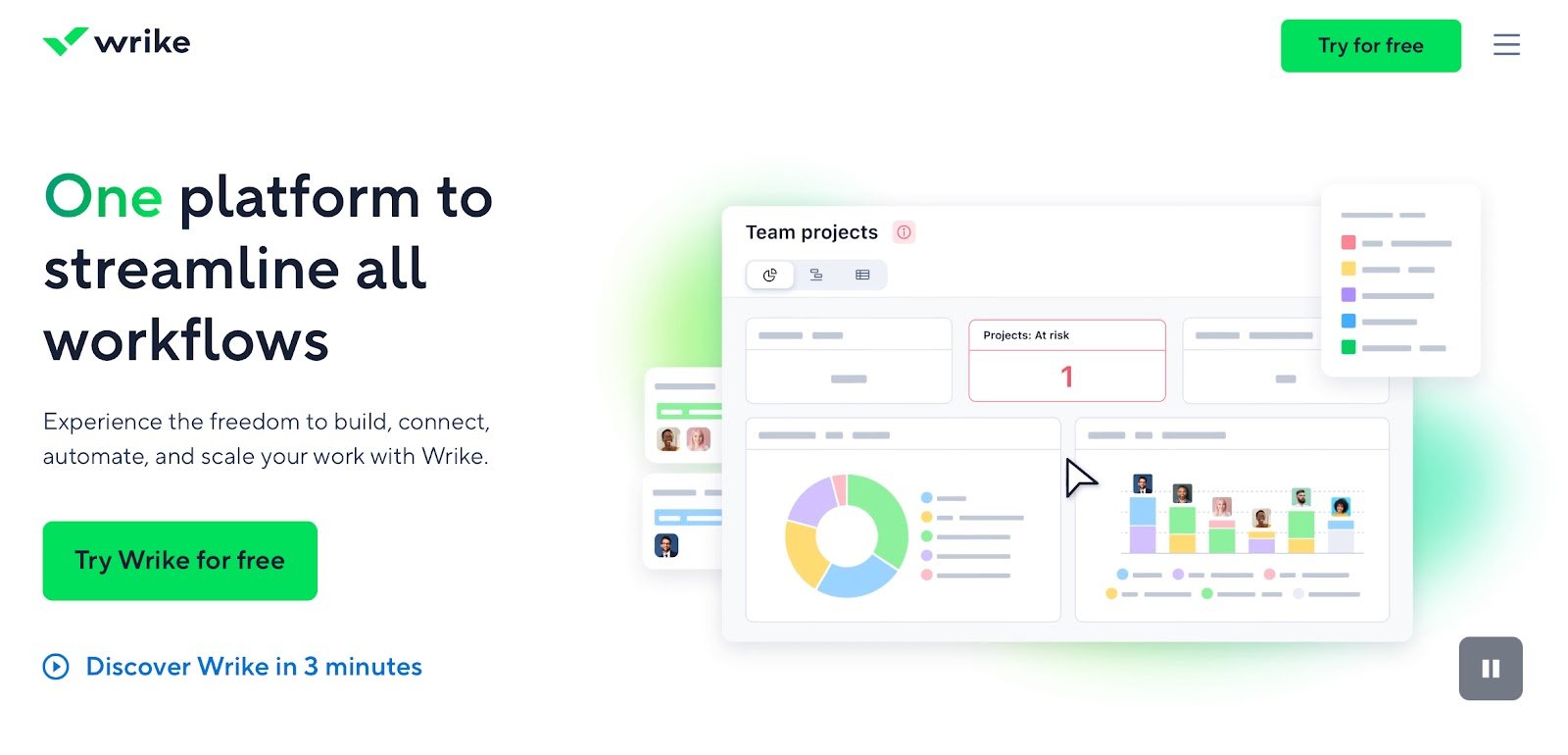
Wrike isn’t your typical task tracker, but more like a control center for remote project teams. It works well with multi-department campaigns involving product, design, and marketing.
Even when timelines shift or feedback loops get messy, everything stays in one place, easy to follow and adjust.
And if you struggle to organize work, then you can count on Gantt charts, Kanban boards, calendars, tables, dashboards, and more.
For example, while working on a timeline-heavy project, I used the Gantt view to manage dependencies. For sprint-style tasks, the board view kept things moving. What helps is that each teammate can set their view, so you’re not forcing everyone into the same layout.
The collaboration features are more than just comments and let you review design files, leave markup, compare different versions, and sign off without leaving the platform or sending a single email thread.
Wrike’s AI helps you highlight risks or suggest ways to break down large tasks, which helps when you’re deep in planning mode and want to avoid issues later on.
For brainstorming, Wrike has a solid set of whiteboarding and mind-mapping tools.
I’ve used them during kickoff sessions with cross-functional teams, and they’ve held up well especially for early-stage planning when structure isn’t fully in place yet.
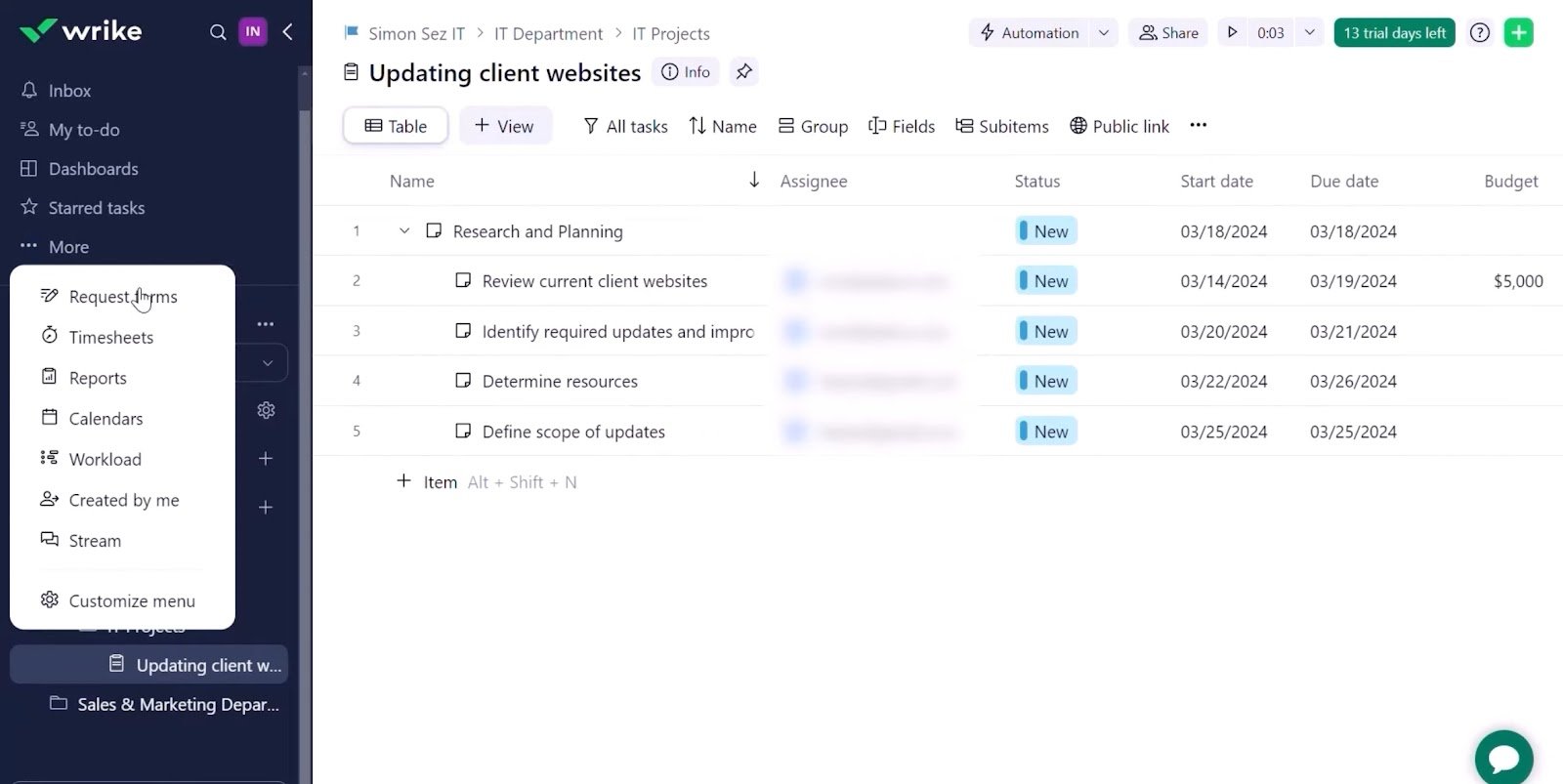
Now, this amount of depth does mean there’s a bit of onboarding involved. It’s not immediately intuitive for everyone, especially when setting up complex request forms or multi-step automations.
And while it integrates with hundreds of tools, some of the more advanced connections sit behind paywalls or require add-ons.
That said, once your team finds its rhythm, Wrike can cover a lot of ground. It’s structured enough for large projects but still flexible for day-to-day teamwork.
Pros
- Custom item types, so teams can track things beyond just “tasks”
- Built-in time logs and billable hours tracking are useful for agencies
- Blueprints for duplicating complex projects with pre-set tasks and workflows
- A folder and space hierarchy make it easier to organize large volumes of work
Cons
- Limited offline access
- Navigation can feel complex due to deep folder structures and layered views
Pricing
- Free: Unlimited users, basic views, limited tasks, project and task management
- Team ($10/user/month): 2–15 users, advanced views, 50 automation actions, 2GB storage per user
- Business ($25/user/month): Adds time tracking, proofing, analytics, 200 automation actions
8. Airtable: Best for Creating Custom Workflows with Spreadsheet Simplicity
TL;DR
Airtable is part database, part spreadsheet, and part app builder, and is perfect for remote SaaS teams that want full control over how they manage data, projects, or processes.
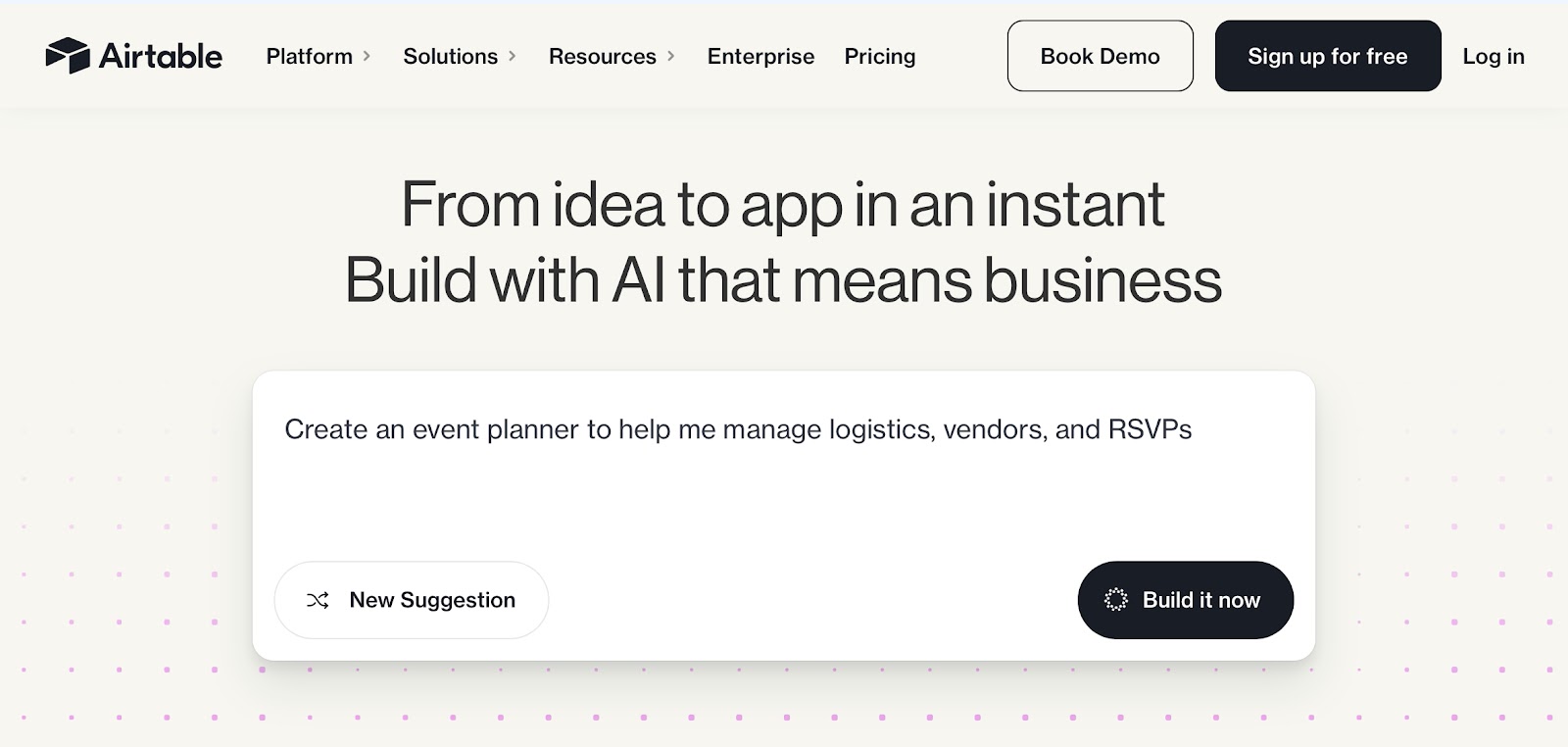
Airtable has been my go-to anytime when I need more structure than a spreadsheet but don’t want the rigidity of classic project management tools. It’s especially useful when the workflow isn’t one-size-fits-all. You’re not forced into a set format. You build your own, from the ground up.
At first glance, it looks like a spreadsheet. But once you start setting custom fields, linking records, and creating filtered views, it opens up. I’ve used it to run content calendars, track user research, and even manage a lightweight CRM. You decide the rules and that flexibility is the whole draw.
The multiple view options make it easier to adapt to different kinds of work. I switch between Kanban and the calendar often. Kanban to move tasks along, and calendar to map out campaigns or product launches. You’re always working with the same data, just looking at it through different lenses.
What’s pushed Airtable forward lately are its AI features that let you integrate language models directly into a base to summarize data, auto-fill fields, or generate suggestions. I’ve tested it for generating content angles from campaign results and sorting support tickets by theme. It’s quick and requires zero code.
With Collaboration, you can manage access per team or per table, so people only see what’s relevant to them. In a few setups I’ve worked on, we had marketing, ops, and support teams all sharing the same base without stepping on each other’s toes. And since updates happen in real-time, there’s no need to ping people for status updates.
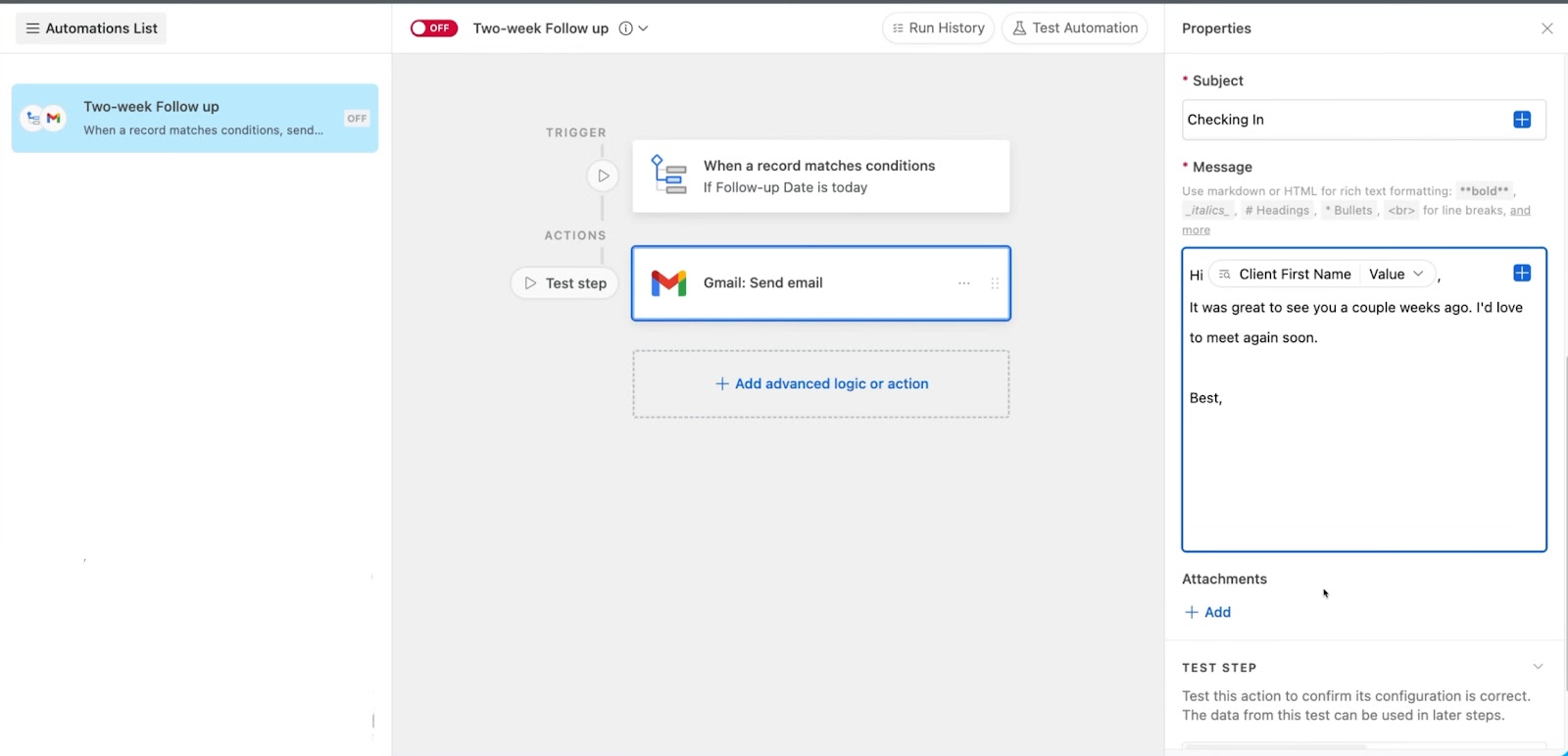
Having said that, it’s easy to go overboard. When you start layering too many automations or connecting complex tables, it can get hard to untangle. There’s also a ceiling on features if you’re on the lower-tier plans and larger teams may need to upgrade just to keep things running smoothly.
Still, for remote SaaS teams that want structure without strict limits, Airtable strikes a good balance. It gives you space to build the way your team thinks, instead of forcing you to work inside someone else’s framework.
Pros
- Field-level permissions offer granular access control
- Revision history lets you view and restore past changes to records
- Interface Designer lets you create custom apps and internal tools without code
- Supports sync across bases to keep data consistent across teams or departments
Cons
- The mobile app is limited
- Permission complexity grows with scale
Pricing
- Free: 500 AI credits, 1,000 records per base, 5 editors, 1GB of attachments per base, 100 automation runs
- Team ($20/seat/month): 50,000 records/base, 20GB of attachments, 25,000 automation runs storage, automation, and collaboration tools
- Business ($45/seat/month): 20,000 AI credits, 100 GB of attachments admin features, enhanced automation, 100,000 automation runs
9. Miro: Best for Visualizing Workflows and Team Brainstorming
TL;DR
Miro is built for remote teams that need a fast, flexible way to collaborate visually. It’s designed for real-time brainstorming, planning, and mapping out ideas together on a shared canvas. Miro gives you everything you need to turn ideas into action.
Miro is a tool where most of my early planning starts. Think of it as just a digital whiteboard, but in practice, it’s a lot more than that.
I’ve used it to lay out product roadmaps, structure campaigns, run sprint planning sessions, and map out customer journeys with fully remote teams.
Every new project starts with a blank board.
From there, it can become whatever you need such as flowcharts, mind maps, calendars, or full-scale workshop spaces. It doesn’t push you toward a specific format, which makes it especially useful when you’re figuring things out in real-time.
It handles group collaboration quite naturally. Multiple people can jump in, drop sticky notes, sketch out ideas, comment, or vote in real-time.
You can even find built-in tools for things like timers, voting rounds, and even video calls. It’s as close to a live workshop as you can get without being in the same room.
I’ve used Miro’s AI to sort sticky notes into themes, summarize cluttered boards, and surface next steps at the end of long sessions. These small boosts make a difference when you’re trying to turn messy ideas into usable plans.
There’s also more technical depth than you’d expect from a visual tool.
Miro supports formal diagramming standards i.e. BPMN, UML, AWS shapes you can use for everything from internal architecture diagrams to handoff docs.
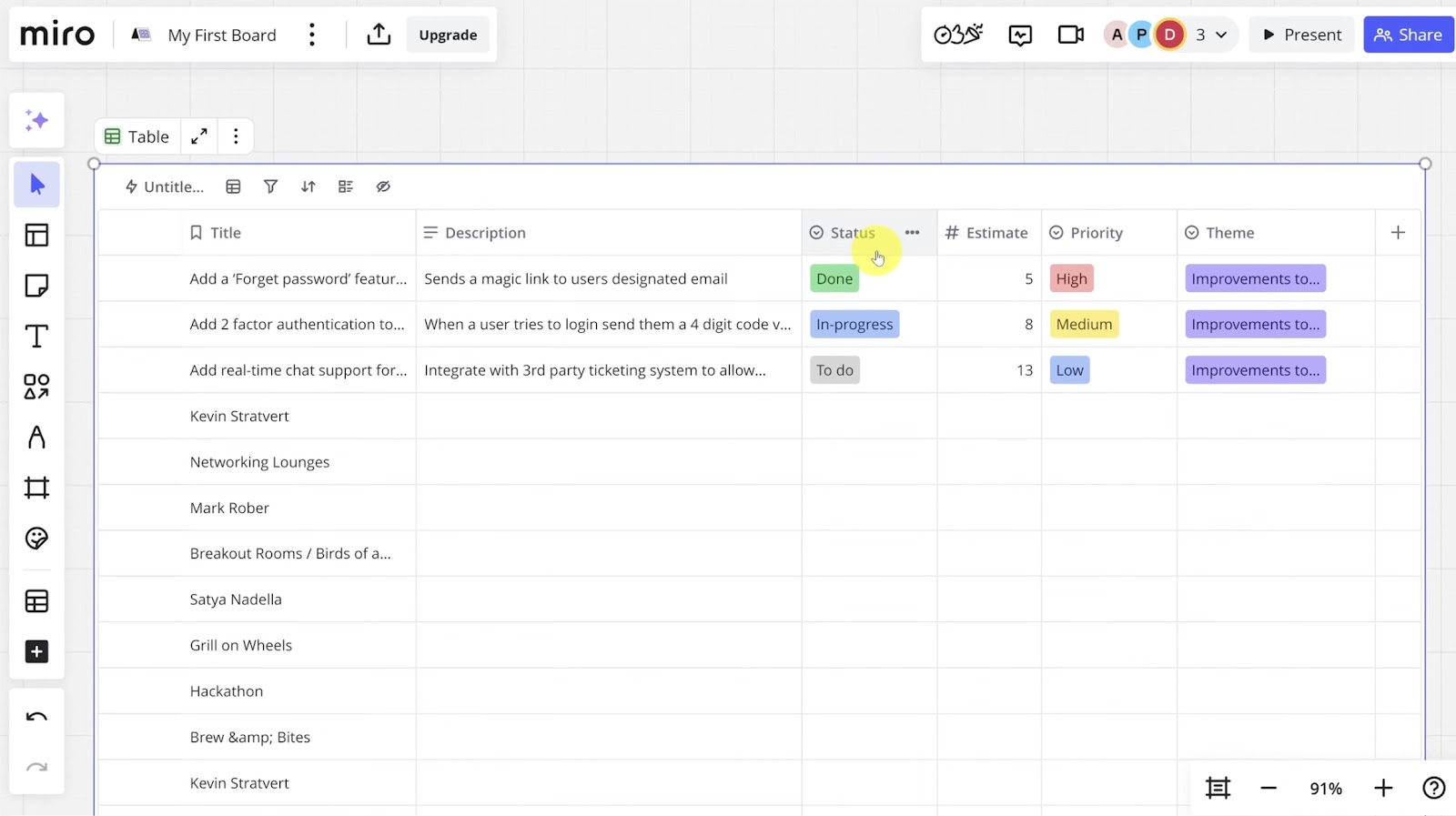
The only pain points I’ve hit were with performance on larger boards. If you’re working with a lot of media and embedded comments, it can slow down, especially on older devices or spotty connections.
And while the basics are intuitive, digging into advanced features like smart folders or detailed diagrams takes a bit of exploration.
Still, for teams that need space to think, sketch, and iterate together, Miro holds up well.
Pros
- Boards that auto-save your progress automatically
- Multi-cursor collaboration for real-time work transparency
- Integrates with calendar tools like Outlook and Google Calendar
- Keyboard shortcuts and quick commands for quick editing and navigation
Cons
- Does not support true version branching
- No granular user-level permissions within a single board
Pricing
- Free: 3 editable boards, unlimited members, basic integrations, 5 Talktracks
- Starter ($8/member/month): Unlimited and private boards, board exports, basic 25 credits for Miro AI, unlimited Talktracks, version history
- Business ($16/member/month): Adds more integrations, admin tools, priority support, 50 credits for Miro AI, and SSO
10. Slack: Best for Automating Workflows through Team Chat
TL;DR
Slack is the communication hub for remote teams. With channels, integrations, huddles, and built-in automation, it brings your tools and conversations into one place. If your SaaS team spends more time in chat than email, Slack helps turn discussions into action.
Slack keeps communication smooth from the moment the workday begins until it winds down. The interface acts like a layer where real-time coordination happens.
I’ve seen everything from daily standups and bug triage to launch plans and feedback threads unfold entirely inside Slack channels.
The way it’s organized makes it easier to manage all that conversation. You set up channels by team, project, or function and decide whether they’re public or invite-only. In most setups I’ve worked with, we had separate spaces for engineering, product, design, support, and company-wide updates.
You can integrate Slack with Jira, Trello, Zoom, and Google Drive so alerts, file shares, and task updates appear right where your team is already talking. That way, you get a continuous timeline of progress in real time.
For quick back-and-forth, Slack Huddles have been handy. Unlike Zoom, it’s easy to hop on a huddle when you need to hash something out fast, a quick audio call or screen share. No meeting link or calendar slot required.
There’s also Workflow Builder, which I’ve used to automate some of the basics: sending onboarding messages, collecting async check-ins, or routing internal requests. It’s not complex automation, but for small tasks, it clears out a lot of manual busywork.
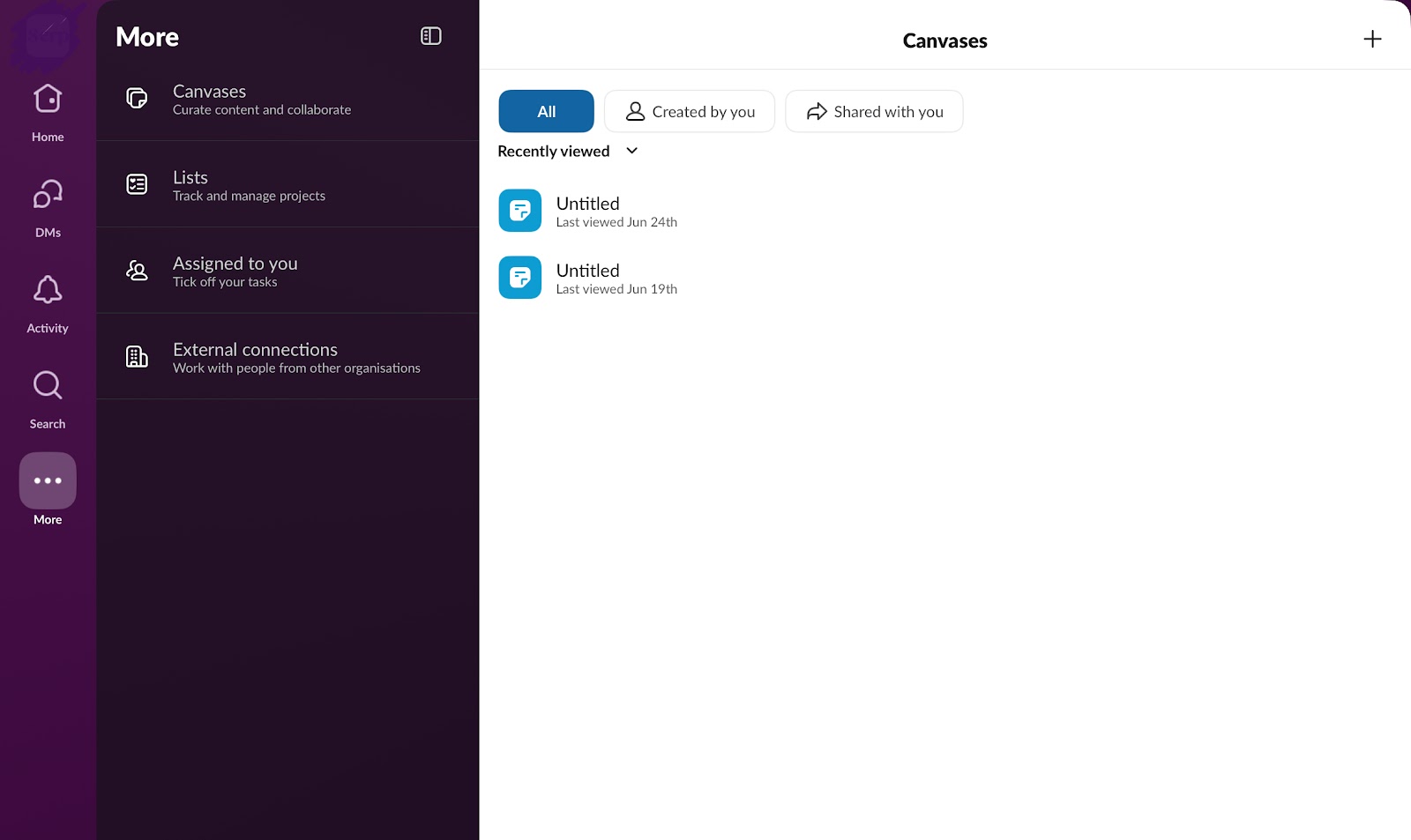
Recently, Slack’s added more structure with Canvases that are essentially lightweight docs and checklists you can pin inside channels. It’s good for capturing decisions, sharing onboarding materials, or posting reference links without needing a separate doc tool.
Talking about the drawbacks, there’s a chance that Slack can get noisy. In active channels, important updates sometimes get buried, and if your team isn’t strict about naming conventions or thread usage, things can sprawl quickly.
But if your team is distributed and constantly moving, Slack becomes the backbone of communication.
Pros
- Custom emoji and reactions improve team culture
- Extensive app directory with niche integrations for HR, IT, finance, and more
- Multiple workspaces to switch between companies or teams without logging out
- Slackbot automations for quick reminders, onboarding messages, or FAQs within channels
Cons
- File organization is basic
- No native task or project management features
Pricing
- Free: 90-day history, 1:1 huddles, 10 integrations
- Pro ($7.25/user/month): Unlimited history, group huddles, Slack Connect, basic automations
- Business ($15/user/month): Adds AI features, advanced compliance, enhanced support
11. Planable: Best for Content Approvals and Publishing Workflows
TL;DR
Planable is built for teams that produce content at scale and need a clear approval process. It keeps drafts, comments, client feedback, and publishing schedules organized in one workspace. If your SaaS team works on newsletters, social posts, blogs, or campaigns, Planable makes collaboration a lot less chaotic.
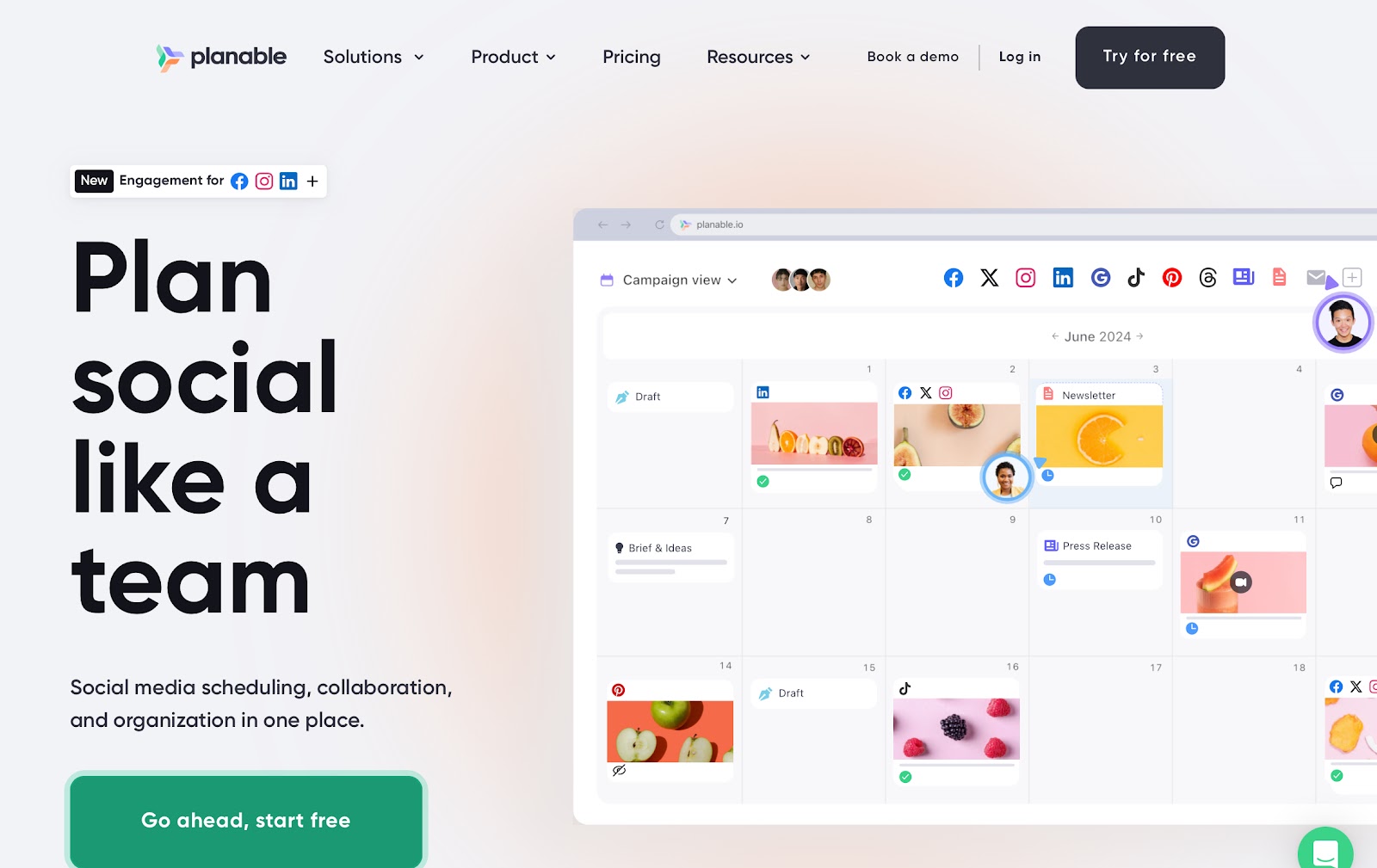
Planable stands out when content isn’t just created but carefully reviewed before it goes live. I’ve used it with teams where marketing, legal, and product all had to sign off on assets, and it made the approval process way less chaotic than chasing feedback across Slack threads and email chains.
At its core, it’s a collaborative workspace where you plan, write, edit, and approve content in one place. You can build out posts for social, blogs, or newsletters, and preview exactly how they’ll appear.
Everything sits inside a drag-and-drop calendar, which helps keep scheduling and planning visible at a glance which is especially useful when you’ve got multiple channels.
The approval flow lets you set up layered reviews, say, a first pass from the content team, then legal, then brand without having to manually move content around.
I’ve used it to track which posts were ready, which still needed notes, and which were good to go. It’s clear, structured, and avoids the usual back-and-forth.
Directly feedback on the content makes a big difference.
Reviewers can drop comments, suggest edits, and resolve threads without leaving the dashboard. Plus, you can even control visibility, so internal notes stay hidden from clients when needed.
When clients are involved, it’s easy to loop them in without giving them full access.
Just send over a single post or an entire calendar with just a link, and choose exactly what they see. For agencies or teams working across departments, this keeps things tidy without extra overhead.
I’ve pulled in assets from different campaigns and used the Canva integration more than once to tweak creatives directly inside it. It saves time and keeps everything in one place.
There are a few limitations.
It doesn’t cover things like social listening or deep analytics, so depending on your workflow, you may still need other tools in your stack.
And if your setup gets too complex, you might notice it’s built more for content coordination than full campaign management.
Pros
- Supports multi-format previews for social media posts
- Post duplication and scheduling in bulk saves time during content batching
- Activity log tracks all changes and comments for better accountability across collaborators
Cons
- No built-in content analytics
- Only supports a limited set of social platforms
Pricing
- Free: 50 total posts, unlimited users, basic features, no analytics
- Basic ($33/workspace/month): 60 posts/month, 4 social pages, 3 campaigns, unlimited users, 2 approval types, add-ons available
- Pro ($49/workspace/month): 150 posts/month, 10 social pages, 10 campaigns, 3 approval types, advanced calendar views
12. Pebb: Best for Small Teams Needing an Affordable All-in-One Workspace
TL;DR
Pebb brings messaging, video calls, tasks, calendars, and file sharing into one clean interface without the need for constant switching. For remote SaaS teams working on a tight budget, it covers the basics surprisingly well while offering room to scale.
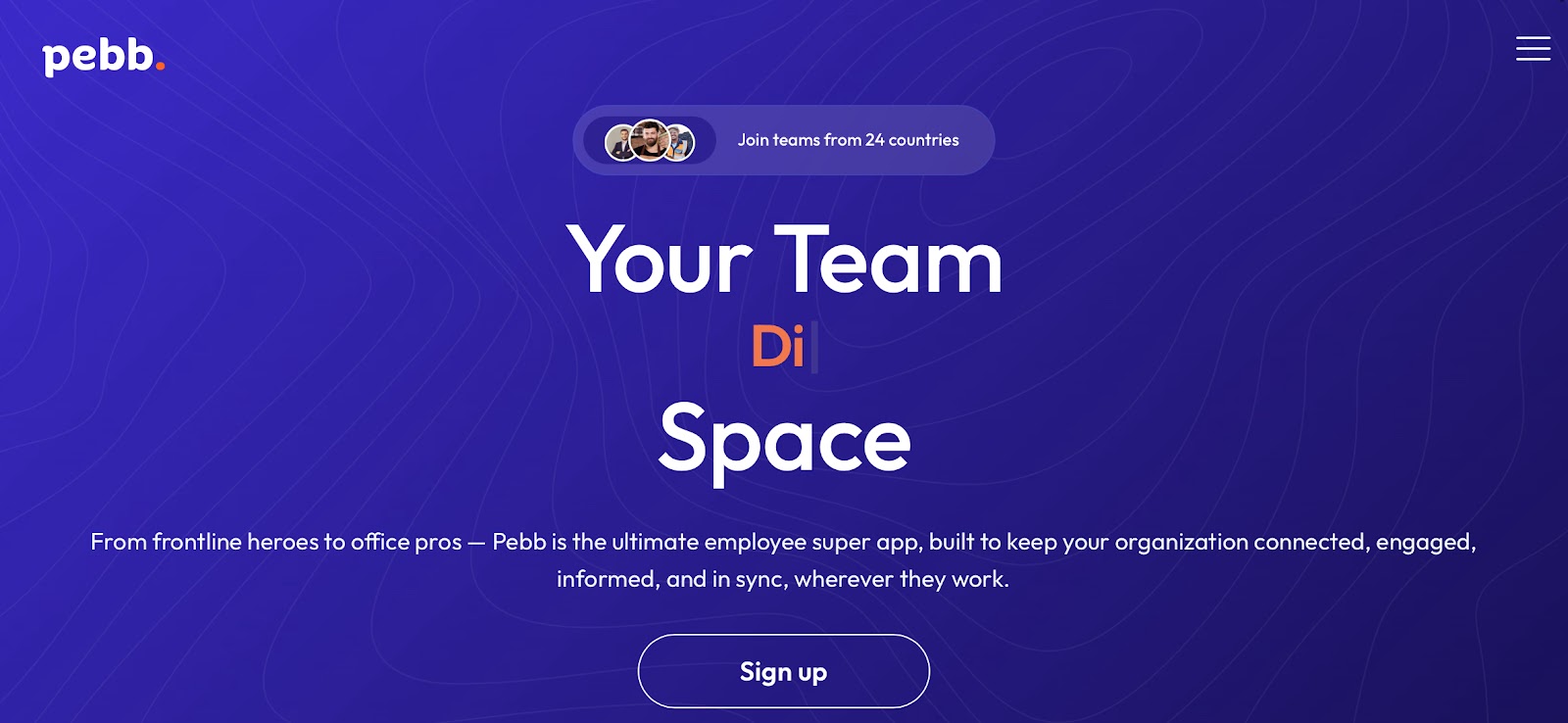
I tested Pebb with a team looking to simplify its setup. Using a bunch of apps for chat, video calls, task tracking, and company announcements, wasn’t feasible or efficient. Pebb declutters your stack without making things feel bloated.
The real-time chat is responsive and well-organized.
You can spin up threads, drop files, and switch between group chats and DMs without losing context. The unrestricted message history makes long-term visibility easier without needing workarounds.
Video and voice calls are built into the same workspace.
There’s no extra setup to hop on a quick sync or team huddle, and the call quality was reliable across devices. It feels designed for distributed teams who move quickly and don’t want to rely on third-party tools for something as basic as a check-in.
Tasks live right alongside the conversations and let you create to-dos directly from a chat, assign them on the fly, and track everything from a simple dashboard. Not the best for detailed sprint planning, but for daily coordination, it works well and doesn’t slow you down.
Pebb also includes a knowledge base that acts like a lean internal wiki. It can be used to store onboarding docs, internal guides, and team notes. Alongside that, the announcements board and company feed extract important updates before they getting buried in chat.
The interface is lightweight, fast, and feels more like a familiar social platform than a traditional enterprise suite.
During my testing, onboarding new teammates was quick, and it didn’t take long for people to get comfortable.
There are limits, though. For example, if your workflows depend on complex integrations or layered permissions, you’ll start to feel the edges. It’s not built for enterprise customization yet, and some advanced capabilities are still on the roadmap.
Pros
- Supports both company-wide and team-specific announcements
- Efficient mobile-first UX design for frontline workers and office teams
- Unified search bar to find messages, tasks, files, and events from one place
- Dedicated app launcher (“Apps Wall”) centralizes access to internal and third-party tools
Cons
- No public API access yet
- No desktop app for macOS or Windows
Pricing
- Free Plan: Up to 1,000, work chat, tasks, calls, calendar, file sharing, unlimited departments
- Premium Plan ($3.5/user/month): advanced analytics, voice calls, SSO, enterprise integrations, unlimited admins, and premium support
How I Selected the Best Workflow Tools for Remote SaaS Teams
There’s no shortage of workflow tools out there. The challenge isn’t finding options. It’s figuring out which ones are useful when your team is fully remote, moving fast, and wearing multiple hats. I didn’t just look at features in isolation, I looked at how each tool works in real, messy, day-to-day SaaS life.
Here’s exactly what I considered when building this list.
- Tools that reduce switching and clutter: Remote SaaS teams use a lot of apps every day for chat, tasks, calls, calendars, and documents. The tools that made it to this list either brought all of those functions together or connected so well with the rest that they felt like a natural part of the workflow. ClickUp and Pebb stood out here because they combine messaging, meetings, tasks, and file sharing in one platform.
- Flexibility to support different work styles: Not every team works in sprints or runs product launches the same way. Some are planning editorial calendars, some are juggling client campaigns, and others are managing engineering backlogs. The tools I selected had to be flexible enough to handle all of that.
- Simple to use, even with advanced features: Even powerful software should be easy to navigate. Tools with too many menus, pop-ups, or confusing views can slow teams down, especially remote ones. Trello and Basecamp are both examples of tools that are beginner-friendly but still effective. On the other end, tools like ClickUp or Jira come with more features, but they also offer good templates, smart defaults, and clear interfaces.
- Pricing that makes sense as teams grow: SaaS teams grow quickly, and costs can pile up fast. I looked closely at how tools handle pricing, especially for small teams that need serious features but don’t have enterprise budgets. Pebb offers one of the most generous free plans, with support for up to 1,000 users. Airtable, Planable, and Slack also made the list because their lower tiers are still usable without being frustratingly limited.
- Tested in real SaaS workflows: Every tool here was tested using actual SaaS team use cases such as feature planning, content production, sprint tracking, and internal communication. I paid attention to whether they helped the team move faster, collaborate better, or stay more organized. AI features that help clean up task lists or summarize discussions were a plus, but only when they genuinely saved time. Tools that kept people aligned without adding noise consistently ranked higher.
Final Words
The best workflow tool is the one your team will use. It should make work easier, not harder. Every tool in this list was picked because it helps remote SaaS teams stay organized, communicate clearly, and get things done without too much setup.
Some tools do everything in one place. Others focus on doing one job really well. What matters is that they save you time, reduce confusion, and fit into the way your team already works.
Most of these tools offer free plans or trials, so you don’t have to commit right away. Try a few, see what clicks, and build your stack from there.
The right tool won’t fix everything overnight but it will make your day-to-day work feel a lot more manageable.


 A better way to manage projects and clients for freelancers
 Get through busy days like a breeze with Reclaim.ai