
Decision fatigue is REAL.
It’s that creeping exhaustion that builds as the day goes on, not from effort, but from the sheer number of choices you make.
By noon, you’ve already decided what to work on, when to work on it, which emails to answer first, and how to fit it all in. And that’s before you’ve even touched the important stuff.
The problem? The more micro-decisions you make early, the less brainpower you have for the big ones that matter.
That’s where the right tools help. The best planning apps don’t just organise your work; they remove dozens of tiny choices, automate repetitive decisions, and guide you through your day without the mental drain.
These 12 are my go-to picks for cutting through the noise, making planning effortless, and keeping your energy for the work that moves the needle.
How I Tested These Tools
The real test for any planning tool isn’t how pretty it looks; it’s whether it makes my day feel lighter.
I used all these tools for my morning planning sessions, deadline adjustments, last-minute meeting changes, and those everyday moments when you ask, “Where do I even start?”
My goal was to identify which ones quietly removed decisions rather than adding new ones.
A good tool should slot tasks into the right place without you having to think twice, rearrange priorities when plans change, and keep everything in one view so you’re not bouncing between five tabs.
The key criteria:
- Automation features: The tool should handle routine choices automatically, like scheduling tasks or reordering priorities when plans change.
- Ease of use: It should work smoothly from the start, without requiring hours of setup or a steep learning curve.
- Integrations: The best tools pull in tasks, events, and emails from other apps so you can see everything in one place.
- Ability to simplify decision-making: It should guide you toward clear next steps and remove the need to constantly ask, “What should I do now?”
- Cost vs. value: The price should feel worth it if the tool consistently saves time, energy, and frustration.
The 12 in this list are the ones that cut through the noise, help you start faster, and keep your mental energy for the work that matters.
Best Tools for Planning: TL;DR
- Sunsama: Best for mindful daily planning
- Notion: Best for creative & flexible planners
- Zapier: Best for automating repetitive work
- Trello: Best for visual task tracking
- Monday.com: Best for building visual workflows across departments
- ClickUp: Best for all-in-one work management
- Reclaim.Ai: Best for calendar-based goal protection
- Jira: Best for agile sprint planning and issue tracking
- Calendly: Best for scheduling meetings without back and forth
- Evernote: Best for note-based planning
- Structured: Best for time-blocking beginners
- Obsidian: Best for networked thinking
12 Best Planning Tools in 2025
1. Sunsama: Best for mindful daily planning
TL;DR
Sunsama is a daily planning app that guides you through a calm, realistic scheduling ritual, ideal for professionals who want focused days without overload.
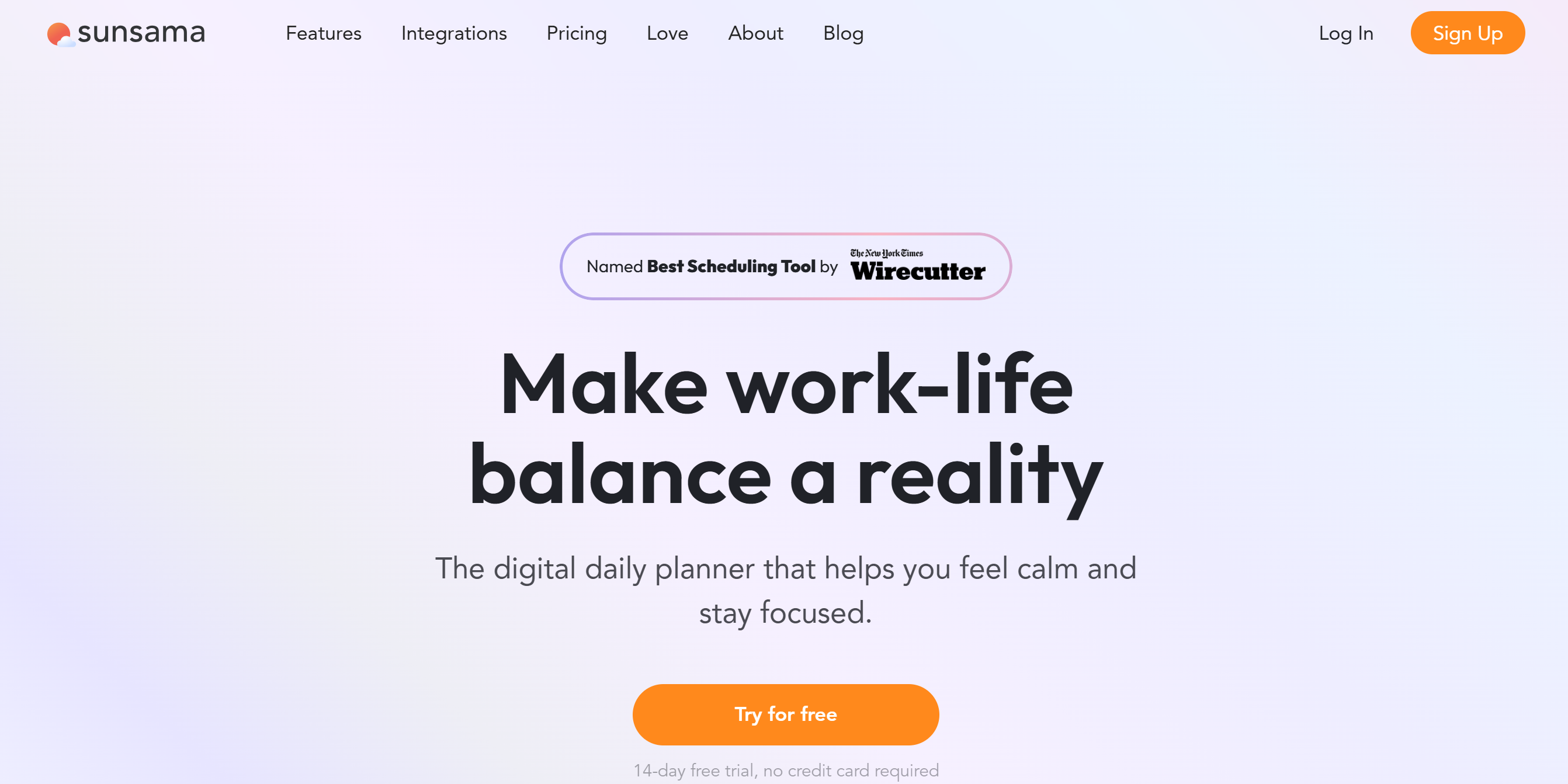
Sunsama isn’t just another productivity app; it’s a decision filter for your day. Instead of dumping all your tasks into an overwhelming list, it guides you through a simple daily ritual.
You reflect on yesterday, pull in only today’s most important tasks, estimate how long they’ll take, and drop them onto your calendar.
By combining tasks, meetings, and emails into one flow, Sunsama reduces the mental juggling act. For example, you can drag an email from Gmail straight into your 2 PM slot, and it’s scheduled instantly. You’re not asking yourself, “When should I do this?” or “Did I forget something?” It’s all laid out clearly.
I especially liked how it pulled tasks from Notion, Trello, Gmail, and Asana with zero friction, and how meetings synced instantly without adding clutter.
The clean interface keeps you focused, and the end-of-day shutdown reminder helps you stop working instead of dragging tasks into the evening.
Its newer features take the load off even more. “Task projections” (in beta) can auto-place your tasks into free slots. Recurring tasks now appear automatically.
Focus Mode hides everything except your current task, complete with a floating timer and an auto-updating Slack status so interruptions are minimal.
Weekly reviews are built in, too, making it easier to carry over unfinished work and set objectives without rethinking your entire plan.
It integrates with the tools you already use, so you’re not tab-hopping to keep your plan updated. At the end of the day, you get a gentle review, a quick recap that celebrates progress without guilt-tripping you over unfinished work.
Pros
- Clear, guided end-of-day review
- No ads, upsells, or distracting pop-ups in the UI
- Regular updates with genuinely useful new features
Cons
- Learning curve for non-planners
- Limited team management features
Pricing
- 14-day free trial (no credit card required)
- $20/user/month (monthly billing)
- $16/user/month (annual billing, $192/year)
2. Notion: Best for flexible, all-in-one organisation
TL;DR
Notion combines notes, tasks, databases, and collaboration in one customizable workspace, letting you organise everything from projects to personal goals your way.
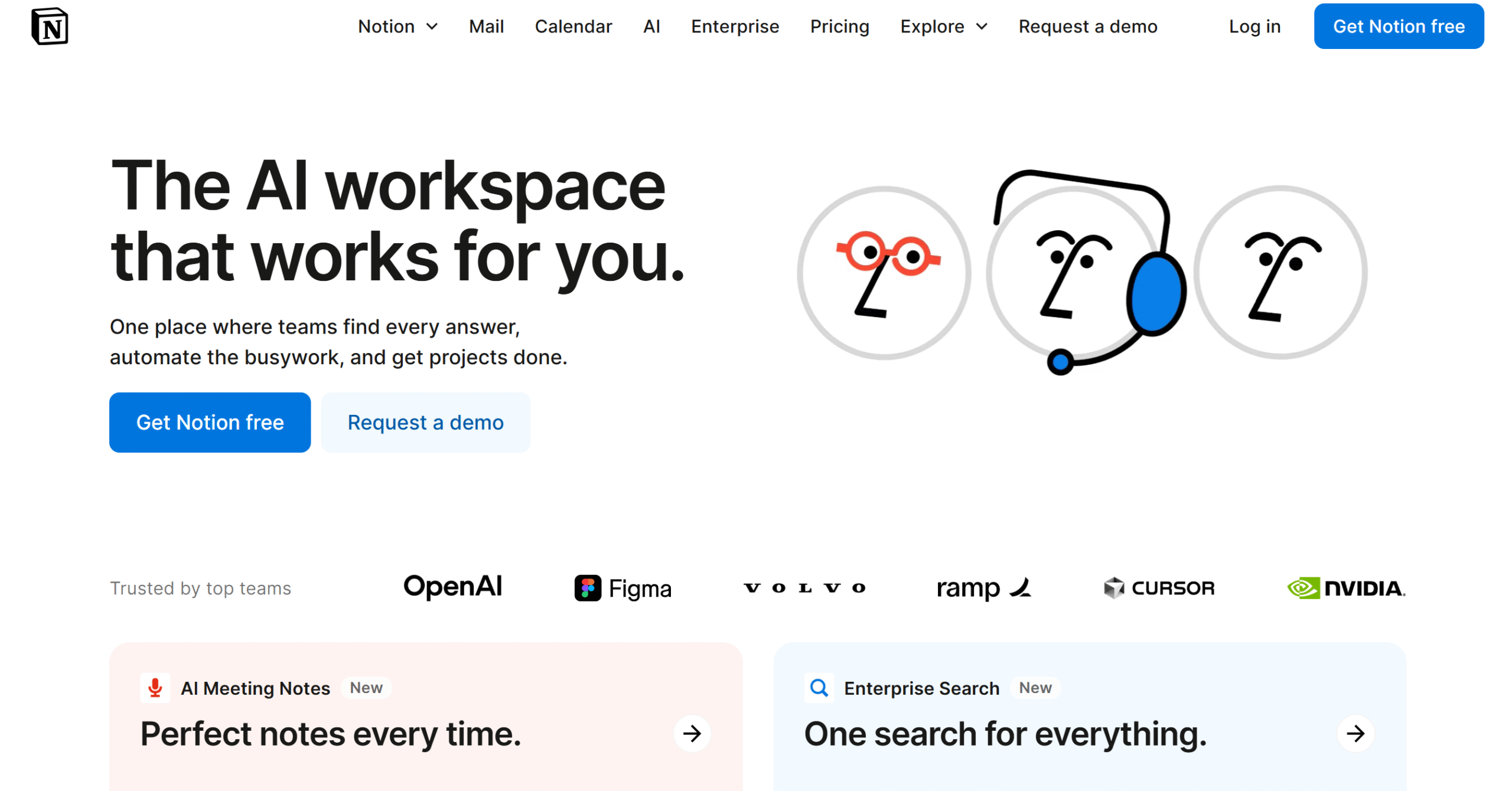
Notion is part note-taking app, part project manager, and part digital scrapbook, but its real strength is flexibility. Instead of forcing you into a rigid template, it gives you building blocks to create a setup that matches your brain.
You can keep it as simple as a running to-do list or turn it into a full-blown planning dashboard with timelines, linked databases, and embedded documents.
It centralises every type of work, so you’re not wasting energy switching apps or hunting for information. You might type “/todo” on a project page, flip it into a kanban board, and instantly see your deadlines mapped out.
Having everything in one place means you’re not deciding where to put things; meeting notes, deadlines, and resources can live together, linked and searchable. That alone removes a lot of the mental friction from planning.
I could link my project notes directly to task lists, so whenever I opened a project page, all the context and next steps were right there, no switching tabs or wondering where I’d saved something.
Notion’s huge library of templates also saves time when starting something new. You can grab a pre-made goal tracker, content calendar, or meeting notes layout and customise it to fit your workflow instead of building from scratch.
Pros
- Real-time editing and commenting
- Huge template library to save setup time
- Rich media embeds without coding headaches
Cons
- No offline mode
- No built-in chat or video calling
Pricing
- Free: Get started with unlimited pages and blocks
- Plus: $10/month (Level up with larger file uploads)
- Business: $20/month (Unlock the good stuff, such as Notion AI, page analytics, and conditional logic)
- Enterprise: Custom pricing for enterprise-grade controls, zero data retention, dedicated support
3. Zapier: Best for automating repetitive work
TL;DR
Zapier connects 6,000+ apps so everyday tasks happen automatically in the background. One setup can save you hundreds of tiny decisions a week.

Zapier is like having a silent assistant that never forgets. Instead of manually moving data between tools, sending routine follow-up emails, or updating multiple project boards, you set up “Zaps”, automation rules that trigger one action when another happens.
It eliminates small, repeated choices by letting your apps talk to each other and take action without you. A new Shopify order can automatically create a task in ClickUp, add the customer to Google Sheets, and ping you in Slack.
For example, a new lead in your CRM could instantly create a task in ClickUp, send a Slack notification, and log the details in a Google Sheet. You only decide what you want once; after that, Zapier handles it.
This is where decision fatigue gets slashed. All those “Should I save this?” or “Did I remember to send that?” moments disappear because the process runs on autopilot.
I liked how even basic, no-code automations stacked into serious time-savers. A minute here and there doesn’t seem like much, but multiply that across the week and it’s hours of mental energy you get back.
Zapier’s library of pre-built workflows means you don’t have to start from scratch, and you can tweak them to fit your exact process.
Once it’s set up, it’s like your apps are working behind the scenes to keep your day moving.
Pros
- Alerts and logs make fixing failed tasks easy
- Version history lets you undo changes to complex Zaps
- Filters and formatters let you fine-tune automations without coding
Cons
- Occasional sync delays
- It can get pricey for high-volume use
Pricing
- Free: Unlimited 2-step Zaps, AI power-ups
- Professional: $19.99/month with multi-step Zaps, premium apps, webhooks, email, and live chat support
- Team: $69/month (25 users, shared Zaps/folders, SAML SSO, premier support)
4. Trello: Best for visual task tracking
TL;DR
Trello organises projects into visual boards, lists, and cards, making it easy to track progress, assign tasks, and adapt workflows to any project size.
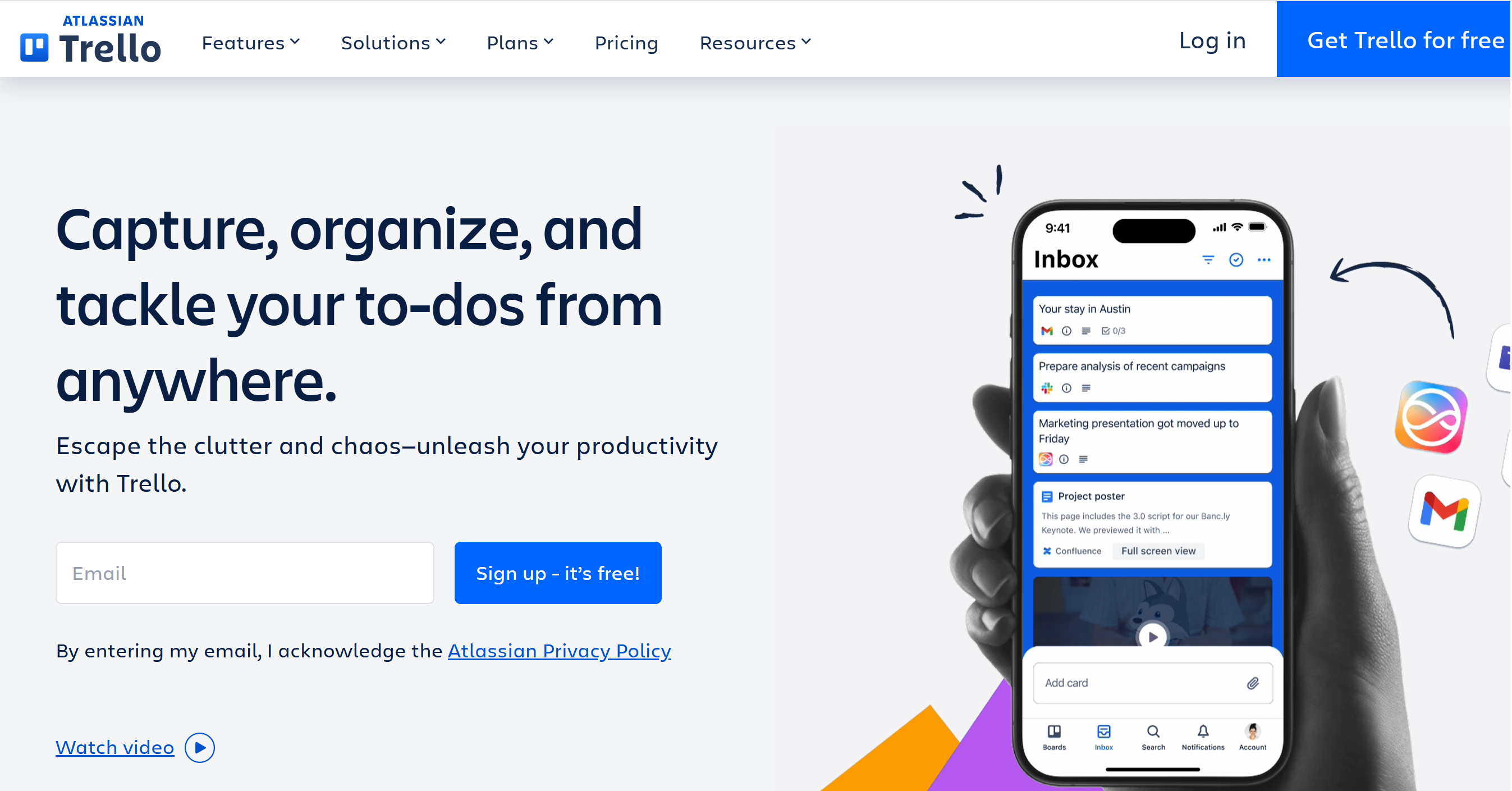
Trello is built on a simple idea: to organise your work visually so you can see exactly where things stand. Its drag-and-drop boards, lists, and cards make it easy to lay out tasks for anything, from personal to-dos and event planning to complex team projects.
A simple “To-Do, Doing, Done” board can grow into a fully connected system. Each card becomes a hub for links, files, subtasks, checklists, and deadlines, keeping all task-related details in one place instead of scattered across apps.
For me, the ability to flip between Calendar, Timeline, Map, Dashboard, and Table views is what turns Trello into more than just a task board.
That quick shift in perspective is especially useful for larger, multi-layered projects. Many of these views come via Power-Ups or upgraded plans, letting you scale your setup without starting over.
Trello’s Butler feature can assign due dates, create recurring tasks, or move cards automatically, no coding needed. Move a card to “Done,” and the next task can be auto-assigned with a Slack reminder.
The new AI-powered Inbox columns even pull in tasks from Slack, email, and Siri, turning them into organised cards.
With the Trello Planner (in beta), you can sync your calendar directly into Trello, making it easier to manage schedules without juggling multiple tools. The real strength, though, is adaptability. Trello moulds to your way of working, so planning feels intuitive instead of forced.
Pros
- Power-ups just got better with native calendar syncing
- Public boards are perfect for community roadmaps or documentation
- Timeline and dashboard views now let you filter by label, assignee, or custom fields
Cons
- Offline functionality is still limited
- Large or complex projects can get cluttered
Pricing
- Free plan: Unlimited cards, up to 10 boards per workspace
- Standard: $6/user/month (monthly billing) or $5/user/month (annual billing)
- Premium: $12.50/user/month (monthly billing) or $10/user/month (annual billing)
- Enterprise: Starts at $17.50/user/month (annual billing), volume discounts available
5. Monday.com: Best for building visual workflows across departments
TL;DR
Monday.com turns projects into colourful, interactive boards with automation, timelines, and updates. It also keeps cross-team work moving without constant meetings.
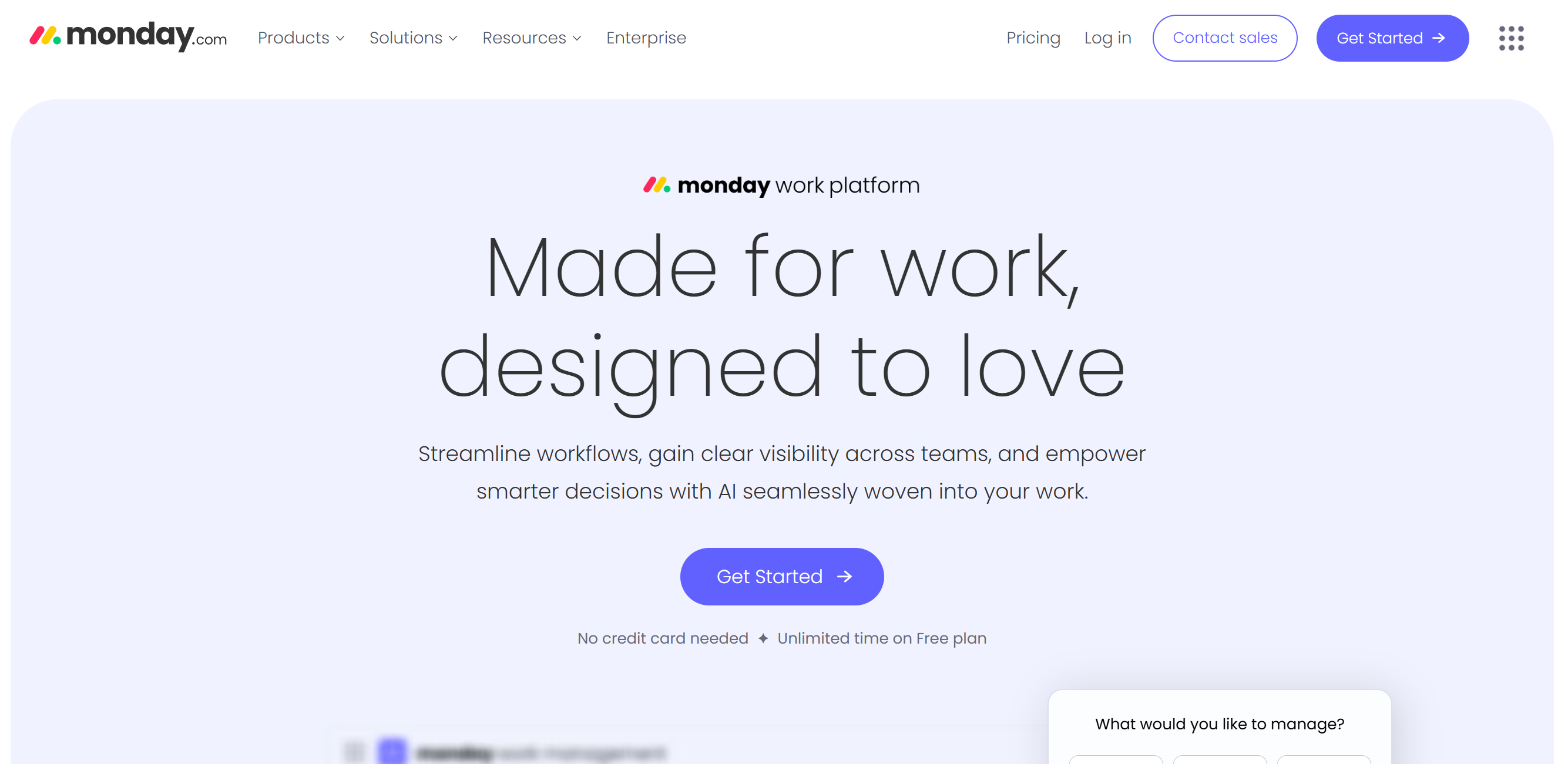
Monday.com takes the chaos of multi-person projects and lays it out in an easy-to-read, colour-coded board. It keeps every moving piece in one visual workspace so you don’t waste time chasing updates or juggling spreadsheets.
You can track tasks, deadlines, and dependencies across different teams without flipping between endless docs and chats.
Whether it’s marketing campaigns, product launches, or event planning, everything lives in one view.
Workflows are highly customizable; you can start with a basic task tracker and layer in timelines, workload charts, or Kanban boards as needed.
Assigning responsibilities, adding due dates, and tracking progress happen directly in the board, so no extra tools are needed to see where things stand. Change a status from “Stuck” to “In Progress” and the board updates, teammates get notified, and the timeline shifts automatically.
What stood out to me was how automation replaced so many repetitive check-ins. You can set rules to update statuses, send reminders, or move tasks between columns automatically. That means fewer “Did you finish this?” messages and more actual work getting done.
Monday.com also connects with tools like Slack, Google Drive, and Outlook, so files and conversations stay tied to the relevant task. For cross-department work, it’s a huge time-saver; everyone sees the same information, updated in real time.
Pros
- Built-in time tracking for tasks
- Supports advanced reporting with dashboards
- Tasks can be created by sending emails to the boards
Cons
- Advanced features cost extra
- Takes time to set up for large teams
Pricing
- Free: For up to 2 users, 3 boards, 200+ templates, 500MB storage, 8 column types
- Basic: $9/seat/month (Unlimited boards, unlimited items, 5GB storage)
- Standard: $12/seat/month (Includes calendar/timeline views, 20GB storage)
- Pro: $19/seat/month (Adds time tracking, private boards, 100GB storage)
6: ClickUp: Best for all-in-one work management
TL;DR
ClickUp replaces multiple tools with tasks, docs, goals, and dashboards in one place, giving you a fully customizable system for any type of work.
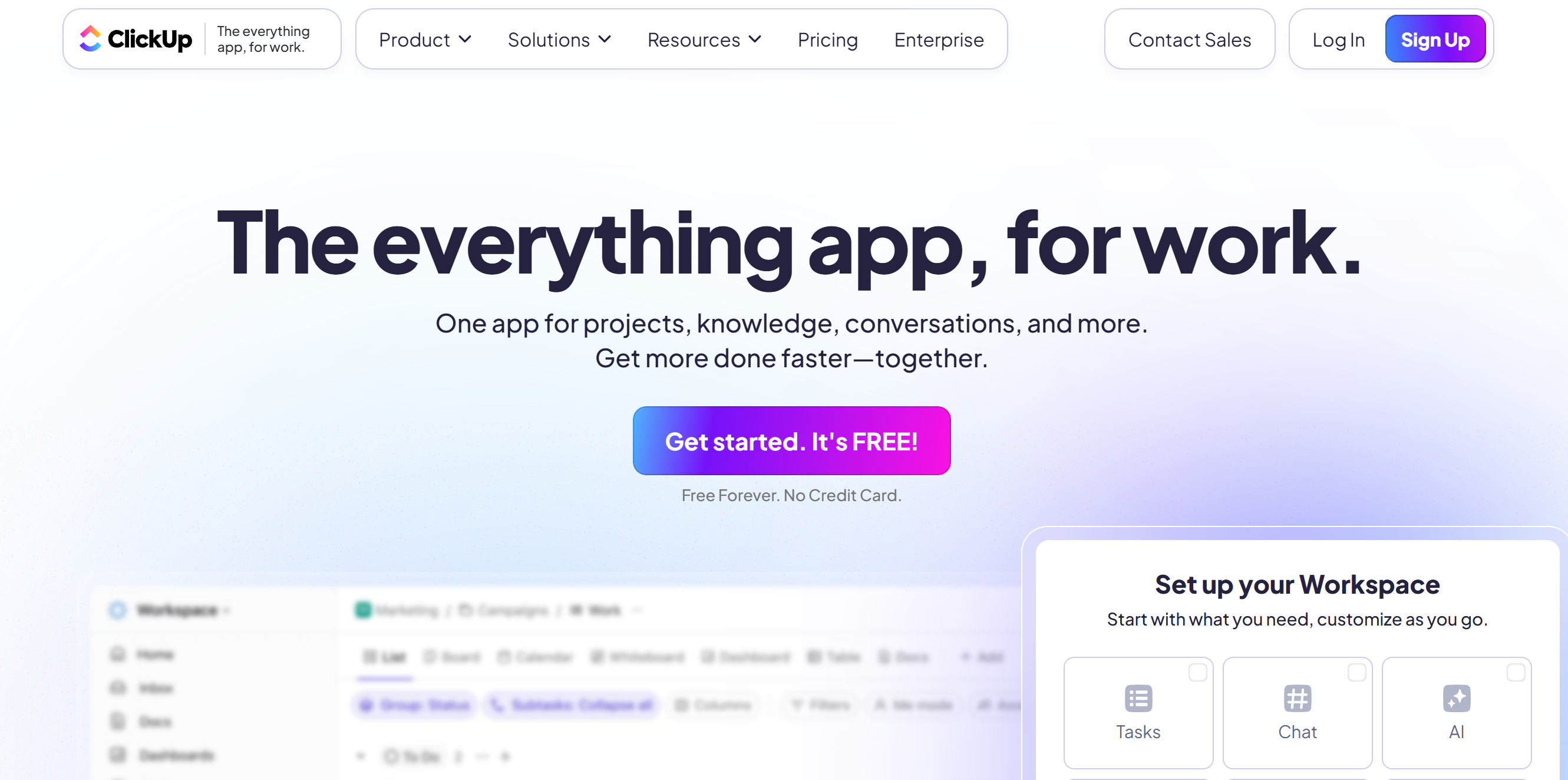
ClickUp is one of the most feature-rich productivity tools out there, bringing tasks, docs, goals, and even time tracking into one place. It centralises everything in one platform, so you’re not deciding which tool to use for each part of your work.
It works just as well for large teams managing complex projects as it does for individuals wanting to centralise their work.
The sheer number of features can feel like a lot at first, but once you learn the basics, the payoff is huge. For me, the turning point was realising I could run my entire workflow, from planning to reporting, without leaving ClickUp.
You can view a project as a Kanban board, a list, a calendar, or even a mind map, depending on how your brain works best. Dashboards give you a high-level view of progress, workloads, and deadlines at a glance.
Automations handle repetitive admin, like moving tasks when statuses change or sending reminders before due dates. Finish a meeting, and ClickUp Brain can generate a summary with action items, assigning them to teammates automatically.
The new ClickUp Brain adds AI support for summarising meeting notes or structuring ideas. With 1,000+ integrations, from Google Calendar to Slack, your timelines and updates stay in sync automatically.
Pros
- Embeds tasks, docs, and chats into one view
- Multiple view options for the same project data
- Generous free plan for individuals and small teams
Cons
- Occasional slow load with large projects
- It can feel heavy if you only need basic tasks
Pricing
- Free Forever: Unlimited tasks, members, and docs
- Unlimited: $7/user/month (annual billing) or $10/user/month (monthly billing)
- Business: $12/user/month (annual billing) or $19/user/month (monthly billing)
- Enterprise: Custom pricing with advanced controls and support
7. Reclaim.Ai: Best for calendar-based goal protection
TL;DR
Reclaim.ai is a smart calendar assistant that automatically schedules time for your goals. It takes your goals, recurring tasks, and habits, then finds the best times for them in your calendar, adjusting automatically when things change.
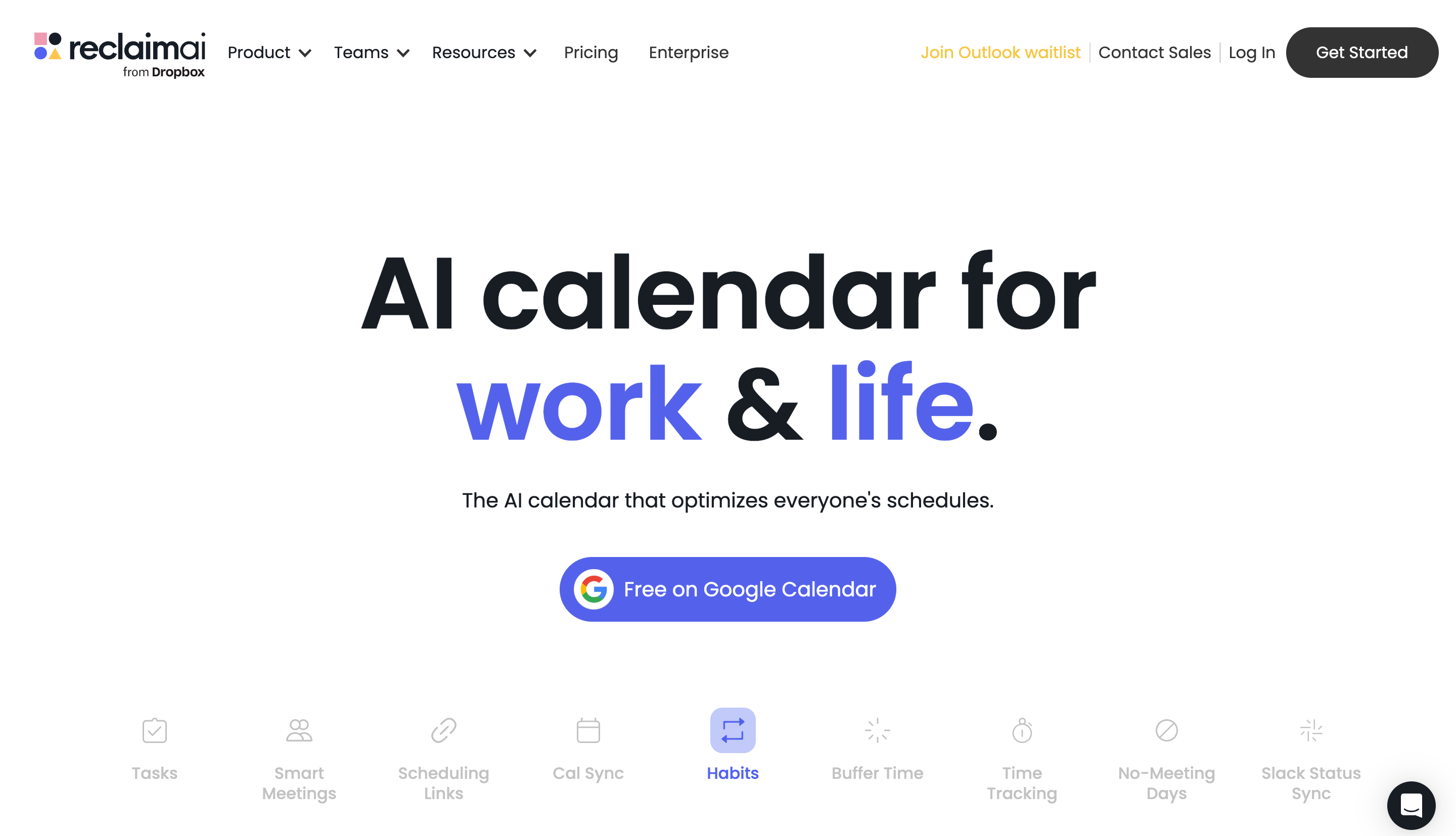
Reclaim.ai is built to safeguard your time by automatically balancing meetings, tasks, and personal routines. Instead of manually shifting things around whenever your day changes, it quietly reorganises your schedule in the background, keeping your priorities intact.
You can set rules for how much time you want to spend on each goal every week, and Reclaim makes sure those blocks appear and reappear without you lifting a finger.
If a meeting gets dropped into your day, your deep work session might shift, but it won’t vanish. I blocked out time to write a proposal, and when a client call landed in the middle, Reclaim simply moved the block to later without me touching it.
The difference was obvious the first week I tried it. I stopped shuffling tasks around and started trusting my calendar to make the right calls. Those “Where can I fit this in?” moments just didn’t happen because the time was already there.
It’s also great for habits like workouts, writing sessions, or regular check-ins. Reclaim treats them with the same respect as any meeting, so they don’t get pushed aside. Integrations with Google Calendar, Slack, and task tools keep everything updated across your workflow.
Pros
- Syncs with multiple calendars at once
- Auto-reschedules when conflicts arise
- Lets you set priority levels for tasks and routines
- Weekly analytics show where your time actually went
Cons
- Works best with Google Calendar
- Can feel limited for highly complex scheduling needs
Pricing
- Lite: Free with unlimited tasks & habits, 1 calendar sync, core integrations
- Starter: $8/user/month with unlimited calendar syncs, 8-week scheduling, and 3 scheduling links
- Business: $12/user/month with 12-week scheduling, unlimited integration and calendar sync
- Enterprise: $18/user/month with SSO & SCIM, people analytics and time-tracking
8. Jira: Best for agile sprint planning and issue tracking
TL;DR
Jira is a structured project management tool for software development teams. It excels at managing sprints, backlogs, and tracking issues.
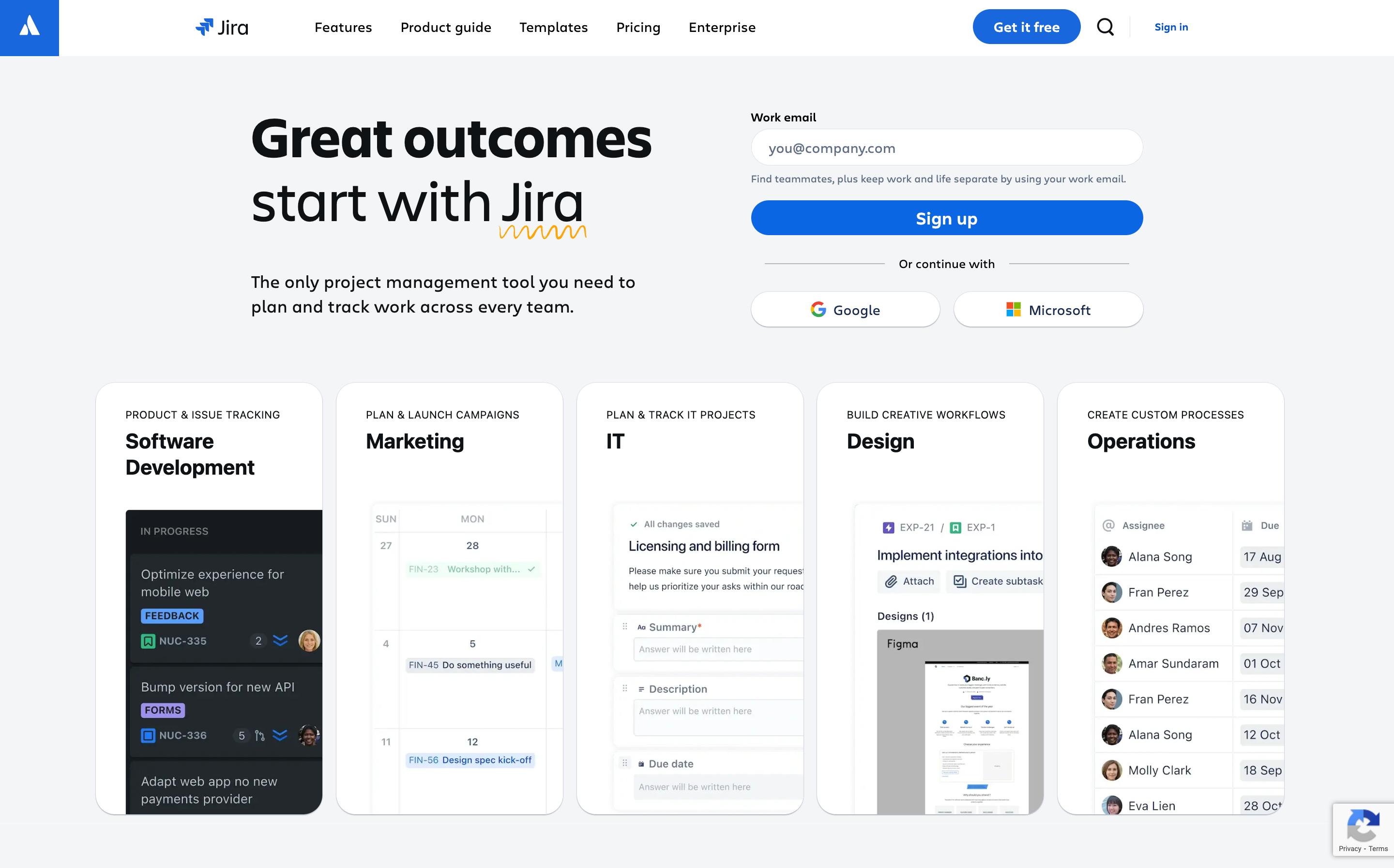
Jira can feel overwhelming the first time you open it; the menus, workflows, and settings don’t exactly ease you in, but once you’ve set up your boards, it becomes a central hub for managing work.
At its core, Jira revolves around Scrum or Kanban boards. You can map out your process, create tickets, break them into epics, stories, and sub-tasks, assign owners, set priorities, and track progress from start to finish.
The best part is that you can design it to match your team’s way of working rather than being forced into a preset template.
Jira gives teams a single, always-updated view of priorities so no one’s guessing what to work on next.
Every change, from comments and time logs to who moved a ticket and when, is recorded. I’ve had to revisit old sprints to see exactly why something got delayed, and the trail was always there.
Automations handle much of the admin: moving tickets between stages, assigning reviewers, flagging blockers, and sending reminders when issues go stale. Drag a sprint ticket to “In Review” and Jira auto-assigns it to the reviewer, updates the burndown chart, and flags blockers. Setting them up takes a bit of work, but once in place, they free up hours of repetitive decision-making.
Reporting is equally strong. Dashboards track velocity, workload, and sprint burndown in real time, and you can build custom reports for long-term tracking. This makes spotting bottlenecks or uneven workloads far easier before they become problems.
Pros
- Audit logs track all activity
- Sandbox for testing changes safely
- Roadmaps link epics and initiatives
- 1,000+ Marketplace apps for customisation
Cons
- Can be overkill for very small projects
- Advanced reports need manual setup or add-ons
Pricing
- Free: Up to 10 users with 2 GB storage, basic features
- Standard: $8.60/user/month with 250 GB storage, roles & permissions, 9/5 regional support
- Premium: $17/user/month with unlimited storage, advanced planning tools, and approvals
9. Calendly: Best for scheduling meetings without back and forth
TL;DR
Calendly lets people book meetings directly into your calendar based on your availability, eliminating the back-and-forth and keeping your schedule organised automatically.
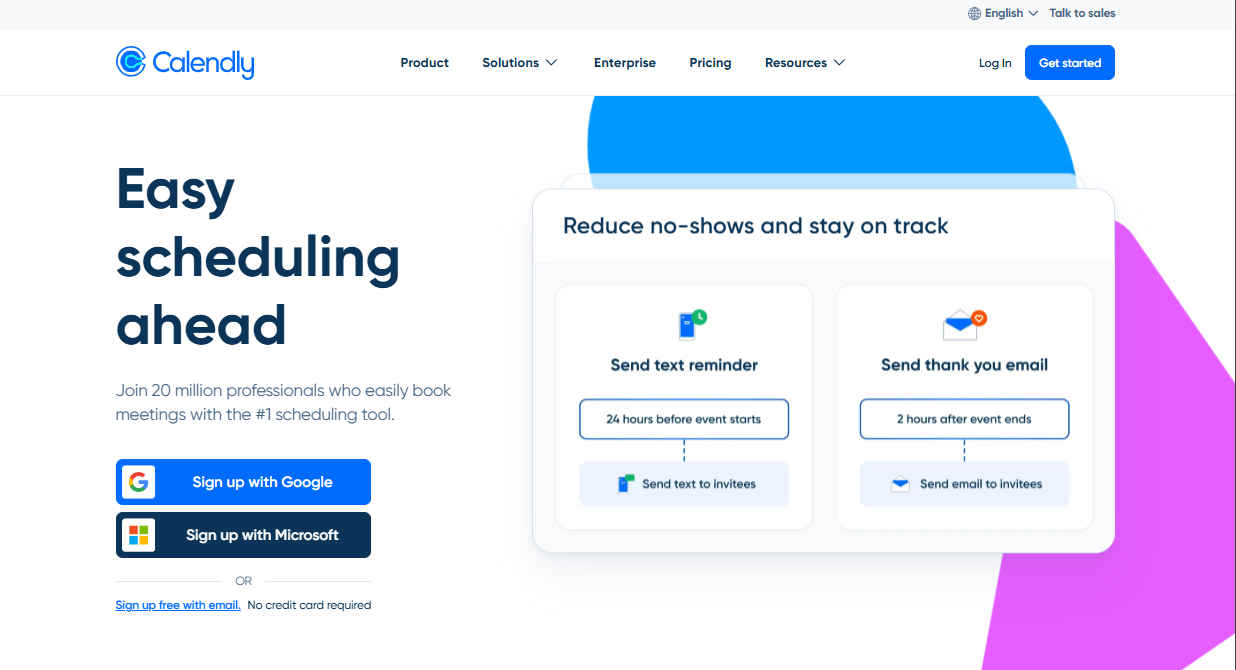
Calendly makes booking meetings simple. You set your availability, share a link, and invitees pick a time that works for them. The event is then added to both calendars automatically, with no follow-ups or manual updates.
It takes the back-and-forth out of scheduling by automating time selection and calendar updates. A client clicks your link, picks Tuesday at 10 AM, and the meeting appears in both calendars with a Zoom link included.
Beyond that, it works across multiple calendar platforms, letting you connect Google, Outlook, or iCloud calendars to avoid double-booking. You can also set buffers between meetings, daily limits, and custom availability for different meeting types.
The first time I set it up with a client, the difference was obvious; no more wasted time trying to find a slot that worked for everyone. Calendly handled the choice, and the decision was off my plate entirely.
Advanced features include automated reminders, group scheduling, and round-robin assignments for teams. The calendar sync ensures you’re never double-booked, even if you use more than one.
Payment integrations with Stripe or PayPal make it easy to collect fees for appointments, while Zoom and Google Meet integrations generate links automatically.
Pros
- Automated reminders and follow-ups
- Automatic time zone detection for invitees
- Supports multiple calendars and meeting types
Cons
- Most advanced features require paid plans
- No native task management or note-taking
Pricing
- Free: 1 event type, 1 calendar connection, unlimited 1:1 meetings
- Standard: $10/user/month with multiple event types, 2 calendars, group events, and custom notifications
- Teams: $16/user/month with pooled availability, team pages, analytics, and advanced workflows
10. Evernote: Best for note-based planning
TL;DR
Evernote captures, organises, and syncs notes, tasks, and documents across devices, making all your ideas and information instantly searchable.
Evernote is built for people who plan by writing things down. It stores notes, tasks, and documents in organised notebooks, making them easy to find whenever you need them.
Everything syncs across devices, so your ideas are always close at hand.
During my first week with Evernote, it quickly replaced scattered docs and sticky notes as my single go-to space for meeting summaries, research, and quick brain dumps.
With tags and notebooks in place, pulling up something from months ago takes seconds. I saved an article with the web clipper, tagged it “Marketing,” and weeks later found it instantly by typing the keyword “campaign.”
The web clipper is one of its most useful features. With a click, you can save articles, PDFs, or snippets directly into a notebook, keeping the original formatting for easy reading later.
Evernote has added AI-powered upgrades, too. Messy text can be cleaned automatically, relevant tags are suggested, and audio recordings can be transcribed into searchable text within minutes.
Syncing is smooth. You can start a note on your phone during your commute and finish it on your laptop, even offline. For anyone whose planning starts with jotting things down, Evernote turns scattered notes into a well-organised system you can act on.
Pros
- Lightning-fast note search, even in images
- Bulk note export for easy backups and migrations
- Supports multiple file types, including PDFs and scanned documents
Cons
- Free plan has limited monthly uploads
- Interface feels dated compared to newer tools
Pricing
- Free Plan: 50 notes, 1 notebook, 250 MB/month upload, 1 device
- Personal: $14.99/month (monthly billing) or $10.83/month (annual billing)
- Professional: $17.99/user/month (monthly billing) or $14.17/user/month (annual billing)
- Enterprise: Custom pricing
11. Structured: Best for time-blocking beginners
TL;DR
Structured turns your task list into a colour-coded daily timeline, making time-blocking easy and approachable without the complexity of heavier tools.

Structured is made for people who like to see their day mapped out but don’t need the complexity of a full project management tool.
It takes your tasks and transforms them into a tidy, colour-coded schedule you can follow at a glance. I typed “Gym at 6 PM” and Structured painted it onto my timeline with a reminder when it was time to go.
Tasks live in a scrolling timeline, so you can spot exactly when things happen and where you have gaps. As you check items off, progress fills in visually, giving a small but motivating reward.
Adding tasks is quick and natural. Type something like “Lunch at 1 PM” or “Email report in 30 minutes,” and Structured places it in the right slot automatically. You can set recurring events, reminders, and deadlines without leaving the main view.
Integration with iOS and Mac is smooth. Apple Calendar sync means your meetings appear without double entry, and subtle notifications nudge you to switch tasks on time.
It’s intentionally simple. There’s no overload of advanced features, just an easy way to start time-blocking without feeling overwhelmed. If you’ve been curious about mapping your day but put off by complicated tools, this is an easy first step.
Pros
- Smart AI assistant helps auto-schedule tasks
- Lightweight yet vivid, keeping overwhelm at bay
- Instantly shows how your day flows, not just a list
Cons
- Android notifications can be inconsistent
- Rescheduling chains manually can be tedious
Pricing
- Free Plan: Basic scheduling and recurring tasks
- Pro: $2.99/month or $9.99/year
- Lifetime: One-time $29.99 purchase
12. Obsidian: Best for networked thinking
TL;DR
Obsidian connects your notes into a visual web, revealing patterns and links, and turns your knowledge into a private, customizable second brain.
Obsidian is built for people who think in connections rather than straight lines, writers, researchers, and anyone who builds insight by linking concepts.
Your notes are stored as plain Markdown files on your device, so you fully own your data with no hidden cloud lock-in.
Linking is quick. Type [[Note]] and your thoughts connect instantly. The graph view then maps out every link, giving you a visual overview of how ideas relate. I typed [[Pricing Strategy]] and immediately saw it connected to “Competitors” and “Sales Tactics” in a branching map of notes. It’s surprising how fast patterns emerge when you can see them laid out.
Canvas view takes it further. You can arrange notes on an infinite board, pin them, and group related ideas. I found it especially useful for planning large projects where moving pieces around visually makes everything clearer.
Plugins are where Obsidian shines. You can add kanban boards, daily journals, calendars, advanced searches, and more, shaping the app into your personal knowledge system.
The best part is that it doesn’t force you into one rigid style; you can experiment, layer on features, and let your setup evolve as your projects or research grow.
Pros
- Masterful visual mapping of linked ideas
- Offline-first setup keeps your thoughts private
- Canvas + graph tools make brainstorming intuitive
Cons
- Steep learning curve if you’re new to Markdown
- No built-in web clipper without third-party plugins
Pricing
- Free Plan: Full personal access
- Catalyst License: One-time $25 includes early access builds
- Commercial License: $50/year for business use
- Obsidian Sync: $5/user/month (monthly billing) or $4/user/month (annual billing)
Why You Need Tools That Reduce Decision Fatigue
The real mental drain doesn’t come from the big calls you make each day; it’s from the dozens of small ones. What time to meet, where to slot a task, and which project to check first. These tools strip away that constant micro-decision load.
By automating routine scheduling and organising steps, they clear out the mental clutter. You spend less time rearranging your day and more time actually moving things forward.
They also simplify planning without pulling you into the weeds. You can zoom in when you need detail or stay at a high level when all you need is the next step.
Most importantly, they protect your attention for the high-priority work that really matters, the decisions only you can make. Everything else runs quietly in the background, doing the work for you.
How to Choose the Right Tool
With so many productivity apps out there, the trick isn’t finding a good one; it’s finding one that fits how you work.
Look for automation features that match your workflow. If your calendar is always packed, choose a tool that can slot tasks automatically. If your problem is remembering follow-ups, find one that sends them without you lifting a finger.
Avoid tools that feel like a second job to maintain. Overly complex systems add to your mental load instead of easing it. A good tool should feel lighter the more you use it.
And make sure it plays well with what you already use. Integrations with your calendar, email, and project tools will save you from juggling multiple apps for the same task.
Start small, test one or two tools at a time, and see which ones make your days run smoother. The right choice is the one you keep using without thinking about it.
Final Words
Start with one or two tools that remove the biggest headaches from your day. You don’t need a full stack of apps to feel more in control; sometimes the smallest change clears the most mental clutter.
The best tool isn’t the one with the most features or flashiest interface. It’s the one you open every day without thinking, because it makes planning effortless instead of adding another task to your plate.
Once the right tools are in place, your to-do list stops feeling overwhelming. Your calendar makes sense at a glance. And those tiny, constant decisions that used to wear you down? They happen automatically in the background.
That’s when you know your setup is working, when planning takes less energy, and you have more left for the work that matters.


 A better way to manage projects and clients for freelancers
 Get through busy days like a breeze with Reclaim.ai