I am a freelancer.
For me, managing my work schedule and staying focused are two of the most challenging aspects of my job.
To overcome those challenges, I often try different ways to set up boundaries so I don’t end up working all the time and hurt my productivity.
Someone suggested using planner apps to optimize my schedule. Based on the recommendations, I tried Notion, Todoist, Google Calendar, and Sunsama.
Out of all four, I found only Sunsama to be the most relevant tool.
Below, I have reviewed all four apps and explained why Sunsama is the best planner. Read the article to make an informed decision.
What are Notion, Todoist, and Google Calendar?
Notion Overview
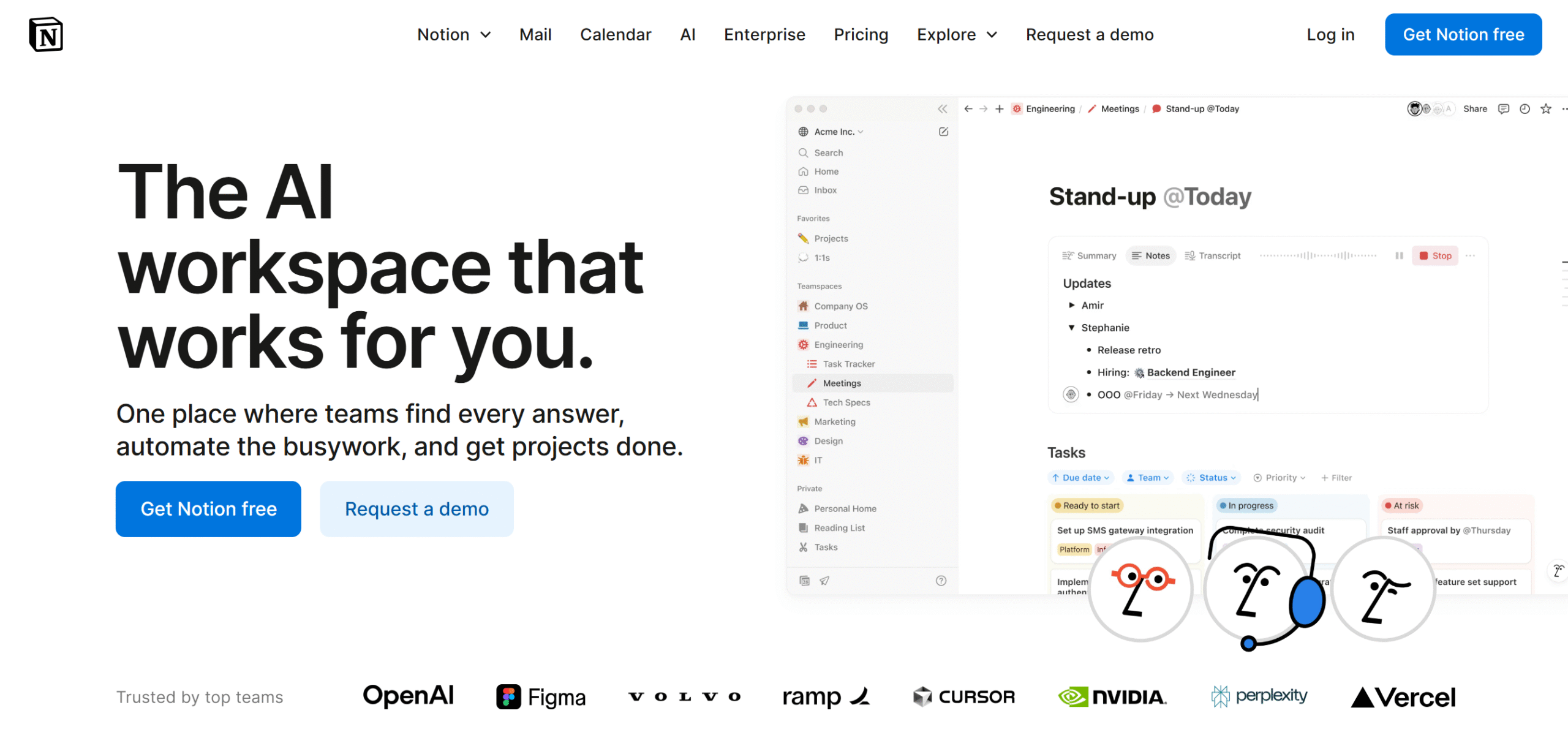
Notion is a task management and note-taking app. It provides an AI-powered workspace to organize projects and documents.
Here, you’ll get blank pages with content blocks to write anything. You can take meeting notes, write your daily agenda, put down your thoughts, and create checklists.
You can share the pages with others and invite them to edit and comment. Or, you can build a knowledge base for yourself.
Along with the wiki pages, you’ll receive a visual workspace to track your tasks. Notion offers multiple layouts, including a Kanban board, for progress tracking.
Another thing.
You can sync Notion with your calendar and use it as a planner.
You can create a to-do list, attach documents for context, and schedule them directly on the calendar. You can easily drag and drop events to rearrange your schedule and color-code work and personal chores.
Here’s a summary of Notion’s core functions.
Core Features
- Unlimited pages and content blocks.
- Collaborative workspace.
- To-do list.
- Task management.
- Calendar syncing.
- Notion Mail.
- AI and automation.
- Integrations.
Notion is free for personal use. If you want collaboration features, you’ll have to pay $10 to $20 per month, depending on the subscription package.
Todoist Overview
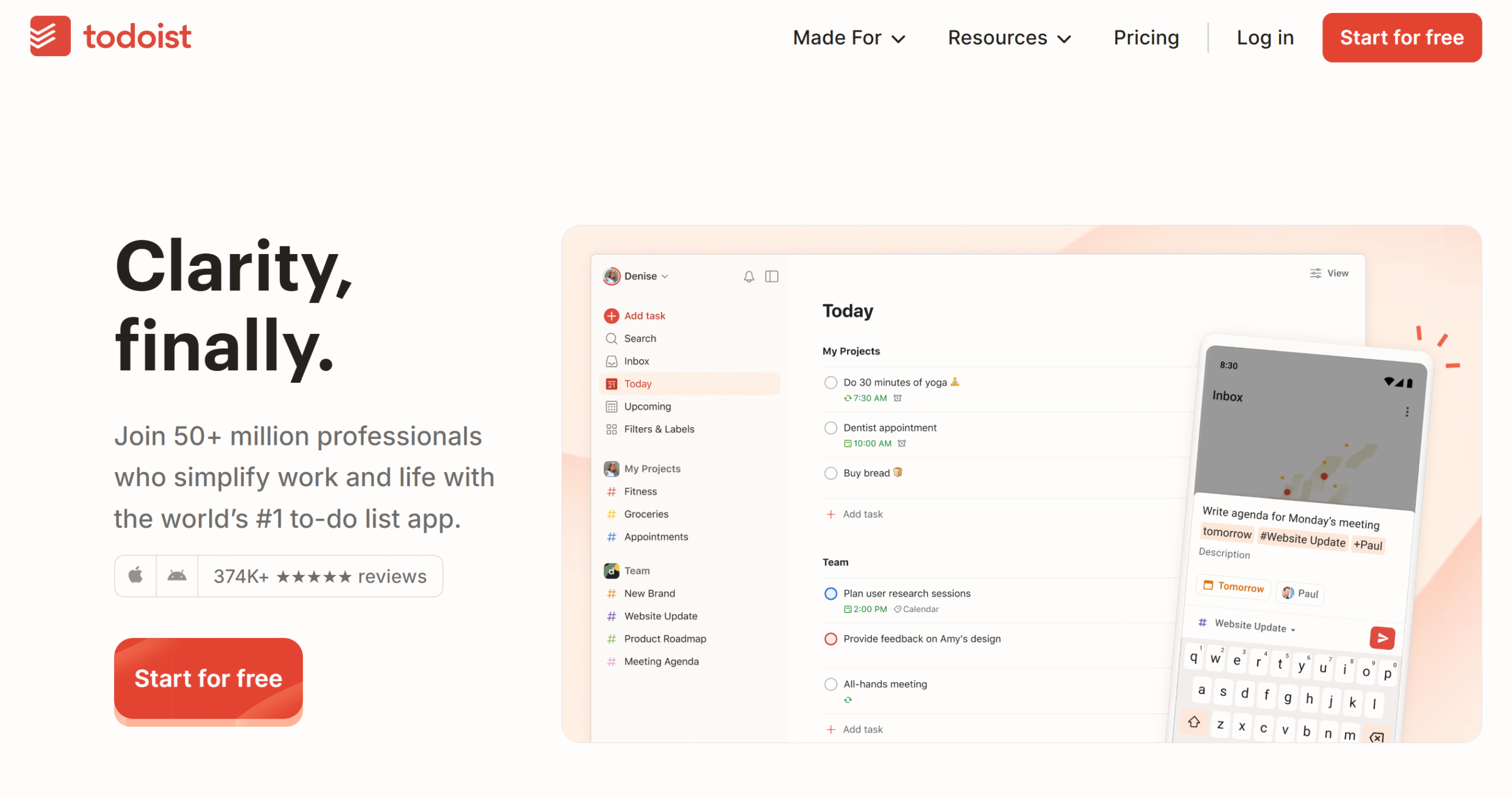
Todoist is a user-friendly task manager and planner.
You can use it to create quick tasks, categorize them by priority levels, add work durations, and schedule them. That’s not all. You can break down large projects into subtasks and convert your emails into tasks.
You can view your tasks on a calendar layout and monitor your work progress on a visual Kanban board.
To keep track of everything, Todoist offers various types of reminders. For example, you can set recurring due dates with notification alerts or add location triggers to receive a task reminder when you reach a certain place.
One of Todoist’s core functions is collaboration. You can share your calendar with others, assign them tasks or chores, and keep an eye on everyone. You’ll get an analytics section to measure work productivity.
You can connect Todoist with your calendar, emails, and over 90+ third-party applications.
Core Features
- To-do list.
- Task management.
- Emails into tasks.
- Custom reminders and priorities.
- Calendar and board layout.
- Team collaboration.
- AI and automation.
- Analytics.
- Integration.
- Mobile apps.
Todoist is free for beginners. You can create around five projects for free and access the basic features on the paid plan.
To unlock premium features, you’ll have to pay $4 to $6 per month.
Google Calendar Overview
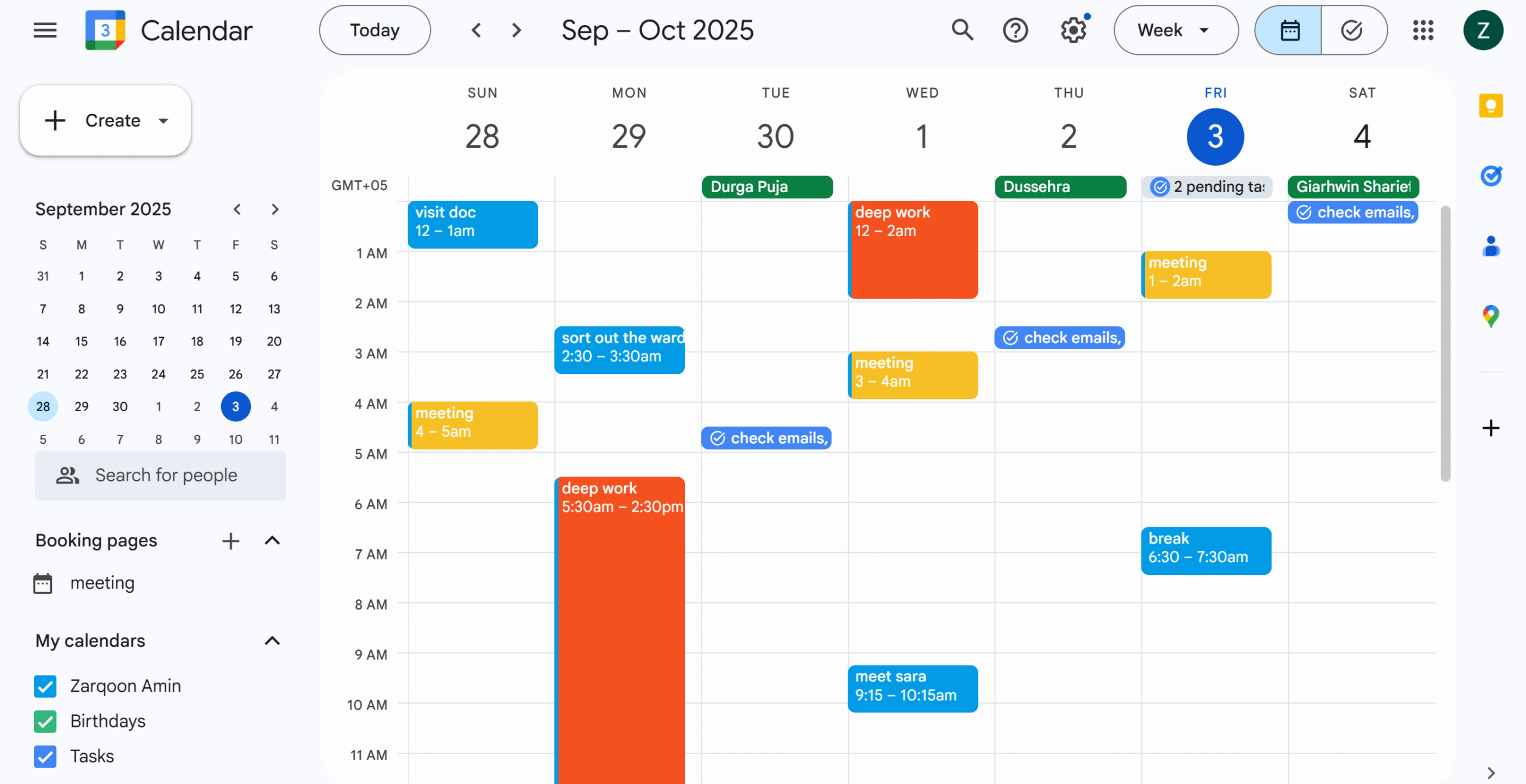
Google Calendar is a powerful scheduling tool. With this app, you can easily organize your personal and work life.
Core capabilities of Google Calendar are event scheduling, task creation, color coding, and reminders. You can schedule both one-time and recurring events and set up location-based reminders.
Appointment booking is built into the system with time zones for your ease. You can share your calendar with others to show your availability.
You can build separate calendars for work and personal life or manage all in one place using color codes; it’s up to you.
You can also integrate your email and schedule events directly from your inbox.
What makes Google Calendar remarkable is its convenience. You can access it from anywhere and share the calendar with your friends and colleagues. You’ll have control over what others can see and edit.
Core Features
- Event and task scheduling.
- Appointment booking.
- Time zones.
- Reminders.
- Multiple views.
- Color coding.
- Collaboration and sharing.
- Permission levels.
- Offline access.
- Gmail and other third-party integrations.
You can use Google Calendar for free. However, some of its features are available in the premium Google Workspace.
Why I Tried Notion, Todoist, and Google Calendar?
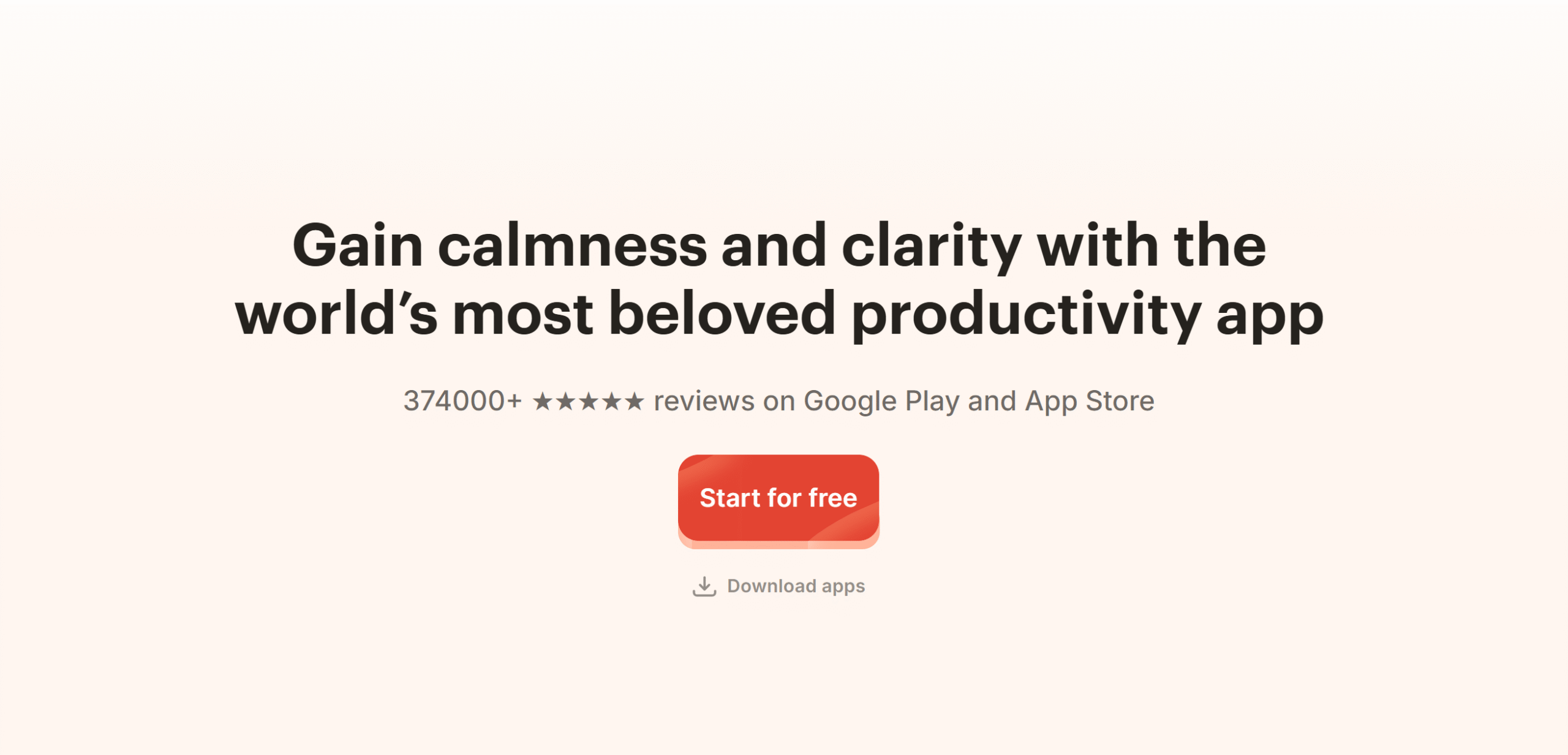
I chose Notion, Todoist, and Google Calendar for their excellent ratings, user-friendly interface, and productivity tools.
Todoist is an incredibly popular productivity software. Over 50 million people use it because of its simplicity and efficiency.
When I tried it, I found out why people love Todoist. The app has the best task management tools. I can quickly add tasks and set custom reminders. I can also invite my friends and colleagues and assign tasks.
Notion is well-liked for its versatility. You can use it for various purposes and organize the information just the way you want.
Google Calendar is perfect for two reasons.
One, it’s free and accessible. You get all the necessary tools in its free plan to manage your tasks, events, and appointments with ease.
Second, it integrates seamlessly with other Google apps. If you rely heavily on Google products, Google Calendar makes things easier for you.
Why They Didn’t Work For Me?
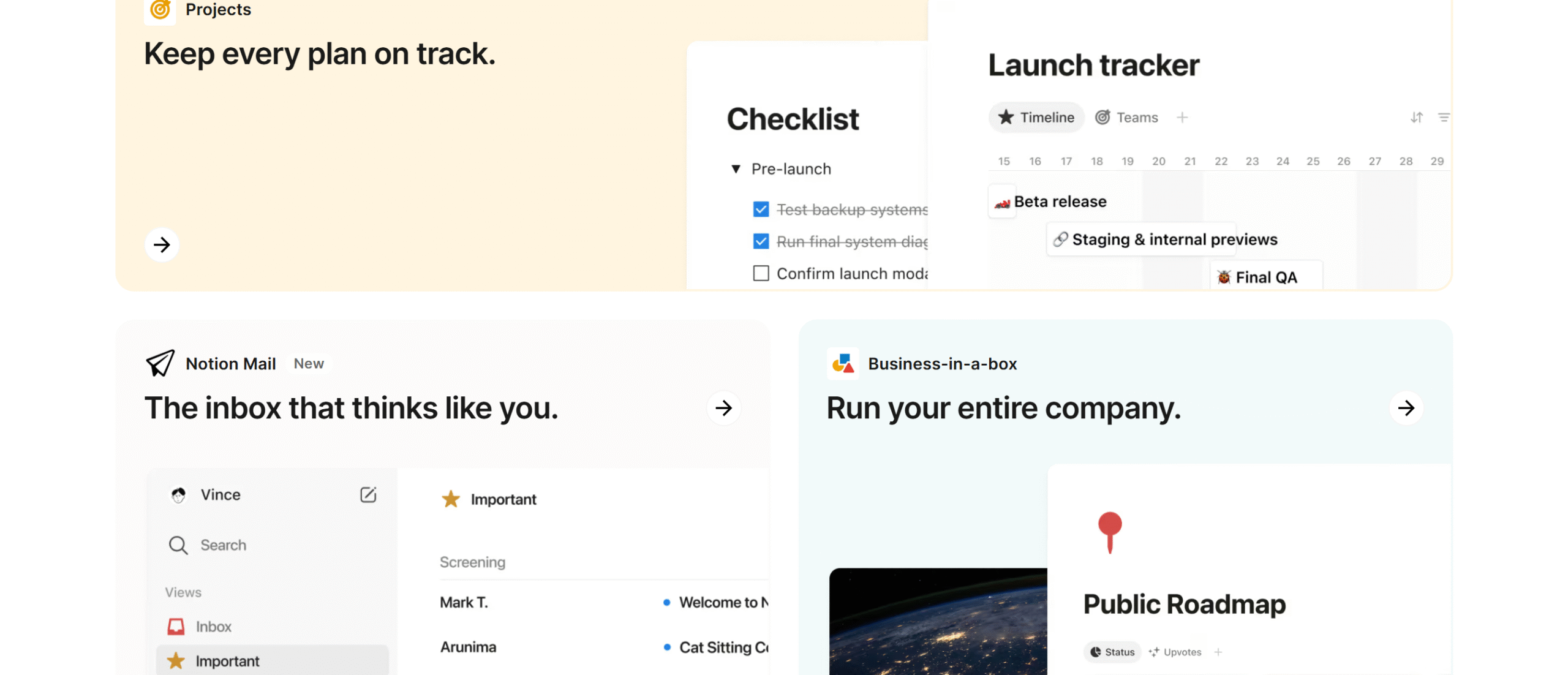
As a freelancer, my work and personal life overlap a lot. I needed a tool that could help me structure my day and manage my time better.
While Todoist, Notion, and Google Calendar are great apps, they don’t exactly meet my specific requirements.
Let me explain their limitations.
Todoist
Todoist is best for task organizing, but it has fewer time management tools.
No doubt, you can build a well-structured schedule with Todoist, but you’ll probably struggle with daily planning.
Notion
Notion is an all-in-one platform. You can use it to record notes, schedule tasks, track projects, and collaborate with others.
This makes it a bit more complex for someone who wants a simple tool to improve their focus.
Google Calendar
Google Calendar specializes in event scheduling. You can manage multiple calendars, color-code events, and share them with others.
It doesn’t, however, offer anything to improve work productivity.
How Sunsama Helped Me Focus?
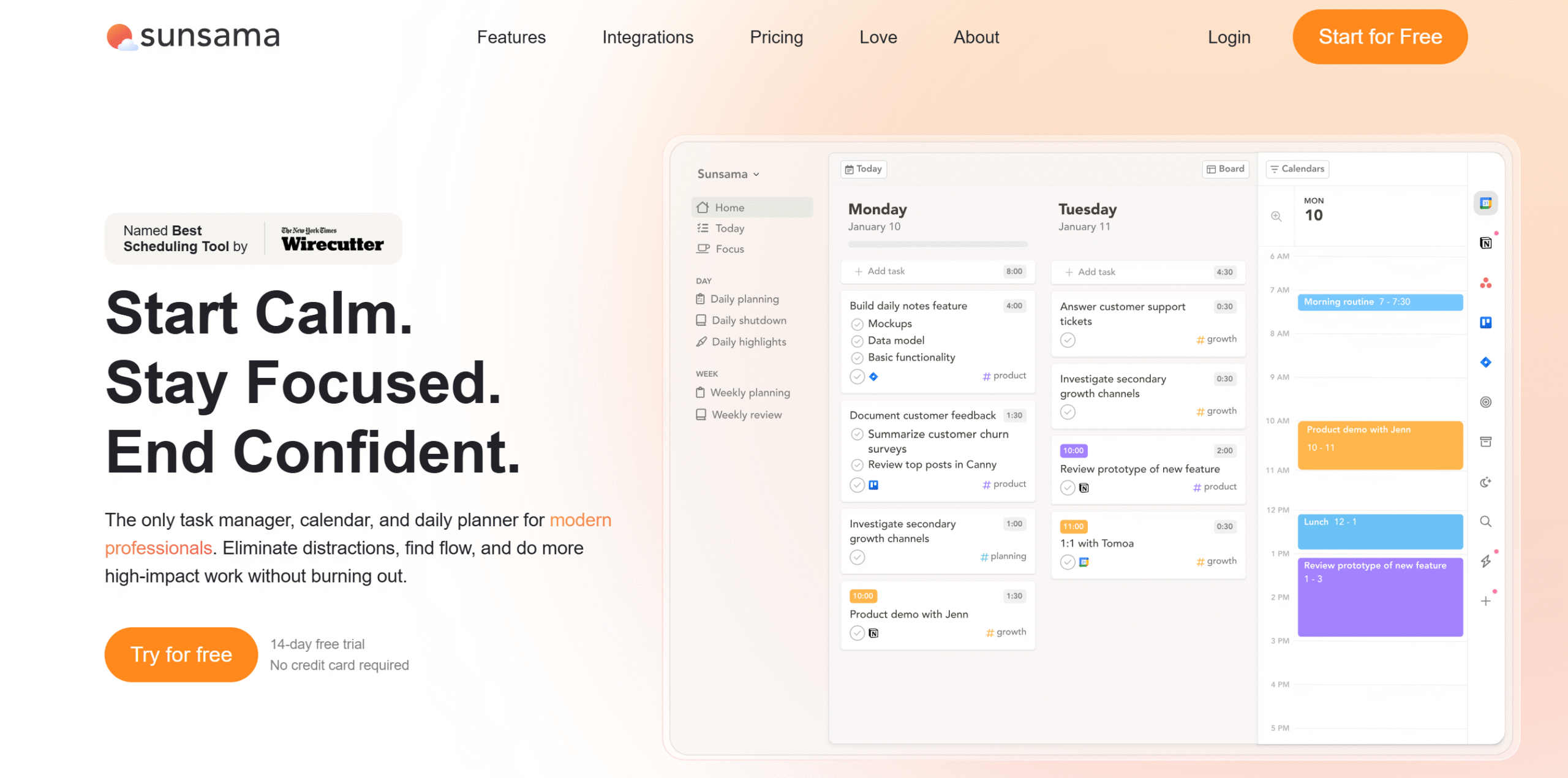
Sunsama has everything I need to bring structure to my work and personal life.
The software is not only intuitive, but it also provides relevant tools to build a realistic routine.
Here’s a brief overview of the app:
Sunsama is a daily planner. Like Notion, Todoist, and Google Calendar, it offers a digital space to manage tasks and schedule events.
But several things make it a better option than the other three.
For one, it delivers a step-by-step planning guide.
You can create a checklist of daily tasks, set an estimated time of completion, schedule them all on the calendar, and carry forward unfinished chores to the next day.
It basically guides you on how to allocate your time to build a realistic work routine.
There are no extra bells and whistles to confuse you and no complicated automation. You can turn on the focus mode while working and record the time you spend to measure your productivity.
You can manually drag and drop items to rearrange your schedule and park unplanned tasks in a backlog.
Plus, you can integrate other task managers into your account and import emails and tasks to Sunsama. The app can convert both emails and messages into tasks and provides a unified view for better monitoring.
At the end of the day, you can generate daily highlights and see how much you accomplished and how closely you followed the schedule.
Core Features of Sunsama
- Guided planning.
- Time blocking.
- Unified view.
- Focus mode.
- Emails into tasks.
- Daily highlights and weekly reviews.
- Integrations.
- Mobile app.
Below, I have explained Sunsama’s core functions in detail. Check out the list to see what Sunsama can do for you.
1. Guided Planning
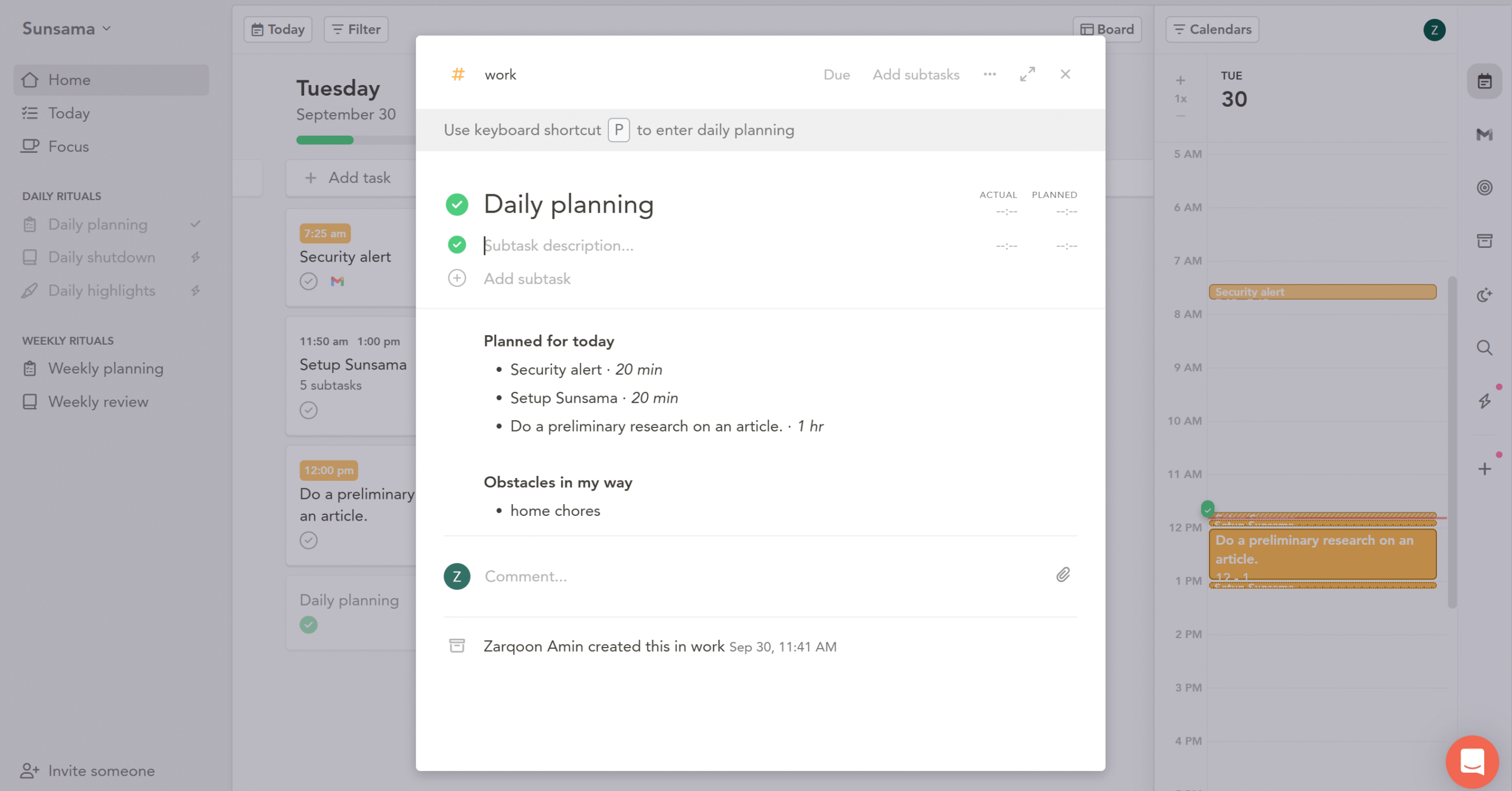
Guided planning is Sunsama’s core function. The app walks you through the step-by-step process to build a good work schedule.
Think of this function as a daily planning ritual.
You start by setting up your work hours, creating a checklist of chores, and adding obstacles you might face throughout the day.
Once you have a visible list of tasks and obstacles, you can build your schedule around them to ensure you can meet your daily goals realistically.
The next day, you can repeat the process and include the previous day’s unfinished tasks in the list.
The purpose of guided planning is to give you a clear path to follow and keep your focus on daily tasks.
Most people struggle to follow planners because they quickly become overwhelmed by the number of tasks. With the daily guided planning, you can simplify your calendar and create achievable goals.
2. Task Management
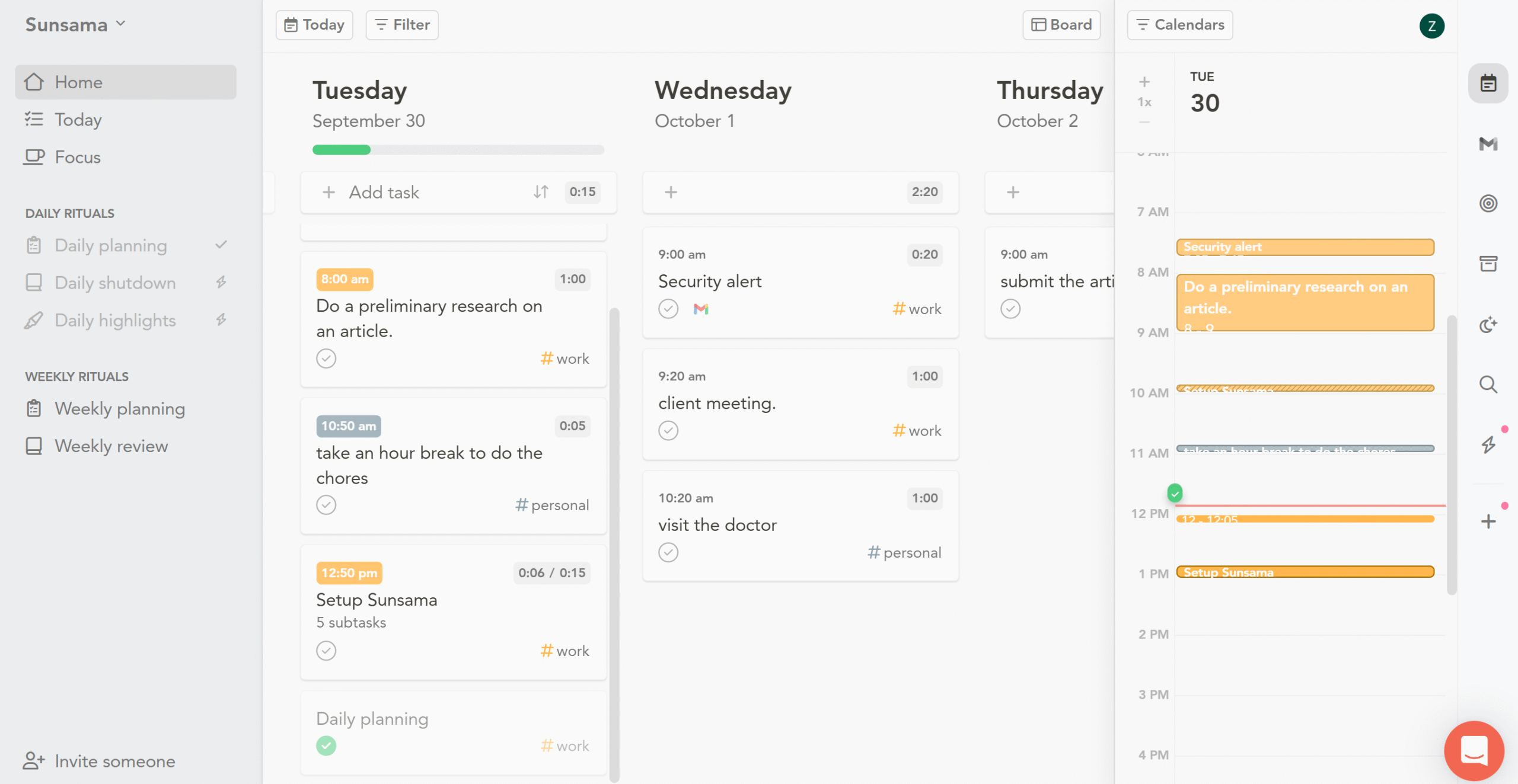
Task management is another core part of Sunsama. The app displays a visual board along with the calendar to plan your week and track upcoming tasks.
You can add new tasks directly to the board and set up a time duration. The moment you create a task, it’s automatically updated on your calendar, reserving the block of time for that particular task.
To tag any task as a priority, you can attach it to your goals–Sunsama has an option to create weekly goals for clarity.
There are several other task management features on Sunsama. You can convert your emails into tasks, import tasks from Gmail, and roll over unfinished tasks.
If you want to simply add a task for the record, you can add it to the backlog and drag it to the task board later.
3. Time Blocking
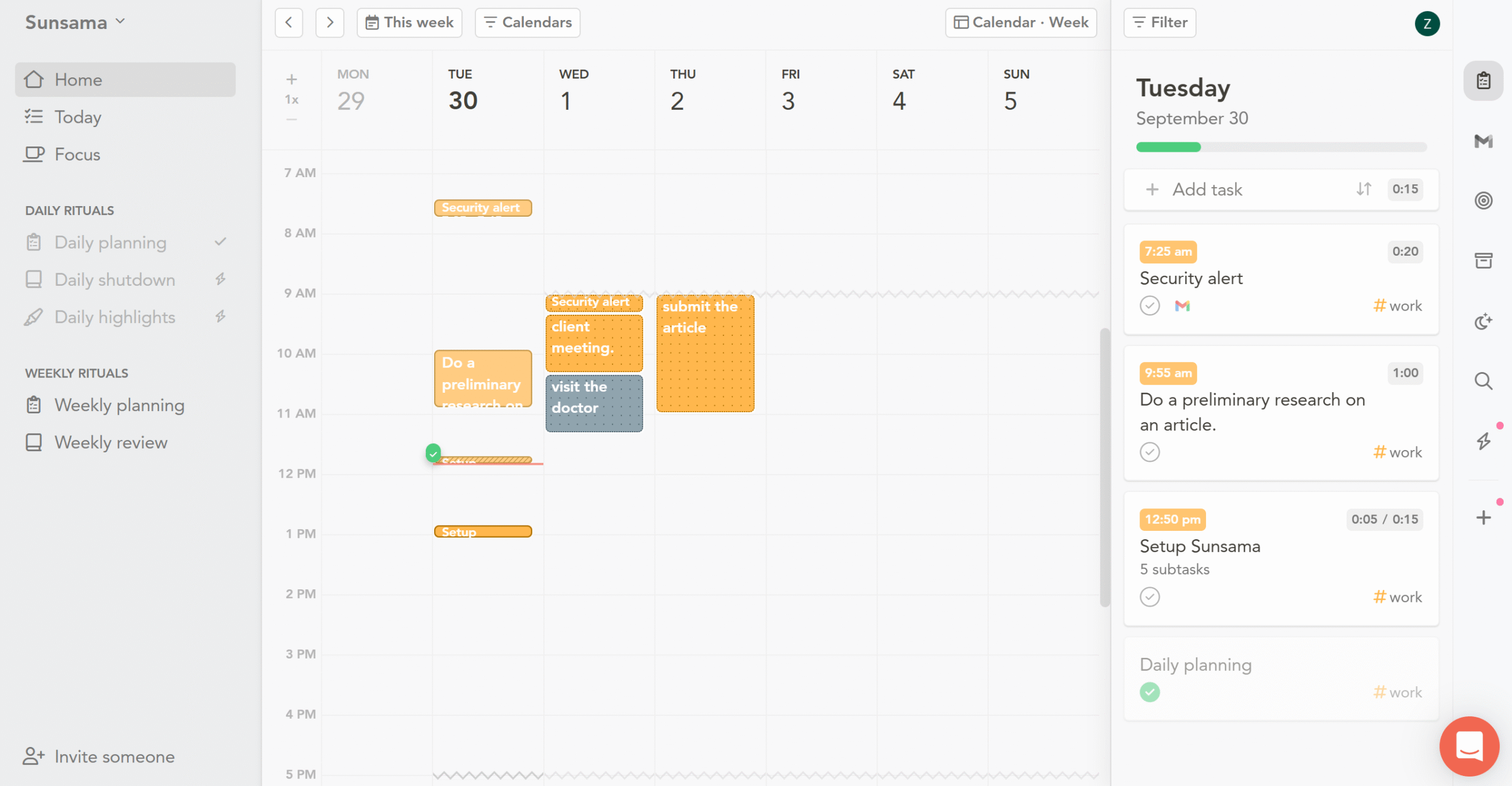
Time blocking is a scheduling technique that involves dividing your day into blocks of time for meetings, deep work, and other chores.
For each block, you set an estimated time duration and add it to your calendar.
It works like an appointment booking–you reserve slots for events and leave blank blocks to indicate your free time.
In Sunsama, you can both manually and automatically book slots for tasks.
What’s more, you can drag your blocks up and down and increase and decrease the time duration to rearrange your schedule.
You can also categorize the task as work or a personal chore and add a location to provide context.
4. Focus Mode
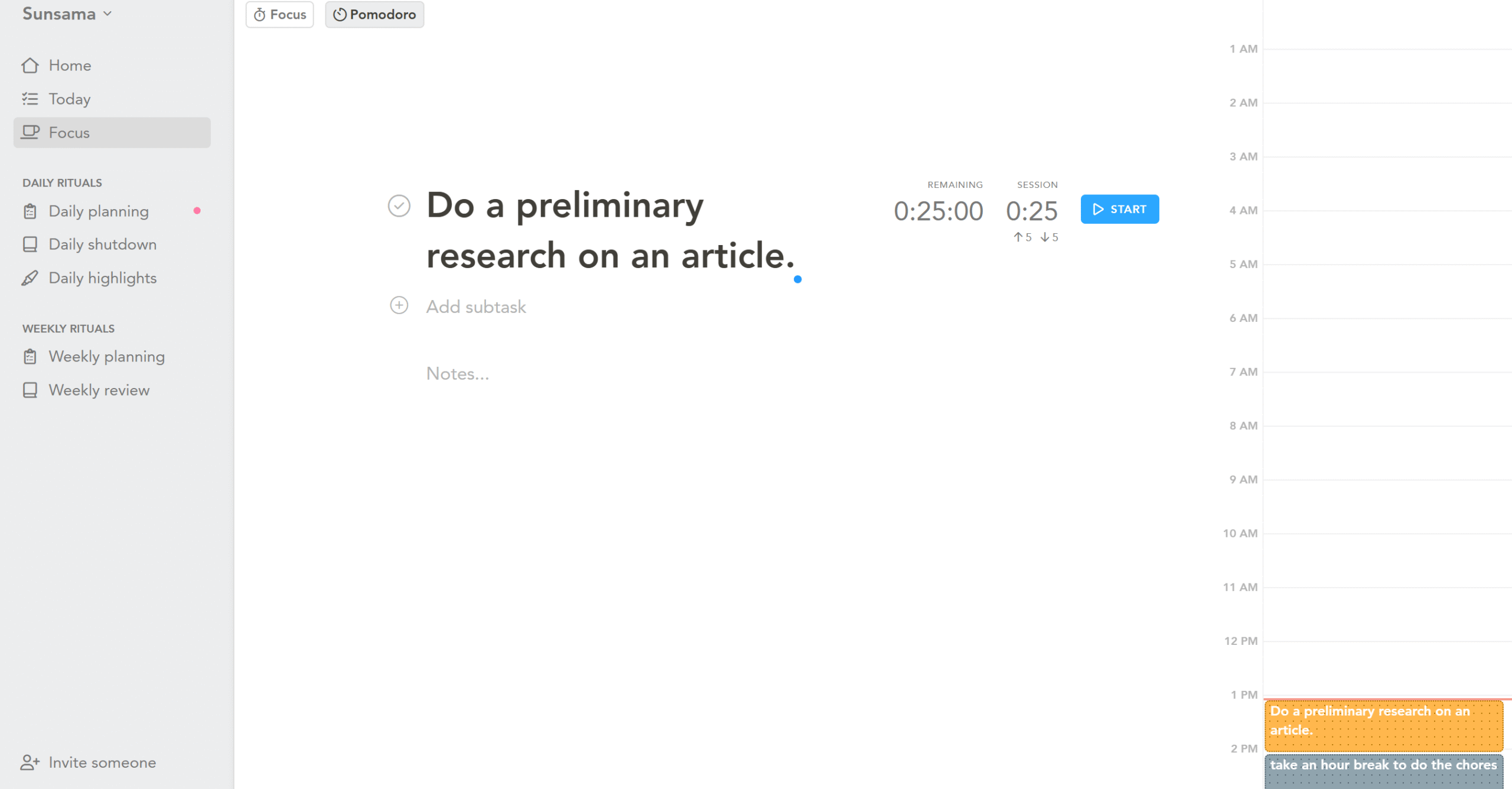
Sunsama has a built-in focus mode to help you improve your concentration. With this feature, you can track your status without leaving your current work.
The focus mode comes with a pomodoro timer and a floating bar. The focus bar displays at the top of the screen, and the timer records your actual time against the estimated one.
You can turn on the reminder to let you know when to take a short break. Sunsama automatically turns it off during meetings.
5. Daily Highlights and Weekly Review
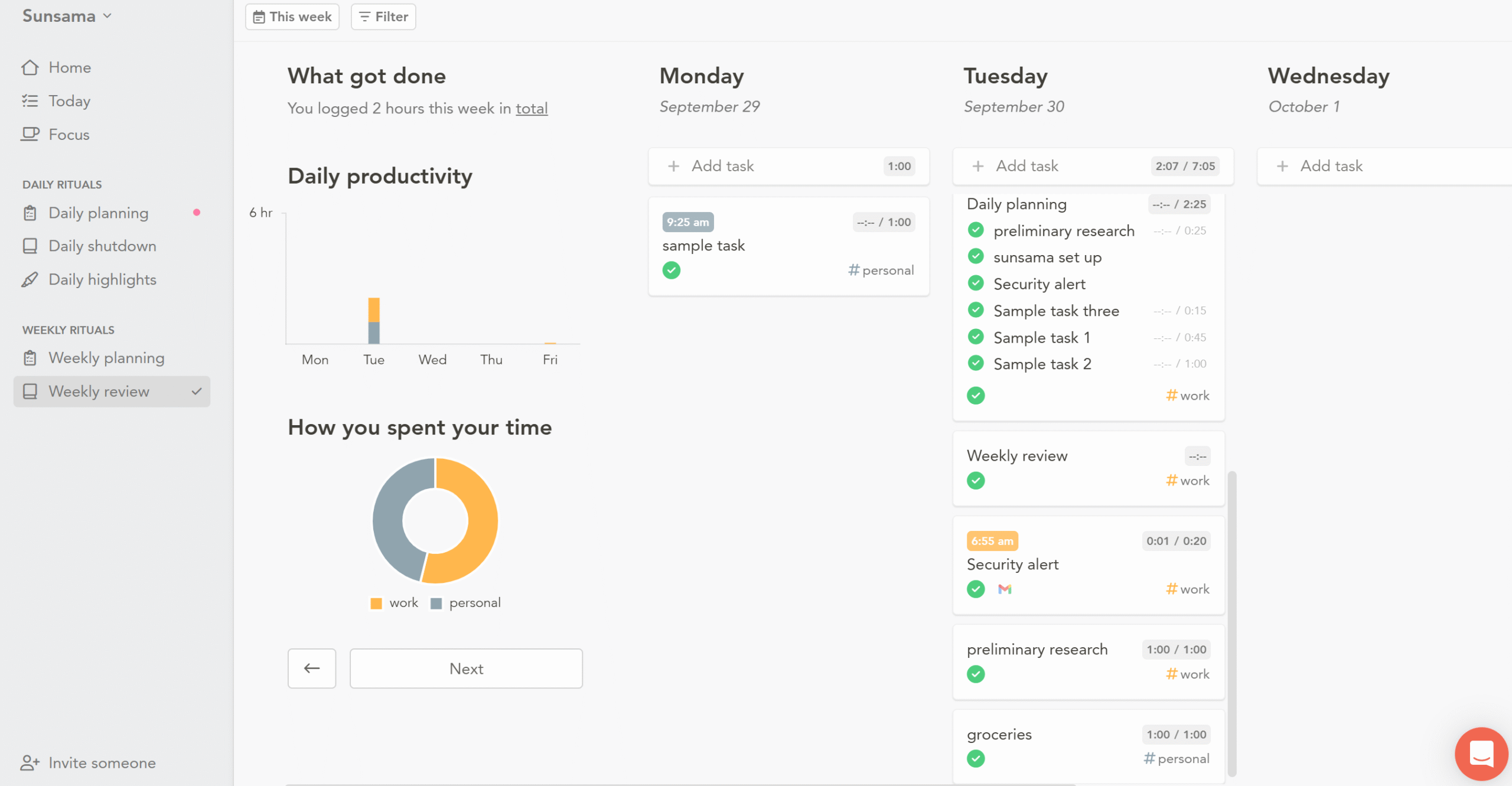
Last but not least, the Daily Highlights. It’s where you wrap up and summarize your day.
The point of Daily Highlights is to share your achievements and thoughts. You can use it as your personal journal or a summary for your team.
There’s also an option for a weekly review.
It’s an end-of-the-week summary to share the tasks you worked on and the goals you achieved.
Weekly review also provides an analytics section to track your productivity.
Sunsama Price

Sunsama sells only one subscription package. For $20 a month, you’ll get access to all its features.
If you buy its annual package, you’ll receive a 20% discount.
I didn’t find any refund policy.
You can cancel your subscription at any time before the expiry period; there’s no issue with that. Your subscription will, however, remain active until the end of the billing cycle.
So, if you want to test the app, go for the monthly subscription before switching to the annual plan.
You can take a 14-day free trial to explore the software as well before purchasing it. Sunsama doesn’t ask for any credit card details in the free trial.
Start using Sunsama for Free →
Conclusion
Work planners aren’t all the same.
Every app has its own style and strengths, making it perfect for one, but unsuitable for another.
The best way to find the right tool is to compare it with others.
I explored Todoist, Notion, Google Calendar, and Sunsama to compare their usability. And Sunsama met all my requirements.
Try these apps yourself, see how they work, and pick the one that matches your work style. Good luck!


 A better way to manage projects and clients for freelancers
 Get through busy days like a breeze with Reclaim.ai