
Remote meetings eat up time. Calls drag on, people talk over each other, and no one remembers the action items. By the next meeting, you’re back to square one.
It’s not your team’s fault, because without the right tools, remote collaboration quickly turns chaotic.
Notes vanish. Tasks slip. Focus disappears. Productivity takes the hit.
The good news? Now you can find smarter tools that capture conversations, assign follow-ups, and keep everyone aligned across time zones.
Some even cut out live calls completely with quick on-demand updates.
Better meetings don’t just save time. They lift morale. Short, structured sessions leave people energized instead of drained.
In this guide, we’ve rounded up 10 meeting productivity tools that turn messy remote sessions into focused, action-driven work. They’ll help your team save hours, reduce chaos, and finally get things done.
How I Tested These Tools
The real test for any meeting tool isn’t the features it lists; it’s whether it makes your remote calls feel smoother.
Each tool here was tested in real-world workflows, including team check-ins, brainstorming sessions, last-minute reschedules, and those daily moments when you wonder, Wasn’t that already discussed?
The goal was simple: to find tools that cut friction instead of adding more. The right one should capture notes for you, make scheduling painless, and keep everything connected so you’re not switching between five different apps.
The key criteria:
- Ease of use: A tool should work right away. If it takes hours of setup or endless tutorials, it slows the team instead of helping.
- Flexibility: No two meetings are alike. The best tools handled both structured agendas and open conversations without locking us into rigid formats.
- Integrations: Remote meetings connect to calendars, chat, and project boards. Tools that sync with Google Workspace, Slack, Asana, or Trello are saved in real time.
- Mobile experience: Work doesn’t always happen at a desk. Joining calls, checking transcripts, or tracking tasks on mobile needed to feel just as smooth as on a desktop.
- Customization: Every team runs differently. Tools with adjustable templates, reminders, and dashboards slotted neatly into existing workflows.
- Cost vs. value: Price only makes sense if the tool consistently saves time, reduces chaos, and delivers clear returns.
The 10 tools on this list are the ones that ticked those boxes and made remote meetings sharper, shorter, and more productive.
Best Meeting Productivity Apps: TL;DR
- Google Workspace: Best for collaborative docs and built-in video calls
- Slack: Best for quick team communication and huddles
- Asana: Best for turning meeting discussions into tracked tasks
- Miro: Best for visual brainstorming and whiteboarding
- Fireflies.ai: Best for AI meeting transcription and summaries
- Notion: Best for shared notes and central knowledge bases
- Calendly: Best for painless scheduling across time zones
- Loom: Best for async video updates to cut live meetings
- Trello: Best for simple, drag-and-drop task boards
- Toggl Track: Best for tracking how much time meetings actually take
Our Pick for 10 Best Meeting Productivity Tools
1. Google Workspace: Best for collaborative docs and built-in video calls
Google Workspace combines Gmail, Calendar, Meet, Drive, and AI tools into one connected system. It makes scheduling, running, and following up on meetings smooth, all without switching between extra apps.
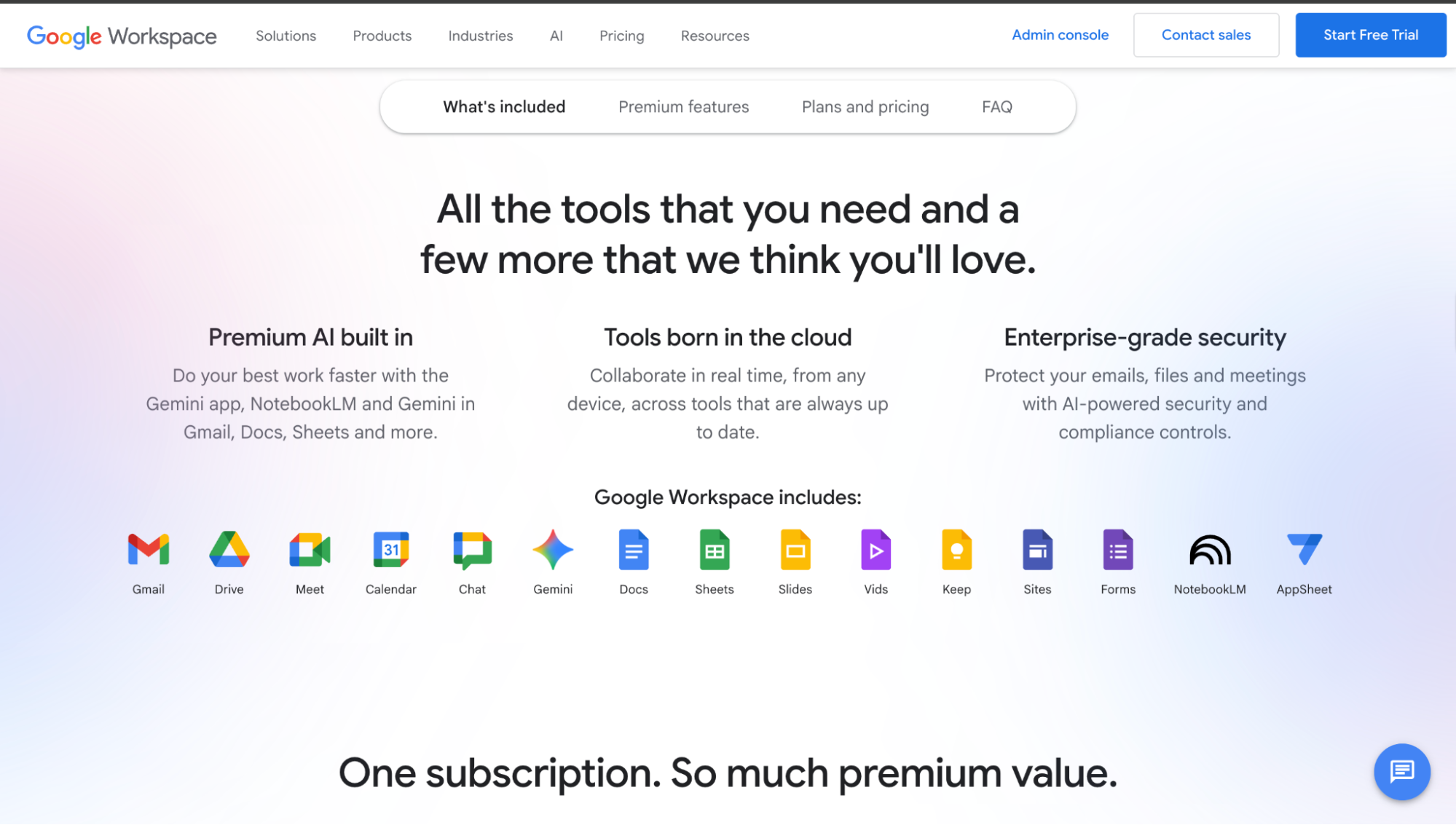
Google Workspace brings your email, calendars, video calls, file storage, and documents into one place. It’s the all-in-one system that keeps your meetings organized before, during, and after.
When the meeting starts, Google Meet runs the video call, while you and your team can open Docs, Sheets, or Slides to work together. You can type out agendas, update numbers, or build slides live during the call, and since everyone sees the same file, there’s no confusion about versions.
Afterward, Drive saves all your notes, files, and recordings in one shared space, so following up is easy and nothing gets lost.
AI tools (on select plans) give you even more support. Gmail can summarize long email threads, Docs can draft or condense notes, and Sheets can highlight patterns in data. In Meet, noise cancellation and live captions make conversations clearer, and on supported plans, you get live transcription for accurate records.
If your team is hybrid, Companion Mode in Meet helps you give remote participants equal access to chat, polls, and shared content (available in select editions).
And because security matters, Workspace comes with Google’s strong compliance standards, so you can confidently share sensitive files with clients or teammates.
The downsides? Lower-tier plans run out of storage quickly, and if you’re moving from Outlook or other tools, it may take some time to adjust.
Pros
- Strong version history prevents file confusion
- Smart Chips link people, files, and events directly in docs
- Large ecosystem of add-ons and extensions for custom workflows
Cons
- No built-in time tracking or personal productivity metrics
- Lacks native watermarking for sensitive Docs or Sheets
Pricing
- Business Starter: $7/user/month (annual) or $8.40 (flexible)
- Business Standard: $14/user/month (annual) or $16.80 (flexible)
- Business Plus: $22/user/month (annual) or $26.40 (flexible)
- Individual: $9.99/month or $99.99/year; includes 1 TB storage, extended video calls, mail merge, and advanced scheduling
The Flexible Plan bills monthly with user changes allowed anytime, while the Annual Plan locks in lower per-month rates. Google Workspace Individual is tailored for solo entrepreneurs with pro email, video, and storage.
2. Slack: Best for quick team communication and huddles
TL;DR
Slack is the hub where remote teams organize conversations, share updates, and sync in real time. With channels, huddles, integrations, and automation, it keeps meetings lean and makes follow-ups easy.
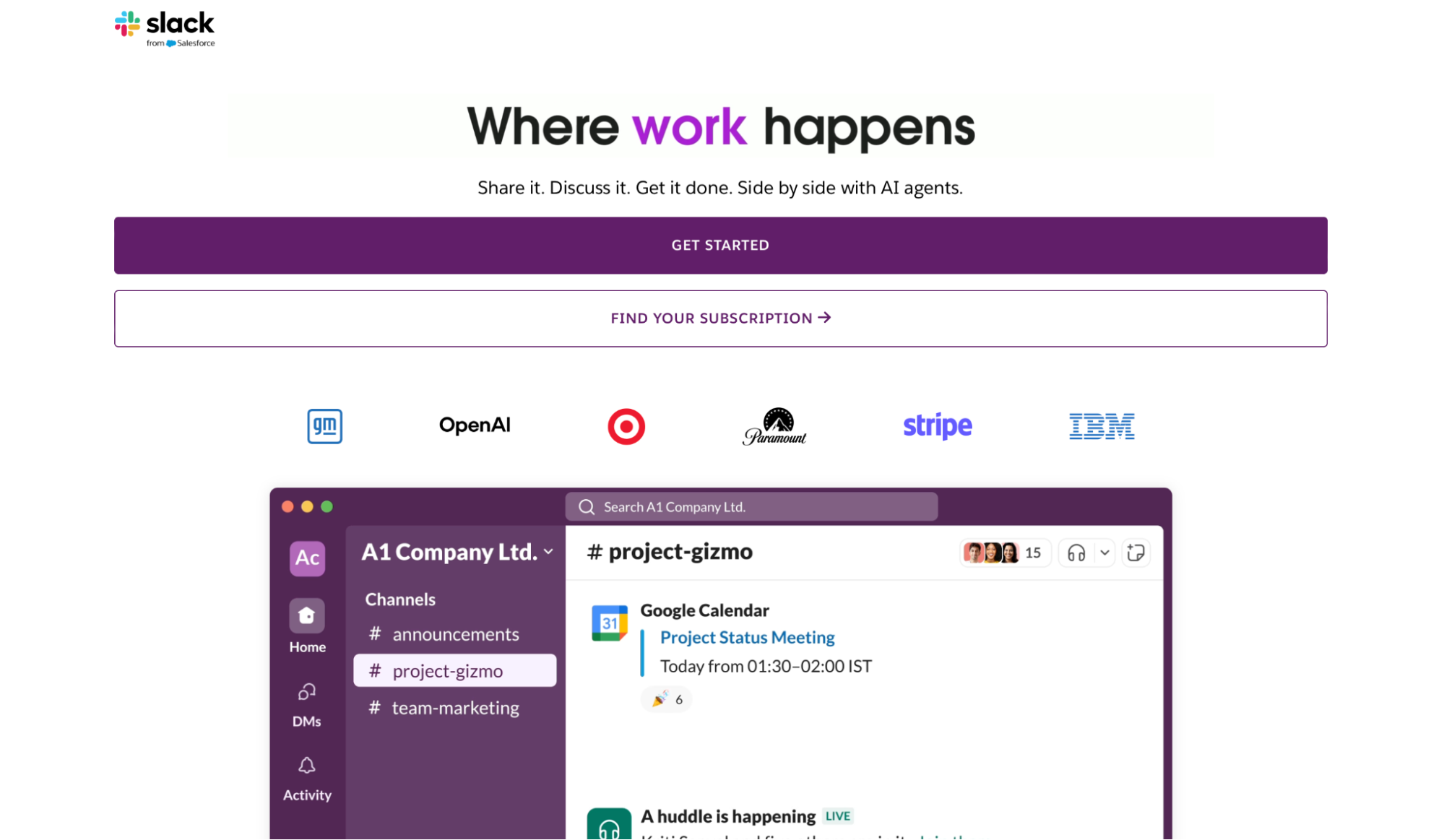
Slack brings your team’s conversations, updates, and quick syncs into one space. It cuts down on unnecessary meetings by making collaboration happen in channels, huddles, and integrations.
Slack organizes work through channels. Think of them as dedicated chat rooms for projects, teams, or topics.
For example, you might have one channel for marketing, another for design feedback, and a company-wide channel for announcements. Everything related to that topic stays in the same space, so updates and files are easy to find later.
When you need to talk things through, Slack offers huddles. They’re quick audio or video chats you can start right inside a channel or direct message. No links or scheduling required; just click to talk, share your screen if you want, and resolve issues in real time.
Slack also connects with the tools you already use. Jira issues, Trello cards, and Google Drive files can all appear directly in channels. That way, your team sees progress as it happens instead of waiting for the next status call.
On top of that, Slack includes light automation. Workflow Builder handles repetitive tasks like onboarding reminders or check-ins. Canvases let you pin agendas, notes, or checklists inside a channel for easy reference.
Slack can feel noisy if channels are not organized well, and important updates sometimes get buried in busy conversations. But with a little structure, it replaces many recurring meetings and becomes the central hub for remote teamwork.
Pros
- Reactions and emojis boost team engagement
- Smooth switching between multiple workspaces
- Slackbot handles quick reminders and FAQs automatically
Cons
- File management is limited
- Lacks built-in project tracking
Pricing
- Free: 90-day message history, 1:1 huddles, up to 10 integrations
- Pro ($7.25/user/month): Unlimited history, group huddles, Slack Connect, basic automation
- Business+ ($18/user/month): Adds AI-powered features, advanced security, and priority support
3. Asana: Best for turning meeting discussions into tracked tasks
TL;DR
Asana turns meeting notes and decisions into actionable tasks. With boards, lists, and integrations, it keeps follow-ups organized so nothing falls through the cracks.
Asana is designed to stop decisions from getting lost after the call ends. Every task can be logged into a project, assigned to a teammate, and tied to a deadline, so follow-ups actually happen.
You get multiple ways to view the same work. Use a simple list for small projects, switch to a Kanban board for weekly standups, or open the Timeline to see how deadlines overlap. All views stay in sync, so your team can choose what works best without losing alignment.
Tasks carry everything you need in one place: an owner, due date, attachments, comments, and context. Shift a deadline in the Timeline, and dependent tasks adjust automatically, saving you from re-planning everything by hand.
Automation rules step in to handle the repetitive stuff for you. For example, if someone creates a task in a “Marketing” project, Asana can automatically assign it to the marketing manager and set the due date for three days later.
Dashboards then give you a big-picture view with charts and progress tracking, showing what’s on track and what’s falling behind.
Asana directly integrates with tools like Slack, Zoom, and Google Drive, turning conversations and files into trackable tasks without switching platforms. Ready-to-use templates for recurring projects or agendas help save even more time.
For solo users, Asana may feel like more than you need. But for remote teams, it works as a shared control center where decisions quickly turn into progress.
Pros
- Strong search and filtering across projects
- Large template library for different industries
- Color-coded tagging improves task organization
Cons
- Too many notifications without a custom setup
- Mobile experience is less versatile than desktop
Pricing
- Personal (Free): Up to 10 users, unlimited projects, basic views, 100+ integrations
- Starter ($10.99/user/month annual): Workflow Builder, unlimited automations, advanced search
- Advanced ($24.99/user/month annual): Portfolios, workload view, native time tracking
- Enterprise (custom): Admin controls, resource management, 24/7 support
- Enterprise+ (custom): Adds compliance features like HIPAA, data residency, and audit logs
4. Miro: Best for visual brainstorming and whiteboarding
TL;DR
Miro is an online whiteboard that makes meetings more interactive. From brainstorming to sprint planning, it turns ideas into visual maps that the whole team can edit in real time.
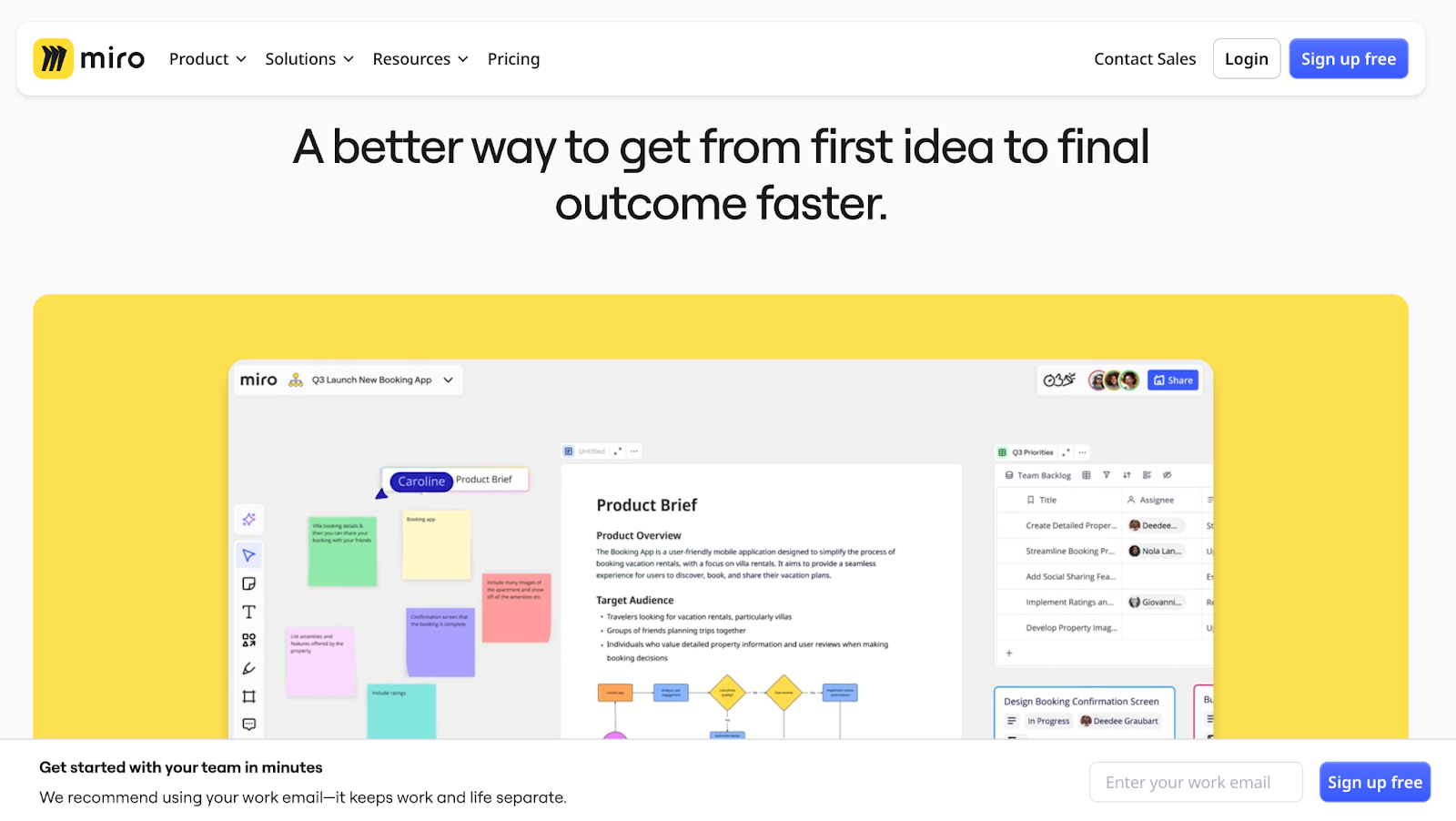
Miro is an online whiteboard where teams can brainstorm, plan, and run workshops together. It turns static meetings into interactive sessions with sticky notes, templates, and real-time collaboration.
It helps teams collaborate visually, which is why it’s so popular for workshops, retrospectives, and brainstorming calls.
The tool comes with hundreds of templates, from meeting agendas and retros to product roadmaps and sprint planning boards. For example, in a planning session, you can pull up a ready-made sprint template and start working right away, without wasting time setting up columns or headers.
Collaboration feels natural in Miro. Everyone can edit at the same time, leave comments, or vote on ideas. Built-in tools like timers and voting sessions help facilitators keep discussions focused and close meetings with clear decisions.
In remote workshops, the energy shift is noticeable. Ideas start flowing faster once people use sticky notes rather than speaking one by one. Even quieter teammates get a chance to contribute, which makes sessions more balanced and productive.
The infinite canvas gives you all the space you need, whether you’re sketching a quick flowchart or linking multiple boards together for larger projects.
And when the meeting is over, integrations with Zoom, Slack, Asana, and Google Workspace make it easy to push notes and tasks back into your team’s existing tools.
Miro AI adds another layer by clustering sticky notes, generating summaries, and organizing messy boards. This makes it easier to wrap up a session and turn a wall of ideas into actionable next steps.
Pros
- Strong mobile and tablet app support
- Easy export to PDF, images, or presentations
- Real-time multi-user collaboration with comments/votes
Cons
- Large boards slow down with heavy content
- Hard to stay organized on sprawling canvases
Pricing
- Free: 3 boards, 5,000+ templates, 160+ integrations, 10 AI credits
- Starter ($8/user/month annual): Unlimited and private boards, export, 25 AI credits
- Business ($16/user/month annual): Unlimited guests, SSO, 50 AI credits, advanced controls
- Enterprise (custom): Flexible licensing, admin tools, data residency, security
5. Fireflies.ai: Best for AI meeting transcription and summaries
TL;DR
Fireflies.ai records meetings, transcribes them in real time, and generates summaries with action items. It saves teams from frantic note-taking and keeps conversations searchable.

Fireflies.ai joins your online calls, records them, and turns the conversation into transcripts, summaries, and action items you can actually use.
Fireflies.ai is like having a teammate whose only job is to remember every word. Once linked to your calendar, its bot can automatically join Zoom, Google Meet, or Teams calls, record the conversation as a silent participant, and capture everything without you pressing record. When the meeting ends, you get a searchable transcript, so you can confirm details without replaying the entire call.
The AI goes a step further by creating summaries. It highlights the main points, outlines decisions, and lists action items. After an hour-long meeting, you get a short digest you can share with the team in minutes.
Finding key details is also quick. You can filter transcripts by keyword or speaker, making it easy to pull up a five-minute discussion on deadlines or pricing without scrubbing through an hour of talk.
Collaboration is built in, too. Teammates can highlight parts of the transcript, leave comments, or tag others for follow-up, turning notes into a living document rather than something that gets ignored after the call.
Fireflies also fit neatly into your workflow. Notes can flow into Slack for quick updates, into Asana or Trello as tasks, or into Salesforce to log client calls automatically.
There are limits, of course. Free plans cap storage and transcription minutes, and accuracy may drop on noisy calls or with strong accents.
Pros
- Easy to invite teammates or guests to calls
- Supports multiple languages for global teams
- Secure storage with enterprise-grade encryption
Cons
- Occasional lag in processing large meetings
- The interface can feel crowded for new users
Pricing
- Free: 800 minutes of storage, limited transcription, basic search
- Pro ($10/user/month): Unlimited transcription, AI summaries, app integrations
- Business ($19/user/month): Team workspaces, analytics, priority support
- Enterprise ($39/user/month, billed annually): Compliance controls, unlimited storage, dedicated onboarding & support
6. Notion: Best for shared notes and central knowledge bases
TL;DR
Notion brings meeting notes, tasks, and docs into one workspace. It works as both a shared notebook and a central hub where decisions and follow-ups live.
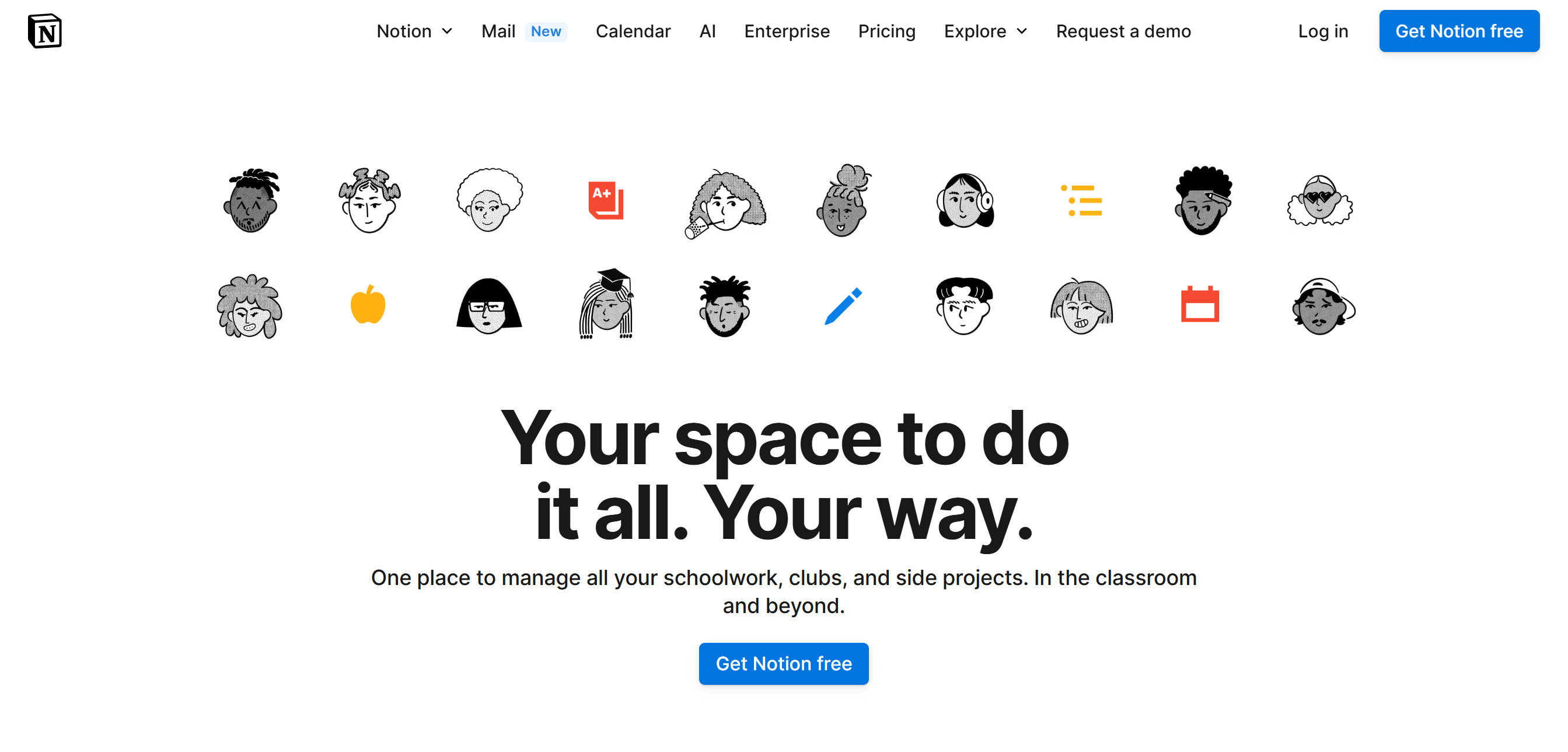
Notion is a flexible workspace where you can take notes, manage tasks, and organize knowledge. It’s designed to adapt to your workflow instead of forcing you into a rigid system.
Notion works like a digital hub where everything lives in one place. You can draft onboarding docs, track projects, or manage content calendars without switching between different apps.
Cutting down tool-hopping helps you stay focused on the work itself.
Building inside Notion is simple. Start with a blank page and add what you need: type “/todo” for a checklist, a table for deadlines, or even embed a Google Doc. Every element is a “block” you can rearrange like Lego pieces until the page fits your workflow.
Flexibility extends to views as well. A task list can be shown as a Kanban board, switched into a calendar to track due dates, or flipped back into a table for detailed tracking.
All views sync automatically, so you’re always looking at the same data in different ways.
Collaboration is smooth. You can tag teammates with “@”, drop comments in the margins, and use version history to undo changes if needed. This makes it easy to share knowledge and keep everyone aligned without clutter.
Notion isn’t perfect. Full Notion AI is only available on Business and Enterprise plans, with limited access on Plus.
And for new users, the sheer flexibility can feel overwhelming at first.
Pros
- Rich media embeds without coding headaches
- Powerful search across all pages and databases
- Cross-platform support with strong mobile and desktop apps
Cons
- No built-in chat or video calling
- It can get cluttered without a consistent setup
Pricing
- Free: Unlimited notes, 5 MB file uploads, 7-day history
- Plus ($10/user/month): Unlimited uploads & blocks, custom branding, basic integrations
- Business ($20/user/month): Teamspaces, SSO, premium integrations, full Notion AI
- Enterprise (custom): Advanced security, audit logs, analytics, premium support
7. Calendly: Best for painless scheduling across time zones
TL;DR
Calendly removes the back-and-forth of scheduling. Share a link, set your availability, and let others book a slot that works across time zones.
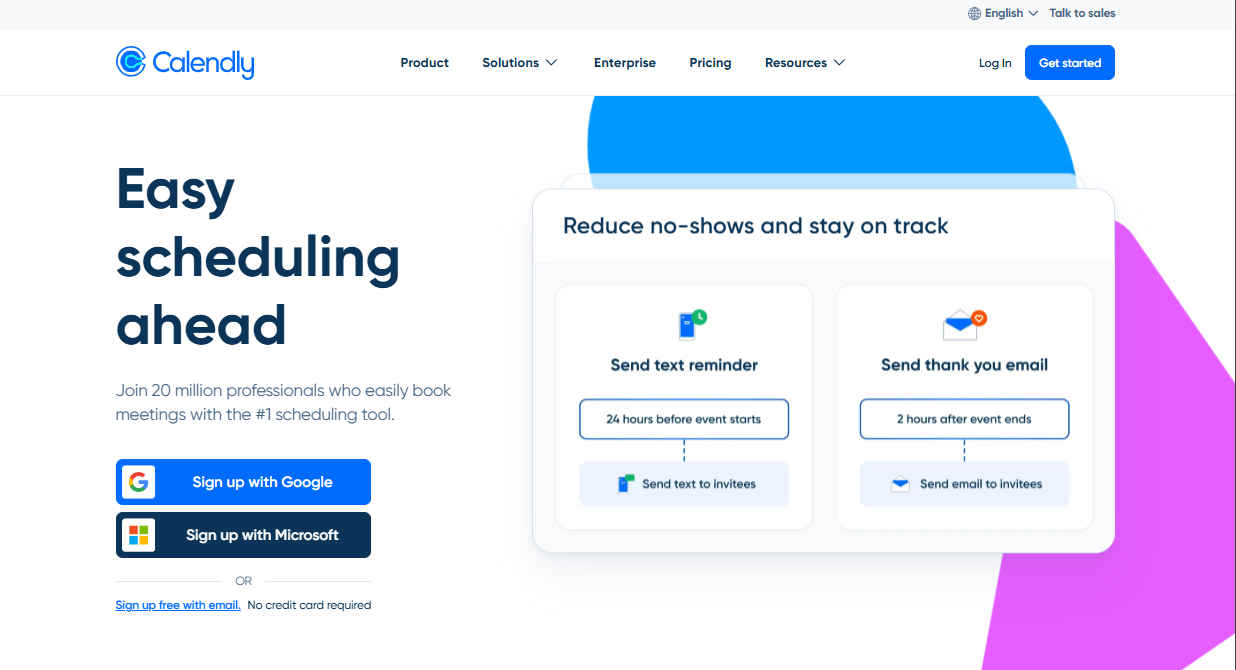
Calendly makes scheduling simple, especially for remote teams spread across regions.
Calendly works by letting you set your availability once, then share a booking link. Teammates or clients can pick a slot, and the event syncs automatically with your calendar, no endless email chains required.
It connects directly with Google, Outlook, and iCloud, so your calendar is always up to date.
You can also add buffers between meetings, giving yourself extra time before or after calls so you’re not rushing from one to the next. Along with daily limits and custom rules for syncs, interviews, or client check-ins, this helps prevent calendar overload.
Time zone conflicts are handled automatically. Whether you’re scheduling between the US, Europe, or India, Calendly adjusts to each person’s local time, cutting out confusion and missed calls.
Group scheduling is another strong feature. You can find overlapping availability for several teammates or use round-robin booking, which spreads meetings evenly across a team. For example, if three sales reps are available, the first booking goes to one, the next to another, and so on, ensuring no single person is overloaded.
Recurring meetings become easier with automated reminders and follow-ups. This helps reduce no-shows and saves time on manual coordination.
Recent updates include an analytics dashboard that shows booking volume, meeting types, and even conversion rates for sales teams. This turns scheduling into a source of insights, not just admin work.
Higher-tier plans unlock extras like payment collection for sessions, custom branding for booking pages, and website embeds.
The free plan is more limited, with just one active event type and minimal customization.
Pros
- Mobile app for scheduling on the go
- Analytics on meeting trends and bookings
- Payment collection for sessions or consultations
Cons
- No built-in meeting notes or agendas
- Admin controls only in higher tiers
Pricing
- Free: $0/seat; 1 event type, 1 calendar, basic features.
- Standard: $10/seat/month (billed yearly); unlimited event types, multiple calendars, reminders, integrations
- Teams: $16/seat/month (billed yearly); adds round-robin scheduling, advanced admin features, and lead routing.
- Enterprise: Custom pricing (starts at ~$15,000/year); for large organizations needing full control, security, and support
8. Loom: Best for async video updates to cut live meetings
TL;DR
Loom lets you record quick video messages with the screen and camera. It replaces status meetings, walkthroughs, and demos with short clips your team can watch anytime.
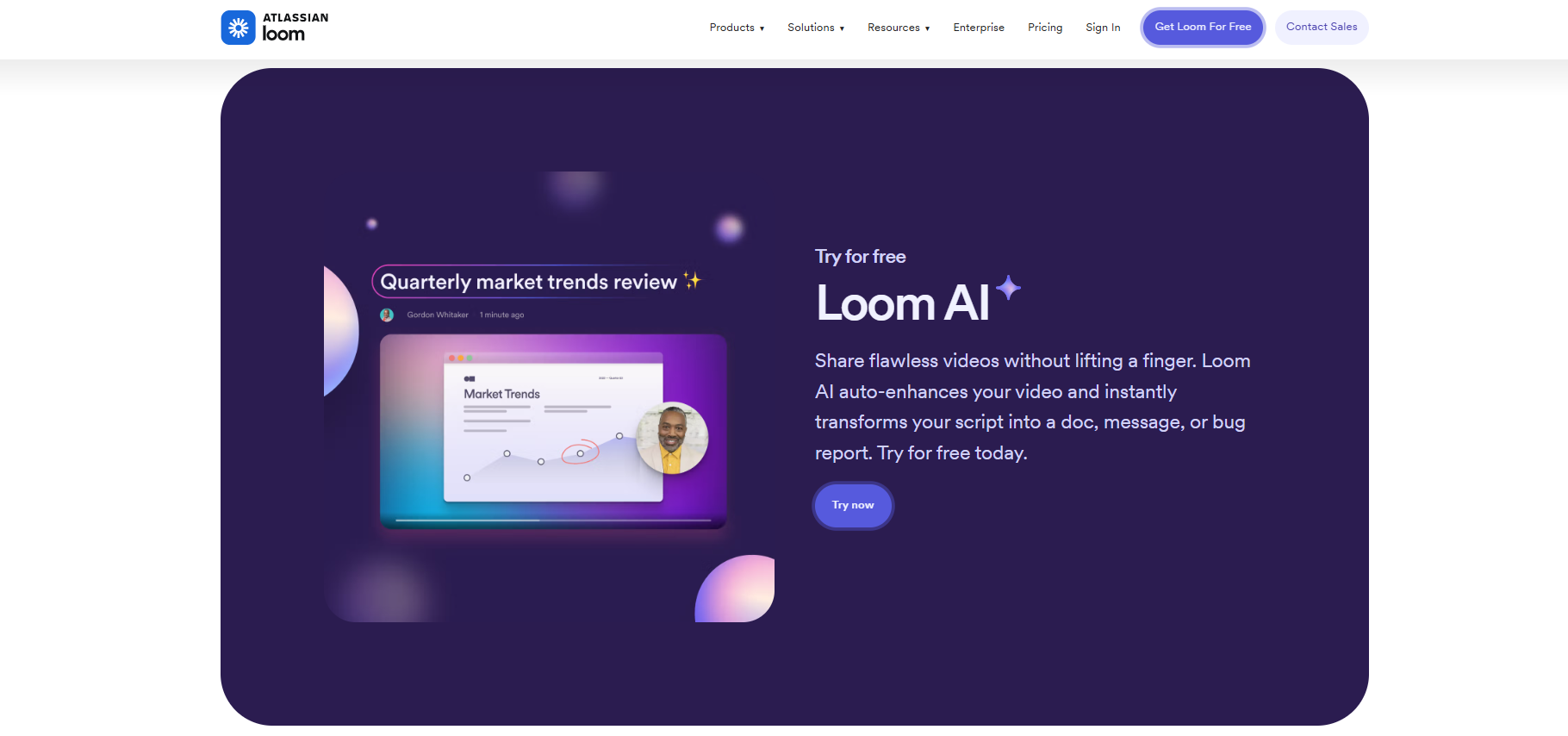 Loom lets you record and share short videos that replace long meetings. It’s a faster, clearer way to share updates across remote teams.
Loom is built for teams who want fewer live calls but still need rich communication. With one click, you can record your screen, camera, and voice together, then instantly share the video link. Teammates can watch it when it works for them, making it useful across time zones.
The tool keeps things simple but effective. You can trim clips, draw on the screen, or add callouts to highlight key points without needing extra editing software. This makes it easy to create clear walkthroughs, demos, or updates in minutes.
Collaboration doesn’t end when the video is sent. Viewers can leave comments right at specific timestamps or drop emoji reactions, so feedback becomes part of the video instead of scattered across chat threads.
Loom’s newer AI features save even more time. Videos can be auto-transcribed, summarized into key points, and broken into chapters, so teammates can quickly skim the content and jump to the parts that matter most.
Analytics add another layer. You can see who watched your video, where they stopped, and which sections they rewatched. That visibility helps you know whether your updates are actually landing.
Pros
- Simple sharing with instant video links
- Supports 50+ languages with captions
- Works smoothly across desktop and mobile
Cons
- Large video libraries get hard to manage
- Viewer engagement analytics are not available on the free plan
Pricing
- Starter (Free): 25 videos, 5-minute limit, basic recording + reactions
- Business ($15/user/month): Unlimited videos, advanced editing, branding removal
- Business + AI ($20/user/month): Adds AI summaries, chapters, filler removal, and recap emails
- Enterprise (custom): Security, admin tools, custom data retention
9. Trello: Best for simple, drag-and-drop task boards
TL;DR
Trello gives you a visual board for meeting action items. Drag cards, use checklists and labels, and turn meetings into tasks that are easy to spot.
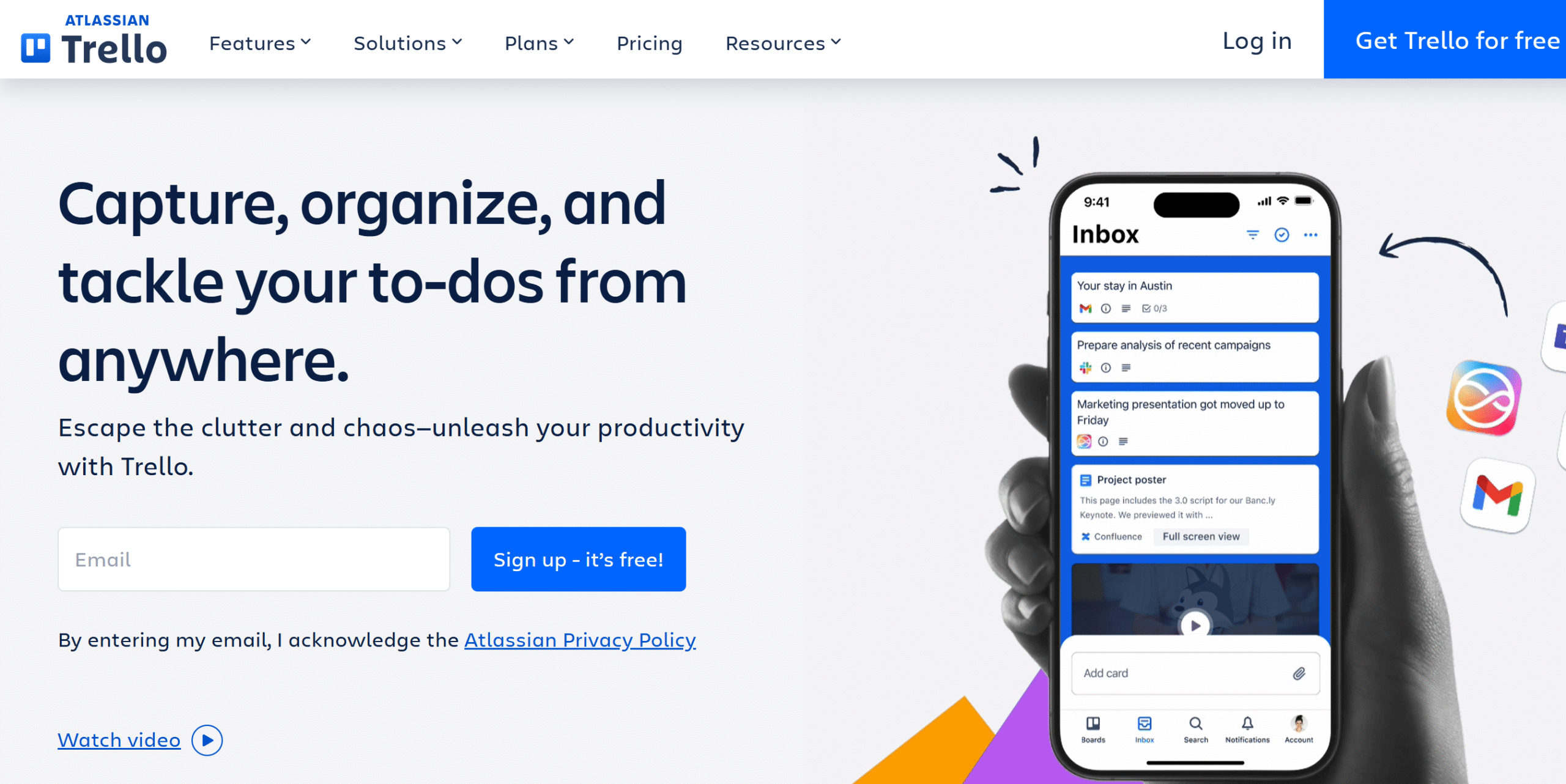
Trello uses boards, lists, and cards to make task management visual and easy. It’s great for turning meeting notes into action items that everyone can see at a glance.
Trello works like a digital bulletin board. After a meeting, you can create a board, add lists like To Do, In Progress, and Done, and fill them with cards for each task. Moving cards across lists makes progress visible in seconds.
Each card holds all the details you need: checklists, attachments, comments, and due dates. This keeps follow-ups tied to the task itself instead of scattered across email threads or chats.
Collaboration is straightforward. Team members can be assigned to cards, get notified of updates, and add notes or files. For quick team check-ins or status updates, a glance at the Trello board can often replace another meeting.
The tool also includes automation through Butler, Trello’s built-in workflow assistant. You can set rules that move tasks into Done once they’re completed, send reminders for upcoming deadlines, or automatically assign follow-up items created during a meeting.
A newer addition is the Inbox feature. It captures tasks from email, Slack, or other apps and holds them in one place until you’re ready to sort them into boards.
Trello’s strength is in its simplicity, but that can also be a limit. For very large projects, boards may get cluttered, and advanced features require paid plans.
Pros
- Strong mobile and tablet apps
- Extremely quick onboarding for new users
- Well-established with wide community support
Cons
- Limited reporting and analytics features
- Weak role/permission controls on lower tiers
Pricing
- Free ($0): 10 boards, unlimited cards, basic features
- Standard ($5/user/month): Unlimited boards, custom fields, advanced checklists
- Premium ($10/user/month): Timeline & Calendar views, templates, admin tools
- Enterprise ($17.50/user/month): Organization-wide permissions, advanced security, support
10. Toggl Track: Best for tracking how much time meetings actually take
TL;DR
Toggl Track shows you exactly how much time meetings eat up. With one-click timers, reports, and integrations, it helps teams see whether calls are productive or just calendar clutter.
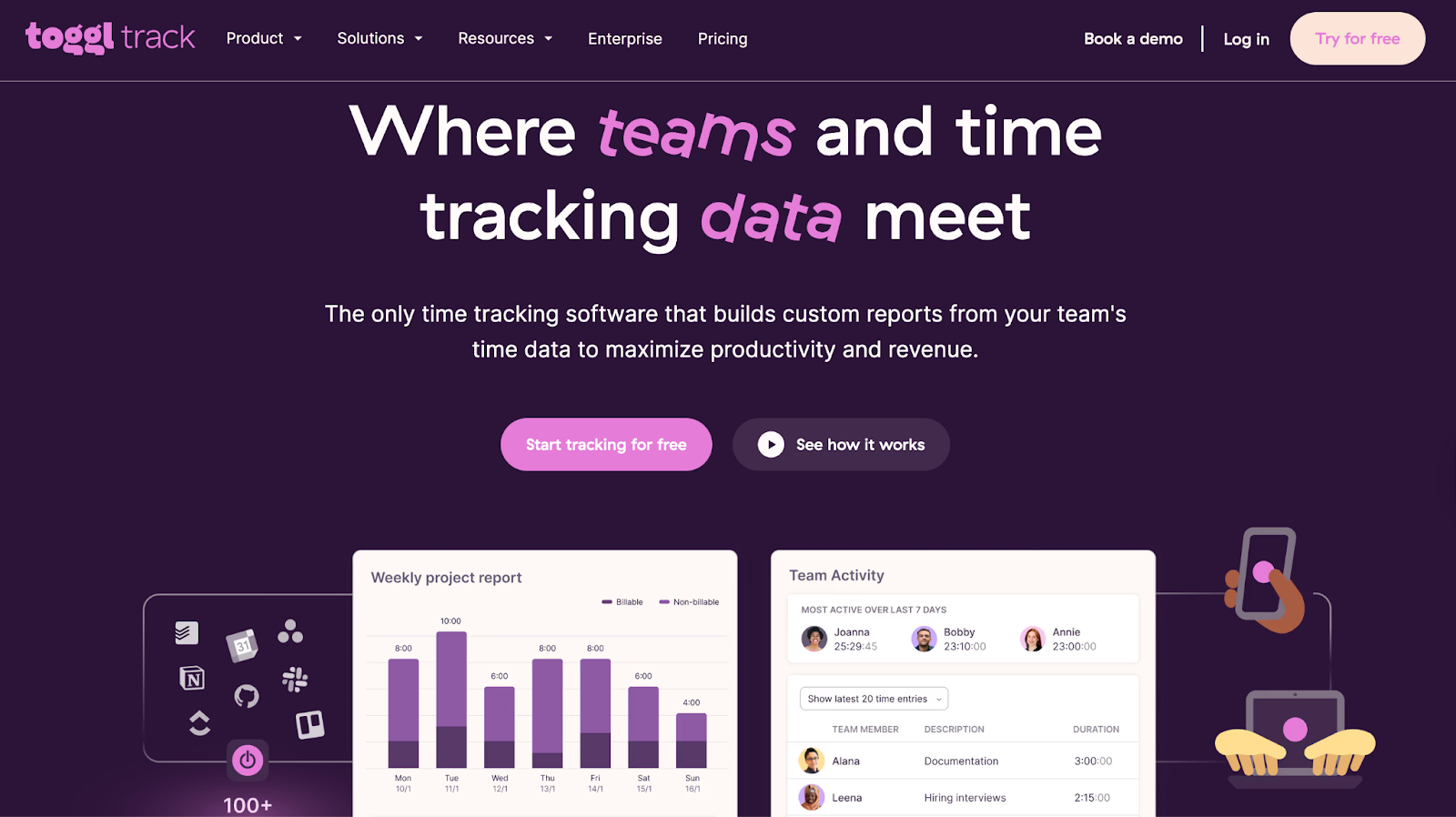
Toggl Track is a time-tracking tool that shows how much of the workweek is spent in meetings versus focused work. It helps teams turn vague “too many meetings” complaints into real data.
It is built for visibility. With one click, you can start a timer at the beginning of a call and stop it when the meeting ends. Over time, you’ll see exactly how many hours meetings take compared to project work. This makes it easier to spot patterns and decide which meetings are actually valuable.
Reports translate tracked hours into useful overviews. You can break time down by project, client, or team member. For example, a manager can see if a client account requires too many calls or if internal check-ins are eating into focus time.
Extra features make Toggl Track more than just a stopwatch. Time estimates and alerts warn you when a project is running long, helping you keep deadlines under control. Project templates save setup time for recurring work, while detailed reporting and invoicing make it easy to share time logs with clients.
Toggl Track integrates with Google Calendar, Outlook, Slack, Asana, and more, so meetings and tasks stay synced automatically. Offline tracking, Pomodoro timers, and idle detection ensure no time goes unrecorded.
For team leaders, dashboards give a bird’s-eye view of who’s overloaded with calls and who has room for more work. That makes resource planning fairer and more efficient.
Pros
- Browser extensions for Chrome and Firefox
- Exports reports in multiple formats (CSV, PDF, Excel)
- Multi-workspace support for freelancers juggling clients
Cons
- Lacks built-in task or project management
- Can overwhelm new users with too many tags
Pricing
- Free: Up to 5 users, basic tracking, 100+ integrations
- Starter ($9/user/month): Billable rates, projects, tasks, revenue reports
- Premium ($18/user/month): Profitability analysis, fixed-fee projects, approvals, SSO
- Enterprise (custom): Dedicated support, volume discounts, multi-workspace management
Why You Need Tools That Make Meetings Productive
The real drain on remote teams isn’t always the meetings themselves; it’s the chaos around them. Finding a time that works, keeping notes organized, and making sure action items don’t disappear often take more energy than the call.
The right tools take that friction away. They handle scheduling, capture transcripts, and connect follow-up tasks directly to projects. That means less effort on setup and wrap-up, and more focus on the actual conversation.
They also keep things clear without adding complexity. You can zoom in on details when needed or stay at a high level for quick updates.
Most importantly, they protect your team’s attention. Meetings become shorter, more purposeful, and easier to follow through on. The work doesn’t end when the call ends; it carries forward automatically, without someone having to chase it.
How to Choose the Right Tool
With so many meeting apps out there, the challenge isn’t finding one; it’s picking the one that actually makes your team’s life easier.
Here’s what to look for:
- Solve your pain point: If scheduling is messy, pick a smart scheduler. If notes disappear, go for transcription or summary tools.
- Keep it light: Effective tools save time in meetings rather than adding extra work.
- Check integrations: Make sure it plugs into your calendar, chat, or project tracker so you’re not switching apps.
- Test before committing: Run a free trial with your team and see if it sticks naturally.
The right tool is the one people actually use without being reminded. Start simple, then build from there.
Final Words
The real fix for unproductive meetings is not adding more apps. It is choosing one or two that directly address your biggest pain points.
If scheduling across time zones slows your team down, start with Calendly. It takes the back-and-forth out of finding time and keeps everyone on the same page.
If notes and follow-ups are the problem, try Fireflies.ai. It captures the conversation, highlights decisions, and turns them into action items automatically.
Begin with one tool that tackles your team’s most pressing issue. Test it in a few meetings, see if it sticks, and only then consider adding another.
The best tools run quietly in the background. They save time, keep details visible, and let your team focus on the discussion instead of the logistics.


 A better way to manage projects and clients for freelancers
 Get through busy days like a breeze with Reclaim.ai