Do you have many innovative business ideas but you fail to execute them? Or, do you have ample time to finish projects, and yet find yourself grinding hours before the deadline?
Well, you’re not alone.
We live in a time when humans have hundreds of reasons to get distracted.
And, if you find this relatable, it might be a great option to use a productivity tool enhanced with modern-day powerful AI.
That’s exactly where Motion and BeforeSunset come into play. Both these tools use AI to sort your daily tasks, schedule your priorities better, and help you stay focused in executing your daily tasks.
But, as they both offer multiple features that are quite alike, you might find yourself on the fence about picking the right one for you.
So, I’ll personally use both platforms and compare them in-depth to help you find the right app to boost your productivity and execution with ease. I’ll even add my pick after each comparison to give a constructive opinion on their strong and loose ends.
Stick around—your path to better focus and effortless execution starts here.
1. Initial Setup
Usemotion AI
Without beating around the bush, Motion takes you straight to planning your day as soon as you sign up with them. Unlike, BeforeSunset, Motion offers a 7-day free trial to get a quick walkthrough of their services and even though that’s a plus, I find a week’s time too less to judge a productivity app.
As a first step of the onboarding, you must set up your weekly work hours.

Next, you have to jot down your weekly tasks. It’s a pretty straightforward process that involves naming the task, setting the date, and the duration for the specific tasks.

As a last step, you can add any recurring tasks to the next tab. This keeps you mindful on your daily tasks like going to the gym, reading a book, self-care, or anything as such. If you don’t have one, simply tap “Skip”.

And, that’s it. You’ll now come across Motion’s dashboard with all the features to play with.
BeforeSunset AI
Where Motion picks up straight from your working hours, BeforeSunset tries to know you better or should I say “Your Superpowers” better. That’s why after signing up, you come across an option to pick your department.

Next, you get to choose the nature of your work.

Finally, you need to enter your plan for the day and get ready to see the real magic.
A paywall!
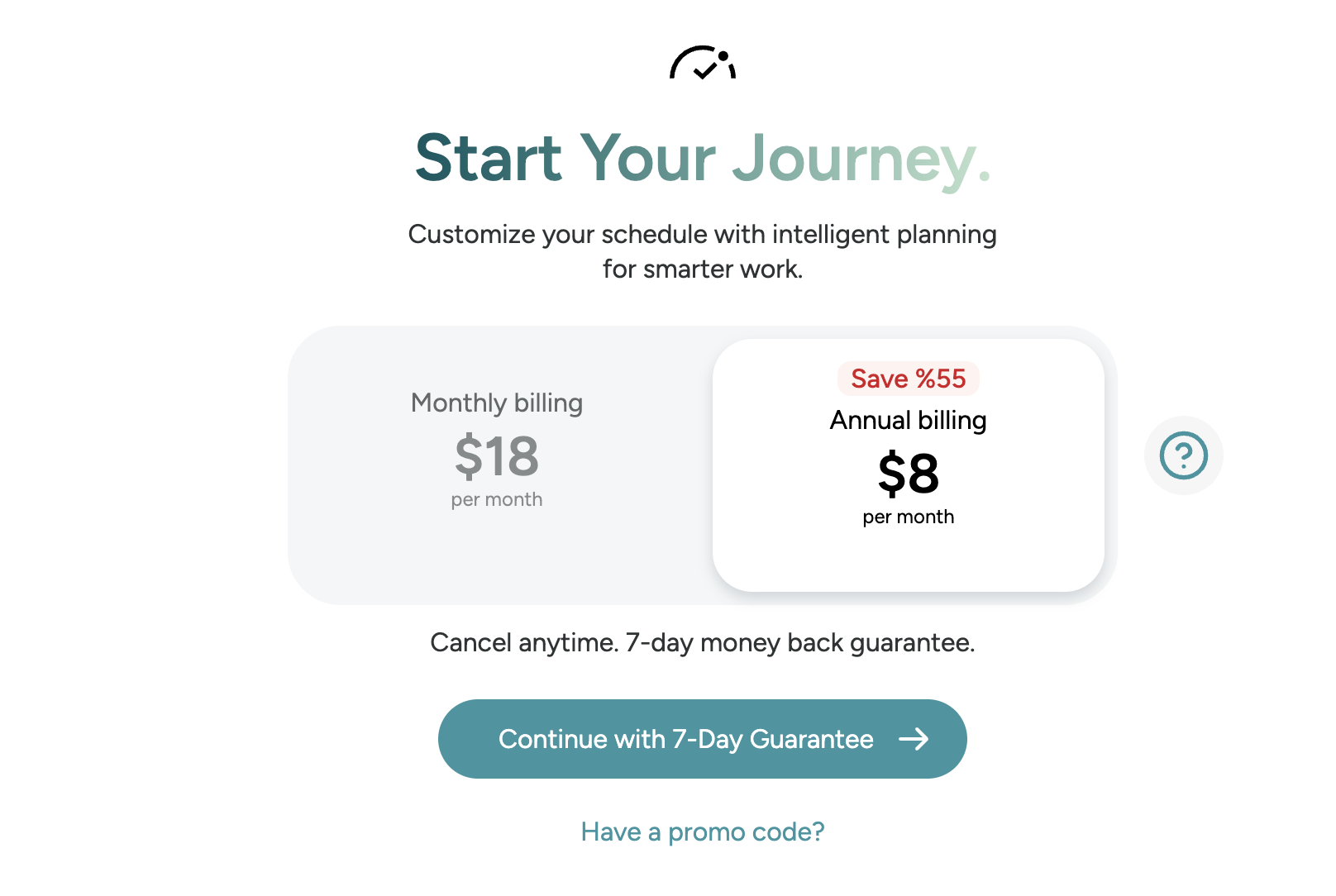
I get it. Such brands try to sell you a dream by giving a gist of it for free. But, here’s the catch.
There’s no free trial. All you have is a “7-day guarantee” which I’d only suggest if you’re serious about using this app.
Once you subscribe, you’ll come straight to their dashboard where you can unleash the tool fully.
My Pick
If you’re someone who doesn’t have it all sorted in life, I’m pretty sure you’ll find BeforeSunset’s setup better as it just needs your basic info to get started. Motion, on the contrary, kicks off with your weekly hours, recurring tasks, and your plans for the week. This makes Motion AI better for people who know exactly what they want to do but are just bad with their time management.
2. Task Creation and Management
Usemotion AI
Creating a task on Motion doesn’t feel like making a regular to-do list, but much more than that.
The sidebar comes with a “Task tab” that lets you create a task instantly. In this, you can add a description, format it better with headings, add different font variations, and even add attachments like images, files, and much more.
You can also assign it to someone, add its status i.e. if it’s in progress, completed, or canceled, give it a priority, duration, deadline (Motion automatically plans your day according to this setting), etc. Once you’ve done it all, tap “Save task” to finish the process.

Now, you can find this task on your calendar instantly.
Remember how we created a bunch of recurring tasks?
Well, now you’ll have those too along with your freshly created tasks on your Agenda board as well as your Calender.

Apart from manually creating your tasks, you can even forward an email to [email protected] and it’ll automatically parse the email, create a task, and further auto-schedule it on your calendar.
Similarly, if you’re using an iOS device, prompt Siri “Hey Siri, I want to add a new Motion task” and it’ll do it directly along with deadlines and other details.
BeforeSunset AI
Creating tasks is a breeze on BeforeSunset and I mean it. Simply tap on “Work”, “Personal”, or even anywhere on the calender’s timestamp and you’ll have the task template right in front of you.

Unlike Motion, you get very limited options to play with here. You can name your task, add a description, set the time, and date, and get it on your list instantly.

After setting it up, simply update it and you’ll have it on your calendar and your planning tab right away.

You also get an AI-integrated option to create your tasks here. Tap “Create my tasks” and jot down all your goals. And, once you start noting them down, it’ll automatically start planning your day with the appropriate duration and timeline.
Do you see the five different tasks below in the image? Well, I only entered “meeting with Crysta” and “post on social media” and this is how BeforeSunset generated all the related tasks on my list.
Not just that, it even creates the subtasks/ details of that particular tasks within seconds, further assisting you with your day.

My Pick
If it comes to creating a task instantly and adding it to my schedule within moments, I wouldn’t take more than a second to pick BeforeSunset. However, when it comes to adding various filters, details, attachments, and other stuff, Motion AI wins over with a huge margin.
3. Daily Planning and Scheduling
UseMotion
Motion helps you plan your tasks even if you miss a soft deadline or even when you’ve exceeded its pre-set time duration and you need more time to handle it. As an experiment, I started one of my tasks on a day prior to its assigned date by simply right-clicking it and pushing “Start task now.”

Now, to test its capabilities, I waited for a while and pushed the “Stop task” tab present at the top left corner of the screen. Here, I added some more time to the task as it was still pending.

And, this is exactly where Motion helps plan things better. It’ll now note down your recorded time for the specific task and automatically schedule it on your next available working hours with all the prior info.

BeforeSunset
Where Motion handles all your work efficiently by tracking the duration and aligning the tasks to appropriate times, BeforeSunset does it quite differently. It comes with a “Plan my day” button that organizes all your tasks and schedules it on different parameters.

So, once you’ve entered all your tasks along with their priority, schedule, and descriptions, you get five different methods to plan your day using AI.
The “Eat the Frog” method plans your bigger tasks in the beginning so you can tackle them first in the day.
“Batch Similar” as the name suggests, gathers all your similar tasks and plans them back to back to keep your productivity intact.
“Quick Wins” helps you finish your small tasks first in the day to give you an accomplished feel.
“Task Variety” aligns your tasks in a way that they switch based on their priority, kind, and, schedule.
Lastly, the “Smart Balance” option doesn’t use AI as such and simply plans your day based on your priority, duration, and other aspects to keep a balance.

Remember that these AI methods won’t alter any pre-set tasks on your calendar so you don’t have to worry on that front.
My Pick
No matter how much better AI gets, I feel I should be the one who gives my tasks priority, and plan things accordingly. And Motion gives me this freedom. Although it also uses AI to auto-schedule tasks to a later date, it still uses my invested time to plan it. BeforeSunset doesn’t get in the depth of planning and simply creates the entire roster for a whole day, which I can alter later but what’s the point of a productivity app if I have to spend hours planning my work?
4. Focus and Distraction Management
UseMotion
Although Motion doesn’t have a dedicated focus mode, it offers better clarity and management for your tasks by automatically scheduling your tasks based on the different attributes. As we talked earlier, it does re-arrange your tasks and schedules as you take on new work or try to do future work in advance.
Similarly, it even flags the missed deadlines for your tasks. Here, you can push “Do ASAP”

Now, Motion will shift your entire schedule for later so that you can just focus on time-sensitive tasks. It also offers to divide your task into smaller chunks so you can focus on different tasks simultaneously.
Now, as you split a task into chunks, you’ll find it added to your next working day’s schedule with a warning to complete it right away.

This feature unknowingly makes you realize the depth of a task even when you feel lazy or have some other tasks in mind, leading you to focus and manage things better.
BeforeSunset
BeforeSunset comes with a dedicated focus mode– “The Oasis”.

This mode comes with a dedicated timer tracking your focused mode. You have many other tools here that can somewhere help you enhance your productivity.

Like, you can generate different ambiance modes that set a theme on your browser. This is an AI-generated picture that stays in the background in the Oasis mode.

Similarly, you can add different things on this window like your To-Do list, a Pomodor Timer, where you work for 25 minutes and then take a short/long break, an in-built music player to enhance your focus, a note tab with an autocomplete AI feature.

Once you’re exhausted and wish to take a break, simply pause the Oasis mode which triggers a new timer tracking your break period. So, no more endless breaks!

My Pick
Although Motion tries to market itself as a “Full Focus Planner”, I don’t see any dedicated or even other tools that really help you stay focused. It does re-schedule your tasks based on your activity, but if it’s about actual Focus, there’s no tool to tackle that. BeforeSunset, on the other hand, offers “Oasis” that although comes with some vanity tools, still helps you track your time better along with some other add-ons like break mode, pomodoro timer, etc.
5. Calendar Integration and Synchronization
UseMotion
This is probably the most vital part of setting up your Motion account as per your schedule. Connecting your calendar feeds Motion’s algorithm on all the work you’ve planned for the day.
You can connect your Google, Outlook, and Apple Calendar with Motion.

And, you can add multiple calendars to your account just to get all your scheduled tasks lined up on Motion.

Keep in mind that if you add multiple calendar accounts to your workspace, you’ll need to pick a “main calendar” so as to keep your priorities in check.
Alongside, there have been consistent concerns from people that Motion clutters their calenders with its tasks. Honestly, you can avoid it just by tweaking a few settings from your Schedule.
For this, head over to Settings on your Motion account, navigate to “Auto Scheduling” and pick any one of three available options.

Here, you can select whether you’d want all your Motion tasks to be visible on your calendars or not. This helps you efficiently streamline all your tasks on different platforms.
BeforeSunset
BeforeSunset has not yet rolled out Apple Calender’s integration in their system which is a bit odd considering its mass adoption across the world. Anyways, you can still connect your Google and Outlook calendars to your account. Once you connect your calendar, don’t forget to sync it daily to keep all your tasks and events up-to-date.

Now, once you’ve synced your calendar, you can create a time block by clicking anywhere on the calendar present in the dashboard and adding further details about your task.
The difference between a normal task and a calendar-scheduled to-do is the little calendar icon that you’ll find along with the task button, indicating that your task has been scheduled on your calendar as well.

Scheduled to-dos can be dragged and dropped onto the calendar, where they remain as scheduled tasks.
However, if an event is created directly on the calendar, it is treated as an event rather than a to-do. You can differentiate between the two by looking at the time blocks: events have a stroke next to them, while to-dos do not.
This setup helps you clearly organize and distinguish between your tasks and events fluently.
My Pick
Between the two, I would pick Motion’s calendar integrations and usability better than BeforeSunset. Not only does it integrate with Apple Calender too, which BeforeSunset lacks, but it also has a customizable auto-scheduling setting that can help you declutter your calendar, giving you full control of your task visibility across different workspaces.
While BeforeSunset offers a much more straightforward approach to syncing your Google/ Outlook Calendars, syncing it daily and differentiating between tasks and events feel less intuitive compared to Motion’s seamless integration and better scheduling options.
6. User Experience and Interface
UseMotion

As someone who was using a productivity tool for the first time, I did have a bit of a tough time getting used to Motion’s usability. Although they keep on saying that it’s super easy to use and navigate, I spent two whole days just to get a grip on planning my day better. Ironic? Maybe.
Although once you get used to it, there are a lot of things that can help you stay productive, the extensive scheduling tools, task details, separate workspaces and projects, and deadline priorities, make it a bit too overwhelming for someone who just wants to plan their day efficiently.
I would like to add that their tutorial guides are indeed pretty helpful and they do help you understand things better but the instructor keeps on reading a script from his screen which is visible quite clearly.
This makes me wonder if the team itself knows how to roll well or are they trying to make it super easy for their users with such script reading for their videos.
BeforeSunset

BeforeSunset has a completely different ball game when it comes to its user interface and usability. It feels like I’m writing my To-Do list but just on a screen and not my physical diary. That’s how easy it gets while using BeforeSunset.
You can quickly add a task or an event, use its AI to plan your day better, and even add task descriptions or sub-tasks automatically. This helps you note down your tasks instantly, and multi-task with ease.
Overall, it’s very seamless to use and even the non-tech-savvy users will face no issues in working with BeforeSunset.
My Pick
If it’s about ease of use and getting a neat interface, BeforeSunset wins against Motion by a huge margin. But, if you’re used to navigating all your digital apps on a dark mode, Motion will be your pick as BeforeSunset only comes with a light mode.
Although Motion has in-depth tutorials to help you out, you’ll still find yourself running to their videos to completely utilize Motion’s full potential. This makes me wonder if that’s a good thing for an app that’s meant to help you with time management or not.
7. Pricing
UseMotion
With Usemotion, you get a free trial to play around with its tools and see how it works for you. If you wish to continue, you can check out their annual plans. The Business Standard Plan gives you 40% off, while the Individual Plan saves you up to 44%. Now, have a look at their plans.
Individual Plan: At $19/month, it gives automated scheduling, task and project management, calendar integration, and customer support.
Business Standard Plan: This plan works best for small teams with less than 10 members. It has all the perks of the Individual Plan, plus features like workflow automation, team project planning, time tracking, and centralized billing. It’ll cost you $12 per user/month when billed annually.
Business Pro Plan: If you have a team of more than 10 people, try this custom plan. It adds unlimited workflows, API access, advanced reporting, and a dedicated project manager. You even get API access and Zapier integration for better workflow.
BeforeSunset
BeforeSunset keeps things simple with two plans. If you go with the annual payment option, you can even save up to 55%. Plus, if you’re a student, don’t miss the special discount which is listed below the pricing section.
Pro Plan: With this plan, you get an AI assistant, unlimited calendars, focus mode, weekly planning, and analytics at just $8/month.
Team Pro Plan: If you have a team, consider this plan. It includes everything from the Pro Plan, plus team workspaces, unlimited members, and team analytics for $12/member/month.
Final Take
After using both apps for a week, I feel Motion is ideal for people who are handling multiple tasks across different domains. I say this because you can not only create different projects for different aspects, but even the several workspace options helps you align your different verticals seamlessly.
The integrations are wider, the Apple calendar is there (not present in BeforeSunset), it comes with both light and dark modes, and also has a pretty useful dashboard for both individual users and teams.
BeforeSunset, is a great tool for people who are looking for a no-nonsense planning app where you can jot down all your tasks, use AI to plan your day efficiently, and keep your life simple. Although, BeforeSunset lacks additional features when compared with Motion, not everyone wants a full-blown productivity app that can literally plan their life through an algorithm.
So, if you’re running a less chaotic life with set tasks every day, BeforeSunset is the one. But, if you find yourself juggling around with all sorts of tasks throughout the week, Motion can ease your pressure with some tremendous auto-scheduling tools.


 A better way to manage projects and clients for freelancers
 Get through busy days like a breeze with Reclaim.ai