Inspired by your favorite podcaster and want to start your own?
They make episodes sound so easy.
Ever realized what happens behind the scenes of the podcast you love listening to?
And what really makes podcasters popular?
Of course, the content plays a part. Complemented by the crisp voices and witty remarks.
But the stuff you don’t hear are:
background hisses and hums,
awkward pauses,
sudden burps or sneezes,
or even terrible puns that are worse than dad jokes.
It’s quite natural to happen and that is okay.
But it’s also important to properly fine-tune your recordings.
And that’s where podcast editing software comes by your side. As your companion.
So that both of you make sure your audio doesn’t sound terrible to your listeners.
While making your content creative, engaging, and impactful to the ears.
Without further ado, let’s understand what all the bells and whistles around these editing tools are.
1. Alitu (Best web-based podcast editing tool)
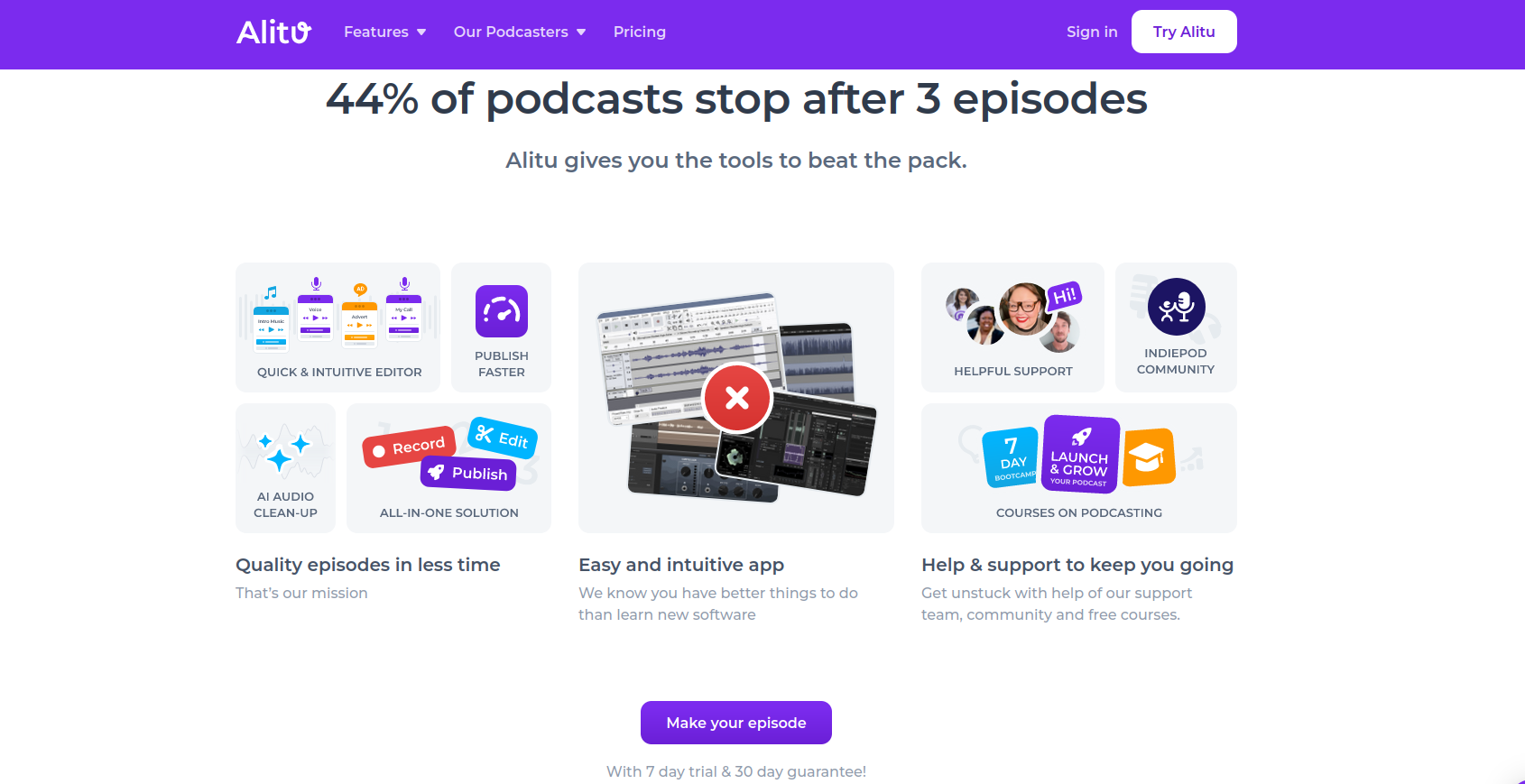
Starting a podcast can be intimidating considering the learning curve that some tools demand.
But when all you need is to focus on creating great content. While not worrying about your slow PC or record quality. You can’t get wrong with Alitu then.
Thanks to the single-click editing features that can save you tons of time.
So that you think more about engaging your audience. And growing your podcast.
You also don’t have to worry about getting a $100 professional-grade microphone.
With Alitu’s AI editing capabilities, you’ll be amused by how your $10 microphone really sounds.
Alitu Key Features
Interface:
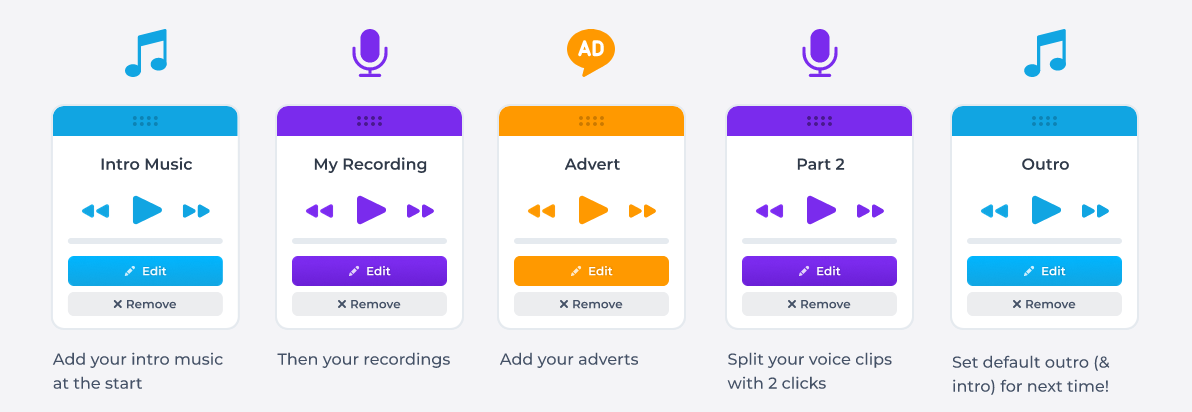
Alitu is all web-based and has a minimalist podcast editor.
Also called “Episode Builder”, it’s easy for you to lay out your audio files. And then drag-and-drop to arrange their order.
Alitu also makes publishing your podcast easier by providing you with several hosting options – Spotify, Podbean, Buzzsprout, and many more.
Interestingly, you can now choose Alitu’s in-housing hosting service as well.
Audio editing:
Alitu’s AI engine automatically renders your audio file. And makes it sound like straight out of the studio. It has an auto-transcript generator too.
Still left with those long pauses or ahs and hmms?
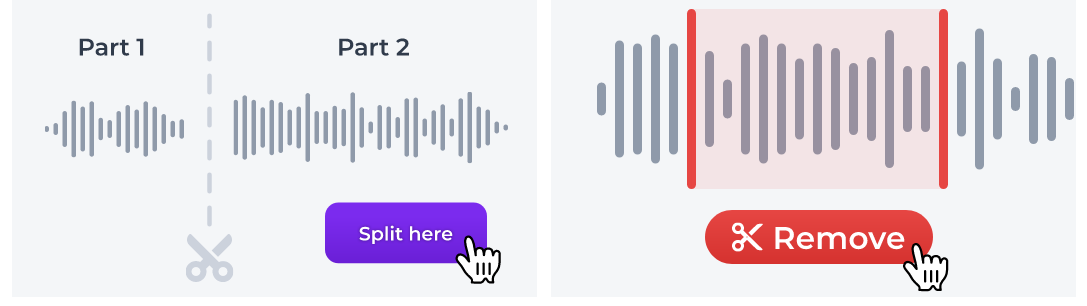
You can simply use features like split, remove, and deselect to make or undo changes.
The editor also lets you save your current episode with an intro and outro. So that you can reuse the same template for your next episode.
Unfortunately, there’s nothing for video podcasts. But by adding eye-catching audiograms and waveforms, you can create sharable content for social media or YouTube.
Workflow:
With a sharable link, Alitu makes it easy for you to connect with your remote guest.
Once the podcast is recorded, Alitu automatically cleans your audio and levels up to the standard volume.
Leaving a nicely baked podcast audio with removed background and hum noise.
Performance:
Alitu is a web-based platform. It supports a wide array of standard audio files.
No matter if you’re new to podcast editing, Alitu makes you a more confident editor.
However, the software is certainly not for audio engineers.
Alitu Pros and Cons
Pros:
- Affordable monthly pricing
- Comes with a library of 200+ unique built-in audio tracks
- One-click link sharing with guests to join live recording
- Simple click-and-drag audio editing tools
Cons:
- Lacks video recording and advanced editing options
Pricing
Alitu comes with a monthly subscription of $38.
However, there is no free plan. But you can try Alitu with 7-day free trial.
2. Descript (Best web-based video podcasting tool)
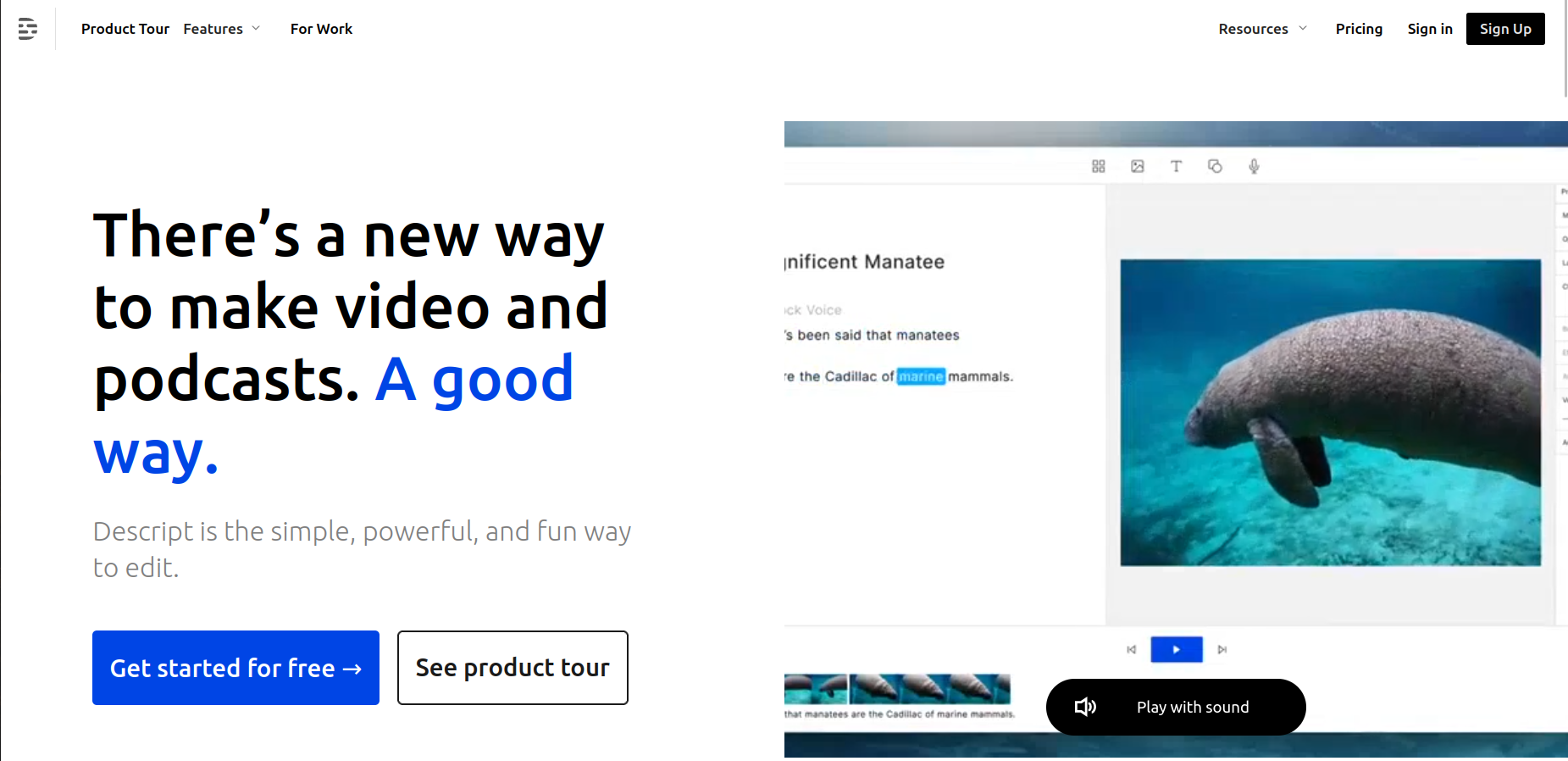
Beginners often get anxious about starting a podcast.
And realize they have to learn many different things from many different tools. But most of them just don’t want to.
Eventually leading them to give up the painstaking process of learning every nitty-gritty of podcasts.
Descript won’t let you do that.
It brings you all the features you’ll ever need for podcasting.
Sparing you from the burden of the learning curve that many recording tools pose. While also saving you from paying for any extra tools.
And that’s too in a pocket-friendly plan.
Descript Key Features
Interface:
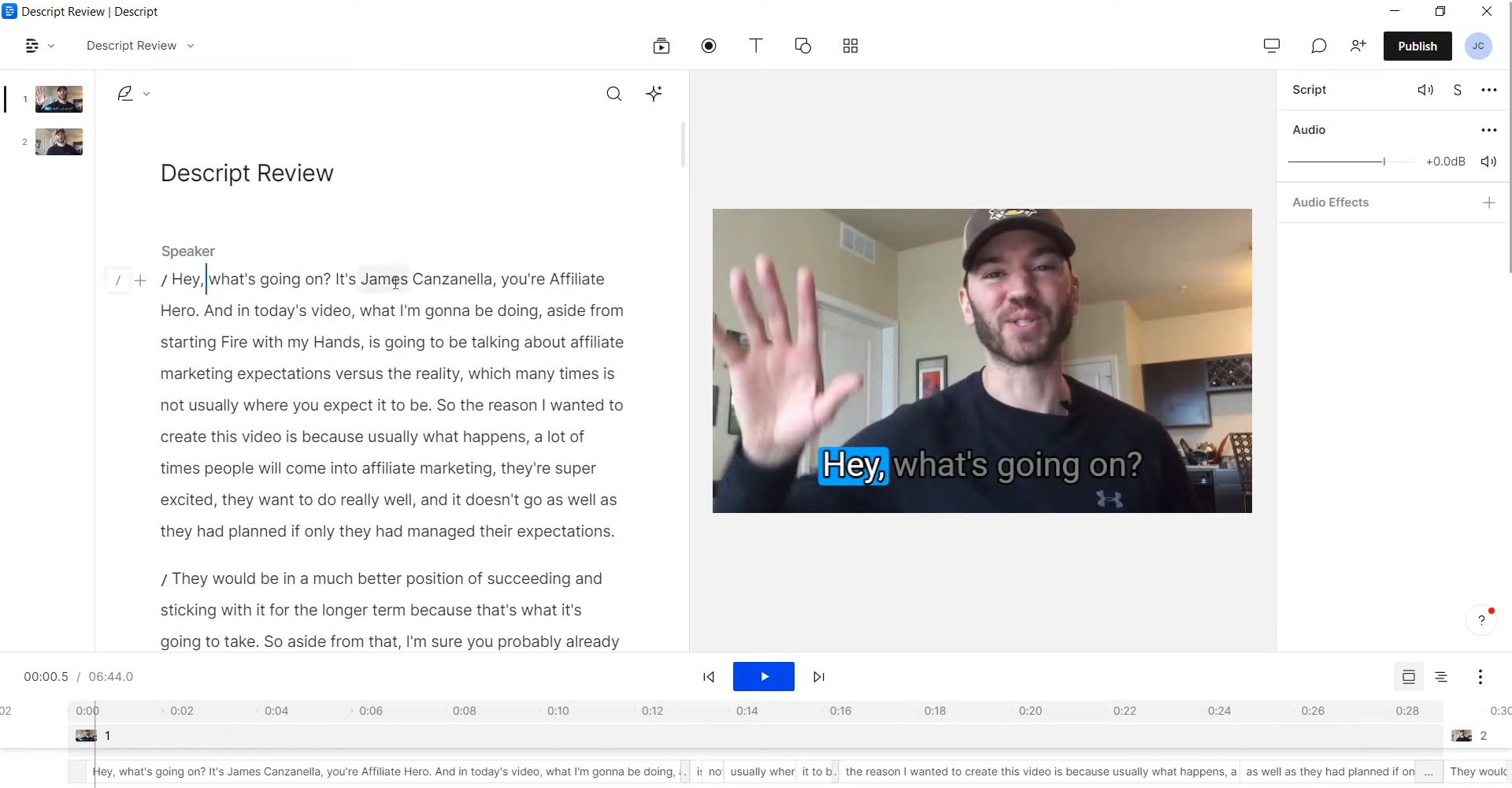
Feels like Google Docs on steroids.
Nowhere does it resemble any standard audio editor. But offers a clean and step-by-step guided interface that makes navigation easy.
The collaborative window has a sleek UI. And features everything you need to share or edit while working with a remote team.
Descript further makes it easy to share your podcast across several hosting sites in a few clicks.
Audio editing:
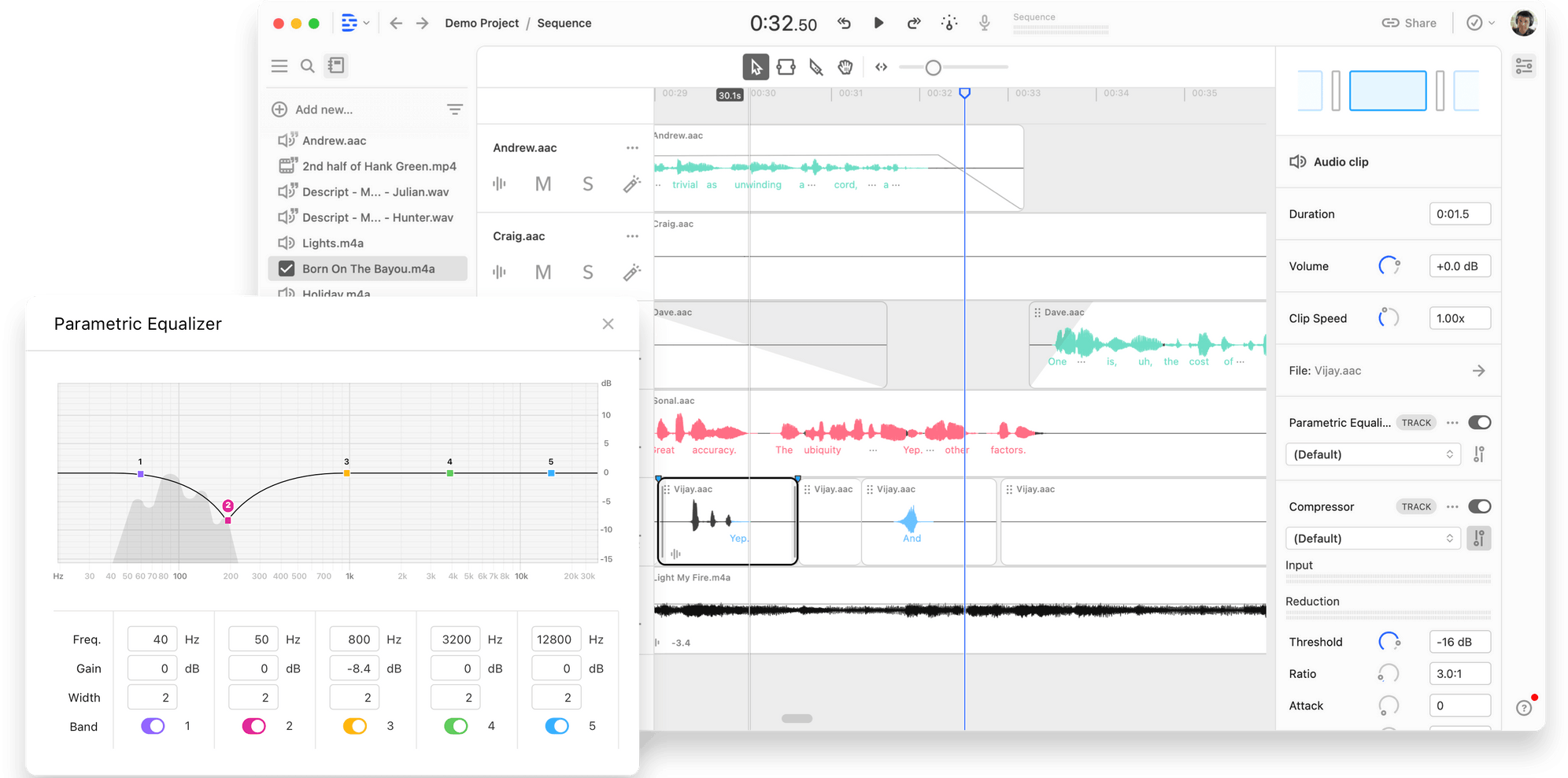
Descript calls itself the non-destructive multitrack workstation.
There’s a lot of things going on within the editor. But in simple words, it’s like an online DAW calibrated to the easiest and the most lightweight manner possible.
What sets it apart is the collaborative editing workspace.
Where your editing team can work together. Drag-and-drop segments, create clips, edit transcriptions, and use the media assets from a built-in stock library.
Features like video effects and animated captions are great add-ons to engage your audience.
Workflow:
Equipped with some mind-blowing AI features, Descript makes sure you spend less time and effort.
Auto-transcription not only takes care of the accuracy. But intelligently removes filler words like ah or umm.
What’s great about it is that you can transcribe into 23 languages – on all plans.
Thinking of inviting multiple guests?
With a one-click link share, you can invite without them having to create an account.
Performance:
Descript can be downloaded on Windows and macOS. But the recordings happen on the cloud.
Descript servers handle low-quality video calls and connectivity glitches pretty well. So you don’t have to worry about remote podcasting with up to 10 participants.
Descript Pros and Cons
Pros:
- Feature free version for beginners
- Cloud and collaboration-based podcast editing software
- Packed with AI editing features
- Affordable monthly pricing
Cons:
- Features quite limited transcription, remote recording, and stock library access on the Creator plan.
Pricing
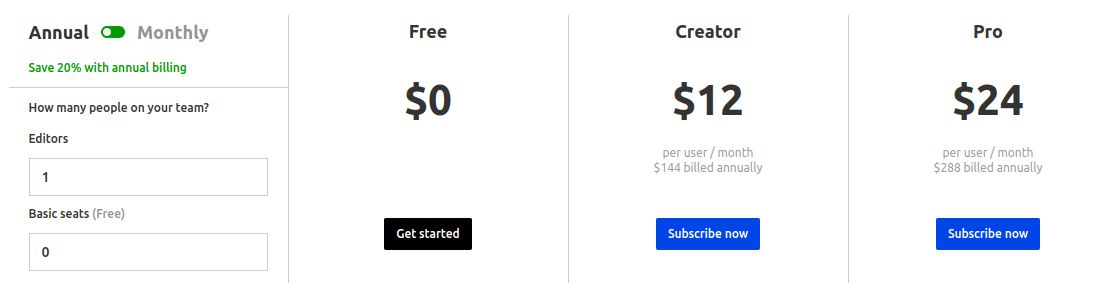
If you’re a beginner, the free plan is a great place to start. You’ll get to try many audio and video editing features including up to 5 GB of cloud storage limit.
But the higher you’re on the plan, the more cloud storage you’ll get.
3. Adobe Audition (Overall the best podcast editing tool)
Adobe is a household name across the creative community. And Audition is no such exception among the creators.
It offers unparalleled capabilities when it comes to multitrack recording, restoring audio, and nondestructive editing at the commercial level.
Although, subscribing to Creative Cloud opens up cross-program integration for video creators. For example, if you’re looking to sync your audio with Premiere Pro.
The monthly subscription, however, is just so unforgiving, considering the remaining Adobe suite may end up unused.
The lack of tools for music composition is also a turn-off for music podcasters.
But as a standalone podcast editing tool, Audition delivers more than what you could possibly get from its competitors.
Adobe Audition Key Features
Interface:
Audition features an intuitive UI with smooth drag-and-drop functionality.
Completely utilitarian by nature, you can customize your tools based on your workflow.
And even better, you can customize your screen based on different screen sizes. And save them as presets if you’re working across multiple displays, for instance.
Overall, you’ll get the hang of it if you’re familiar with any Adobe software.
Audio editing:
You may hear people ranting about Adobe’s subscription model. But Audition leaves no room for complaints when it comes to capabilities.
Packed with robust controls and AI functionalities, Audition sets a standard for industry-grade editing and broadcast-safe streaming.
From the basic noise removal feature to restoring the audio from anomalies due to destructive editing. Audition has got you covered.
With tons of presets, SFX, and music loops, you would never run out of creative add-ons for your episodes.
Workflow:
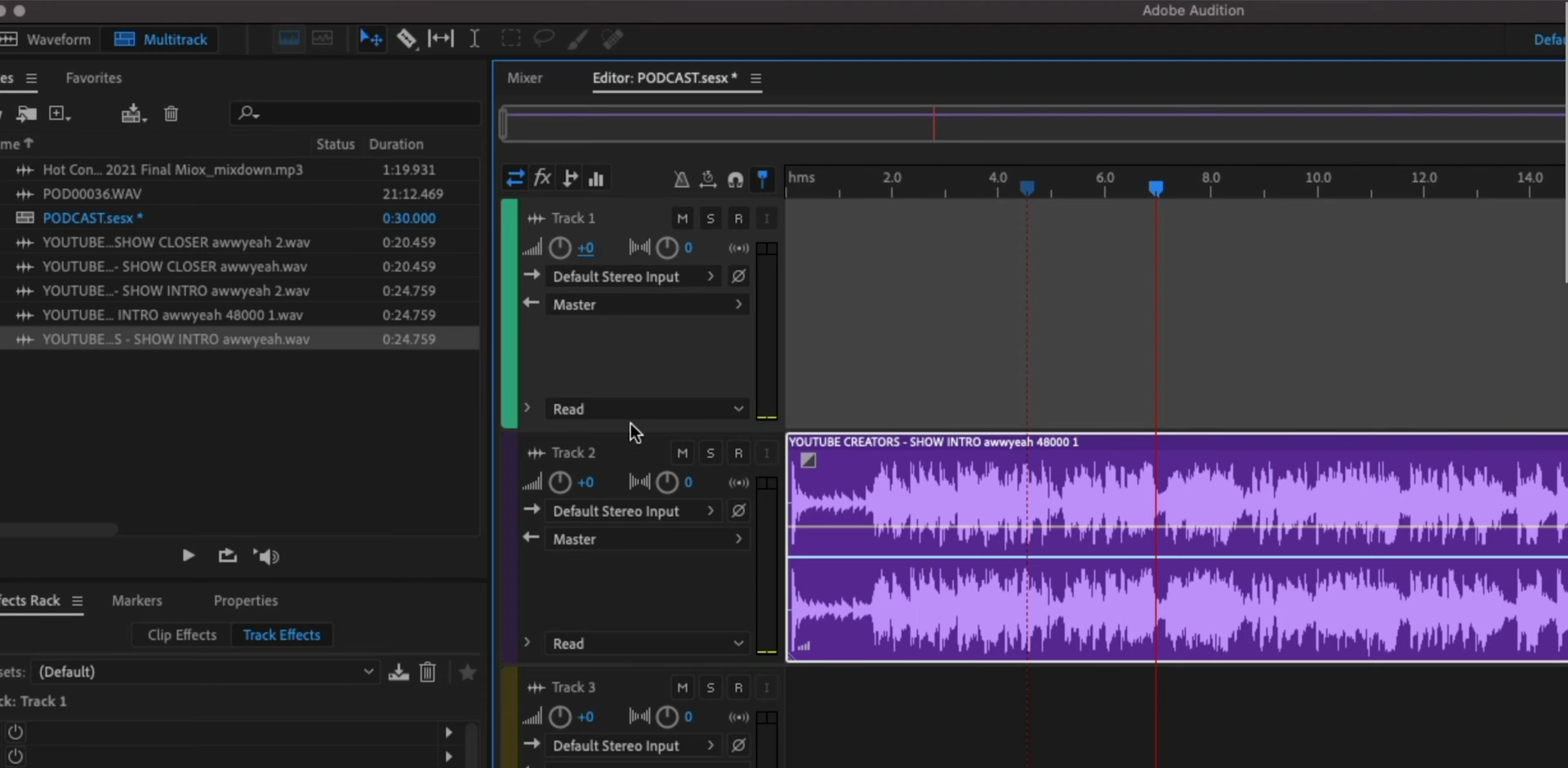
Adobe Audition features 2 views: Waveform and Multitrack.
Waveform view basically deals with recording, stereo editing, loudness adjustments, and in-depth spectral frequency editor.
Whereas, the Multitrack view is all about DAW processes. Where you work on several audio tracks, voiceovers, and mixing.
While letting you easily switch without having you deal with the 2 different processes separately.
Audition also integrates seamlessly with other Adobe products.
Performance:
Audition works flawlessly on macOS and a decent 64-bit Windows PC.
It’s a powerful DAW. With the wealth of recording, editing, streaming, and mixing features.
But without music composition tools.
Adobe Audition Pros and Cons
Pros:
- Best-in-class audio recording and editing
- Frequently updates with new features
- Fully customizable interface
- Extensive library of sound effects
Cons:
- Subscription still may not be a big issue. However, the lack of MIDI interface for music production is a drawback for this Adobe software.
Pricing
Audition comes at a monthly subscription of $20.99.
Whereas, Adobe Creative Cloud costs you $54.99/ month. But offers an entire suite of Adobe software.
4. Podcastle (Best portable software for remote podcasting)
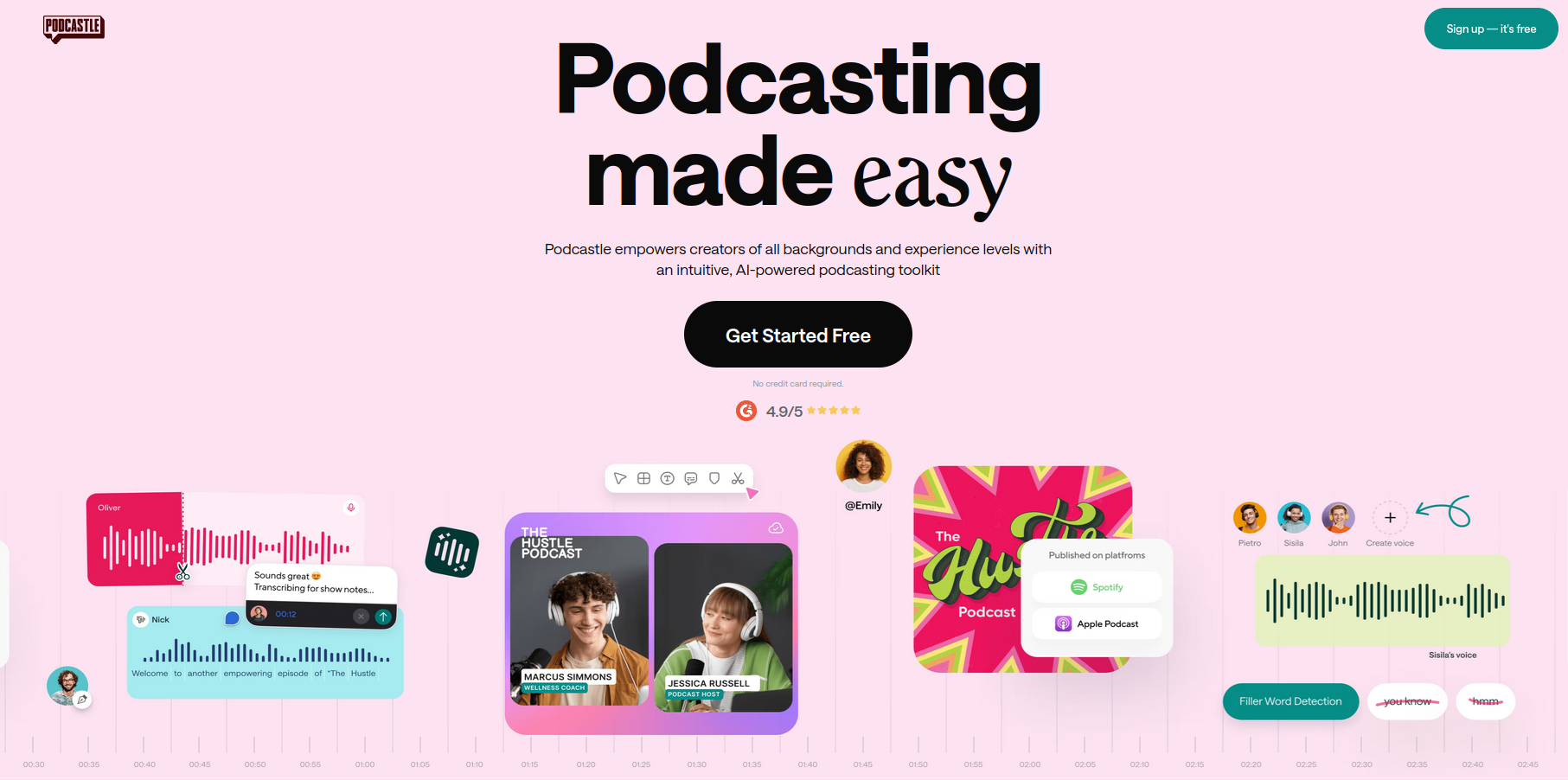
Long-distance podcasting was neither easy nor cheap. Until Podcastle stepped into the SaaS marketplace.
Podcastle is relatively a new tool launched around the pandemic days.
But it’s catching up with many similar tools. And gaining traction among new podcasters with no audio editing expertise.
With Podcastle, setting up several remote sessions isn’t a thing to worry about anymore.
You also don’t have to worry about your guest’s mic quality.
Thanks to Podcastle’s AI features like Magic Dust that automates a bunch of processes for you.
Overall, the best budget platform you can bet on.
Podcastle Key Features
Interface:
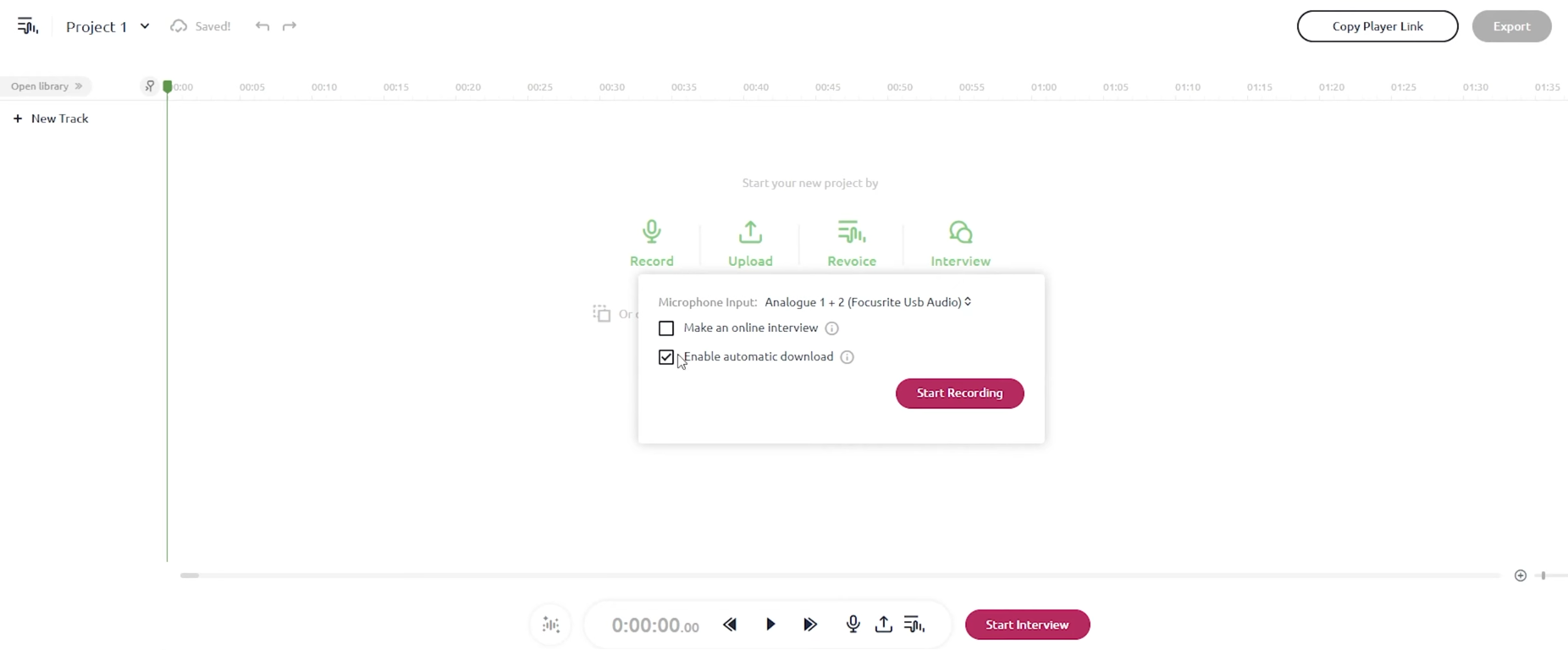
Podcastle is a web-based podcasting tool with a minimalist interface. But at the same time, it offers a handful of one-click drag-and-edit tools that save you time.
Thanks to the AI-powered tools. You don’t have to endure hours of audio editing anymore.
But what’s even great about Podcastle is that it also offers an iOS app.
And following the recent update, you can now create video podcasts while you’re on the move.
Audio editing:
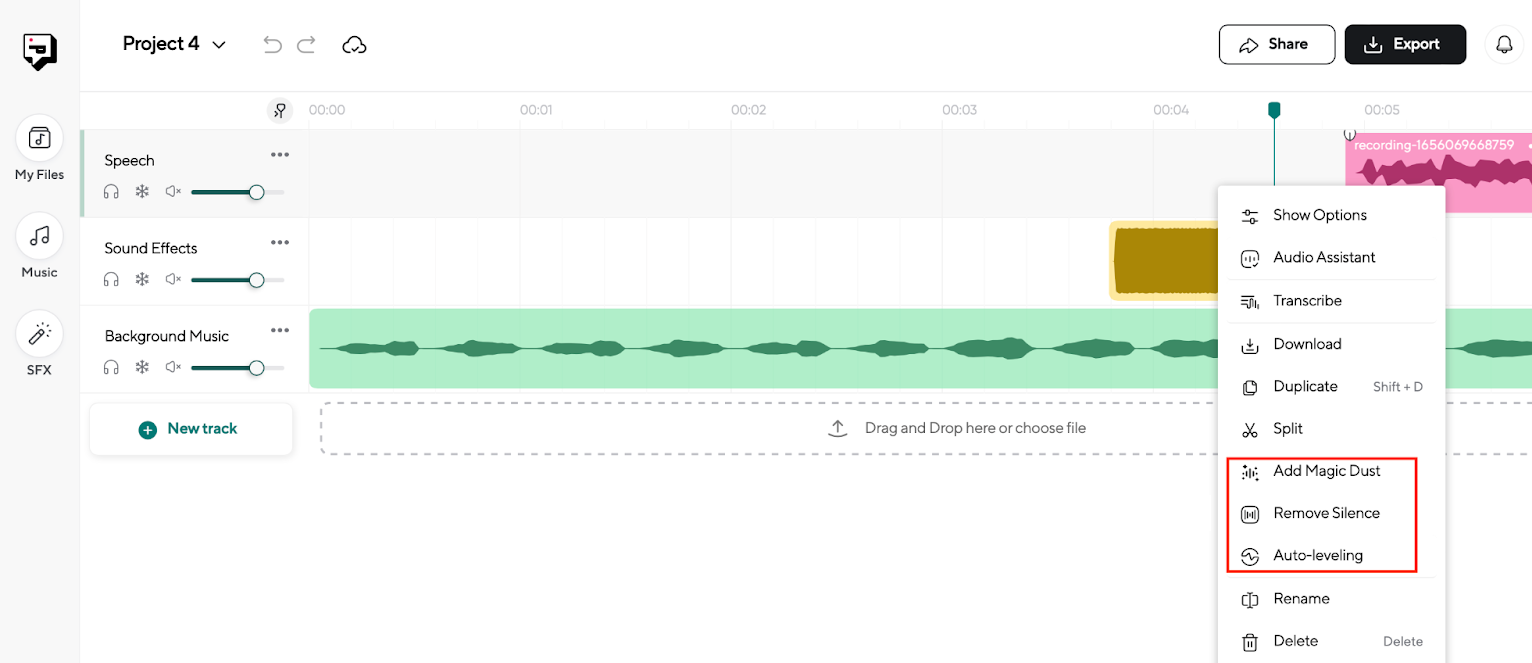
It’s no surprise to find one-click editing features like silence removal and auto-leveling. After all, Podcastle is armed with AI capabilities.
But what may rather surprise you is its proprietary feature known as Magic Dust.
It uses adaptive AI that precisely identifies and clears any hum or background noise. All with a single click.
While providing the same studio-grade result that may otherwise take hours of editing.
Workflow:
No remote podcasting platform seems to have the advantage of quick editing and publishing as in Podcastle.
With a one-click invite, you can easily set up an interview with up to 10 guests. Without having them install the software.
In addition, Podcastle’s AI scans every piece of recording and lays out human-like transcription for your audio.
Performance:
Podcastle is a lightweight web app that runs smoothly on any browser. And even smoother on your iPhone.
The platform is quite sincere about collaboration – no matter how far your guests are.
While also giving you the advantage of portability. And one-click sharing your content across Apple, Spotify, and many podcast networks.
Podcastle Pros and Cons
Pros:
- Free version available with unlimited audio recording and editing
- Affordable monthly subscription
- Magic Dust studio-grade audio quality
- Library of HD sound effects and practical events
Cons:
- Mobile version is only available on iOS devices. And also comes with a separate pricing plan.
Pricing
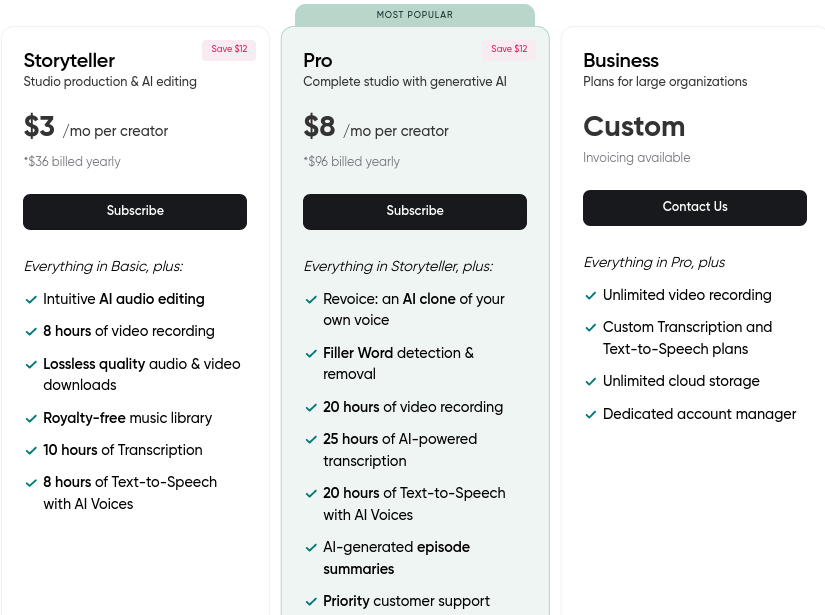
Podcastle also offers a free plan with unlimited audio and video recording.
You can also invite guests and have multi-track recordings. However, AI-enabled features and transcription are only available on the paid plans.
5. Reaper.fm (Cross-platform DAW for podcasting)
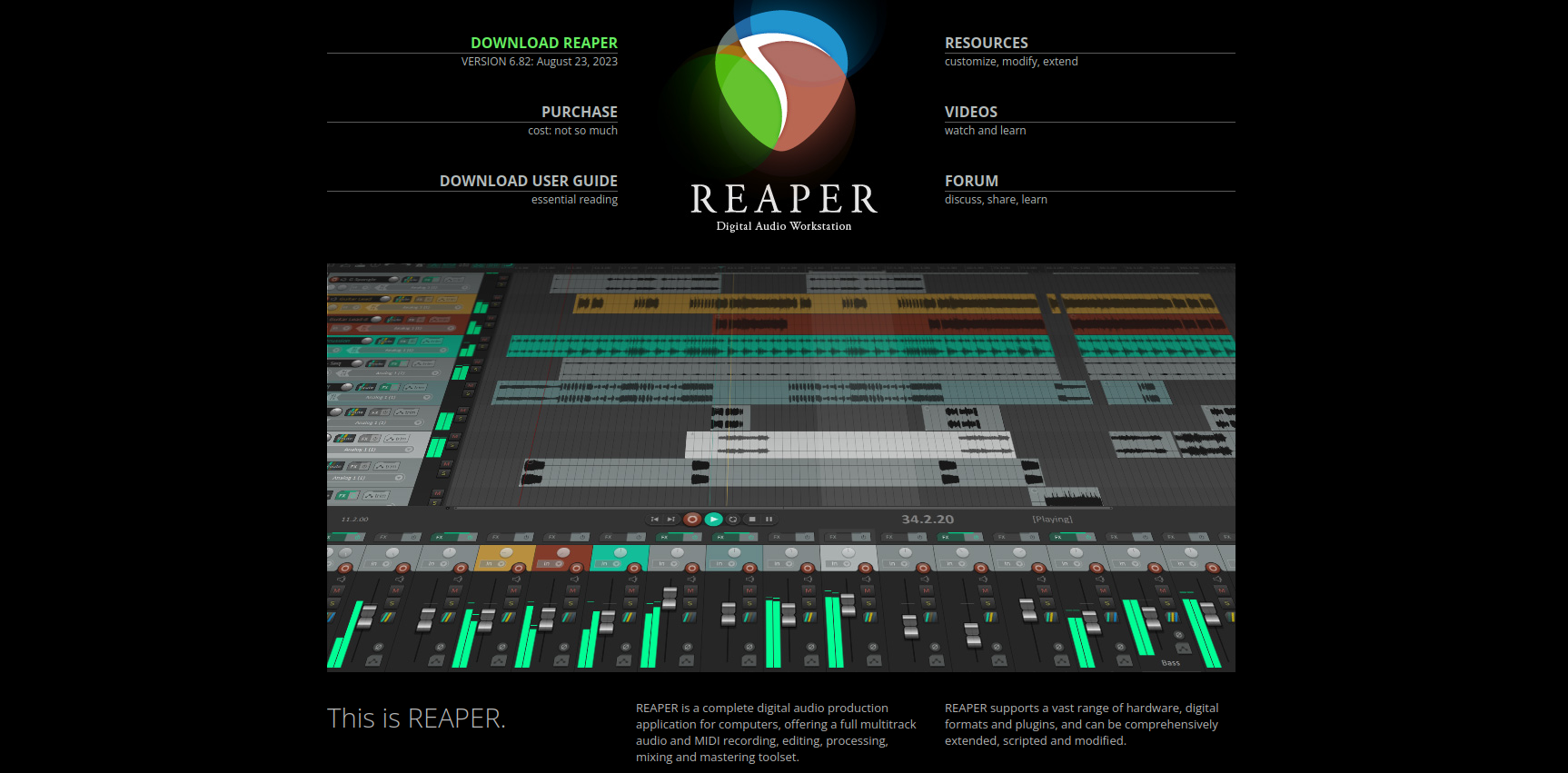
Rapid Environment for Audio Production, Engineering, and Recording.
Well, the name says it all.
A cross-platform full-stack audio editing software that gives Reaper a unique status among podcasters.
But what makes it even better is its affordable one-off pricing.
Don’t be deceived by its old-school interface!
Although it’s a low-key podcast editing software. You can edit literally the entire orchestra. Or score a commercial video.
Overall, Reaper seems to be a great alternative to expensive DAW software. That you can surprisingly run on a potato PC.
Reaper Key Features
Interface:
The outdated GUI might be a turn-off for those coming from sophisticated editing tools. However, if looks really bother you, there are free themes you may be interested in trying.
Beginners may not find it easy to navigate across the icon-less menus. There are lots of customization options as well that demand a learning curve.
But over time, you’ll be able to customize your own DAW workflow as per your requirements.
Audio editing:
Despite lightweight software, Reaper doesn’t fall short on multi-channel recording and editing capabilities.
Nor does it disappoint by offering tons of free and paid plugins. Equalizers, compressors, reverb, you name it.
In addition, Reaper comes with an interesting built-in feature called ReaSynth – a synthesizer that creates unique sound effects.
Workflow:

Reaper has a very mechanical workflow with tons of manual functions. Therefore, to reduce the hassle, it offers many ways to streamline your podcast editing process.
One of the best ways is by using “Custom Actions”. Which gives you creative freedom to customize your editing actions and make things easier.
Here, you can automate or simply chain several actions together. It reduces individual actions, thus saving your time.
For example, you want to remove some unwanted parts from your recorded audio.
Normally, if you delete a certain part, you’re stuck with a space. But you want subsequent parts to automatically fill up the space.
You can not only assign a name for your actions. But also custom keyboard shortcuts.
SWS tool extension is yet another great option that can help you customize button presses and automate tasks.
Performance:
Reaper doesn’t require a graphic-intensive PC. The download size merely ranges around 20-25 MB on Windows, Mac, and Linux.
Yet, it remains stable.
And can withstand demanding audio engineering tasks. Plugins further make it more efficient. So undoubtedly, podcast editing works like a breeze.
Reaper Pros and Cons
Pros:
- Complete audio engineering package with dozens of plugins
- Heavily customizable and lightweight on processor
- Cross-platform compatibility
- Affordable and one-off pricing
Cons:
- Complaints about the non-resizable fonts and old-school GUI
Pricing
For personal or small business use cases, Reaper comes at a one-off pricing of $60.
However, for any commercial use case where you gross over $20k per year, Reaper will cost you $225.
You may also choose to try a 60-day free trial.
6. Tracktion Waveform (Budget audio workstation for podcasters)
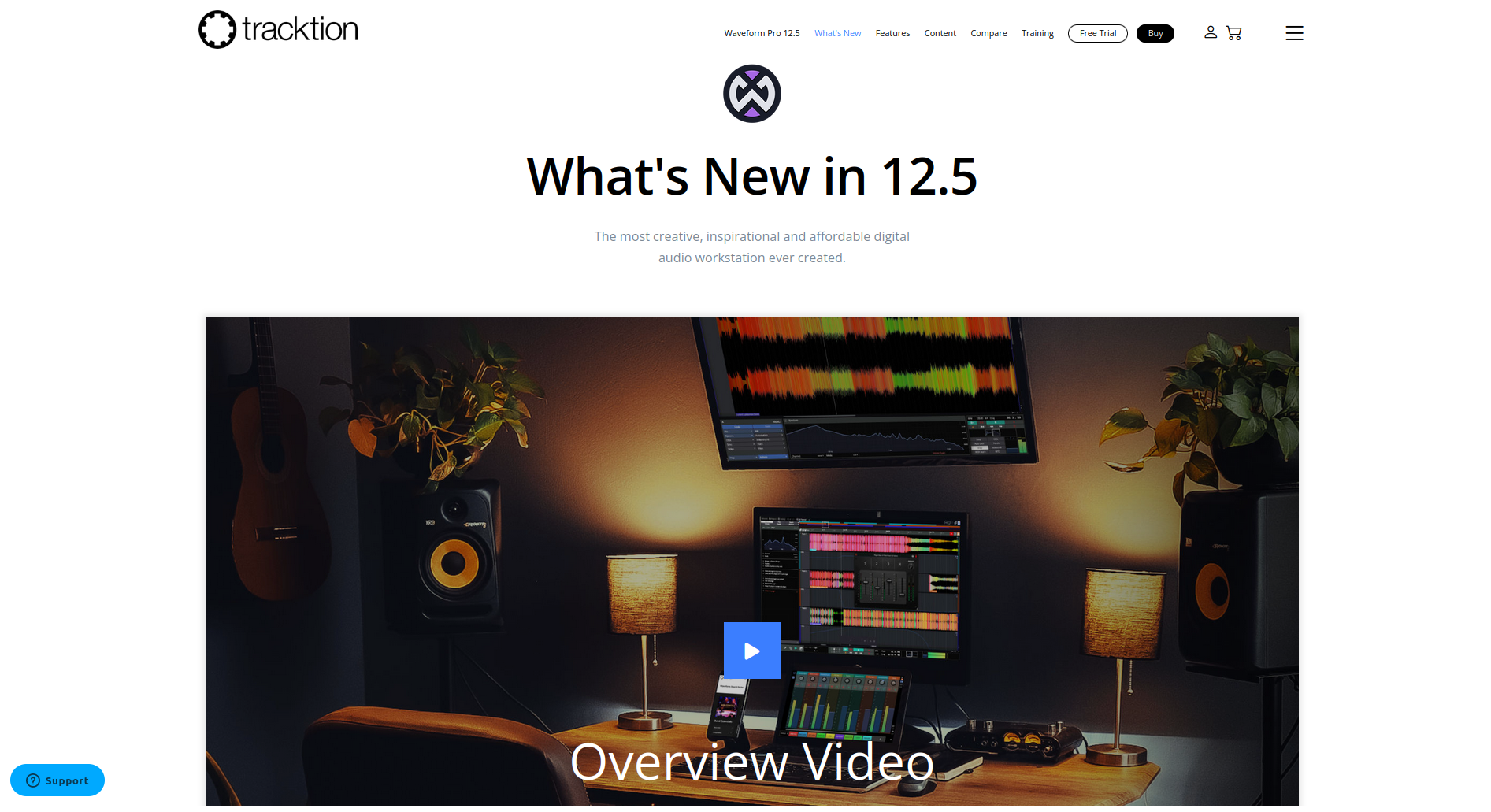
Some of the best things in life are for free. And the free version of Waveform is certainly one of them.
This is what distinguishes Waveform’s editing platform from other DAWs.
It simply outperforms your expectations of what a free podcast editing tool could possibly offer.
From recording and editing to mixing sounds. Without any limitations on track counts.
Overall, a podcast editing tool for both beginners and experienced editors.
Tracktion Waveform Key Features
Interface:
Waveform is a proper studio-grade workstation. So expect to find it a bit overwhelming.
But thanks to its flexibility and customization capability. You can basically configure the size, panel placements, theme color, or action shortcuts.
You may also like to use presets to streamline your interface customization. However, presets are not accessible on the free plan.
Audio editing:
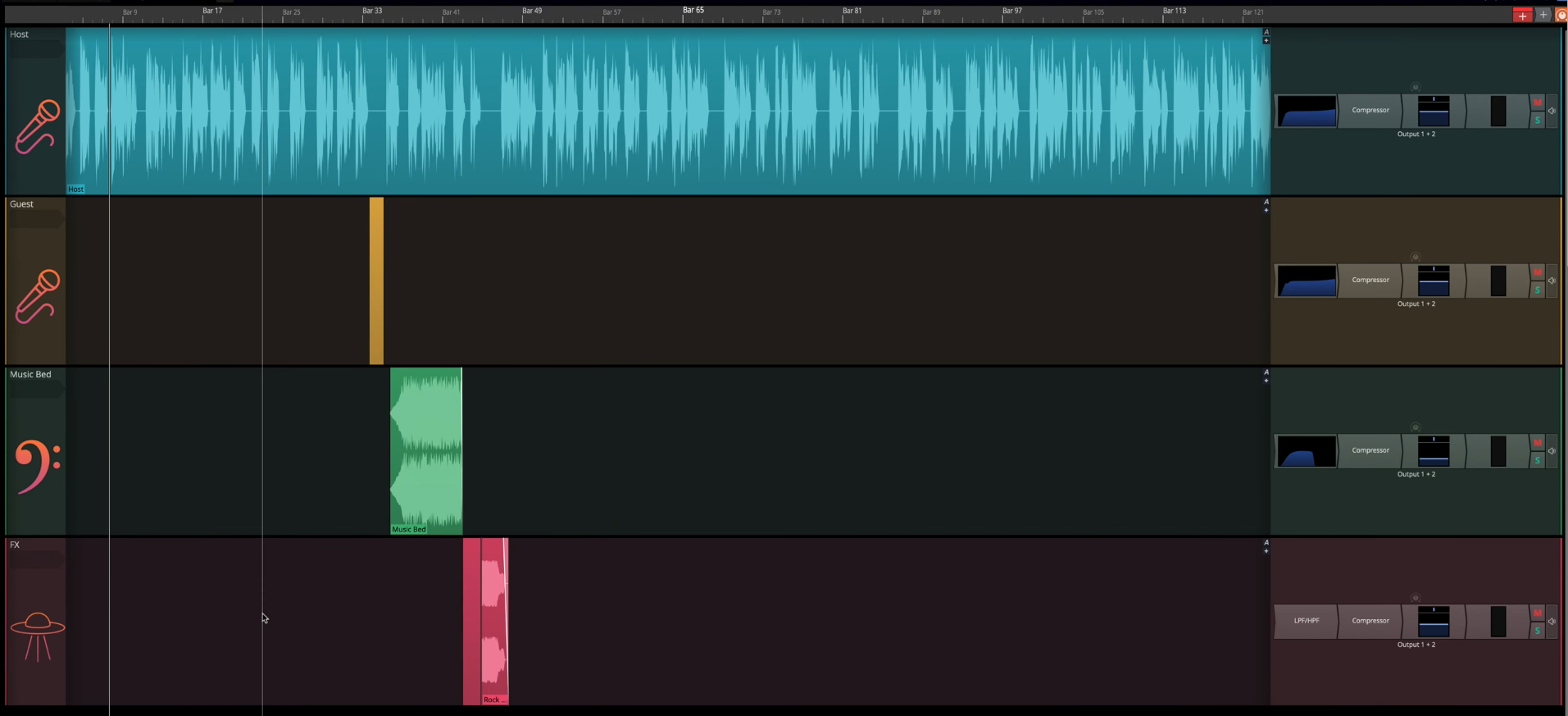
Waveform lets you perform sound engineering, podcasting, and orchestra recording – all within the same window.
So when you select the “podcast” option, it immediately lays out a standard template. With everything in place to get you up and running.
The template comes pre-configured with:
- Track 1 – your voice
- Track 2 – your guest
- Track 3 – background scoring
- Track 4 – sound effects
The editor also comes pre-configured with EQ and compression. And it cleans up any of your recordings automatically.
The free version packs in an impressive number of features and plugin support.
However, video editing is only available on the Pro version.
Workflow:
Pretty overwhelming at first. But you’re going to enjoy a seamless workflow once you get hold of it.
There are way too many functions to talk about. But what I liked the most were sandboxing and comping.
Sandbox gives you a safe space to try out gazillions of plugins.
So that you can know if any of them are hampering your recording. And eventually, work on your final copy without any crashes.
Whereas comping or comp recording helps you record multiple takes of the same track. And then lets you pick the sections from each of them. So that your final copy is a perfect comp track.
And the best part, you can access both of them on the free version.
Performance:
This podcast editing software can not only run on macOS and Windows. But also Linux. Making it a unique cross-platform and processor-saving DAW.
The free version is as good as any premium editor out there.
Waveform Pros and Cons
Pros:
- The free version offers truckloads of features
- Pro feature receives frequent feature upgrades
- Cross-platform compatibility
- A wide array of presets and 3rd party plugins
Cons:
- Video podcasting, mixing tools, and several sound packs are not part of the Pro plan. They need to be purchased separately.
Pricing
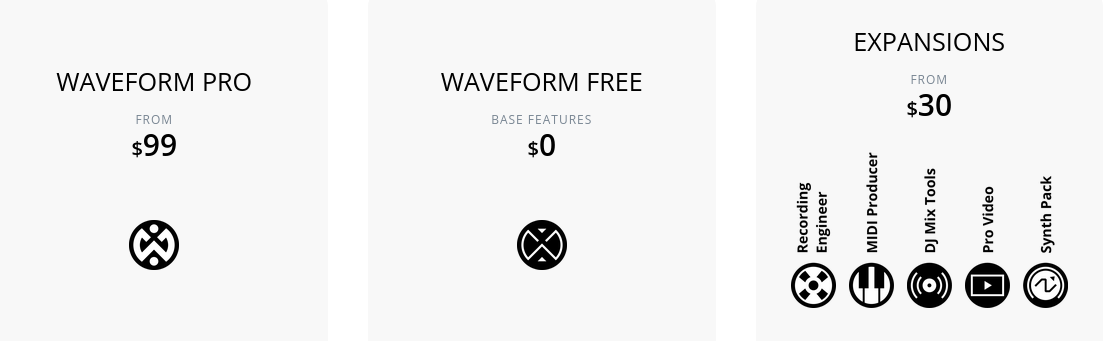 Waveform Free is a good place to get started for beginners.
But if you’re looking to experience the advantages of the Pro version, you can enjoy 90-day trial.
7. Hindenburg Pro (Audio workstation for professional podcasters)
When it comes to live broadcasting, journalism, or interviews, the intensity of content production matters the most.
And so does the workstation like Hindenburg Pro that can keep up with the intensity.
In its early days, the software was known as Hindenburg Journalist. Specifically geared towards live broadcasting and radio shows.
By the way, it is not really a proper DAW. But nothing wrong with calling it a DAW for journalists!
Because it comes with pre-configured features that can help you record podcasts or go live. Without messing up with endless controls and plugins.
Hindenburg Pro Key Features
Interface:
It’s quite a streamlined editor that doesn’t require initial adjustments. Because the makers understand who the software is really for.
Once you record or upload your audio, Hindenburg cleans up any disturbance. Leaving you with an interface to easily:
clip and place sections of your audio,
use colors to identify your tracks (or people),
add sound effects,
and edit your transcriptions.
All under the same roof.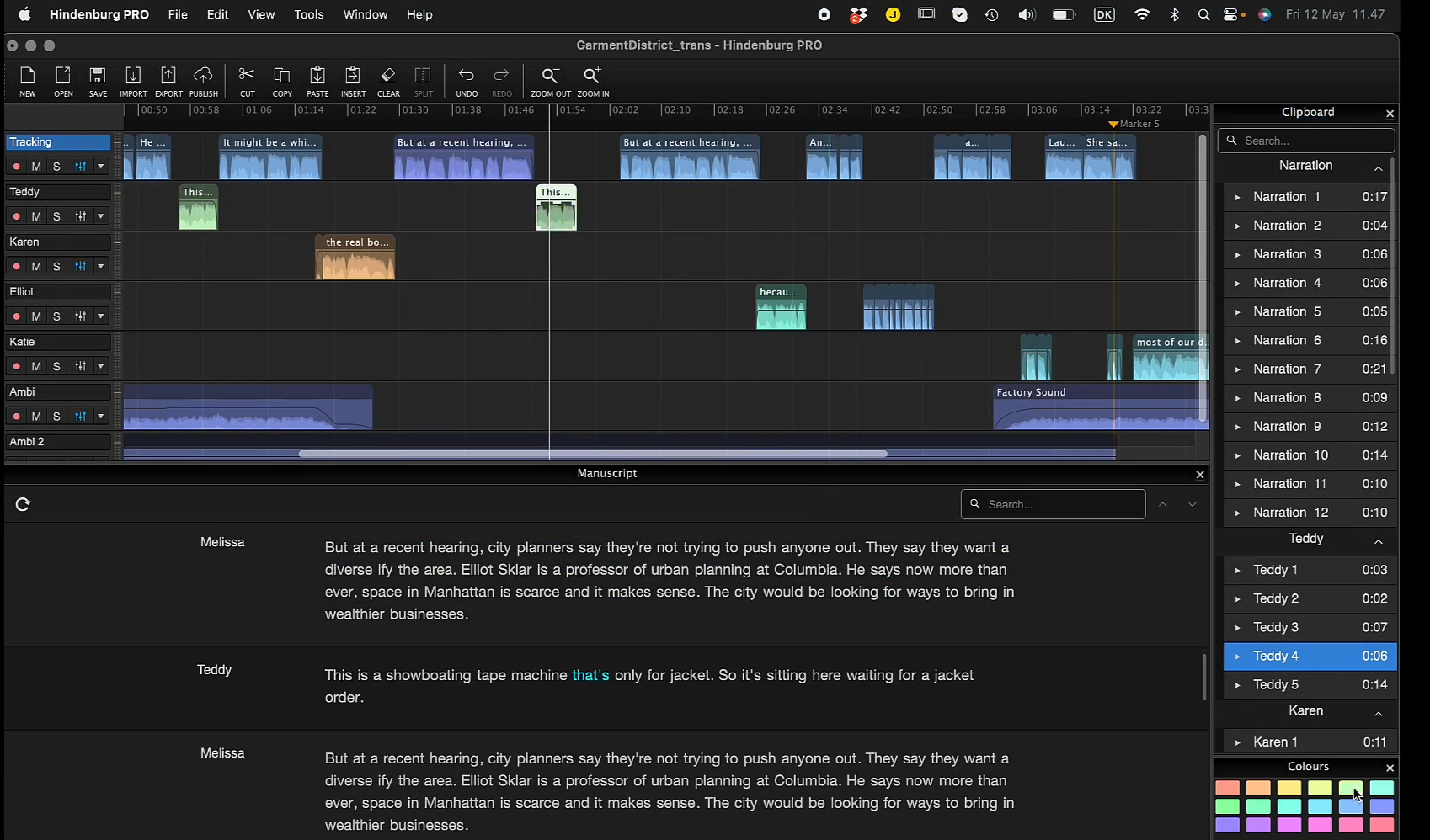
Audio editing:
The audio leveler automatically adjusts any audio you throw into the editor. Resulting in the soundproof studio-like quality.
The built-in auto transcription interests me even more.
You can not only set it to identify different speakers within the recording. But also select from 5 different languages.
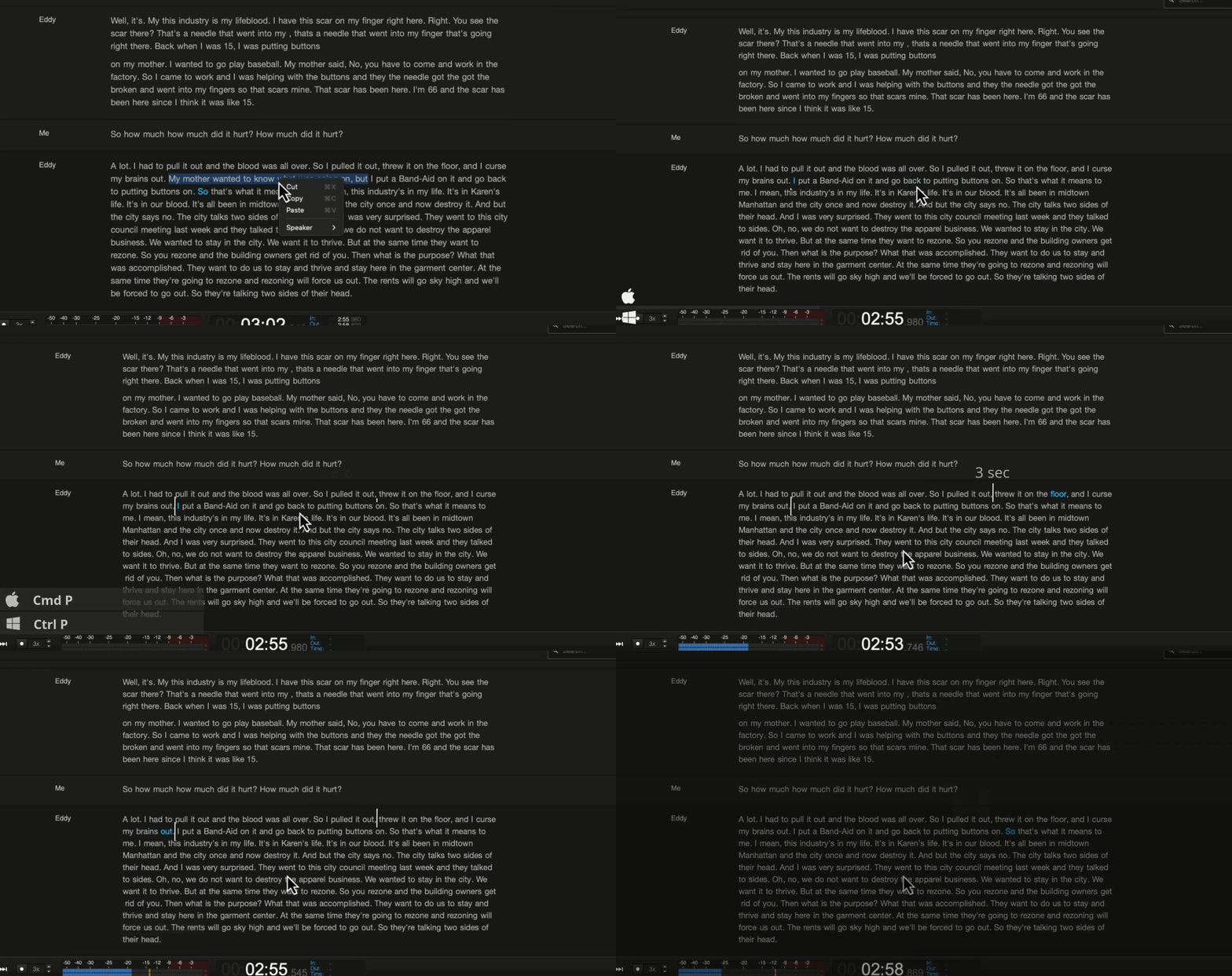
However, unlike any other DAW, I find the ability to edit podcasts through transcriptions absolutely a game-changer.
As easy as selecting a part of the manuscript, listening to it, swapping words, or deleting anything unnecessary. While also keeping the time code intact.
Workflow:
Clipboard is Hindenburg’s proprietary tool. It lets you capture snippets of your recordings, sounds, or manuscripts. So that you could use them in the future and save time.
While also keeping things organized within groups and sub-groups.
Indeed, one of the most productive features a podcast editing tool should have.
In addition, I really like the way it lays out different podcast publishing platforms in one place. So that you can select and publish your work in a single click.
Buzzsprout, Podbean, Libsyn, and many more.
Performance:
Hindenburg Pro runs seamlessly on Windows and macOS.
The software is geared towards journalism and can’t be used for mixing or sound engineering. So it doesn’t demand much processing power.
Instead, it offers you everything to make your voice heard.
Hindenburg Pro Pros and Cons
Pros:
- Great features for live radio broadcasters and journalists
- Auto-transcription and ability to edit audio files via texts
- Comes with Soundly’s sound library provides tons of high-quality sounds
- Supports video post-production
Cons:
- One-off pricing is quite expensive.
Pricing
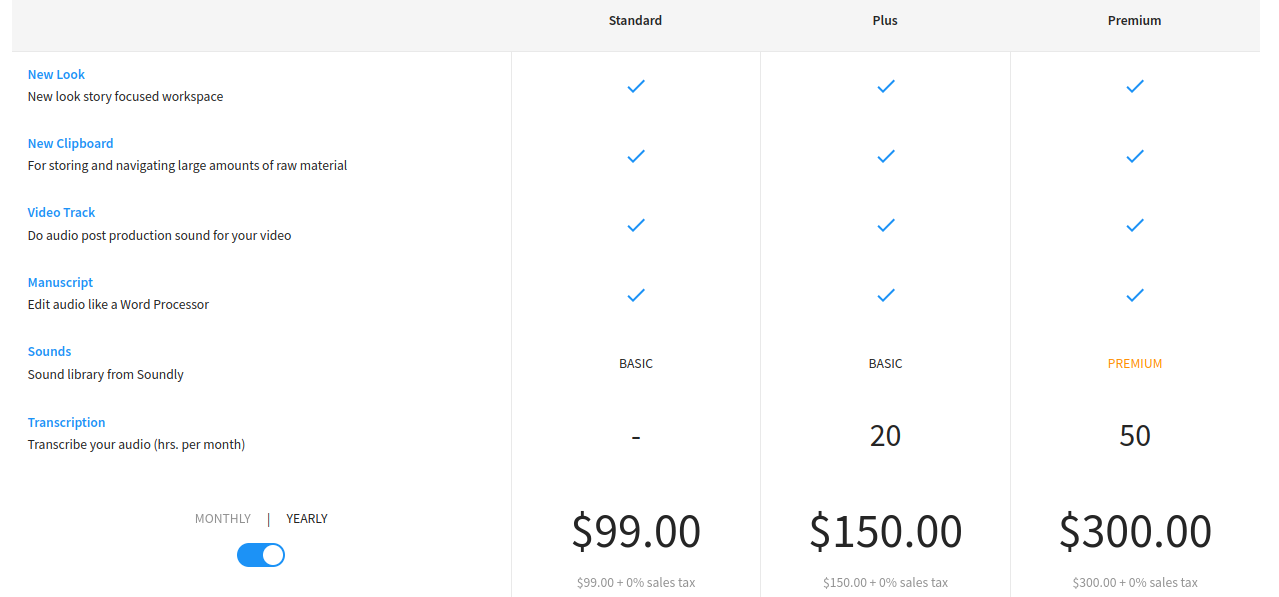
Hindenburg pro offers 2 types of plans.
Personal plan:
Business plan:
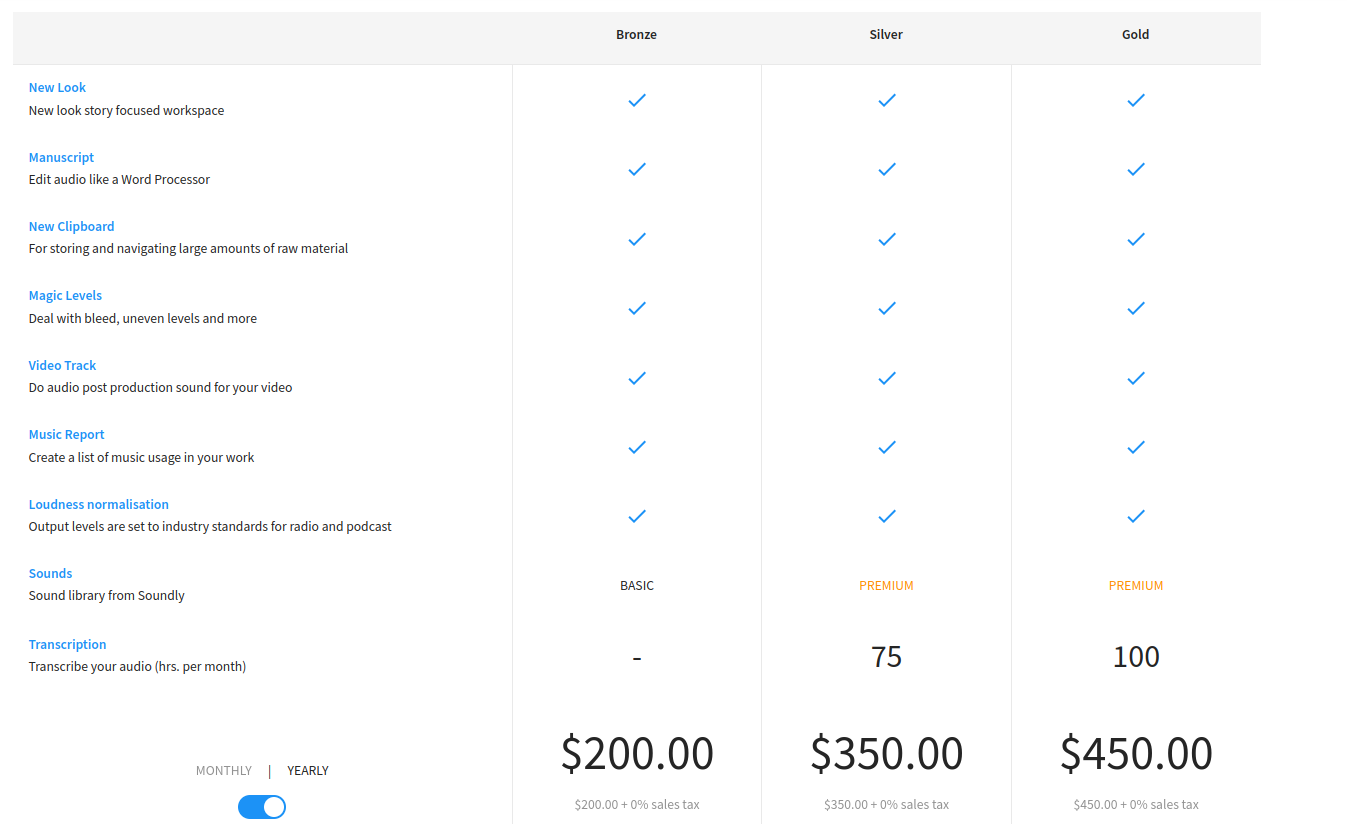
Note that the Personal plan also comes with Perpetual or one-off pricing: $399
However, no such offer is available for the Business plan.
8. Auphonic (Podcasting tool with the most flexible pricing)
Ever seen an editor priced in a way you’re skimming through the store rack to find the t-shirt of your size?
Of course, one size doesn’t fit all.
That’s where Auphonic brings you a flexible plan based on the hours you would like to pay for.
Don’t worry if you’re a part-time podcaster!
You don’t have to worry about your inexperience in audio editing, either.
Thanks to Auphonic’s proprietary audio algorithm!
It does most of the heavy lifting for you by processing the recordings. And providing you with professional audio that feels like coming out of an audio workstation.
Auphonic Key Features
Interface:
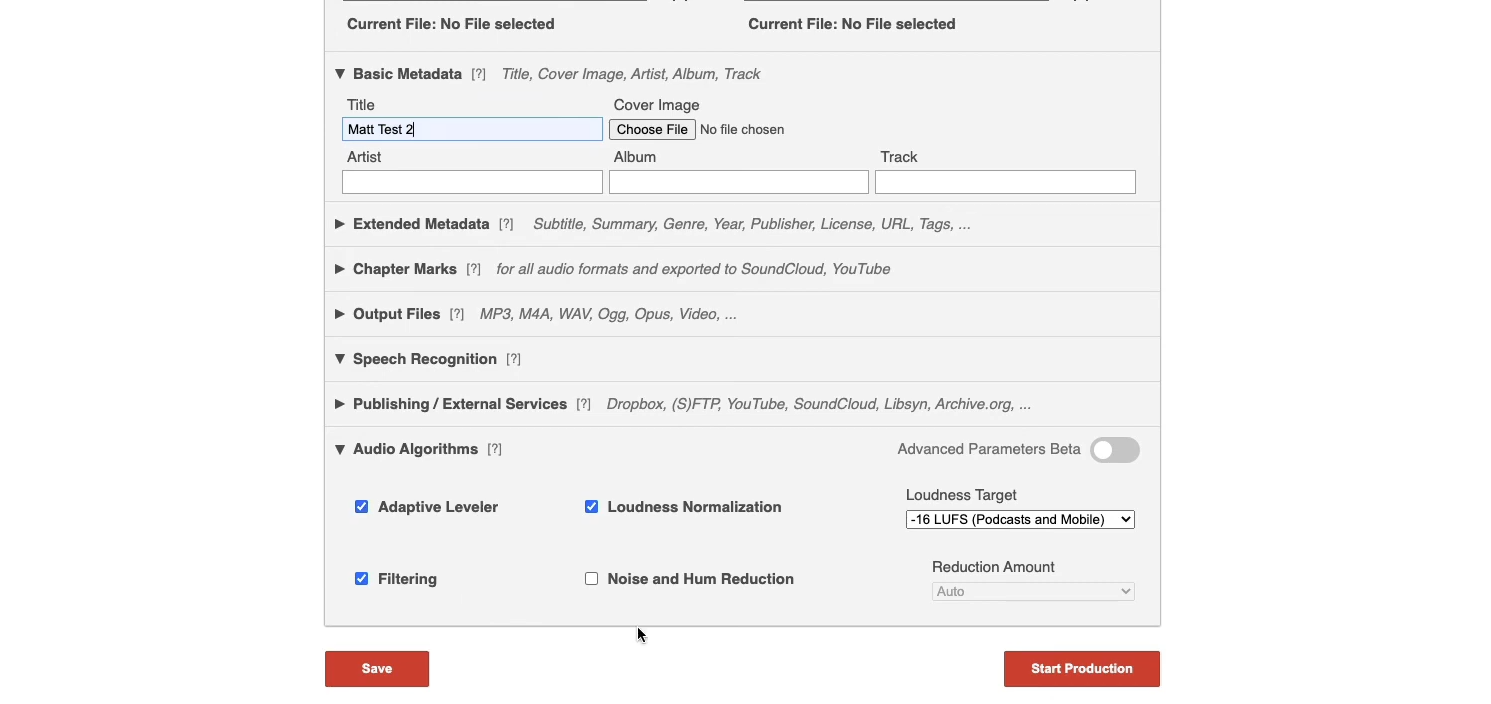
Auphonic is a pretty minimalist web-based tool. Basically, geared toward post-production audio processing.
So before you upload your file, it lays out a form. Where you go on filling up all the details of your file such as metadata, and authorship details. As well as any presets for your recorded audio.
It even informs you about your remaining credits. Which, for free users, is 1 hour 54 minutes per month.
So once the Auphonic server renders your file, it gives you detailed information about the output file. You can also play both input and output files to find contrasting differences.
Audio editing:
You don’t have to put any effort into fine-tuning your audio.
Auphonic will ask you to tick preset options like filters, intro-outro, noise reduction, and adaptive leveler before audio processing.
Just a few clicks. And then the algorithm gets the job done for you.
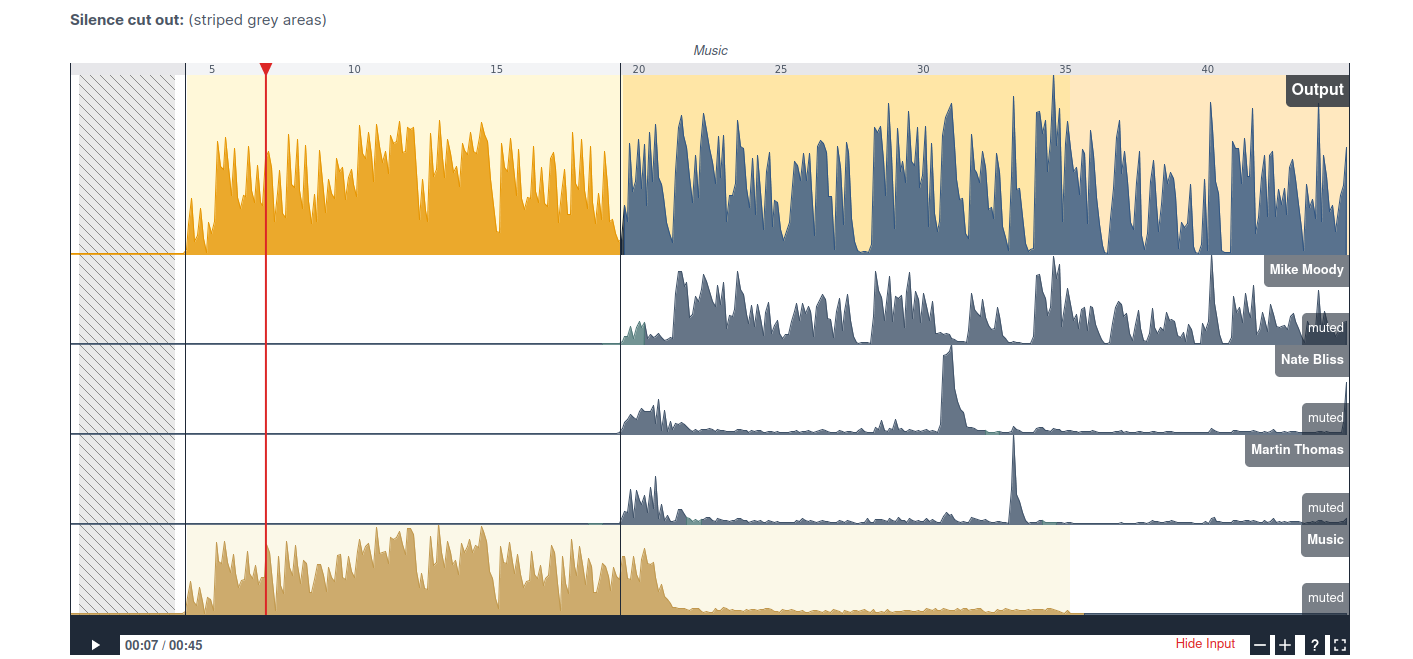
Multi-track silence cutting is yet another great feature. Where you can cherry-pick the best parts of different versions of your recording. While muting the undesirable ones.
But the cherry on top is automatic show notes. As its speech recognition engine recognizes the audio. And lays out the entire transcription like magic.
Workflow:
Auphonic is an ideal podcast editing software for minimalists. All it asks you to do is fill up the details around your audio – including auto-transcription and multiple publishing platforms.
Shortly, it serves you with a studio-grade audio output. Without having you do any manual adjustments.
Auphonic also integrates with Zapier. You can connect APIs and automate publishing your podcasts on YouTube, Facebook, Podbean, and Podlove, just to name a few.
Performance:
All the magic happens on the Auphonic’s server where AI handles all the workload.
They say it takes about 6 minutes for the AI to render your 1-hour-long recording.
Also, Auphonic doesn’t charge you for editing and re-running the production with changed settings. Considering your input file is the same.
Auphonic Pros and Cons
Pros:
- AI-enabled audio automation that saves time
- Video editing support and audiograms
- Affordable monthly as well as pay-per-use credits
- Multiple publishing platforms integrated with Auphonic
Cons:
- No speech recognition and transcription on the free version
Pricing
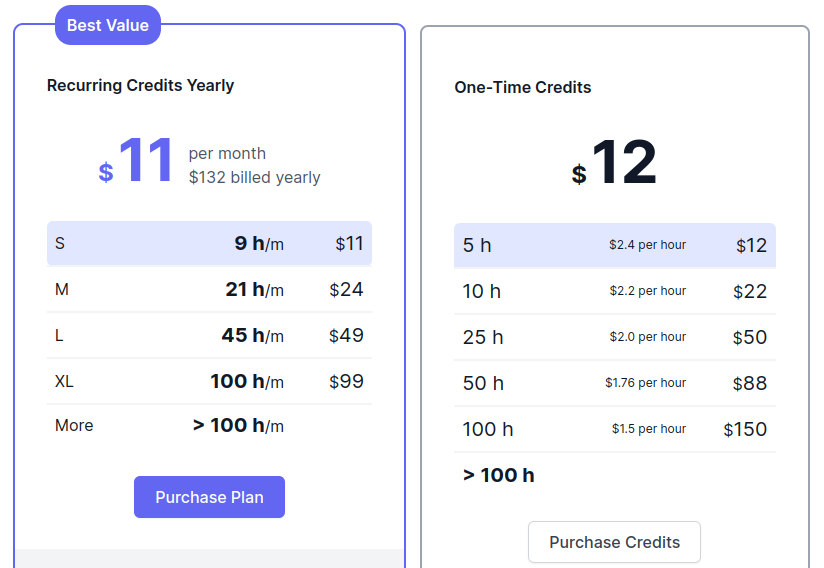 You can also try Auphonic for free which includes AI audio enhancements.
Although the free version says to offer 2 hours of credits per month. But in reality, you get 1 hour 54 minutes.
9. Audacity (Best free podcast editing software)
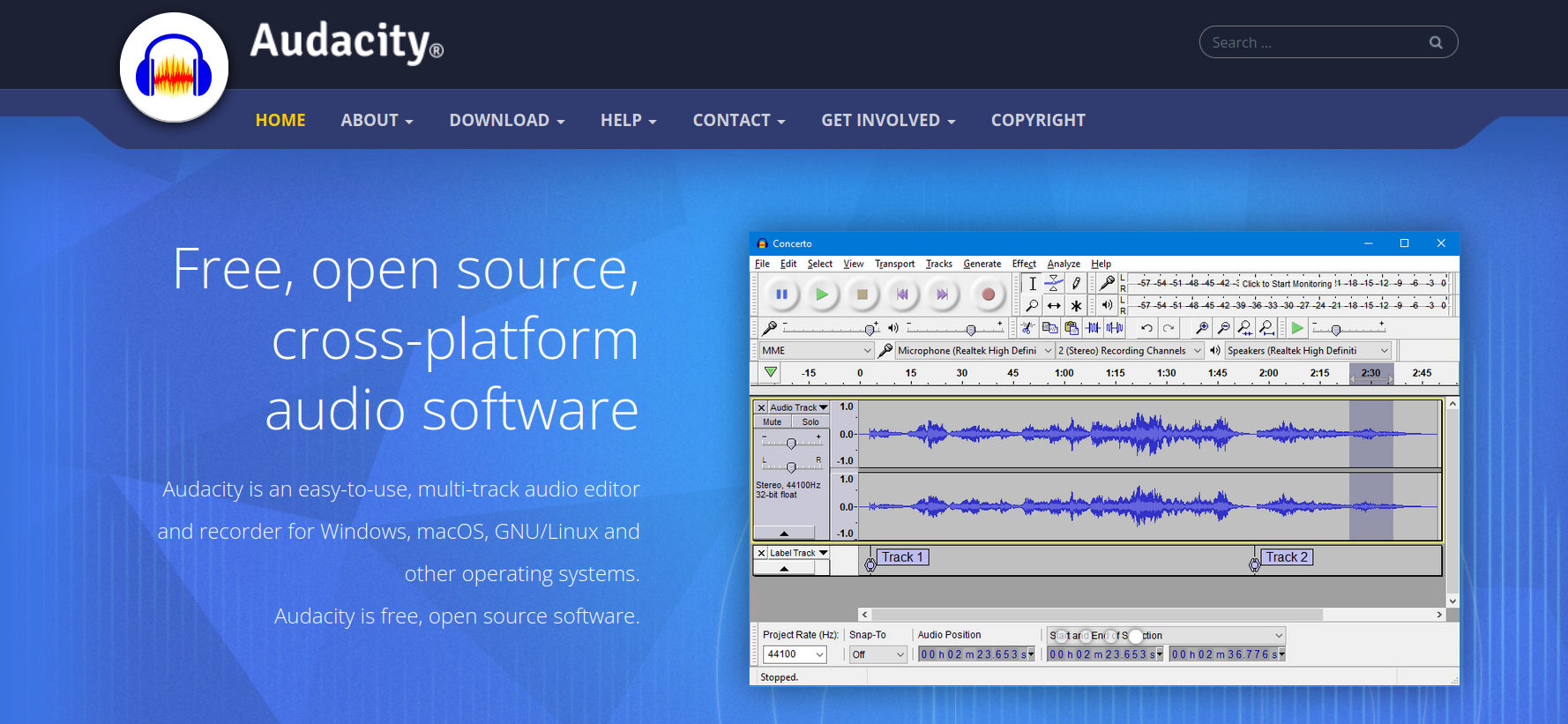
Have a decade-old PC?
And want to start a podcast with zero investment?
Audacity is exactly for creatives like you then.
Because it was created at a time when computers were way less powerful.
What’s cool about Audacity is its cross-platform compatibility and open-source environment with amazing customization capability.
But what’s not so cool is its UI.
However, it can surprise you with multitrack recording, audio mixing, and countless editing prowess.
Audacity is, however, not as robust as a proper DAW.
But it’s fair to say – A jack of all trades, but master of none.
Audacity Key Features
Interface:
Kudos to the contributors of Audacity!
The interface seems more streamlined with improved customization capability.
You can now group similar controls and functions together to ease your workflow.
Great for audio engineers working on varied frequency levels. As it lays out a detailed spectral view of the recorded audio.
Audio editing:
Audacity has improved a lot upon certain features that once bothered many podcasters. For example, automatic crash recovery, flexible clip handlebars, playback looping, voiceovers, and many more.
Even the destructive editing was troublesome for editors that left the original audio distorted.
However, the recent update lets you process the audio virtually without altering the source file.
In addition, Audacity’s community is optimistic about some automation feature updates in the near future.
Workflow:
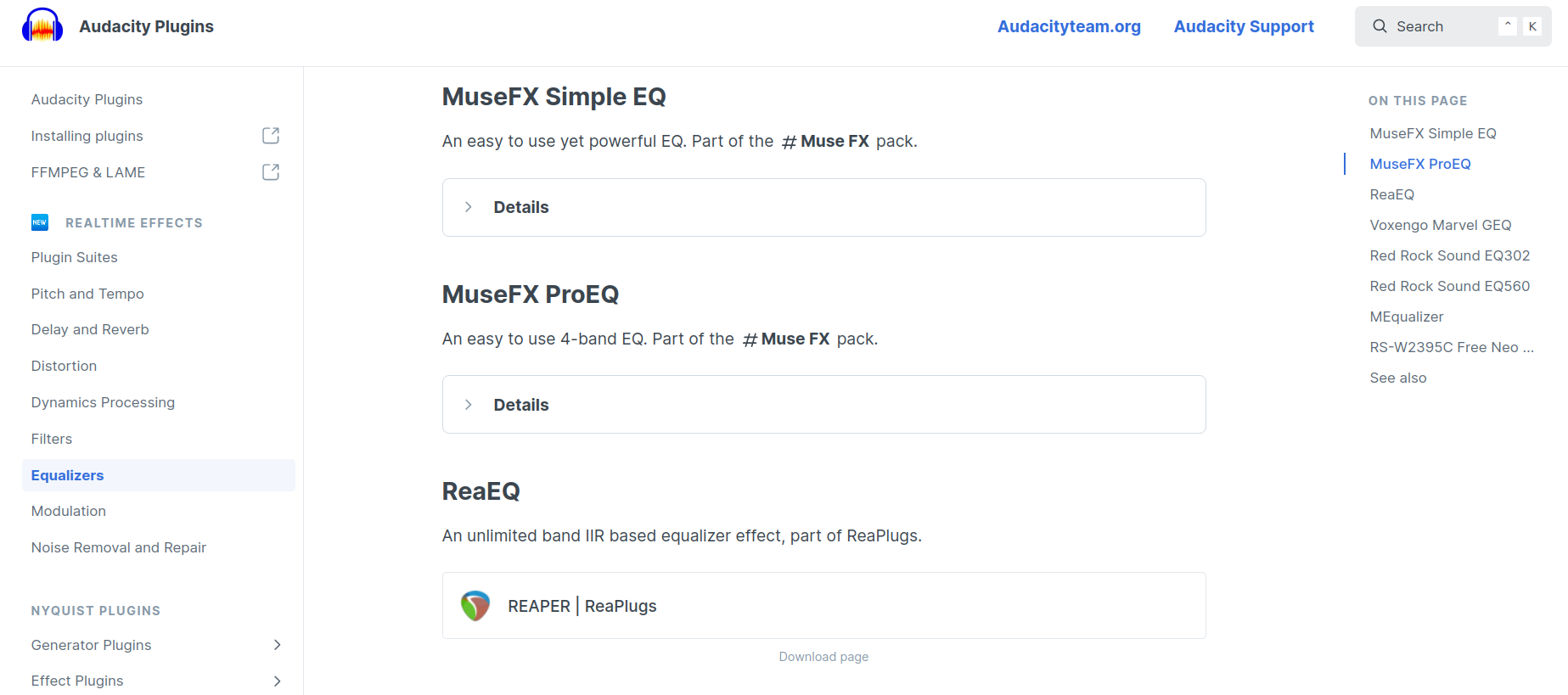
Customization is the real strength of Audacity. You can basically group the selections and adjust keyboard shortcuts as per your workflow.
In recent updates, you can preview your audio editing in real-time.
But the plug-in manager brings you a big advantage. Handling plug-in installation and one-click adding or removing the effects has become way easier.
Performance:
Audacity can run on MacOS, Windows, and Linux distros without any trouble.
It offers you the depth of audio engineering like a workstation. Though it’s not a proper replacement. However, I wish it had integration with podcast hosting sites or apps.
Audacity Pros and Cons
Pros:
- Free and open-source podcast editing tool
- Compatible with multiple operating systems
- Plethora of sound effects and editing options
- Compatible with third-party plugins like Waves and Izotope
Cons:
- Not a proper audio workstation, as it lacks many advanced or engineering-grade functionalities.
Pricing
Audacity is free. And always will be.
10. Sound Forge Pro 17 (Enterprise-grade editing software)
There are already robust tools for audio editing and multi-channel mastering. But most of them are either expensive. Or lacks a holistic audio engineering solution.
But then there is Sound Forge Pro.
One of the oldest audio editing software that audiophiles and musicians can’t stop talking about.
Sound Forge not only supports a wide range of file formats, including the proprietary Sony format. But also digitize or restore your good old cassettes and vinyl records.
So considering its workstation capabilities and solid authority in the audio marketplace, it has a surprisingly reasonable price.
Sound Forge Pro Features
Interface:
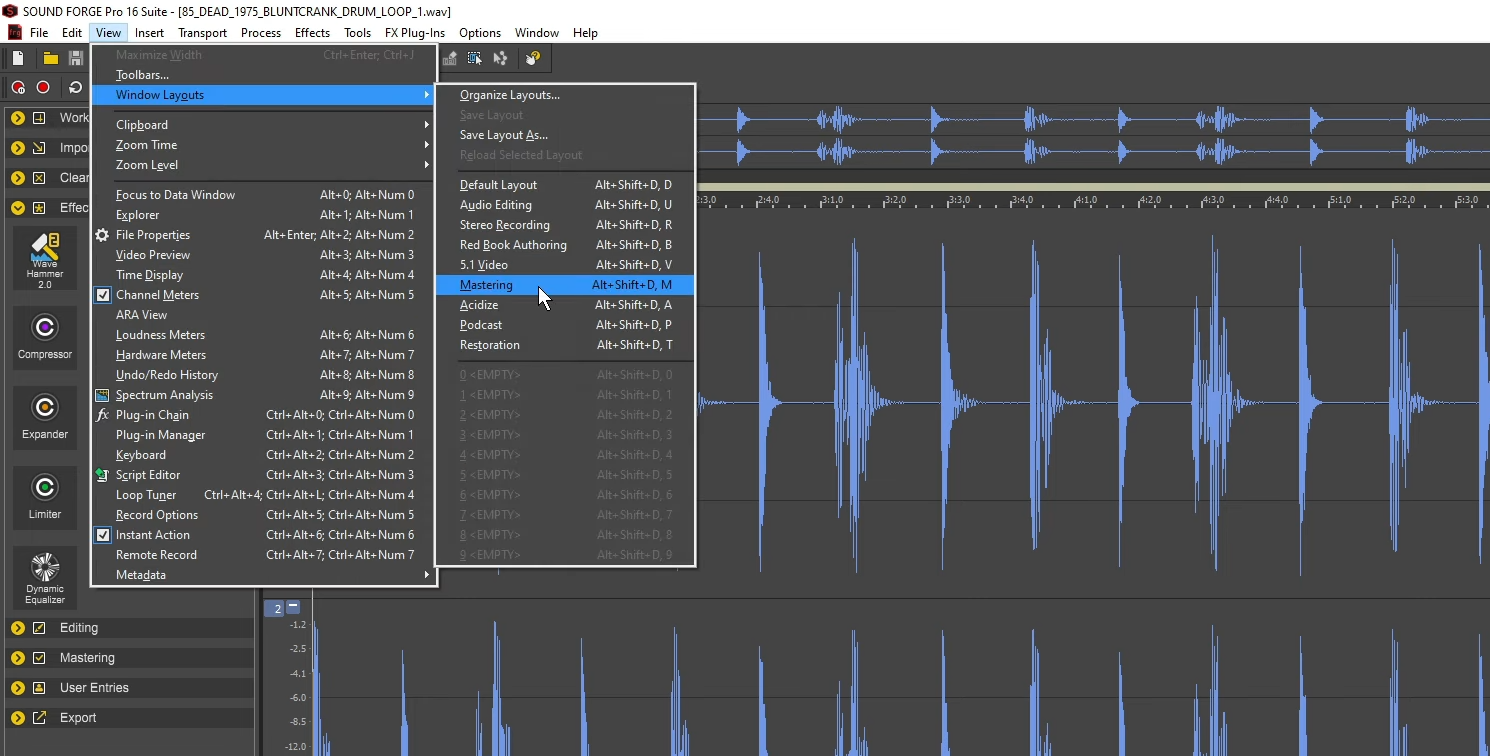
Sound Forge Pro has a fully customizable layout—designed to suit your workflow.
Looking for podcast recording, audio editing, or mastering?
You can easily set up your layout with a single click.
Also choose which toolbars you want to keep on the workstation, modify their size, and dock anywhere you like.
The interface feels much better when it matches your lighting environment. Therefore, the software comes with 4 different color schemes that complement the aesthetics.
Audio editing:
Sound Forge Pro is a Swiss army knife for audio enthusiasts. You can expect a plethora of editing tools, sound effects, plugins, and whatnot.
But here are a few things that may impress you:
VST3 engine improved the sync and stability between the host and plugins.
ARA2 interface extension increased the rate of information transfer, which gives smoother real-time editing.
Celemony Melodyne which is Sound Forge’s proprietary tool used for audio correction. It focuses on individual notes, chords, scales, and tempo.
Dynamic EQ includes vocal correction, which is pretty helpful for podcasters with aggressive or coarse voices.
Workflow:
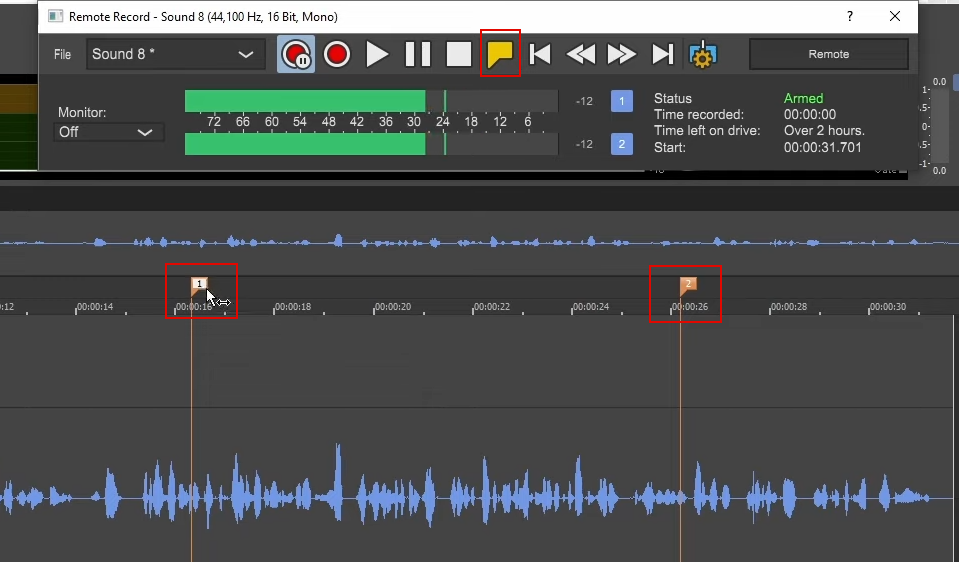
Its ability to multitask while processing another file in the background is something pro users always love to have. Saves a lot of time.
Another cool feature worth mentioning is the marker workflow. It’s like bookmarking your live recording on several instances by clicking the marker icon.
So that you jump directly to those timelines to check if something interesting is said or needs to be edited.
Performance:
Sound Forge Pro hits the ball out of the park with the depth of sound engineering it offers.
It’s a true commercial-grade podcast recording software that comes with 32-channel audio recording and editing.
Besides, it’s a great tool for radio broadcasting or streaming that delivers master-ready sound quality.
However, it’s only compatible with Windows OS.
Sound Forge Pros and Cons
Pros:
- Advanced audio editing platform with high-res recording
- A wide range of plugins and sound effects
- Customizable user interface with a personalized layout
- Available as both a one-off purchase and a cloud subscription
Cons:
- Pretty expensive one-off pricing. Also comes with a feature upgrade option which is also expensive.
Pricing
SoundForge offers 4 different packages which include both on-off and subscription pricing:
- Pro: $179
- Pro 365: $9.99/ month
- Pro Suite: $279
- Pro Suite 365: $14.99
Both Pro and Pro Suite have fixed pricing. But the latter one includes more advanced editing features.
Similarly, Pro Suite 365 offers more features than Pro 365. But also frequent updates, which are unavailable in the one-off packages.
11. WavePad (Podcast editing tool for both PC and mobile)
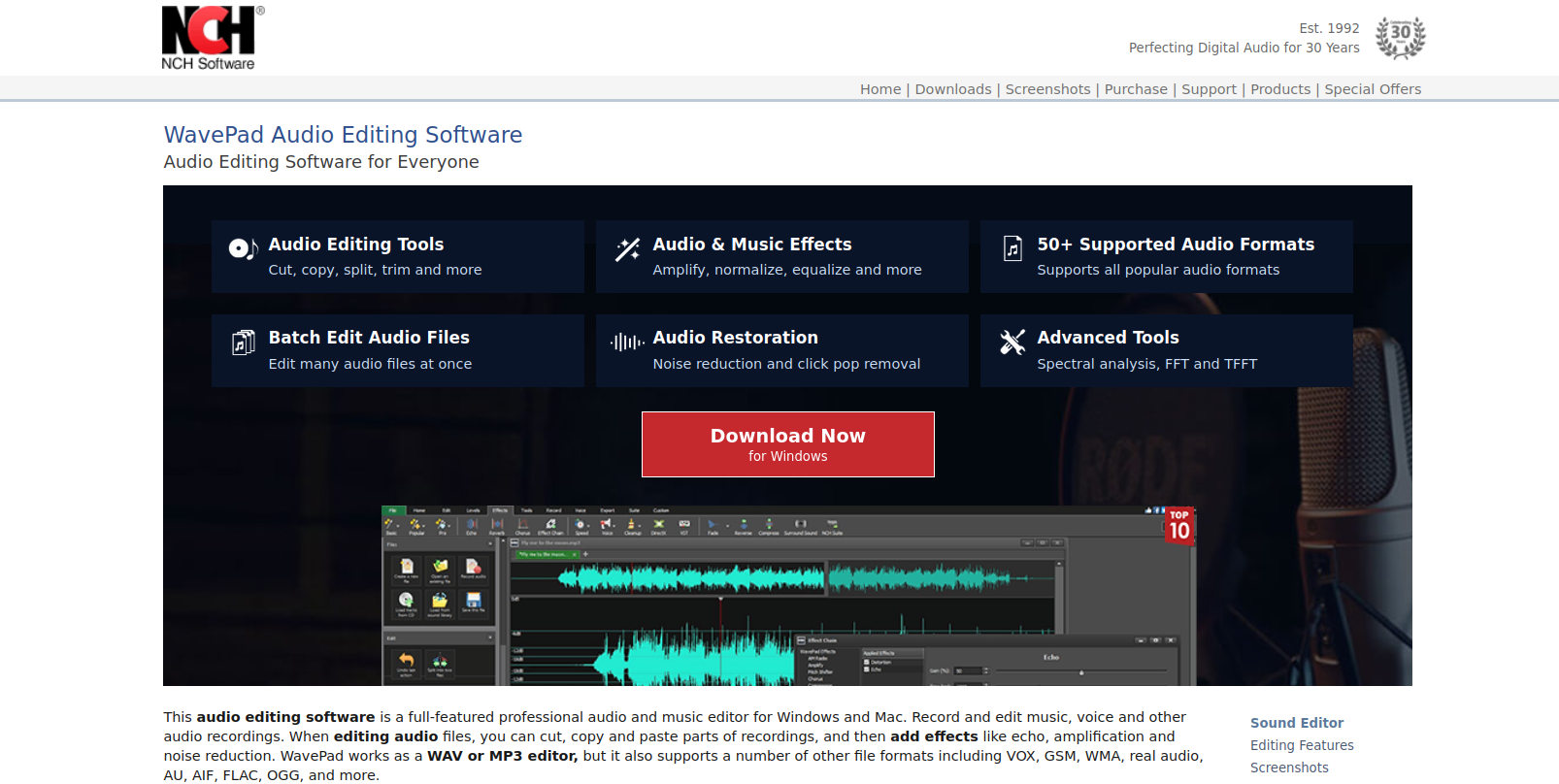
Your choice of podcast editing software doesn’t necessarily have to be a power-hungry tool. Or cost you hundreds of dollars right at the beginning of your podcasting journey.
And yet provides you with a workstation-like experience. Even if you’re on mobile.
That’s right!
WavePad gives you the experience of carrying a DAW in your pocket. Capable of recording, editing, voiceovers, and even adding your favorite effects – anytime, anywhere.
Whereas the PC version gives you more creative freedom. While allowing you to use dozens of presets and plugins to their full potential.
WavePad Key Features
Interface:
Pretty decent interface, like many editors out there. However, you won’t find any AI-driven features such as auto-noise reduction or leveler.
So if you’re someone who loves mechanical configurations, the controls are well streamlined to get you going.
But what I really like is how handy its mobile app is. A powerful editor compressed to fit in the mobile device that gives no less thrill than the PC.
In addition, having short video tutorials within the app is quite helpful.
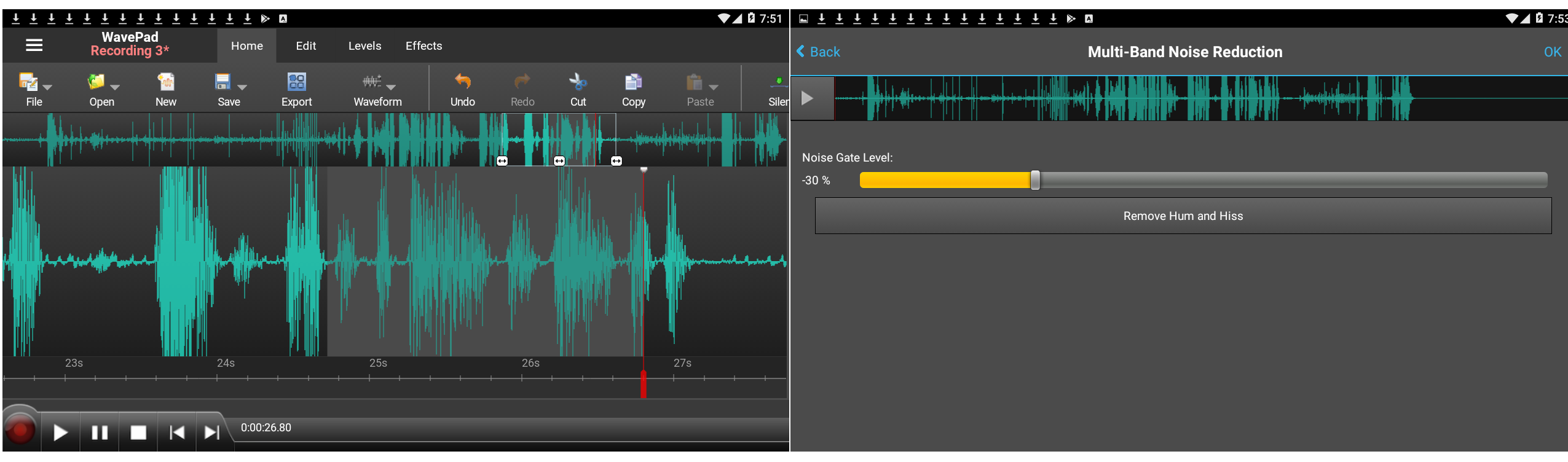
Audio editing:
You’ll have an easy time fine-tuning and restoring your audio file. There are no time-saving automation features, though.
But it lets you dive deep into the subtle details of your audio. And gives you more creative control.
WavePad further surprises you with its audio file format feature, where you can switch up to 30 file formats. While making use of a powerful batch converter that can handle a long list of formats.
However, they’re not included in the package.
Even a couple of useful features like Video Editor and Mixpad Multitrack Mixer charge you extra.
Workflow:
WavePad lets you group your menus under Basic, Pro, and Popular categories.
This utilitarian approach makes your workflow more convenient and less overwhelming.
Support for a wide array of file formats further adds up to your advantage. Besides a powerful editor, WavePad serves as a lossless audio conversion tool as well.
Performance:
WavePad not only comes with cross-platform compatibility. But you can use your purchased license interchangeably between Windows and Mac systems.
Wavepad is also available as an app on both Android and iOS. However, the mobile version has different pricing than the desktop.
But it gives you more convenience while you’re on the move.
WavePad Pros and Cons
Pros:
- Multi-platform compatibility including mobile apps
- Offers both one-off pricing and an affordable monthly plan
- Customizable editor based on user’s editing proficiency
- Access to tons of tools and sound effects
Cons:
- No VST plugin on the Mac systems
Pricing
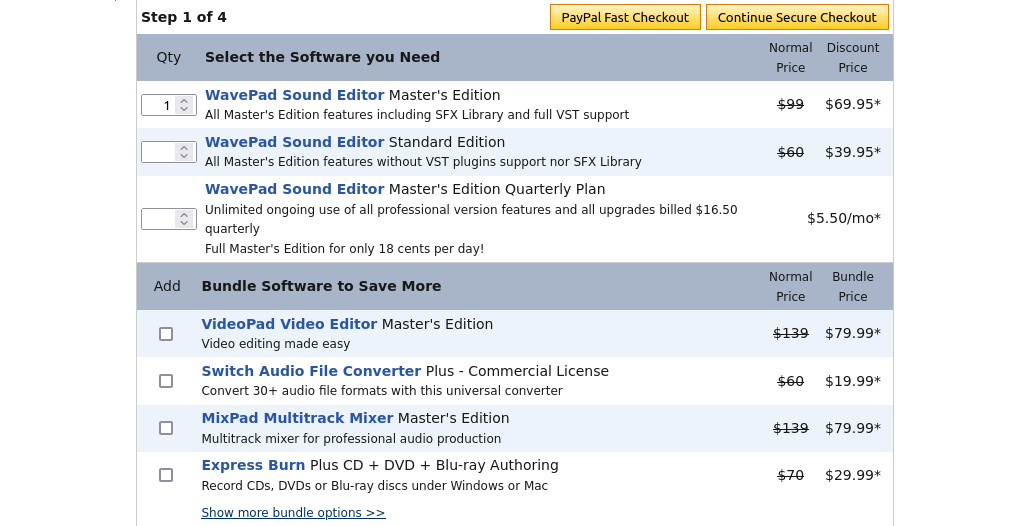
Surprisingly, WavePad also offers a free version which includes some features from the paid version as well. However, only for non-commercial use cases.
Although WavePad has a fixed pricing. The free upgrade is available for only the first 6 months.
12. CyberLink Audio Director (Best alternative tool for Adobe Audition)
Podcasts not only help you grow outreach but outgrow your competitors as well.
Although, creating podcast content while keeping up with your business poses several challenges.
But Cyberlink’s suite of multimedia tools makes things a bit easier.
The most important tool in the highlight is, of course, the AudioDirector.
A power-packed podcast editor with a good mix of creative controls and automation.
You may still enjoy editing, mixing, and mastering. But if you ever need a holistic approach to your podcast creation, Cyberlink PowerDirector will be an ideal choice.
Gives you the ability to edit videos, photos, color correction, and even cloud storage on top of the AudioDirector.
CyberLink Audio Director Features
Interface:
AudioDirector comes with a good mix of beginner-level as well as audio engineering features.
There is a steep learning curve in the later part. But initially, the guided navigation makes things easier for your basic recording and editing work.
However, you won’t have any tool for video podcast editing.
Unless you’re subscribed to PowerDirector or the entire suite of Cyberlink’s multimedia tools. Where you can narrate while running the preview of your podcast in real-time.
Audio editing:
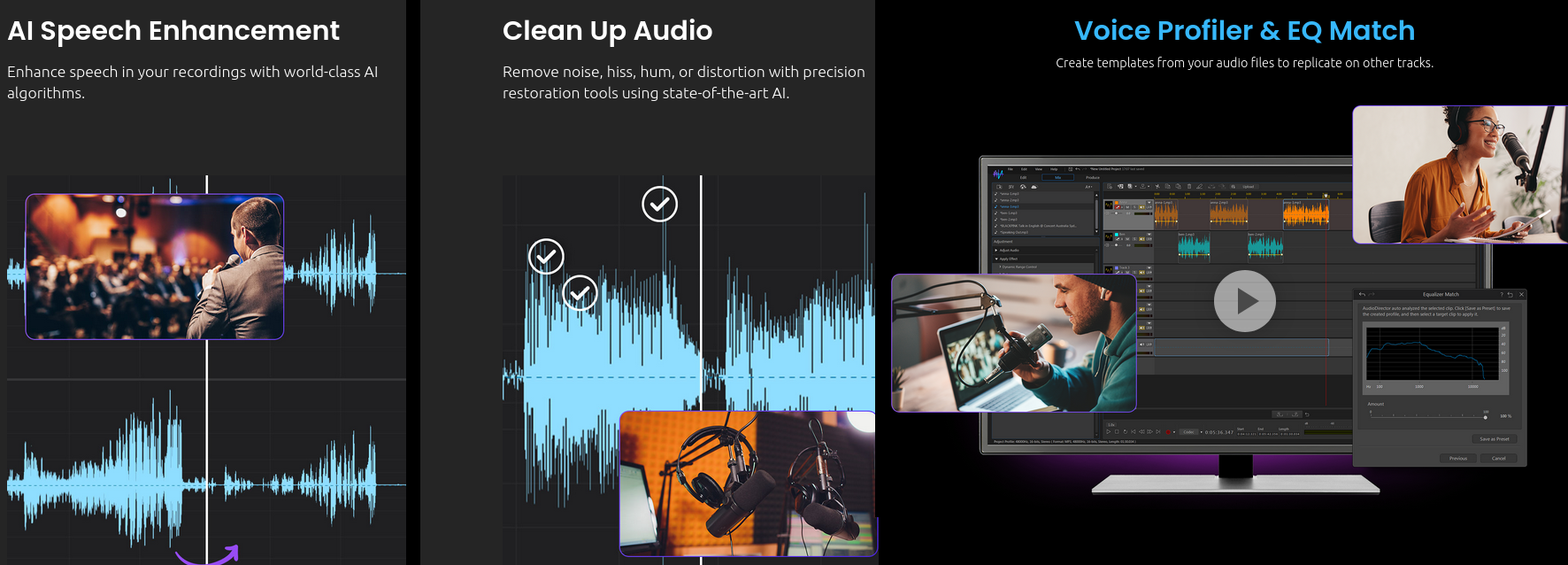
AudioDirector offers a plethora of manual controls and automation.
The preset effects, themes, or transitions may overwhelm you. But thanks to AI tools! Save tons of your time that goes into manual adjustments.
Like their latest EQ Match tool, which auto-levels the audio – no matter how many different mics were used.
The same goes for noise removal, which seemingly isolates the vocal balance without affecting the quality.
Above all, Punch and Roll recording is truly a game changer.
It lets you re-record specific timelines that need corrections. While auto-leveling the new recording to the rest of the audio.
Workflow:
Unless you’re deep into the audio engineering stuff, Cyberlink’s AI-enabled tools can automate most of your editing tasks. While speeding up your workflow.
Once you get hold of multi-track recording and batch processing, you may not think of anything else.
Cyberlink’s AudioDirector works like a breeze.
And so does its cross-program integration. As long as you’re subscribed to the PowerDirector that lets you sync the files between audio and video editors seamlessly.
Performance:
Cyberlink’s AudioDirector can run on a low-spec PC. And can surprisingly render the files without issues.
However, it’s still not considered a powerful recording tool on a commercial level. Another caveat, it’s compatible with Windows OS only.
CyberLink AudioDirector Pros and Cons
Pros:
- All-in-one editing tool for podcast creators
- Tons of presets and AI automation tools
- Can run on low-end PCs
- Comes with both one-off and subscription plan
Cons:
- It runs only on Windows PCs. In addition, the one-off pricing is a bit expensive. But also doesn’t include the suite of Cyberlink’s entire multimedia tools.
Pricing
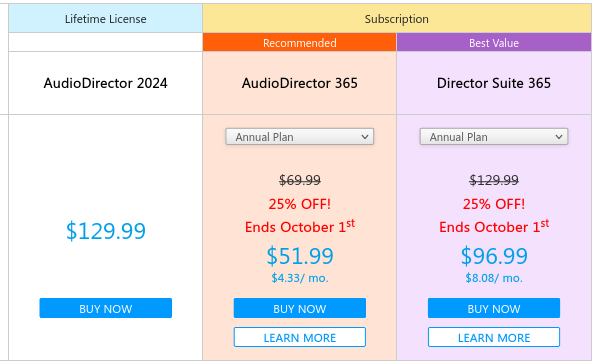
You may either own Cyberlink AudioDirector or choose the annual subscription.
In a Lifetime License, however, you won’t get upgrades and access to cloud storage.
Final Thoughts
Ready to make your first-time listeners your fans forever?
Ask yourself, why are you looking for podcast editing software?
Maybe to start a new podcast. Maybe you want to create course materials.
Or audiobooks. Perhaps, you’re a voice actor looking for a voice-over tool.
But also remember to narrow down the tools relevant to your profession.
If free tools can get the job done, go for them!
But if you need studio-grade editing features, keep an eye on this extensive guide.
And help yourself figure out the tool that can help in your profession.


 A better way to manage projects and clients for freelancers
 Get through busy days like a breeze with Reclaim.ai