SaneBox offers smart ways to manage your email accounts.
With this tool, you can keep your inbox organized and clutter-free, putting all your focus on the messages that actually matter.
If you are exploring SaneBox for email management, I have reviewed its core features, prices, and integrations for you. Here, you’ll find all the essential information to make a well-informed decision.
Let me explain a little bit about SaneBox before we move to its core features.
What Is SaneBox
SaneBox is an AI-powered email management software. It works directly on your email inbox, analyzing emails and sorting them based on their level of importance.
Through SaneBox, you can declutter your inbox, remove distracting emails from your primary folder, block senders, and unsubscribe from unwanted brands and newsletters.
The app uses artificial intelligence to automatically send emails to their designated folders and can be trained to follow your lead.
Core Features of SaneBox
- Deep clean your email inbox.
- Analyzing and sorting emails.
- Deferring emails for later review.
- Scanning the spam folder for misplaced emails.
- Filtering unwanted emails.
- Pausing new emails.
- Shelving or unsubscribing from old brands and newsletters.
- Follow-up alerts.
- Unopened emails report.
Currently, over 100k people are using SaneBox to manage their email accounts. The app has a good rating and excellent user reviews.
SaneBox Features
SaneBox has several smart features. It works as your AI assistant, helping you keep your email inbox clean and stay updated all the time.
Below are some of its core features.
I have covered nine areas, including automation and integration, to highlight its main function and tech capabilities.
Let’s explore them one by one.
1. Deep Clean
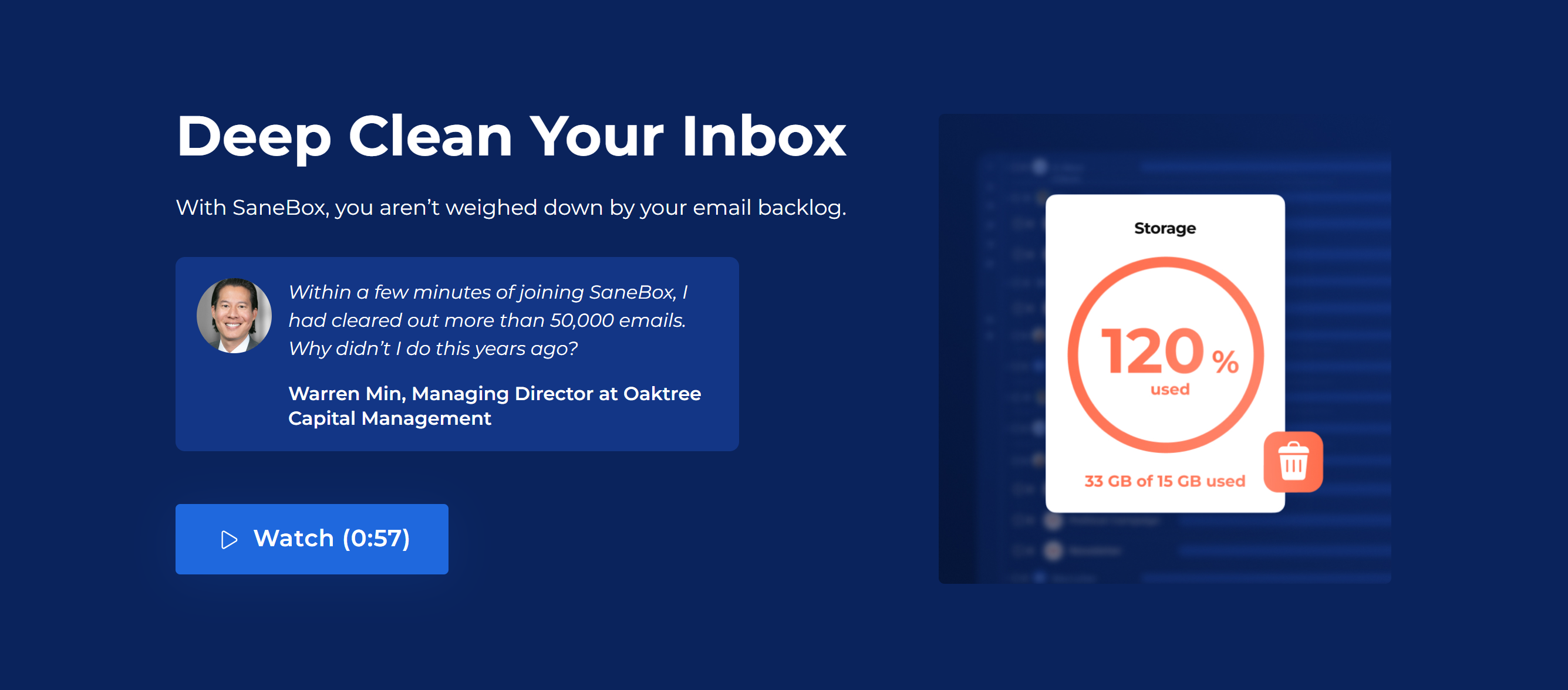
SaneBox’s primary function is to clean your email inbox. It scans your previous emails and removes irrelevant content from your inbox.
The procedure is simple and works like any other scanning device. You run the scan, get a list of irrelevant content, and delete it as you see fit.
You’ll have the flexibility to choose the range of your deep clean. For example, if you want to remove emails from the last month only, you can pick the range and run the scan. SaneBox will only focus on that particular period.
(To Summarize: SaneBox scans your email inbox from date A to date B and filters irrelevant emails for removal.)
2. SaneLater
Another primary function of SaneBox is email organizing.
SaneBox has a feature called SaneLater that analyzes your email list and moves unimportant emails to the “later” folder.
You can manually review the list and move back emails that you find important. SaneBox takes your preference into account and keeps similar future emails in the primary inbox. It also retains new emails in your primary inbox until instructed otherwise.
You can change the settings to reduce some of the manual work. For example, you can ask SaneBox to automatically delete the emails in your SaneLater folder after a week.
(To Summarize: SaneLater moves unimportant emails from your primary inbox to another folder for later review.)
3. SaneBlackHole

The third key feature of SaneBox is the sender blocking. It sends unwanted emails from particular senders to the Blackhole folder and automatically deletes them after a certain period.
You must be wondering why you need this feature when you already have a spam folder, right?
Spam folders generally capture suspicious and bot-generated emails.
SaneBlackHole, on the other hand, gets rid of emails from genuine senders that you specifically want to remove. It could be a previous client, annoying brand emails, a bothersome individual, or an unwanted subscription.
Just drag one email sent from a specific ID, and SaneBox will automatically forward all future emails from that ID to the SaneBlackHole.
You can also train SaneBox to move certain emails from the spam folder to the primary inbox. This is a separate feature but works similarly.
(To Summarize: SaneBlackHole drags unwanted emails from specific senders to the block list and deletes them later.)
4. SaneNews
Newsletters make up a chunk of your email content. You love a brand, subscribe to its newsletter, and typically forget about it.
The problem occurs when you can’t spare the time to read the newsletter but feel reluctant to unsubscribe from the brand.
SaneNews feature is for those newsletters. It saves your favorite newsletters in a “SaneNews” folder, so you can check them out in your spare time.
(To Summarize: SaneNews keeps newsletters in a separate folder to read them at your leisure.)
5. SaneNoReplies
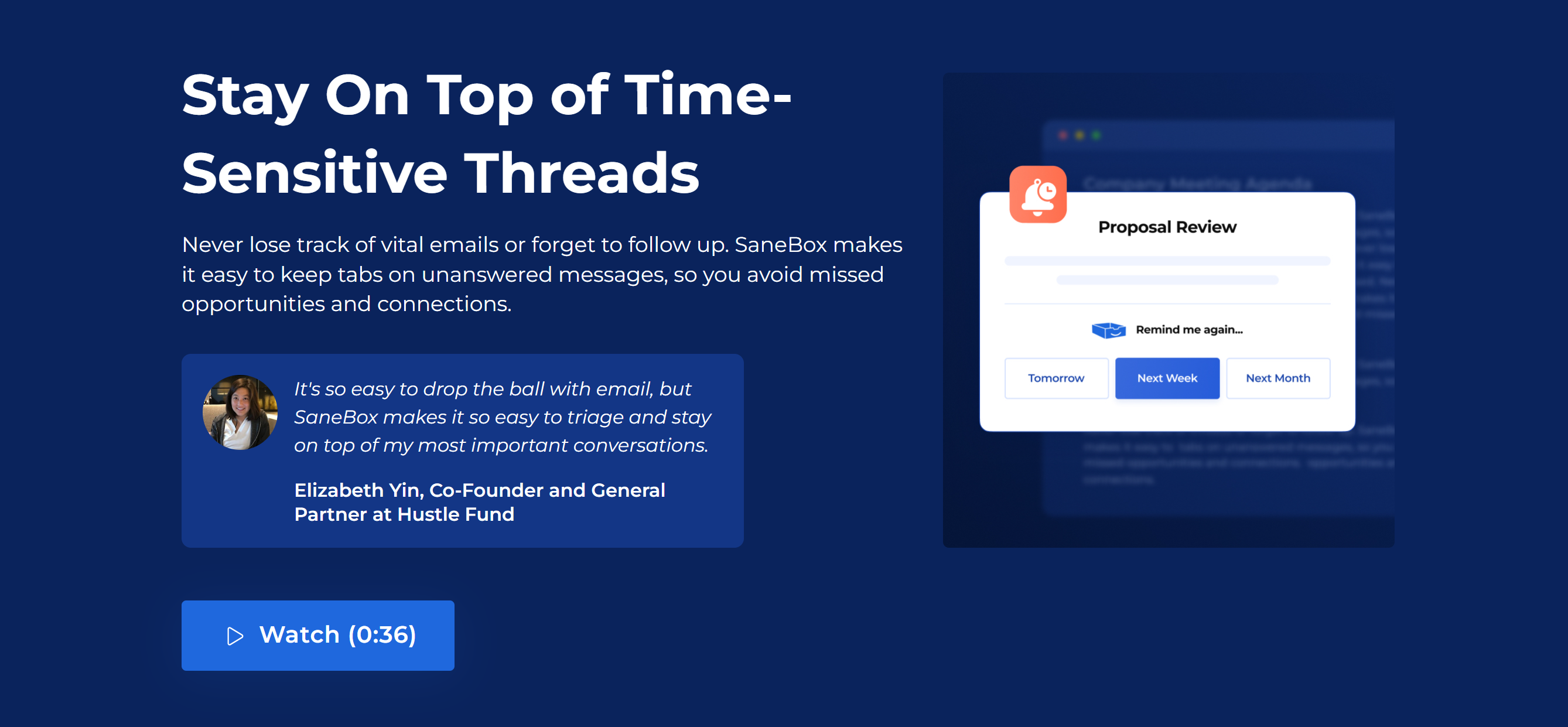
Another great feature of SaneBox is its tracking tool.
It keeps track of unanswered emails and sends a notification if you haven’t received a response after a particular period.
You will have the option to turn off tracking from certain emails for a specific period. You can also ask SaneBox to remind you to send a follow-up email to a certain sender.
All in all, SaneNoReplies is an amazing feature for busy professionals. With this tool, you can set up a solid follow-up process and ensure you never miss important messages.
(To Summarize: SaneNoReplies monitors sent emails and moves unanswered messages to a separate folder for a follow-up.)
6. Snoozing
One of the challenging aspects of email management is keeping track of every new and old message. When you have a busy day, you generally focus on known emails and leave new messages for later.
This method, while effective, is vulnerable to mistakes, leading to missed opportunities.
SaneBox lets you pause new emails for a specific period to help you focus on your current task. You can pause emails until tomorrow, a week, or a month; it’s up to you.
Also, you can set up an auto-reply to assure new senders that you have received the email and will contact them later.
(To Summarize: SaneSnooze lets you set up auto-replies and defer new emails for later review.)
7. SaneDigest
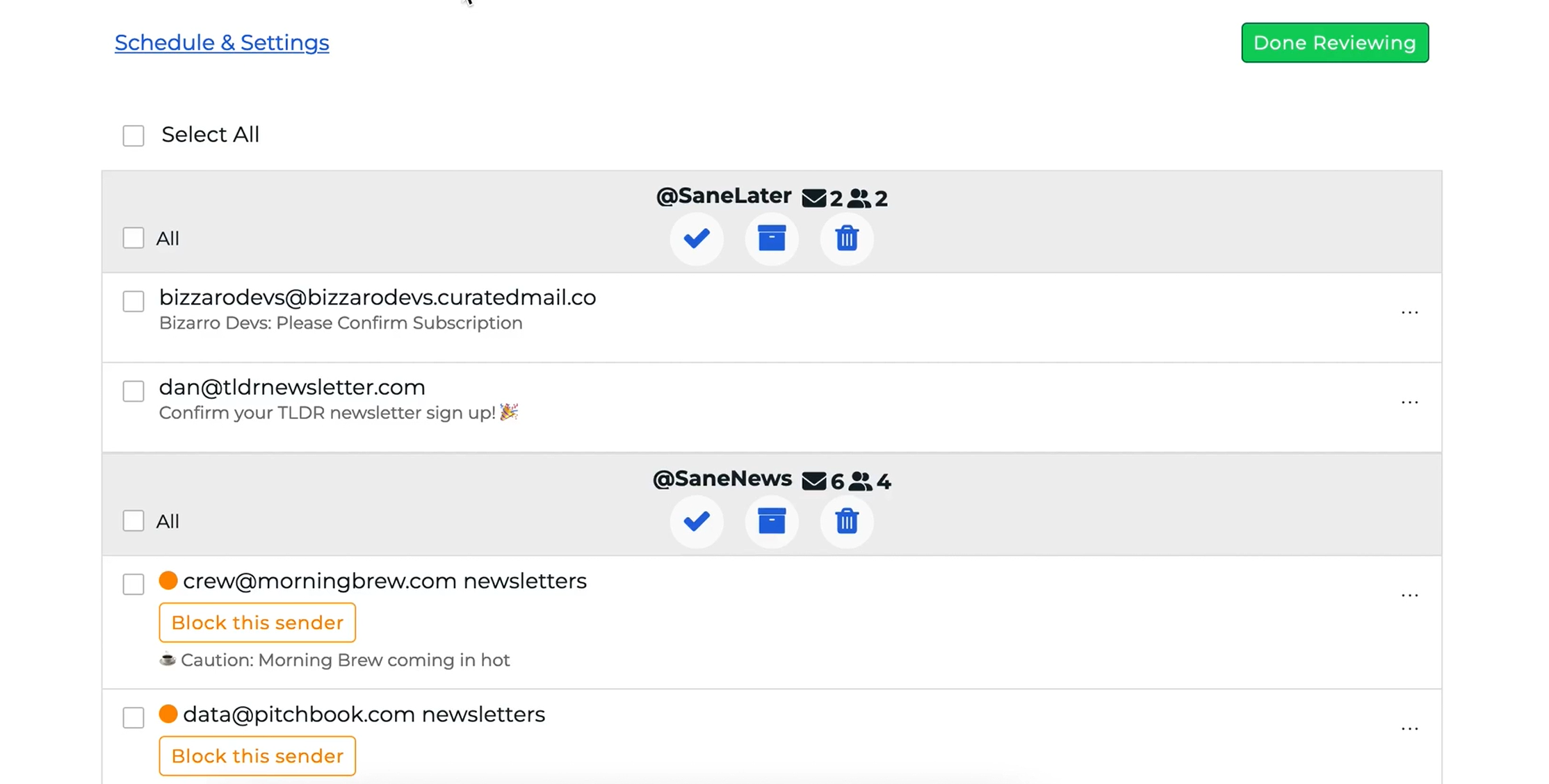
SaneDigest is a daily summary of your email activity. The app shares highlights of your unread emails, low-priority messages, and follow-up reminders.
The messages are color-coded to speed up the reading. For instance, the green dot signifies new senders and the orange dot represents unwanted messages.
You can perform actions directly from the digest. You can filter emails by the subject or the domain, temporarily snooze messages, forward unwanted emails to the “Later” or “BlackHole” folder, and archive some emails.
You can also customize your digest frequency to hourly, daily, or weekly.
(To Summarize: SaneDigest summarizes daily email activity and allows you to take appropriate actions.)
8. AI and Automation
SaneBox is an AI-powered tool and can be trained to organize email per your instructions.
You can teach SaneBox to prioritize time-sensitive emails, block unwanted senders, defer some messages, and remind you of particular emails.
With each new instruction, SaneBox automatically adjusts its approach and sorts your future emails accordingly.
The amazing thing is that you don’t need to apply any complex rules to train the app. You don’t have to drag specific emails to the preferred folder to trigger the automation.
(To Summarize: You can train SaneBox to organize emails at your direction and set the app on autopilot.)
9. Integration and Tech Support
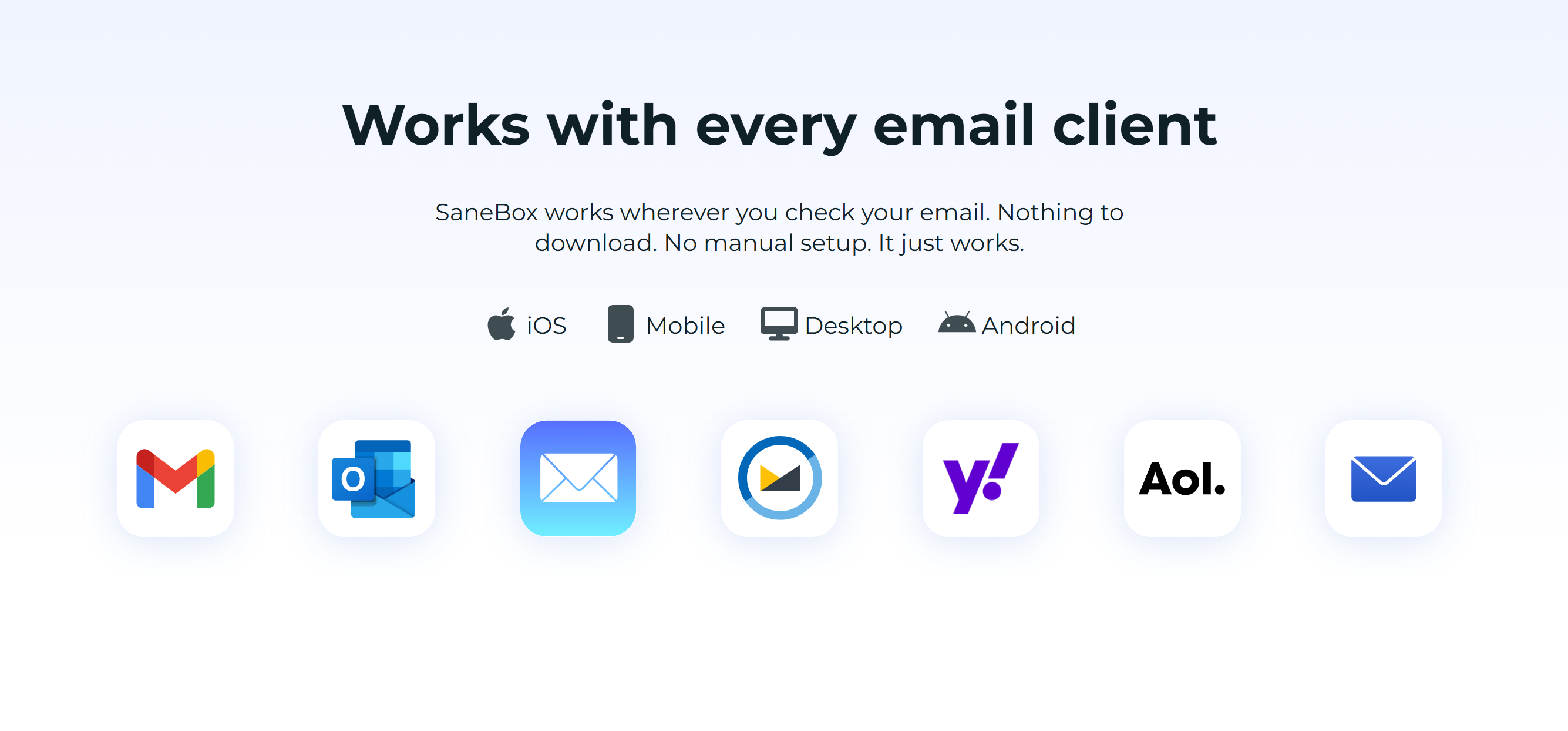
SaneBox works well with several third-party applications.
You can connect all the major email providers to your account, including Gmail, Microsoft, Yahoo, and Apple iCloud. Plus, any email client that supports IMAP can be integrated with SaneBox.
In addition to email services, you can integrate SaneBox with other third-party productivity and storage apps.
Some of the most notable software products supported by SaneBox are cloud storage like Dropbox, productivity tools such as SHIFT and Todoist, and enterprise-grade platforms like Salesforce. (The last is available on the business plan only.)
The app also works on almost all devices and web browsers.
How To Use SaneBox
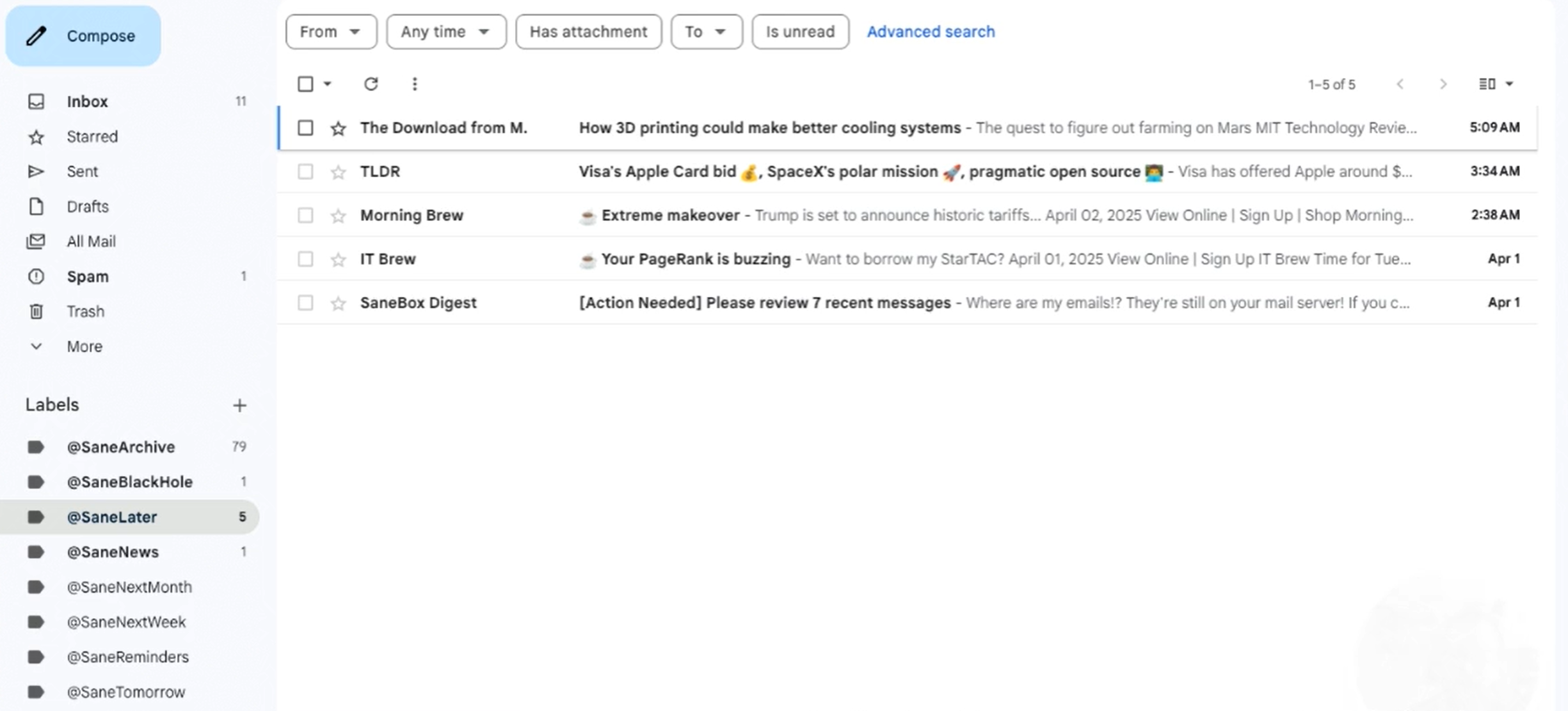
SaneBox is incredibly easy to use. It has no complex setup process and automatically sorts and cleans your inbox.
All you need to do is sign up for SaneBox, connect your email accounts, and occasionally check your inbox. You can, as mentioned above, train the app yourself for email management or utilize its concierge call service to help you with the initial setup. The concierge call service is free and available in all subscription packages.
Below is the basic step-by-step guide to help you get started. You can upgrade or cancel the subscription anytime.
1. Visit the SaneBox website and click the “Try It Free” button. SaneBox will direct you to the registration page.
You can create your new account with your email ID or sign up through your Google or Yahoo ID.
2. Once you create your account, you’ll be asked for email content access.
3. Select all to make full use of the tool. Don’t worry. SaneBox only analyzes the headers to sort the emails. Your main content remains private.
4. Follow the basic setup, and you’ll be directed to the main dashboard.
Every core feature is visible on the main screen for easy access. You can customize the settings to tailor the experience.
5. After Sanebox is enabled, it will start analyzing your inbox and automatically sort unimportant emails into the new folders.
You can turn on the manual mode to train SaneBox first before setting it on autopilot. By default, SaneBox runs on auto.
6. Once SaneBox analyzes your inbox, you’ll be able to see the folders on the sidebar of your mailbox. You can turn on and off any folder you find unhelpful.
7. That’s it! You can take a 14-day free trial to test the features. SaneBox provides access to all features during the free trial.
Let’s look at SaneBox pricing to see what’s included in the packages.
SaneBox Price
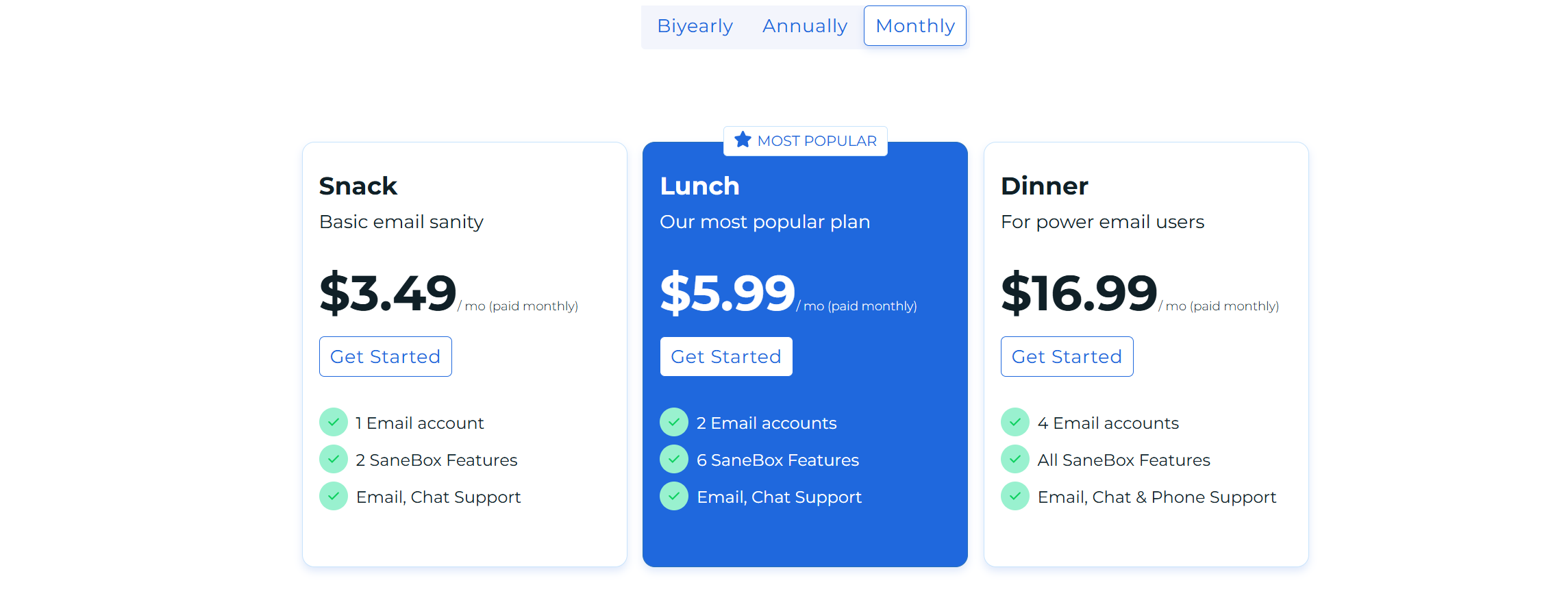
SaneBox sells three subscription packages.
- The Snack Package: The monthly subscription costs approximately $4. You can add one email account and two SaneBox features. You can pick any two functions.
- The Lunch Package: It costs $6 per month. The plan allows two email accounts and six SaneBox features.
- The Dinner Package: The plan costs around $17 per month. You’ll have access to all features and can add up to four email accounts. Plus, you’ll get premium phone support.
If you have more than four email accounts, you can ask customer service for an extension here.
SaneBox also sells a business account, which includes Salesforce integration and team collaboration features. You can request a demo here.
Apart from the above four packages, you’ll have the option to buy monthly, annual, and bi-yearly subscriptions. Annual or bi-yearly packages offer discounted prices.
SaneBox provides an additional 25% discount to the education sector. You can reach out to the customer service for non-profit discounts here.
Pros and Cons
Let’s look at some of the pros and cons of SaneBox.
While its benefits outweigh its limitations, you still might find the information helpful.
Pros
- The software does all the organizing for you automatically.
- It can be trained to sort emails based on your preference.
- It works with all the major email providers.
- The app saves a lot of time and effort.
Cons
- A free trial is available, but there’s no free plan.
- The app might not sort all the emails correctly initially until you train it. This may take some time.
- SaneBox organizes your emails into multiple folders. Some may find the additional folders inconvenient.
Conclusion
SaneBox is designed to make things easier for you.
It doesn’t require any additional downloads, stays in the background, and generally works on autopilot.
These qualities make SaneBox convenient and efficient.
Take a free trial and try the app yourself to discover its potential. Good luck!


 A better way to manage projects and clients for freelancers
 Get through busy days like a breeze with Reclaim.ai