Let’s talk about something that’s been a real challenge for small business owners—email marketing.
We all know how powerful email can be for promoting our products, engaging customers, and driving sales.
But let’s be honest—most email marketing platforms out there are either too expensive, too complicated, or both.
That’s where iContact comes in.
This email marketing software is designed specifically with small businesses in mind.
iContact offers a simple drag-and-drop email builder that lets you create professional, mobile-friendly emails in minutes, even if you don’t know a lick of code.
I’m here to give you the real scoop on iContact in this honest, no-BS review.
By the end, you’ll know whether it is worth your time and investment, or if you should keep looking.
iContact Review Summary
iContact is an affordable, beginner-friendly email marketing platform designed for small businesses. It offers a simple drag-and-drop email builder, responsive templates, basic automation, reporting, and integration with popular tools.
What We Like
- Intuitive and easy-to-use interface
- Good selection of responsive email templates
- Simple marketing automation with triggers and workflows
- Integration with tools like Salesforce, WordPress, Zapier, etc
- Landing page and subscription form builders
- A/B split testing for campaign optimization
- Social media management capabilities
What We Don’t Like
- Limited marketing automation triggers and workflow options
- Form builder lacks versatility for different form types
- Advanced capabilities like CRM, webinars, and SMS marketing are not available
iContact is a good choice for small businesses looking for an affordable, user-friendly email marketing solution with essential features.
While it may lack advanced capabilities, it delivers what small businesses need most – a simple way to create, automate, and track email campaigns without breaking the bank.
Signup for iContact for Free →
What is iContact?
iContact is a comprehensive email marketing software tool built by keeping in mind the needs of a small business.
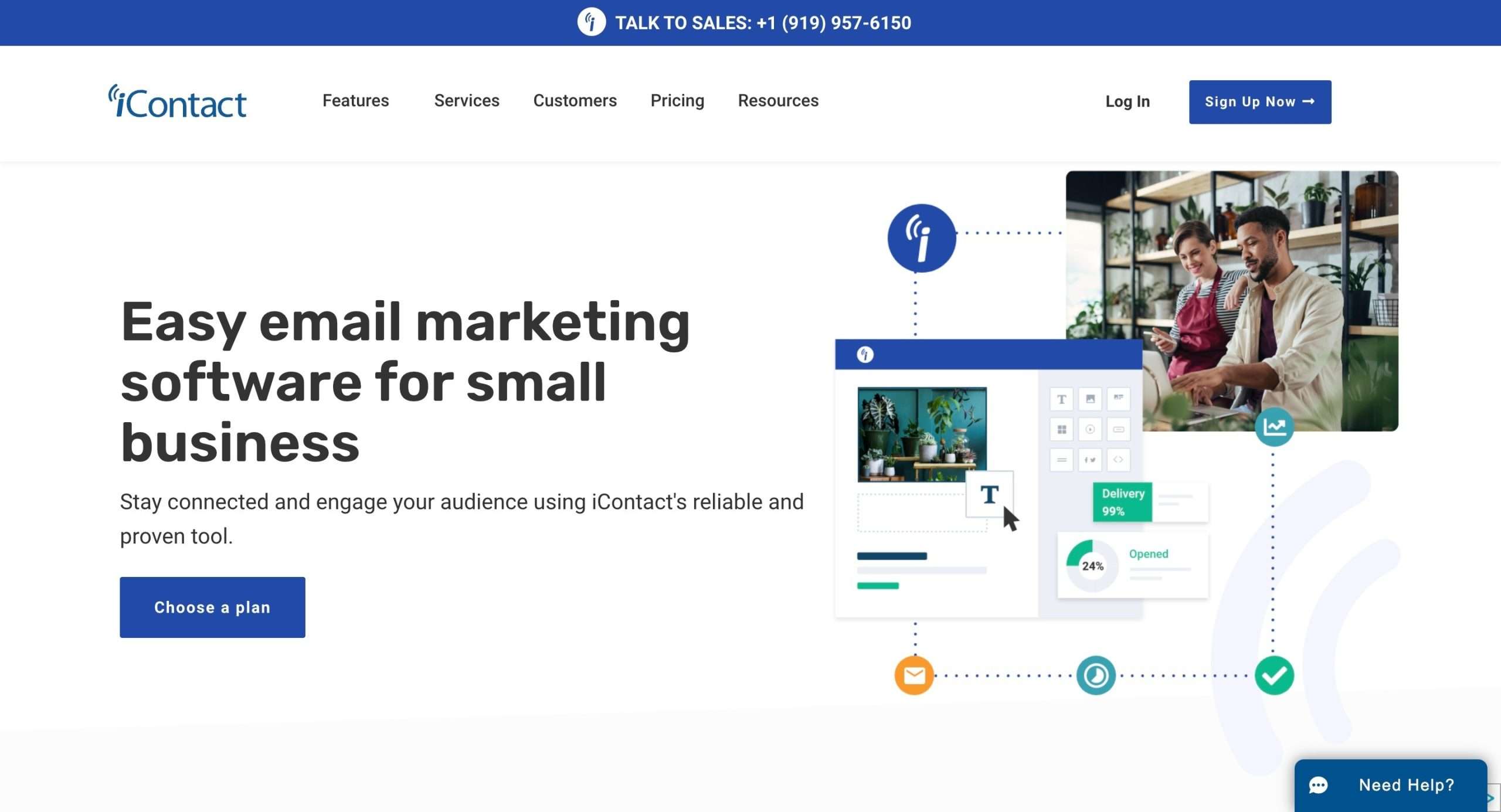
With a clean interface, iContact is easy to use, even for a complete beginner in email marketing. This is thanks to their drag-and-drop email and landing page builder.
iContact also allows you to set up simple email automation sequences with over 10 triggers, actions, and conditions to send targeted messages to the right subscribers at the right time.
With over 35 responsive email templates that look great on any device, iContact ensures that you don’t ever have to start from a blank page.
And if you’re big on organization, iContact provides robust tools to enter, organize, and segment your contacts into different lists. You can collect leads through customizable subscription forms and landing pages.
There’s more to it.
You can even gain insights into your campaign performance with iContact’s real-time reporting on key metrics like opens, clicks, shares, etc.
iContact integrates with over 35 other business apps, including Salesforce, to sync customer data and personalize your email marketing.
With that out of the way, let’s move on to iContact features and capabilities.
Ease Of Use
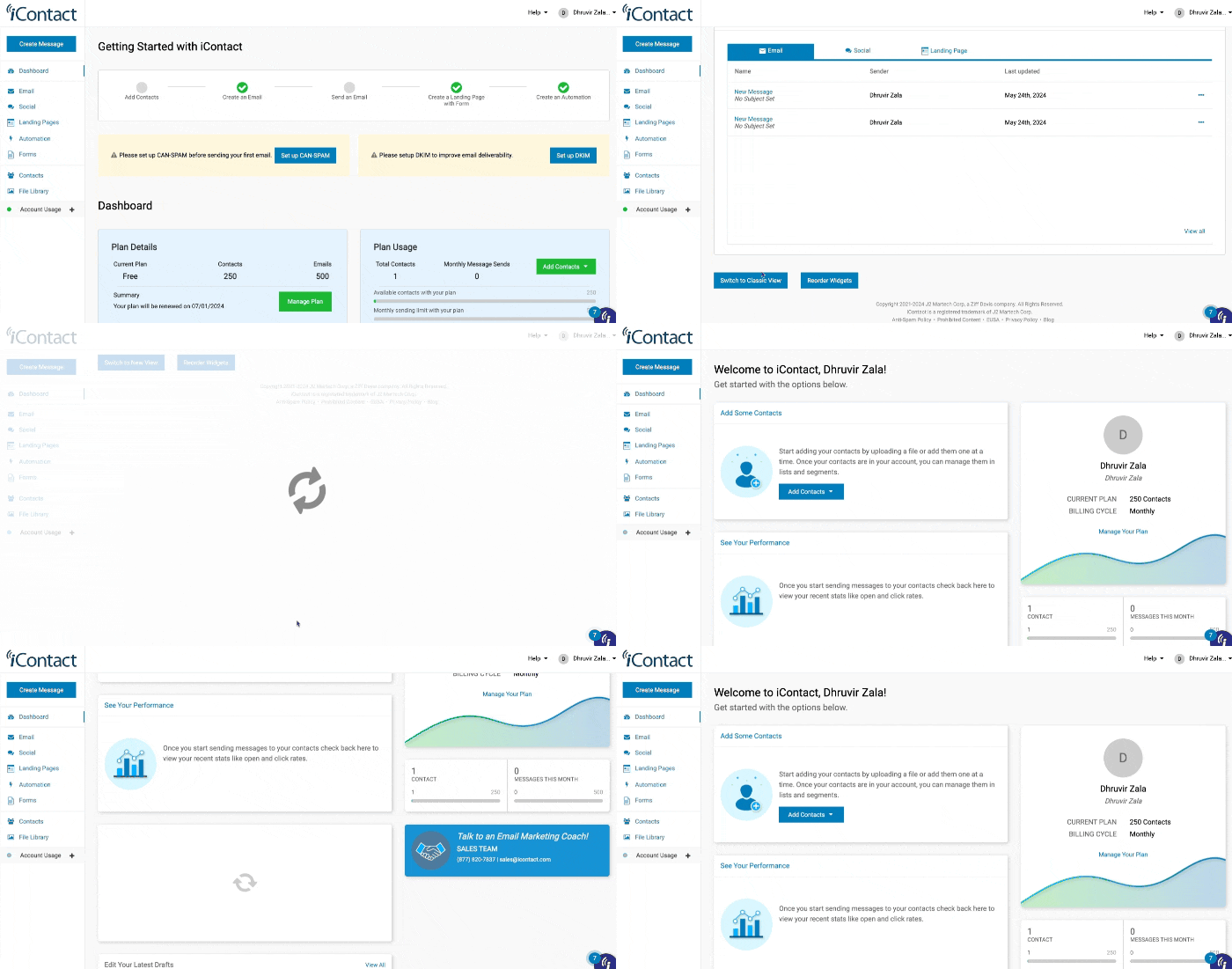
Once you sign up for the free plan and log in, you will land on iContact’s dashboard.

iContact is designed with simplicity in mind to make email marketing accessible for small businesses and digital marketing novices.
The user interface is clean, intuitive, and easy to navigate.
Some other aspects that make iContact user-friendly are the ability to easily manage contact lists and create signup forms.
The marketing automation features are also designed to be simple to use with a visual workflow builder.
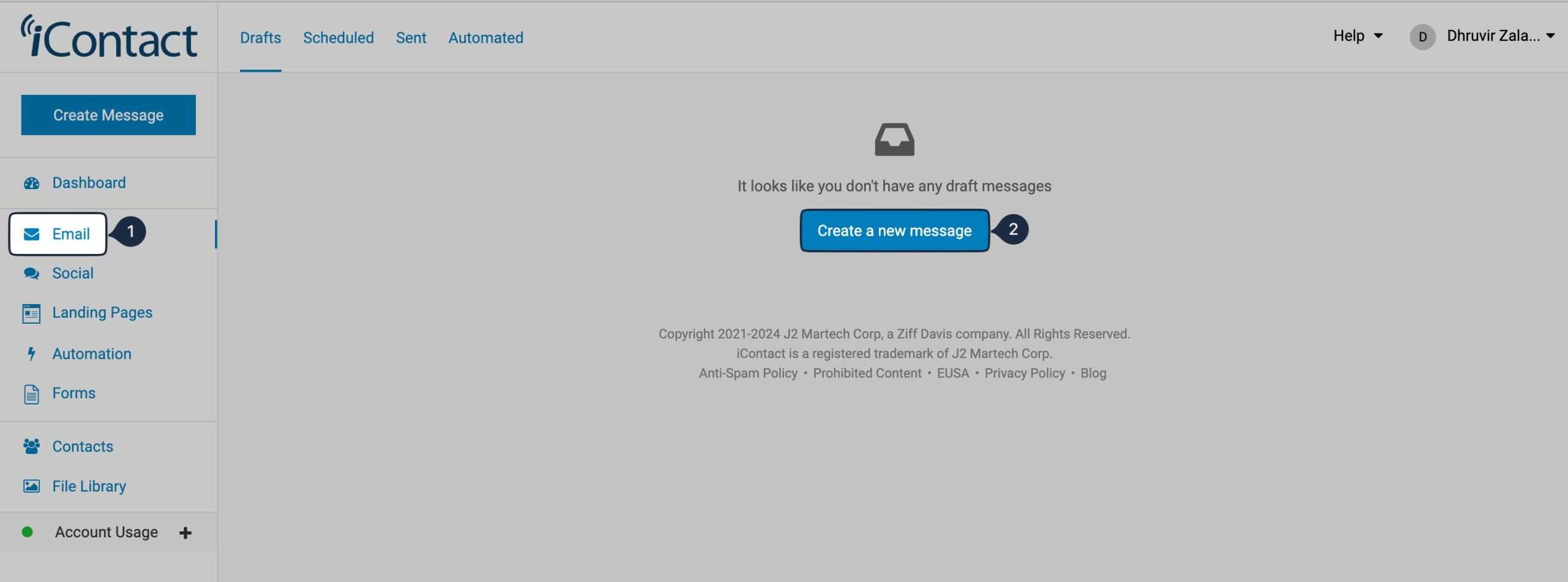
The dashboard gives a simple vintage vibe, with the left sidebar possessing all the juice. It has everything you need—emails, landing pages, automation, etc.
If you don’t like the new view, you can switch to Classic View.
Drag and Drop Email Editor
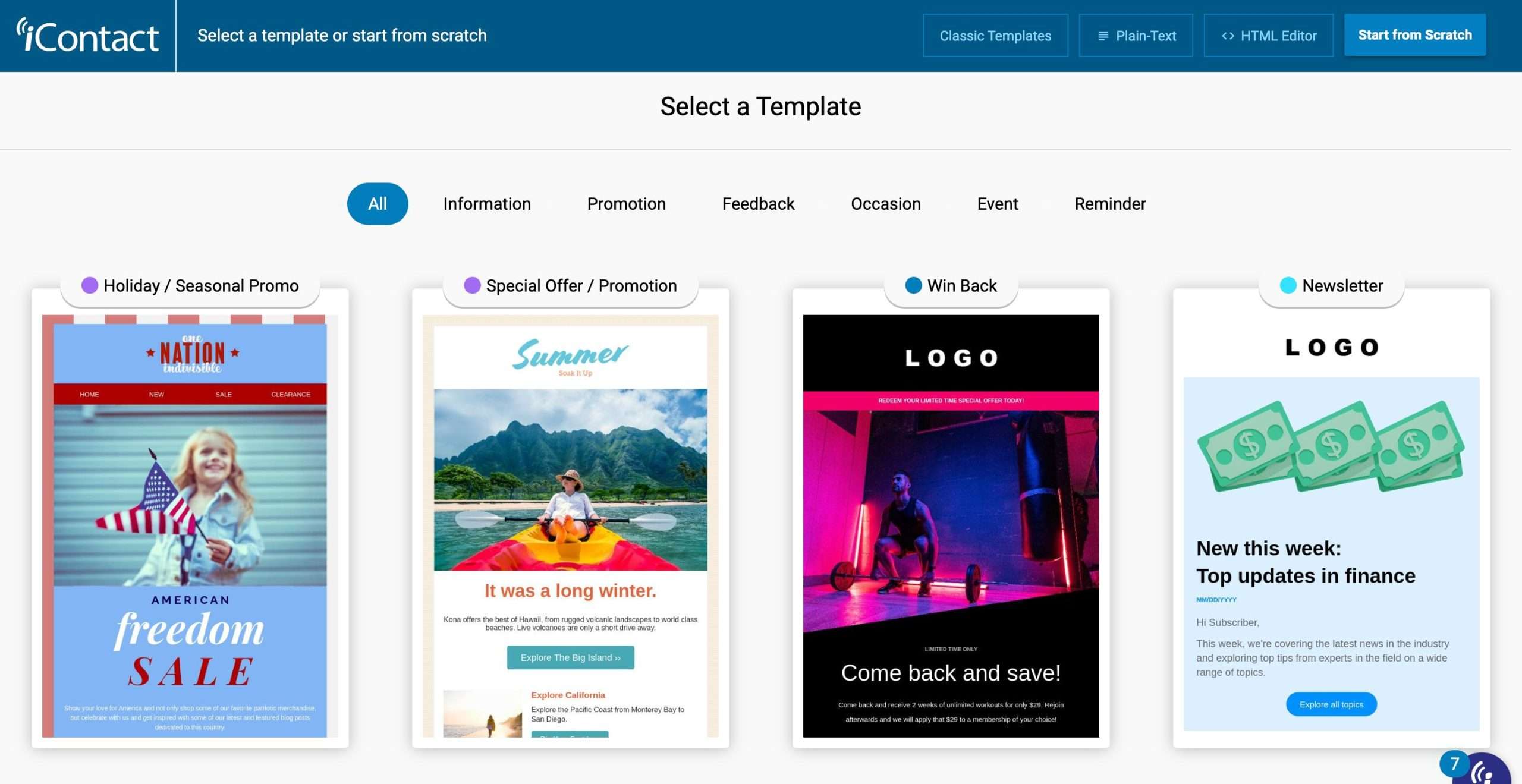
iContact allows you to create and send responsive emails. Thanks to their countless premade templates optimized for conversion, you can be up and running in seconds.
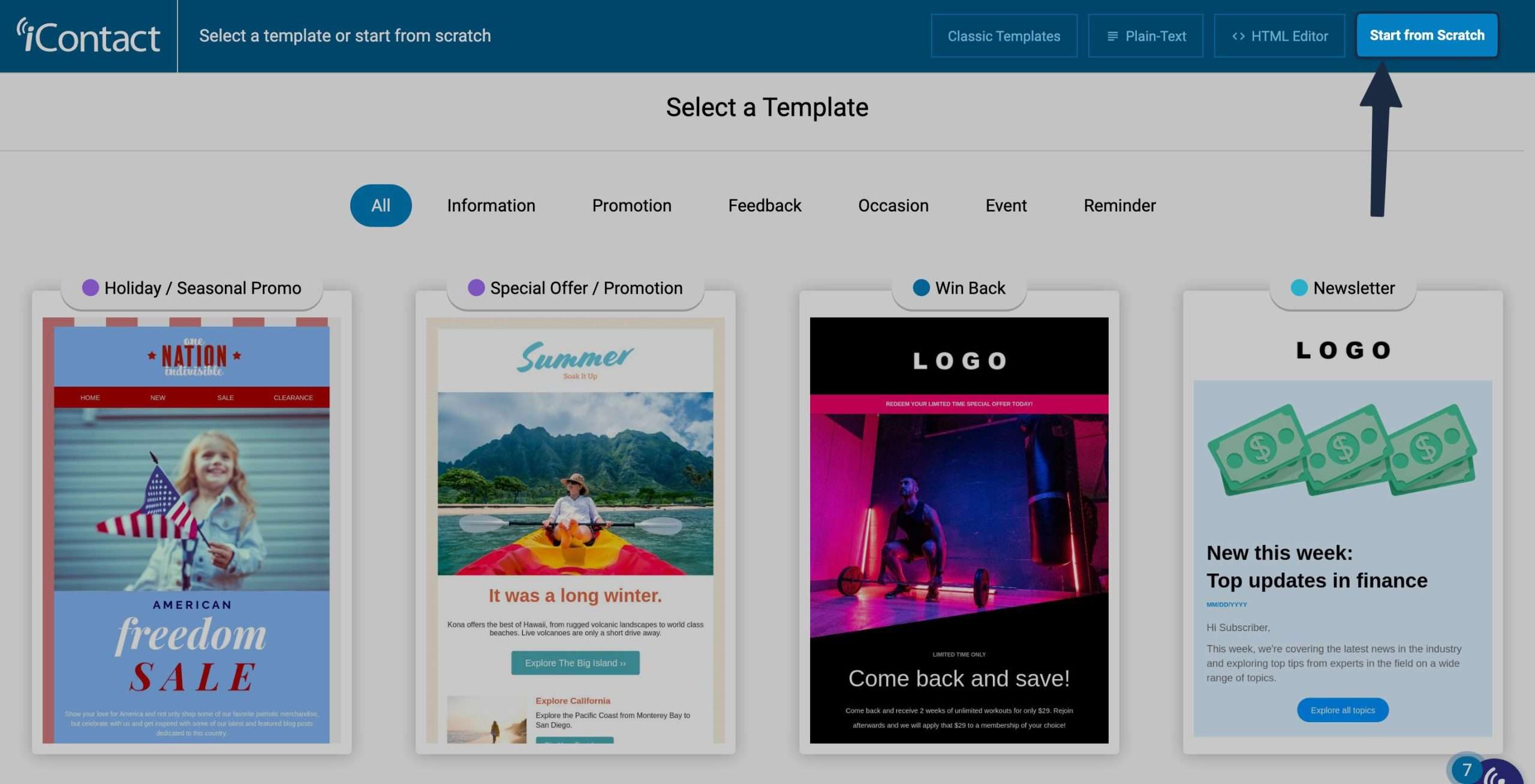
Their templates are divided into different categories for different occasions:
- Information
- Promotion
- Feedback
- Occasion
- Event
- And reminder.
If you wish to start from scratch, click on the start from scratch button.
iContact’s email editor will open up.
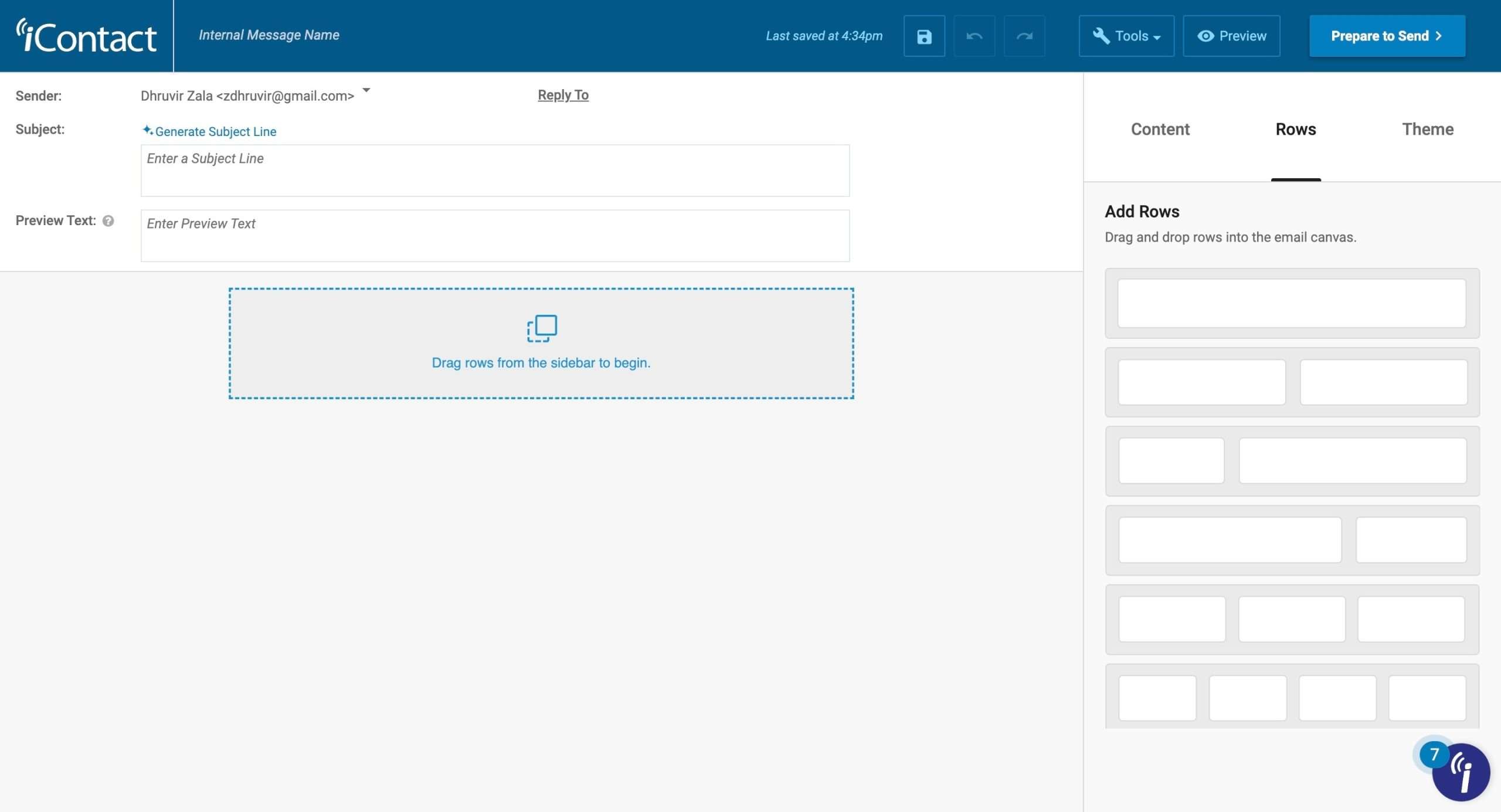
You can start designing your email campaign.
Start by dragging and dropping rows from the sidebar.
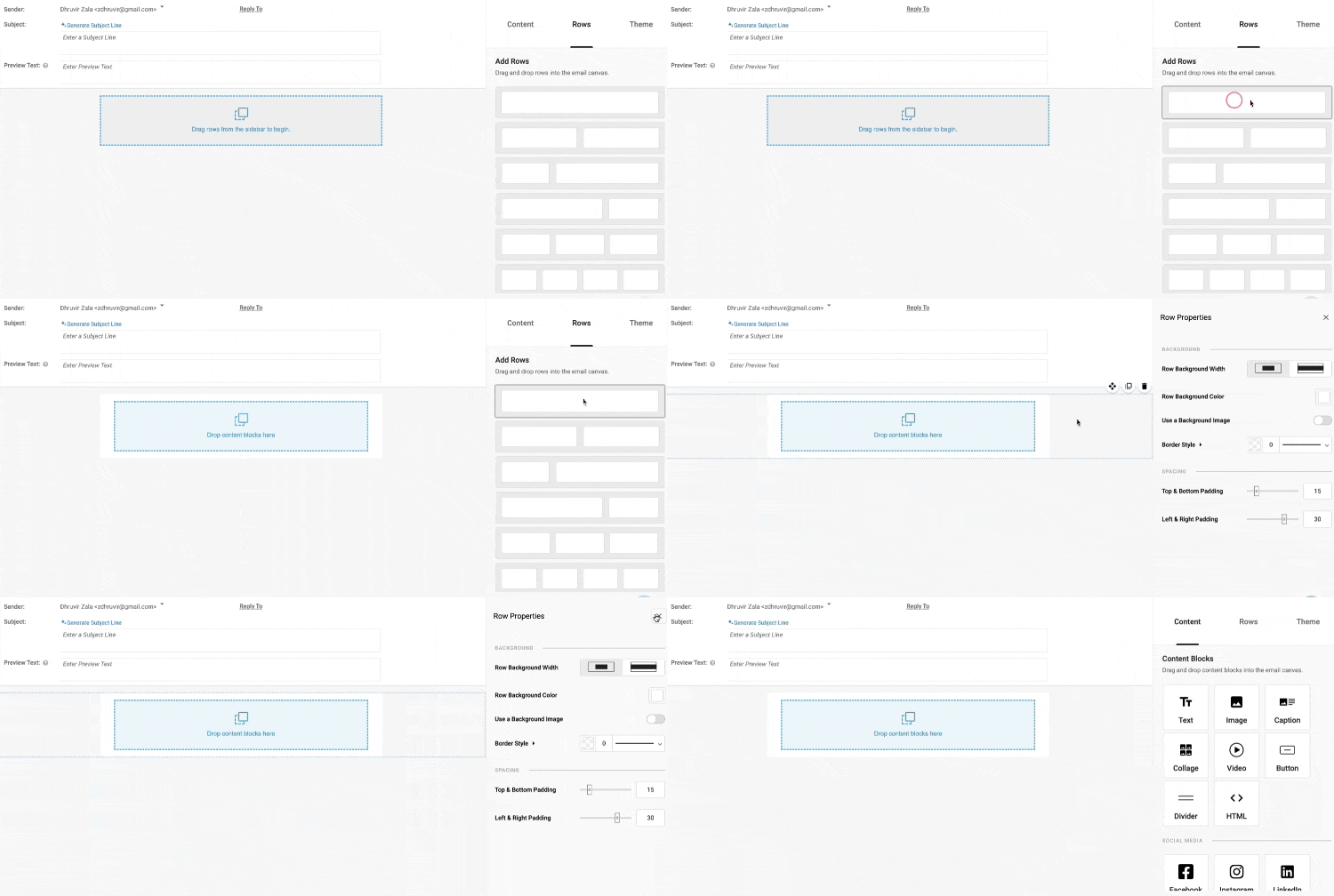
Then, insert the content blocks inside the rows.
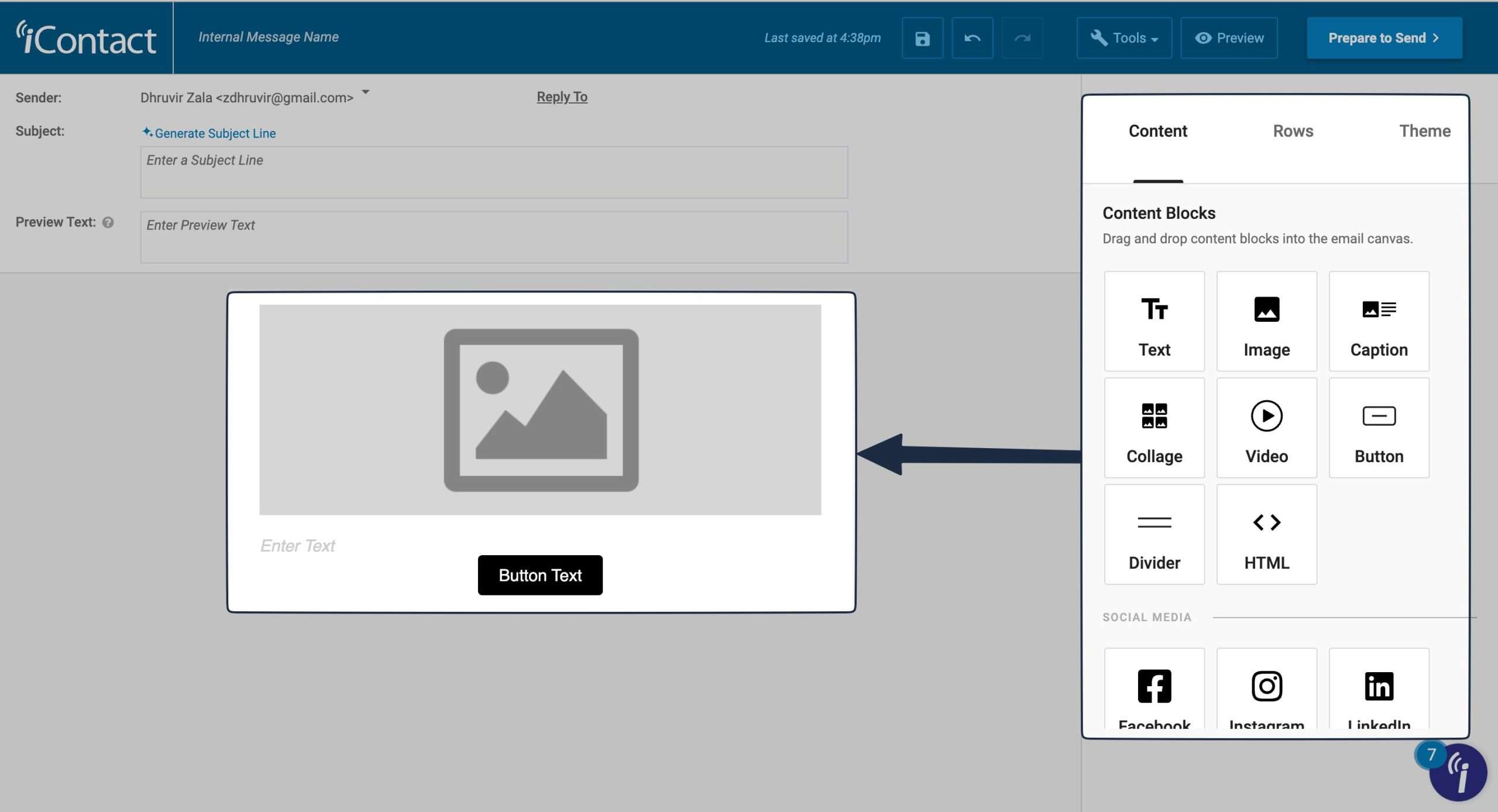
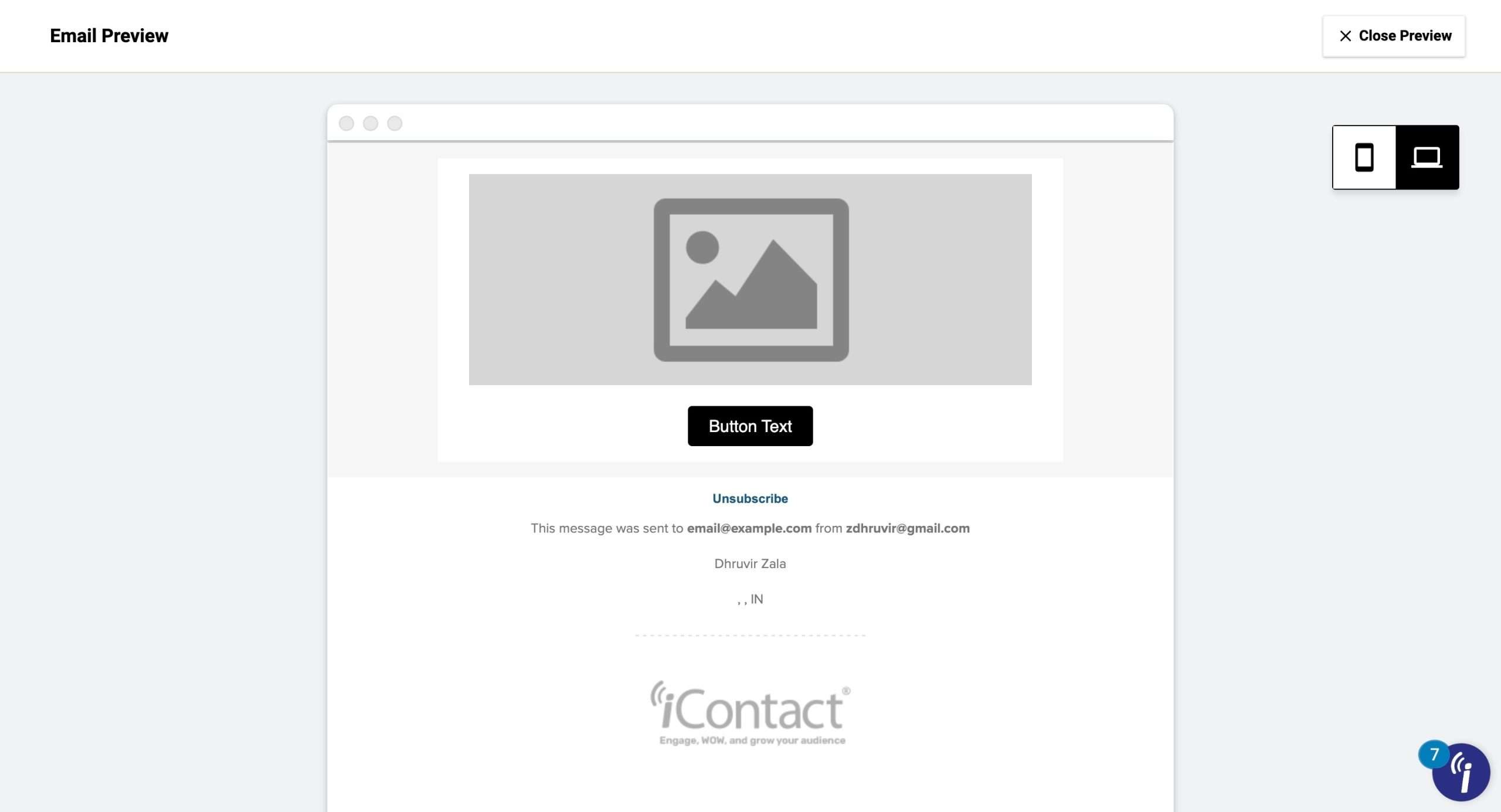
Once your email is ready, click on Preview. Your email will be previewed for both mobile and desktop devices.
There’s more to iContact’s email editor.
Click on Tools.
It will open up a bunch of useful email deliverability features. It includes, but not limited to,:
- Spell check
- Spam check
- Sent Test Message
- Create a split test
- Etc.
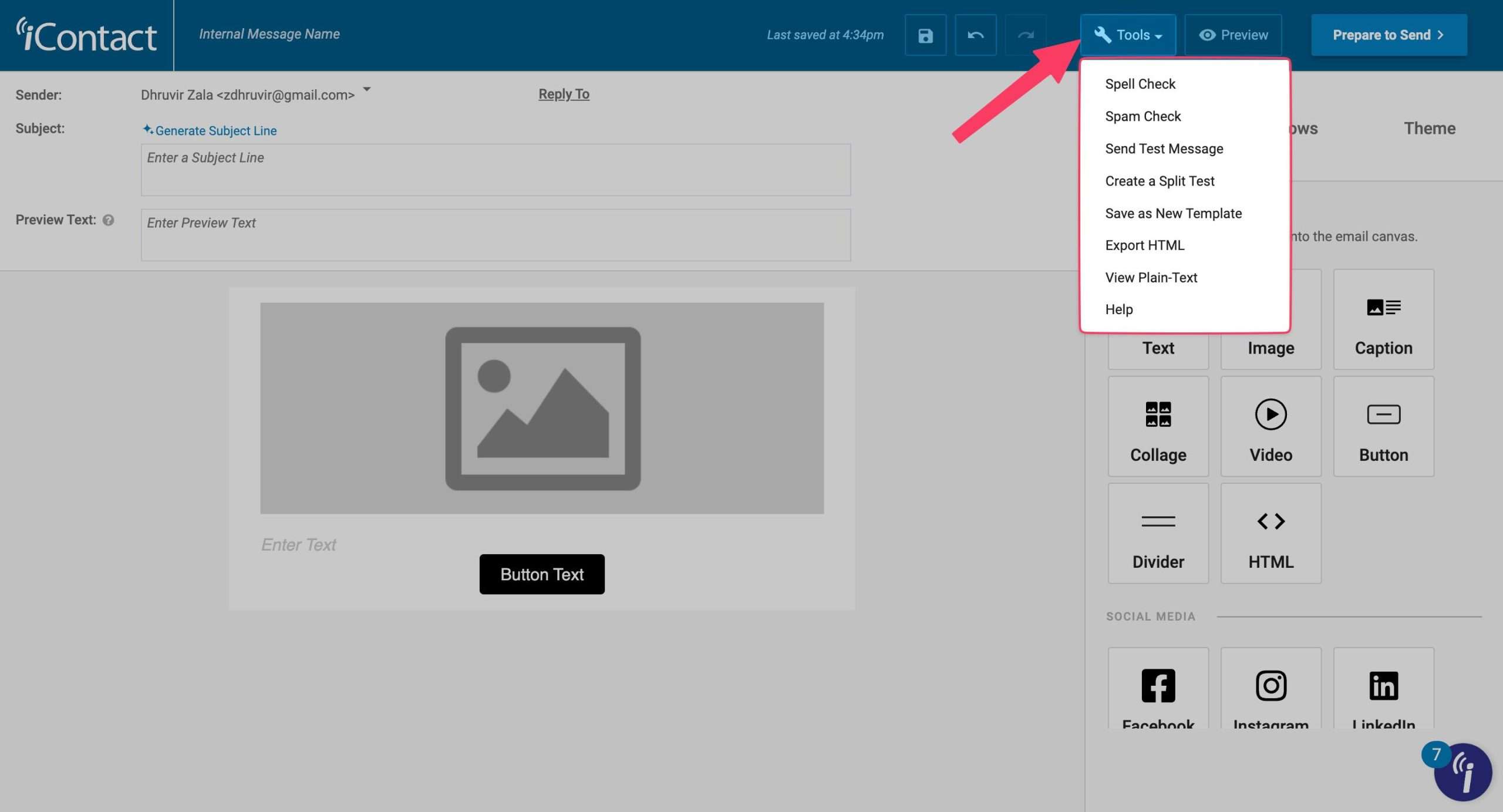
Features like spelling and spam checks are especially useful and a huge time saver.
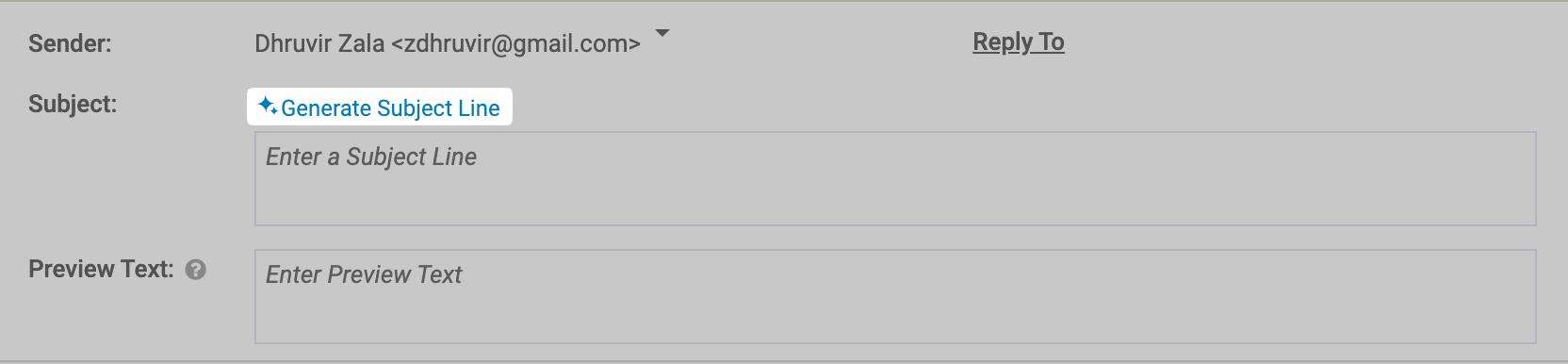
iContact also comes with a subject line assistant (paid feature). Based on the context of your content, their generative AI will create an email subject line for you.
Furthermore, you can also tweak the theme settings.
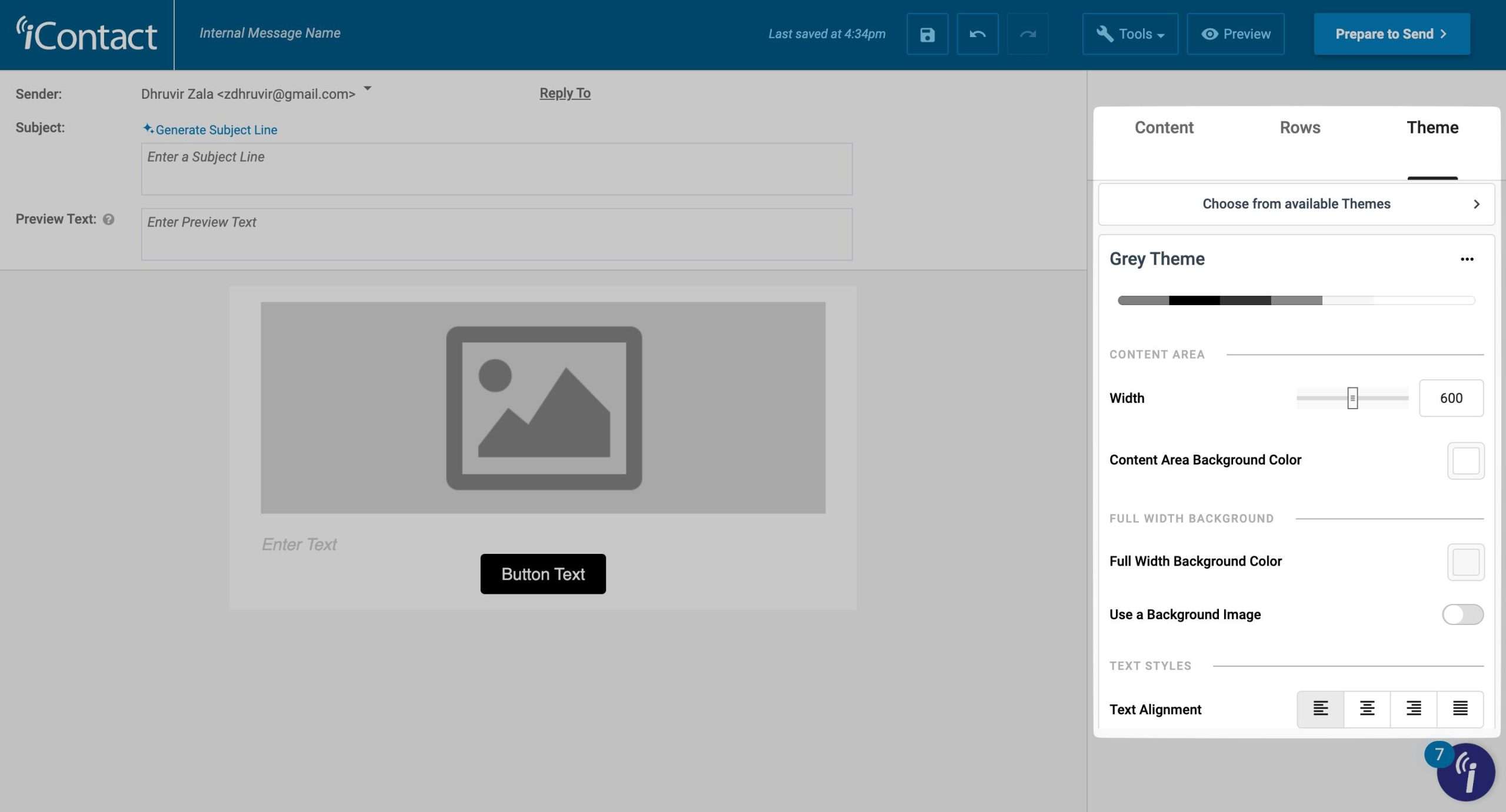
You can choose from countless theme options, adjust content width, content area background color, text alignment, and plenty more.
Email Automation
iContact enables you to create conditions-based automation where your emails will be sent to an appropriate target audience whenever certain conditions are met.
Head over to Automation and click Create an Automation to get started.
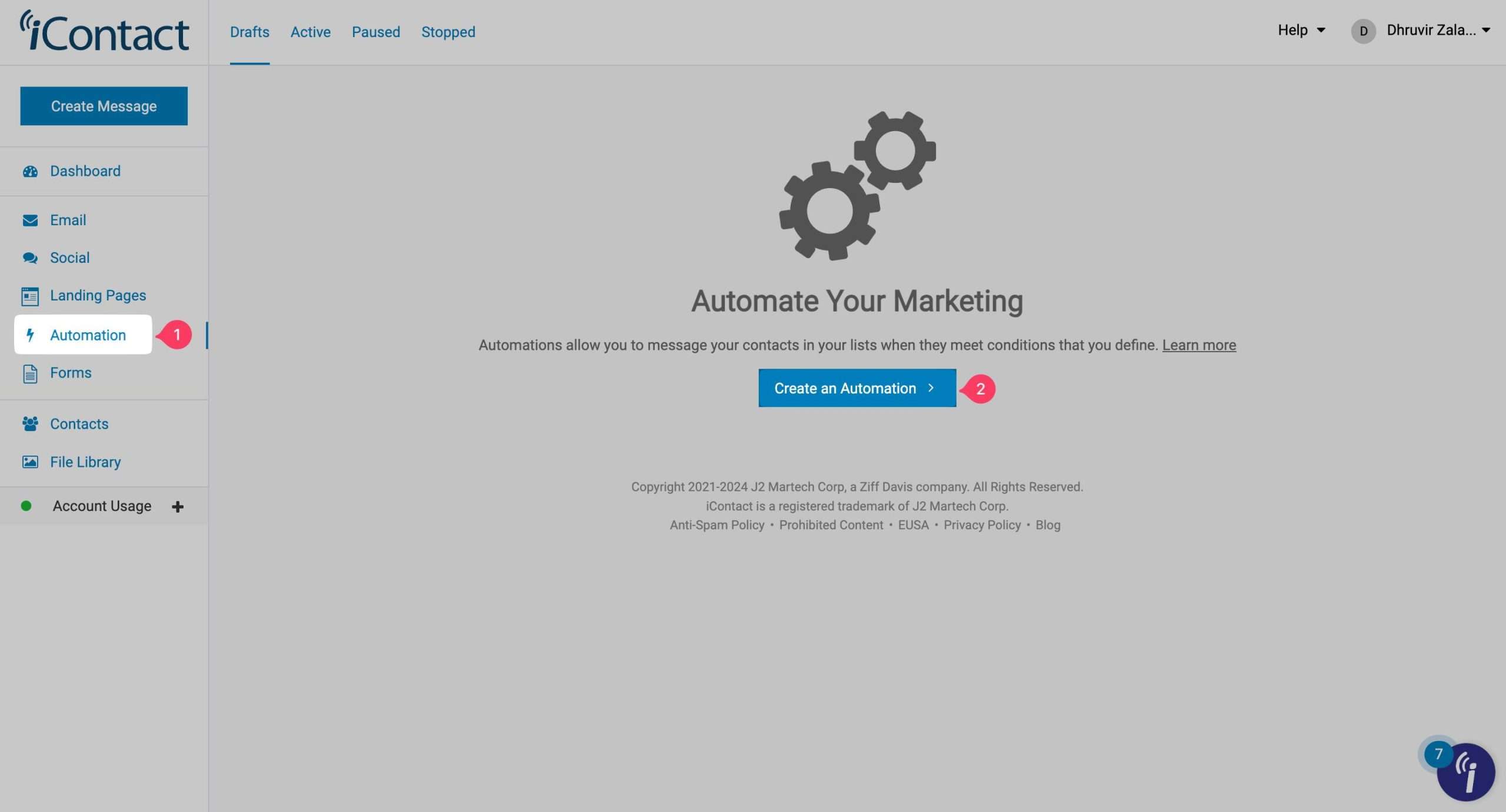
As of writing this, iContact has four automation triggers:
- Subscribe event: whenever a new subscriber joins your email list.
- Segment Qualification: When specific conditions are met.
- Specific date: Triggered on a specific mentioned date.
- Custom Date Field: When the subscriber enters the date inside a custom field.
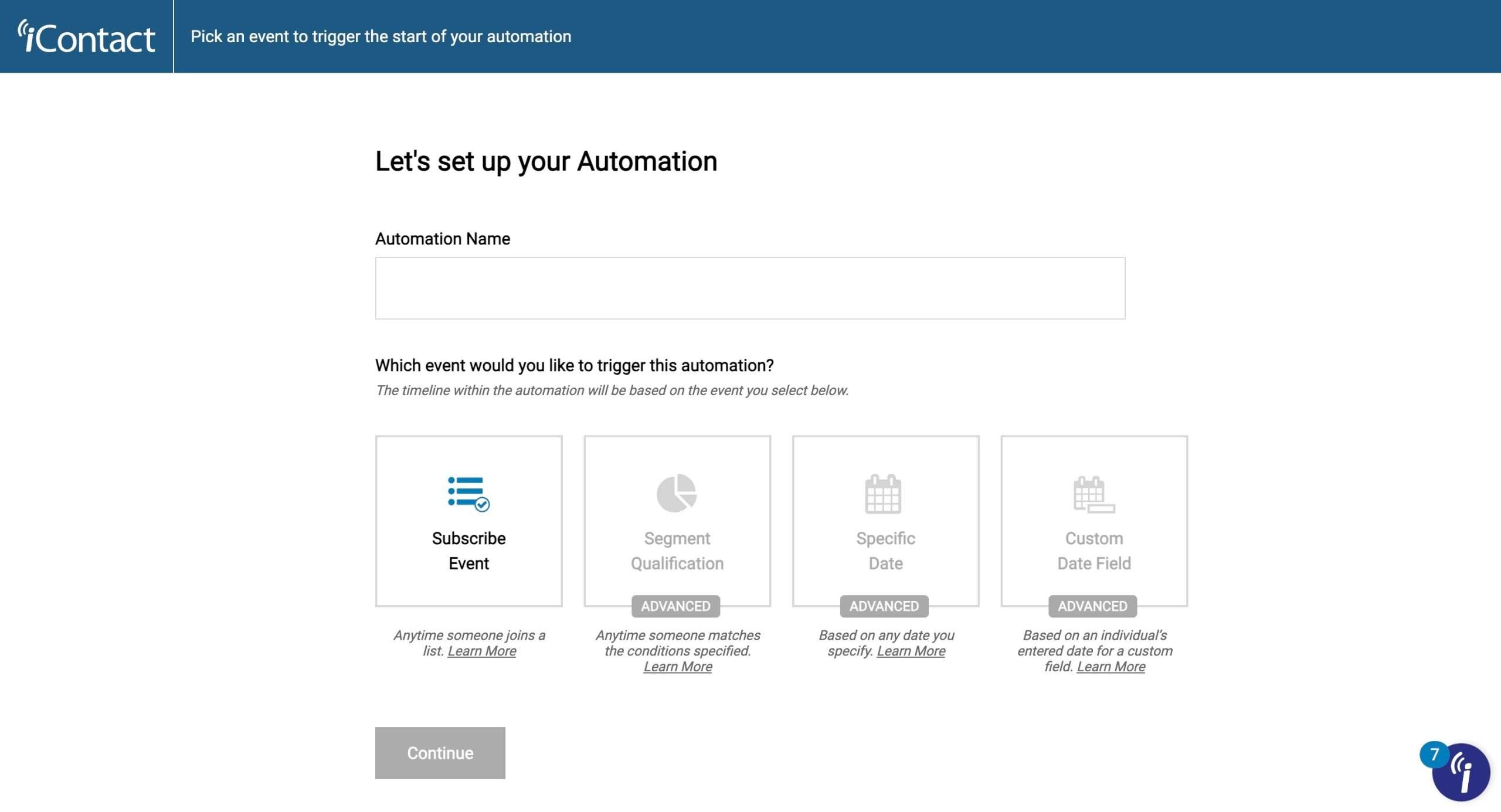
Give your automation a name and select your trigger. You will land on this automation page.
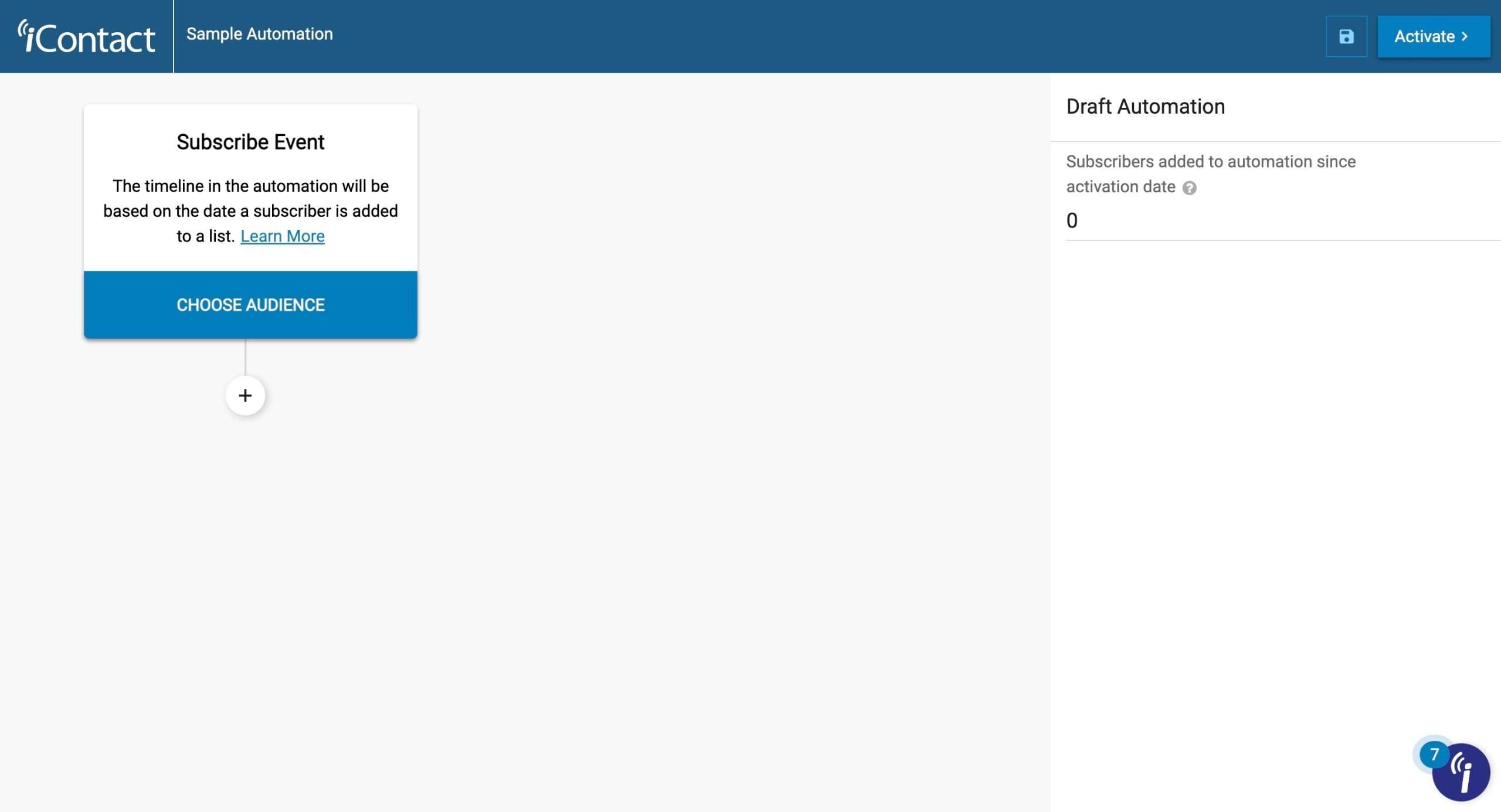
Start by choosing your audience. Then click on the plus icon to set the trigger.
Set the timing, condition, and action (email that you want to send) trigger.
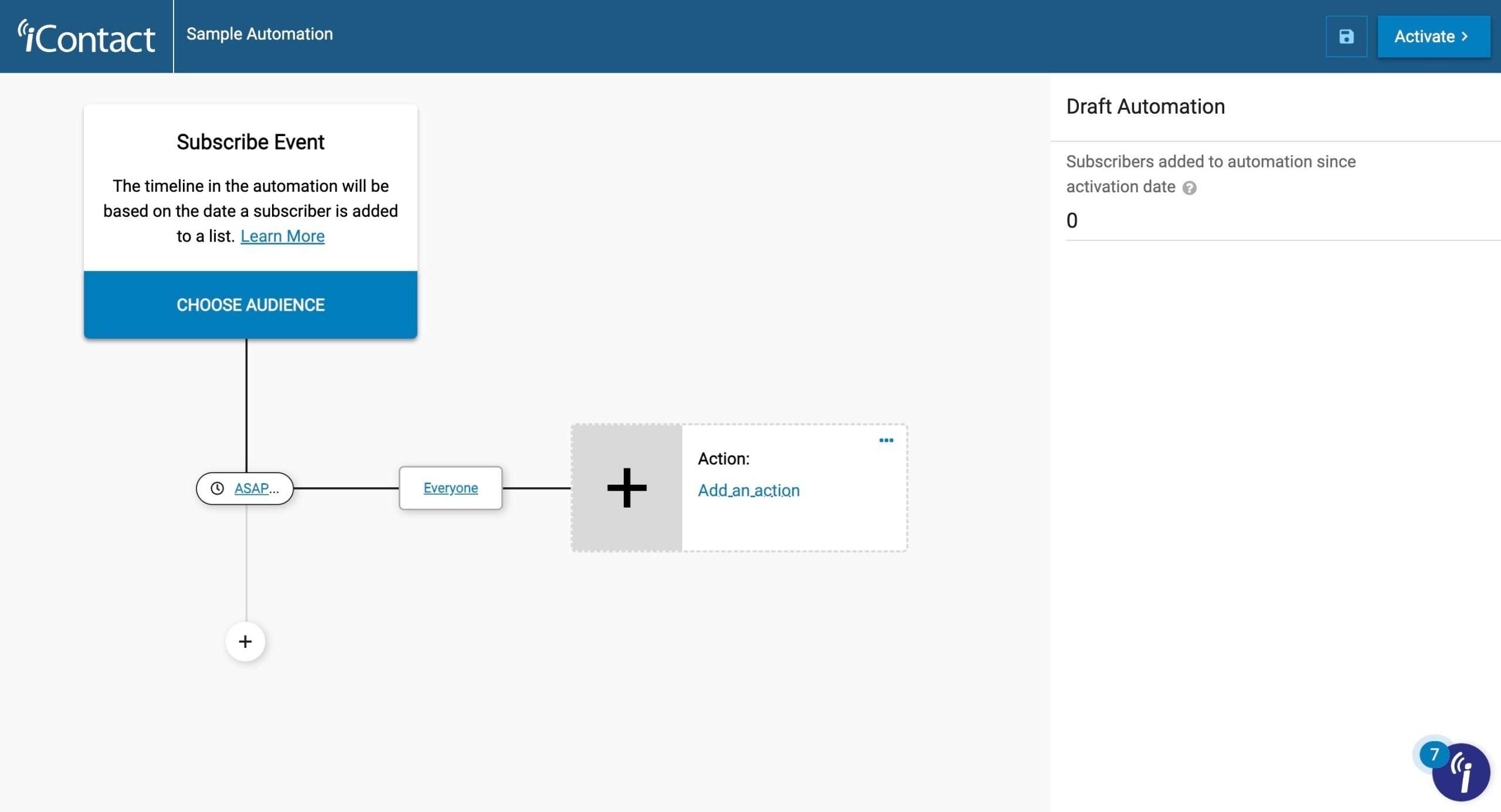
That’s all. Once you click on Activate, your automation will be up and running.
NOTE: Ensure that you send your DKIM records properly inside your DNS.
Forms and Landing Pages
iContact allows you to easily create both forms and landing pages.
Let’s look at each one.
Forms
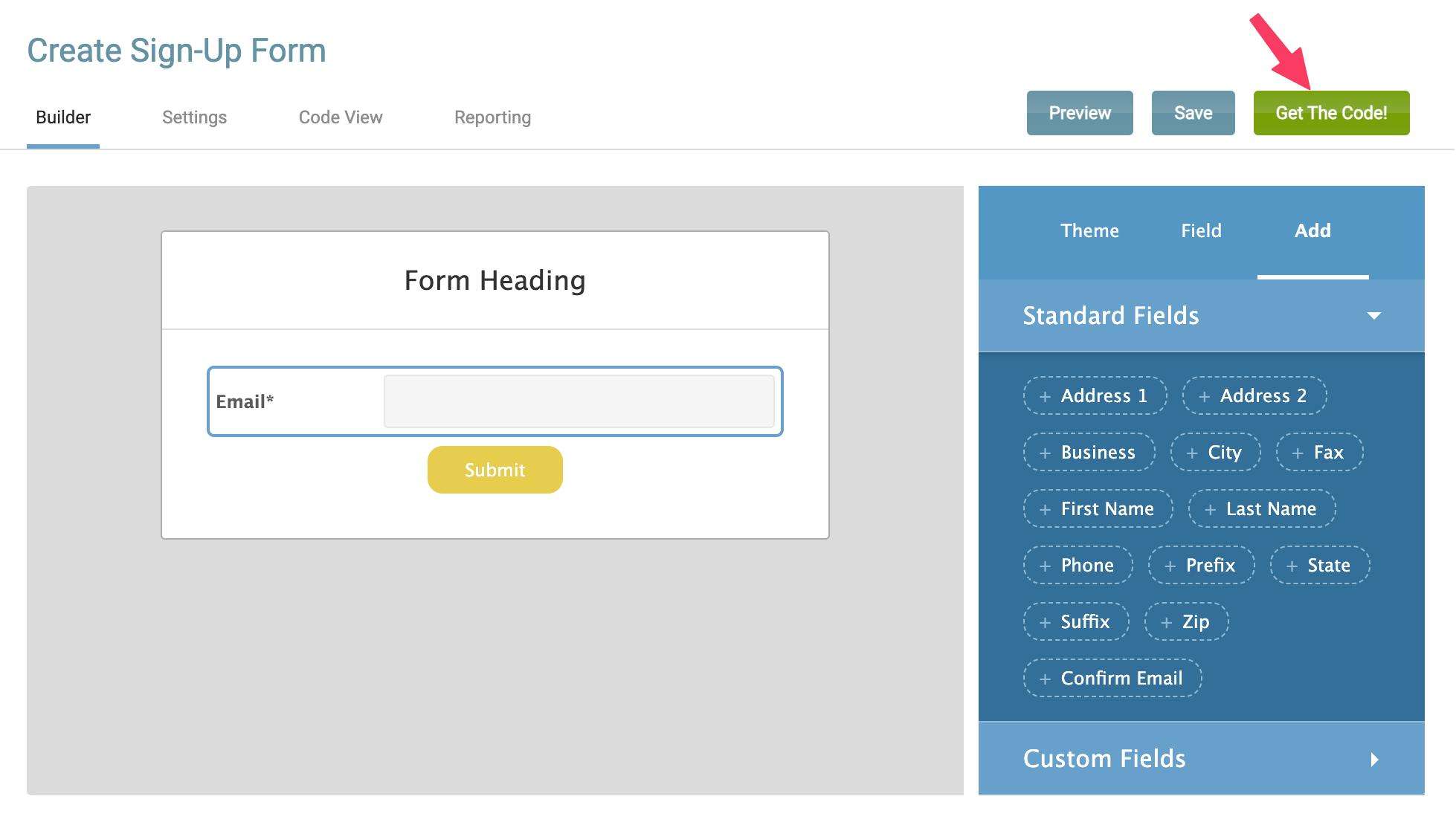
The following is the form builder’s interface:
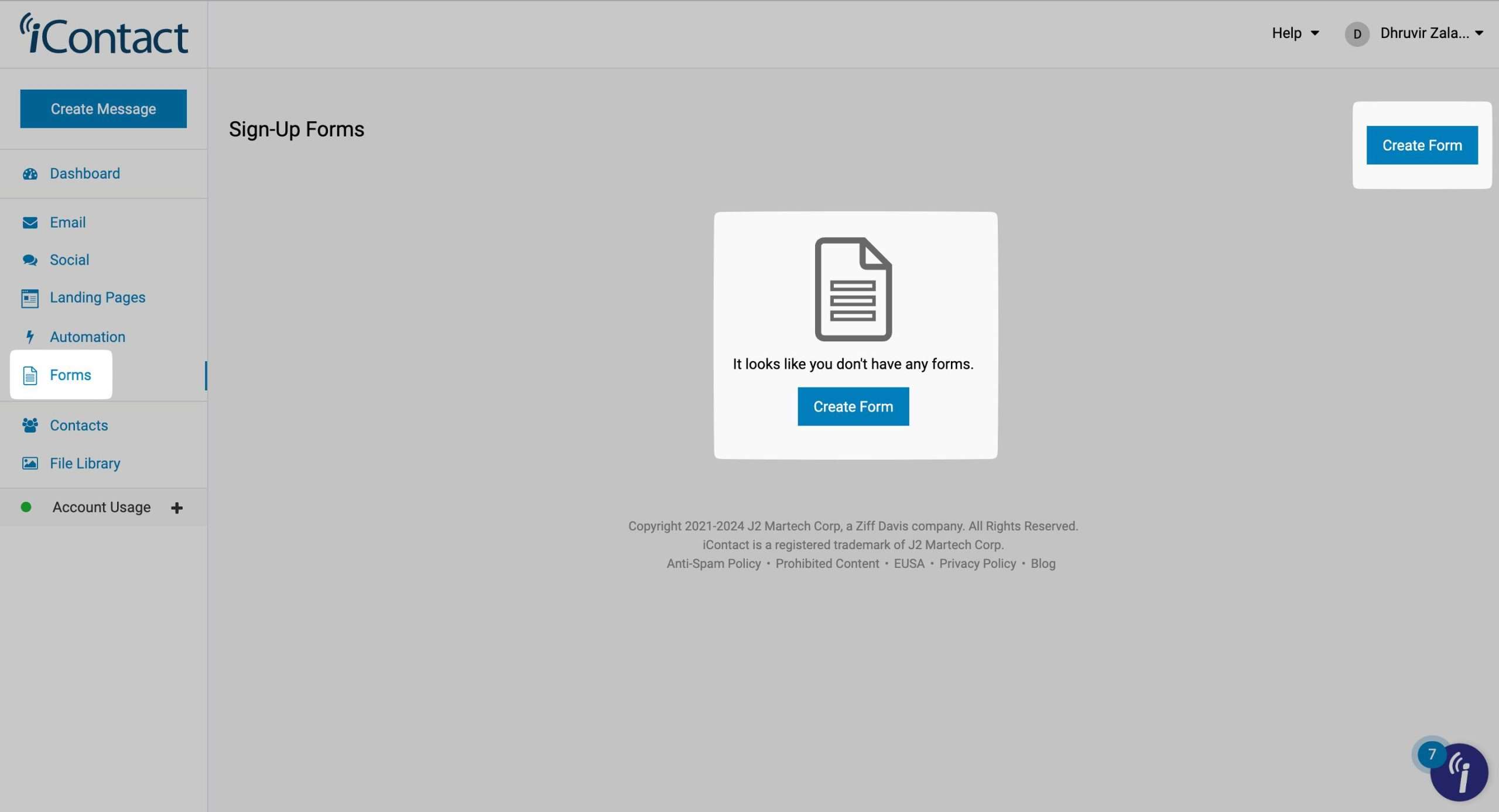
You can click on any form element to edit it.
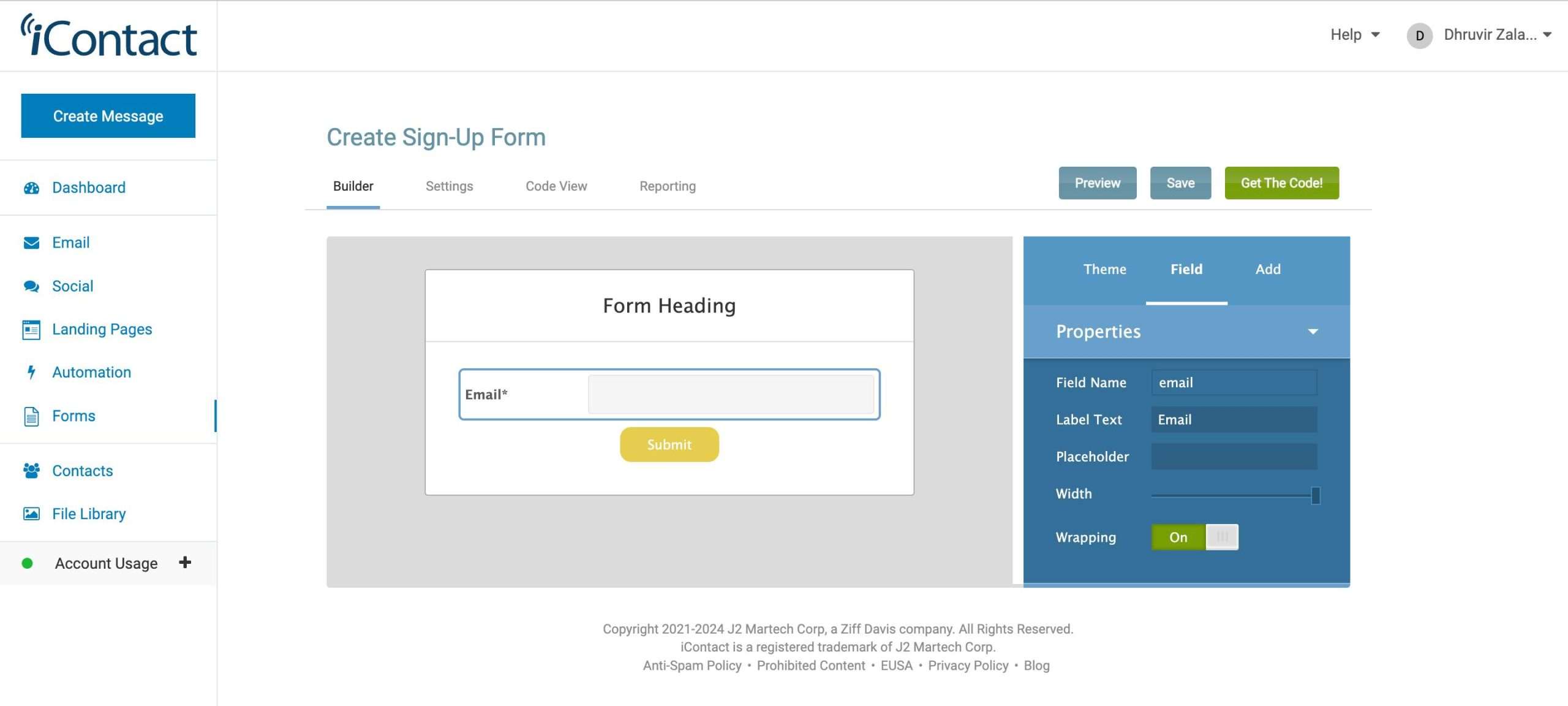
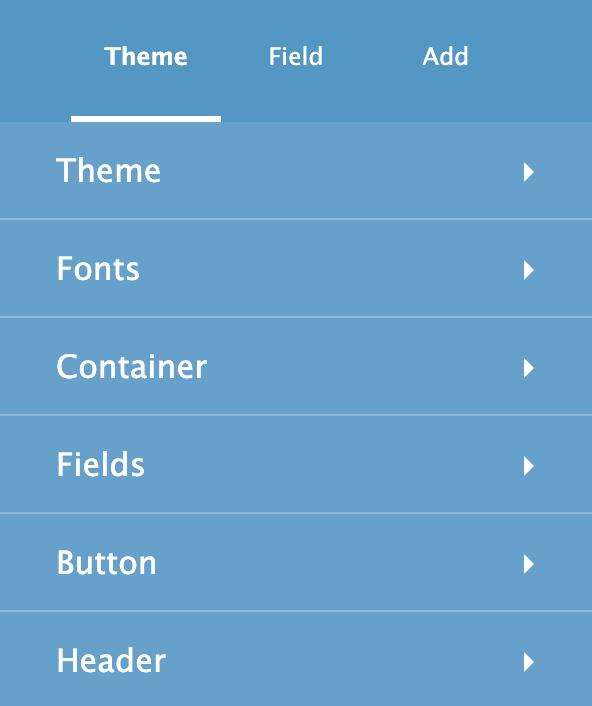
The blue-colored Theme section on the right comes with all the editing options.
It allows you to change the:
- theme
- fonts
- container
- fields
- button
- and header.
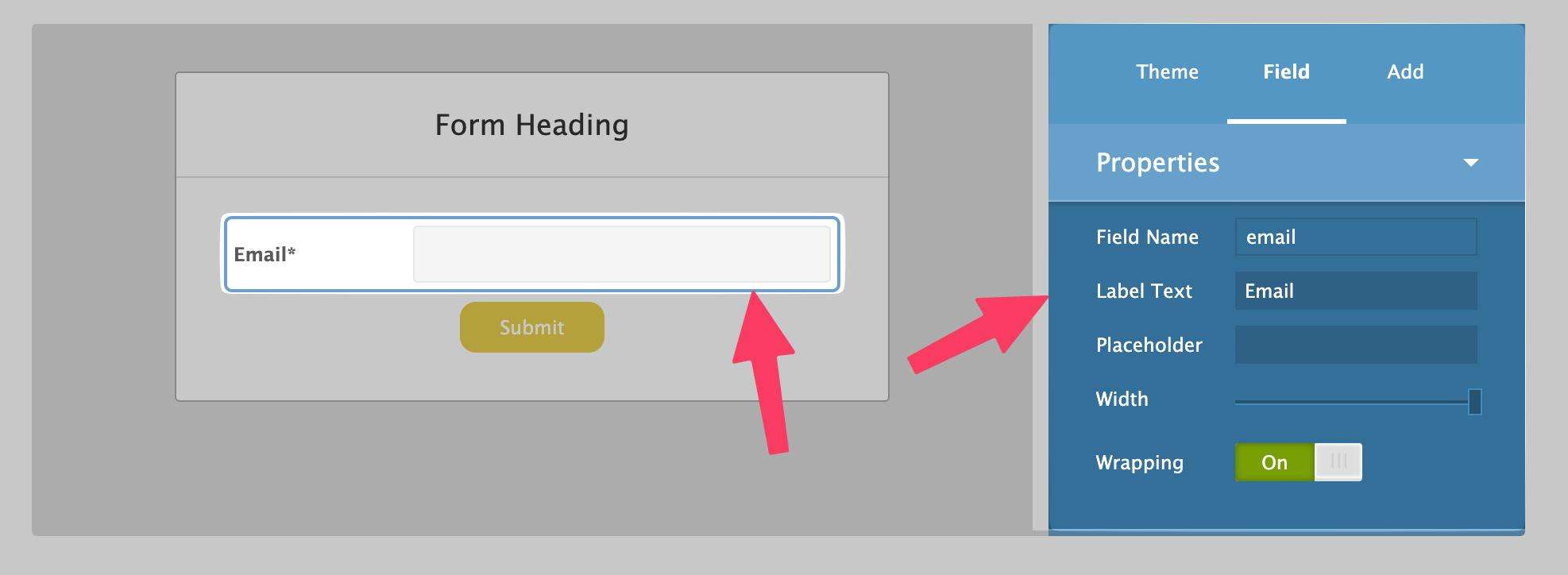
The Field tab allows you to further edit and adjust specific elements inside your form.
Finally, the Add tab speaks for itself. It has all the content blocks that you can add to your form. Things like first name, last name, city, phone, etc.
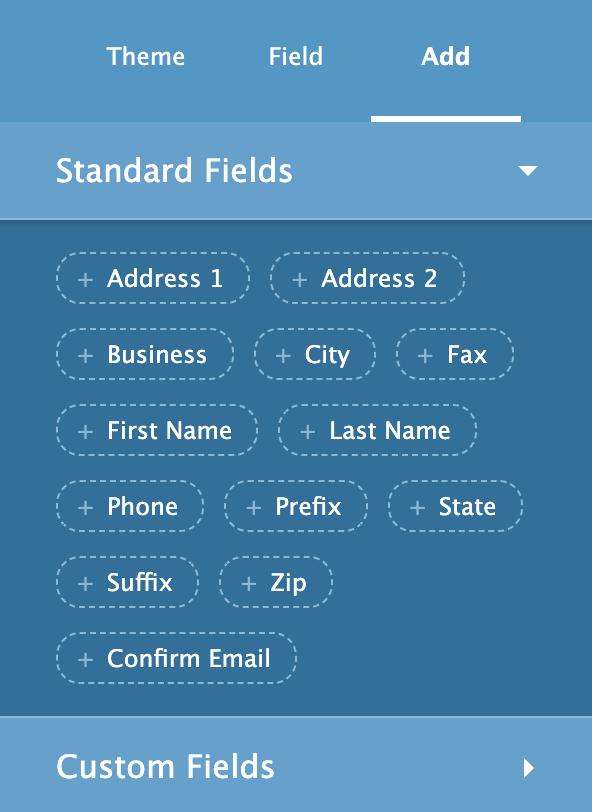
Once you save the form, click on Get The Code. You will be able to display this form anywhere on your website using this code.
iContact’s form versatility is quite limited when we compare it to tools like Mailchimp, Sender, GetResponse, and Convertkit.
This is because iContact, as of now, does not allow you to build different types of forms (condition-based, exit-intent popup, etc.)
Landing Pages
Like email, iContact also offers a lot of landing page templates. Or you can start from scratch.
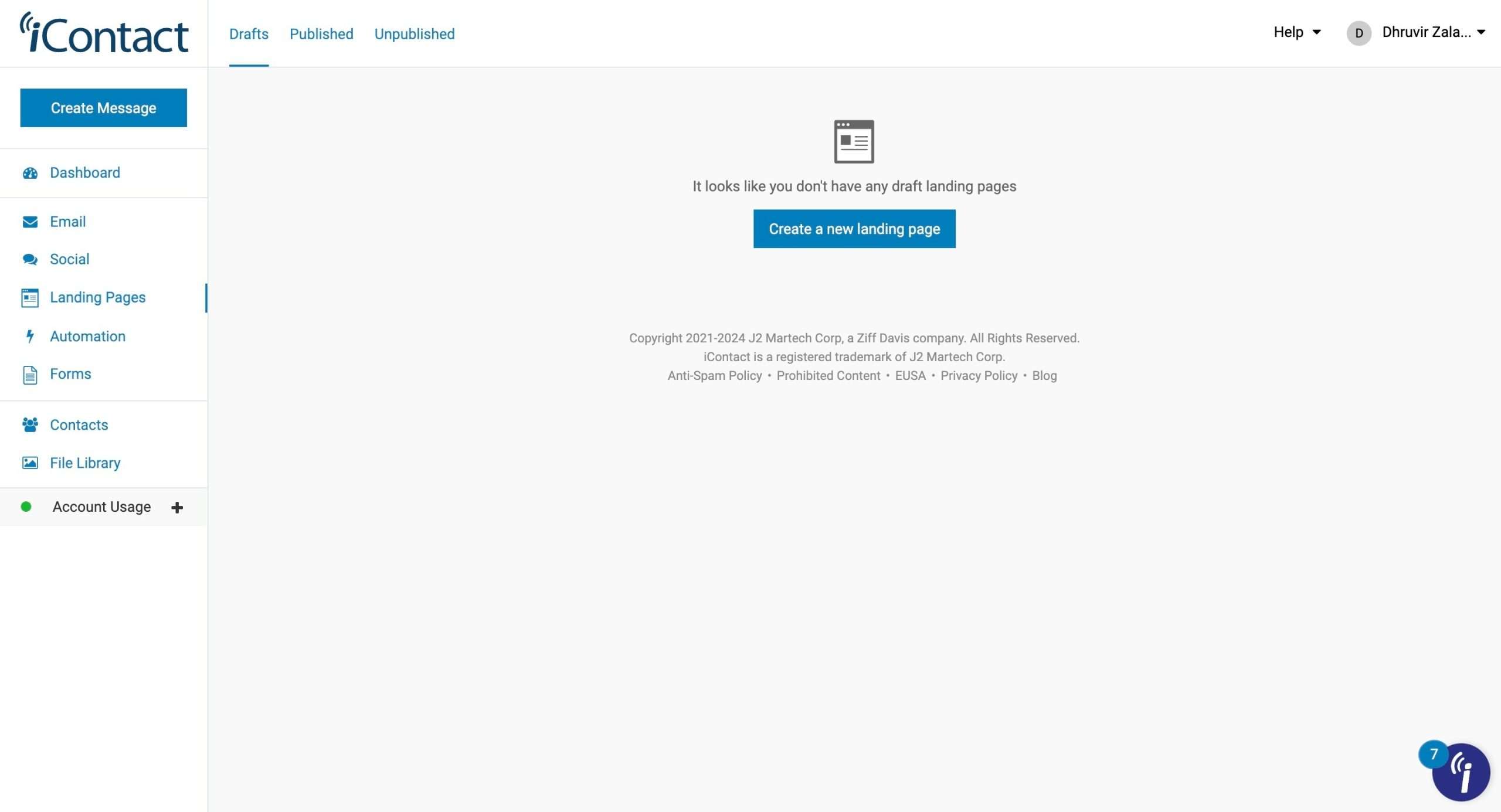
Double-click on any template and it loads up inside iContact’s editor.
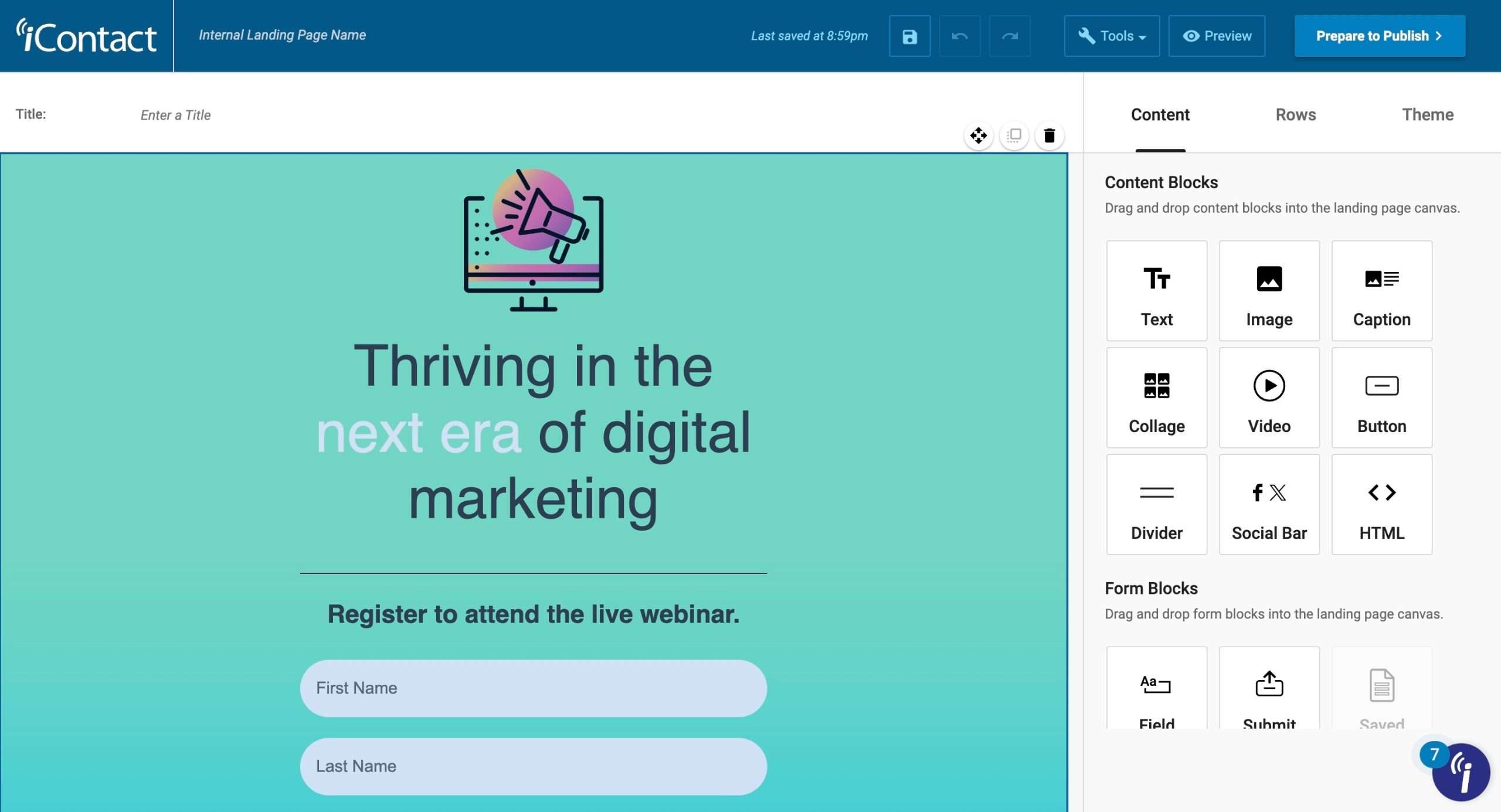
You can edit or move any part of the template.
Click on a text block, for example, and its settings will appear on the right sidebar.
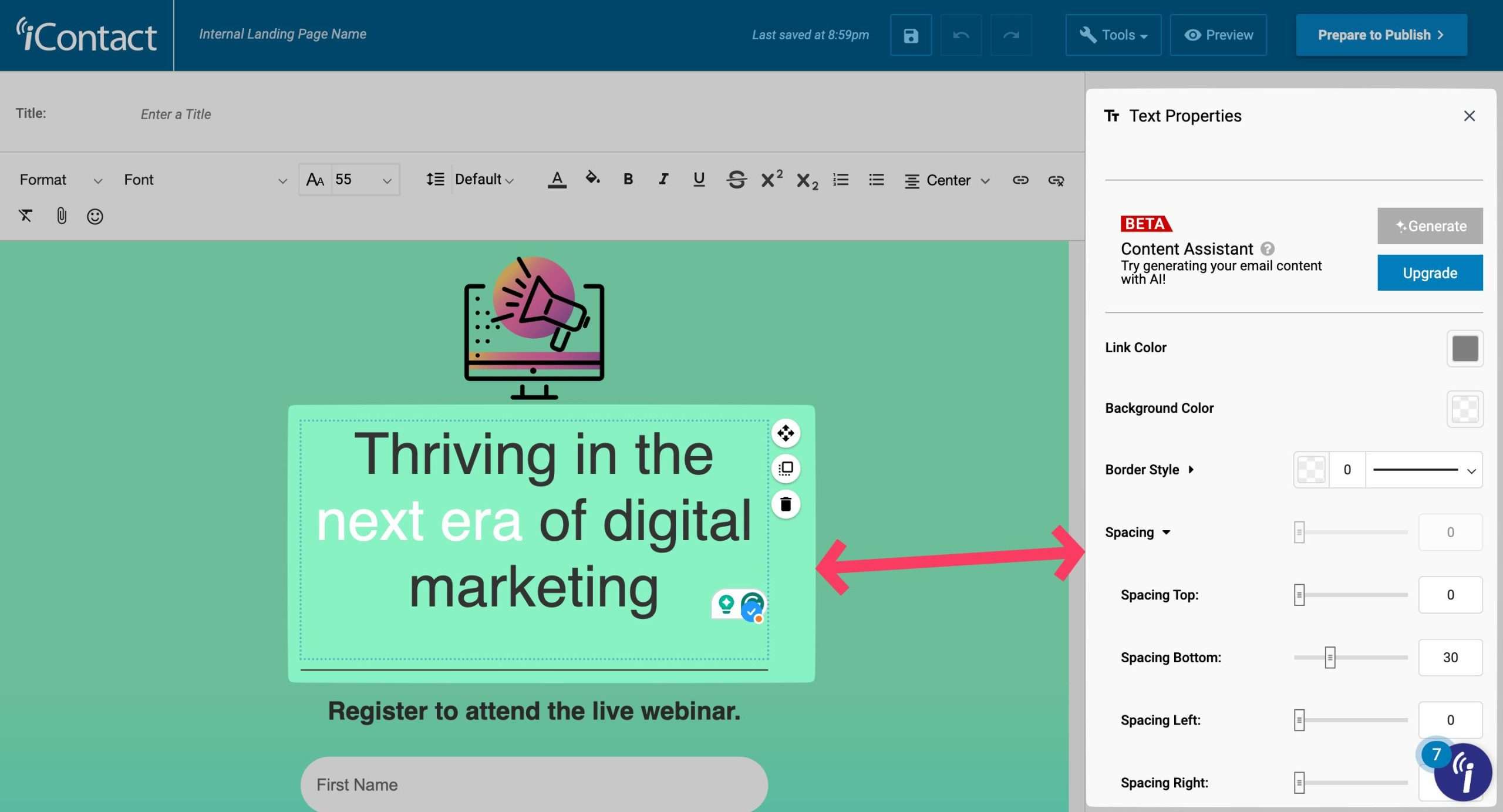
Adding new rows and content blocks is the same as the email editor.
The landing page also has a tools feature. But it only includes ‘spell check‘ and ‘save as new template‘ functionality.
That’s all. Once your landing page is ready, publish it after you have associated it with your email list.
Social Media Management
iContact recently launched a new “Social Creation and Posting” feature that allows you to create and publish social media content directly from iContact.
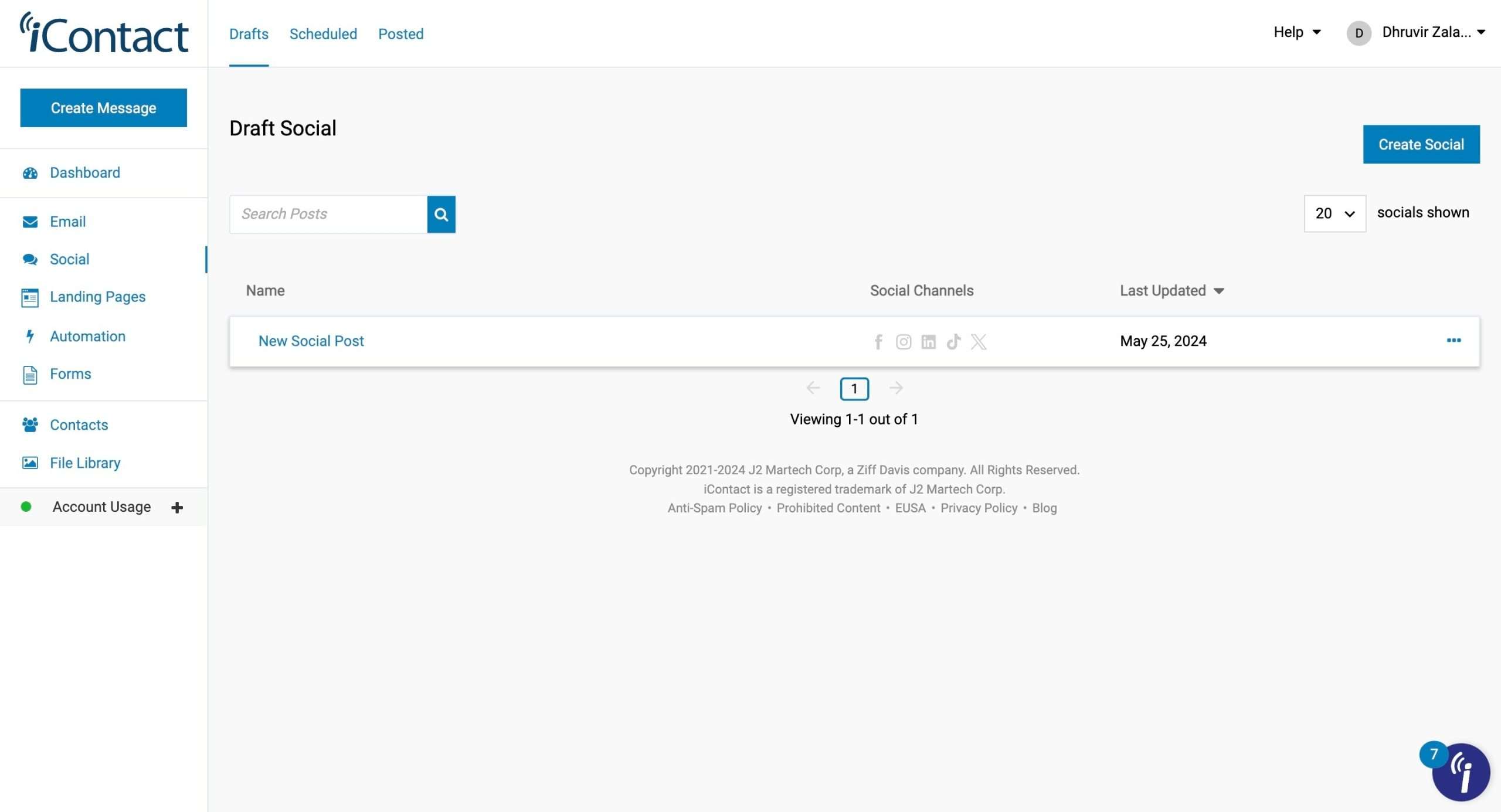
iContact uses artificial intelligence to help you generate engaging social media post copy, images, hashtags, and more. The AI provides suggestions to optimize content for each social network.
You can schedule social posts in advance and view all upcoming content in a built-in calendar.
Right now, iContact supports publishing to Facebook, Twitter, LinkedIn, TikTok, and Instagram. You can customize posts for each channel from one interface.
iContact even provides analytics to track key metrics like impressions, engagements, and audience growth for social posts.
I found iContact to be one of the very few email marketing platforms to integrate social media management as well.
A/B Split Testing
iContact’s Split Testing feature is a powerful feature that allows you to test different variations of your email campaigns to determine what resonates best with your subscribers.
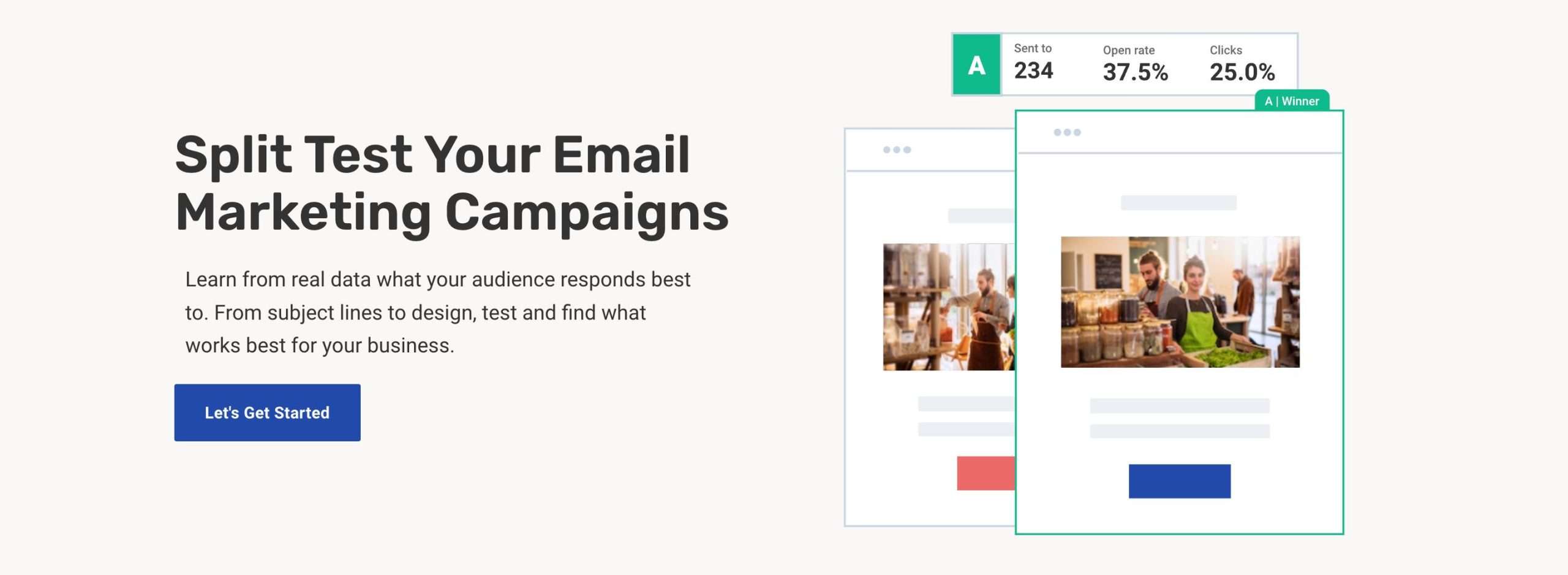
With split testing, you can experiment with elements like:
- Subject lines: Test different subject line content and lengths to see what drives the most opens.
- From names/addresses: See which sender name and email address get the highest engagement.
- Content: Try out different types of content to learn what your subscribers prefer to read
- Call-to-action (CTA) buttons: Determine which CTA text and designs generate the most clicks and conversions.
- Send times: Find the optimal time to send your campaigns for maximum results.
iContact makes split testing easy by allowing you to test on just a portion of your list before sending the winning version to your full audience.
Integrations
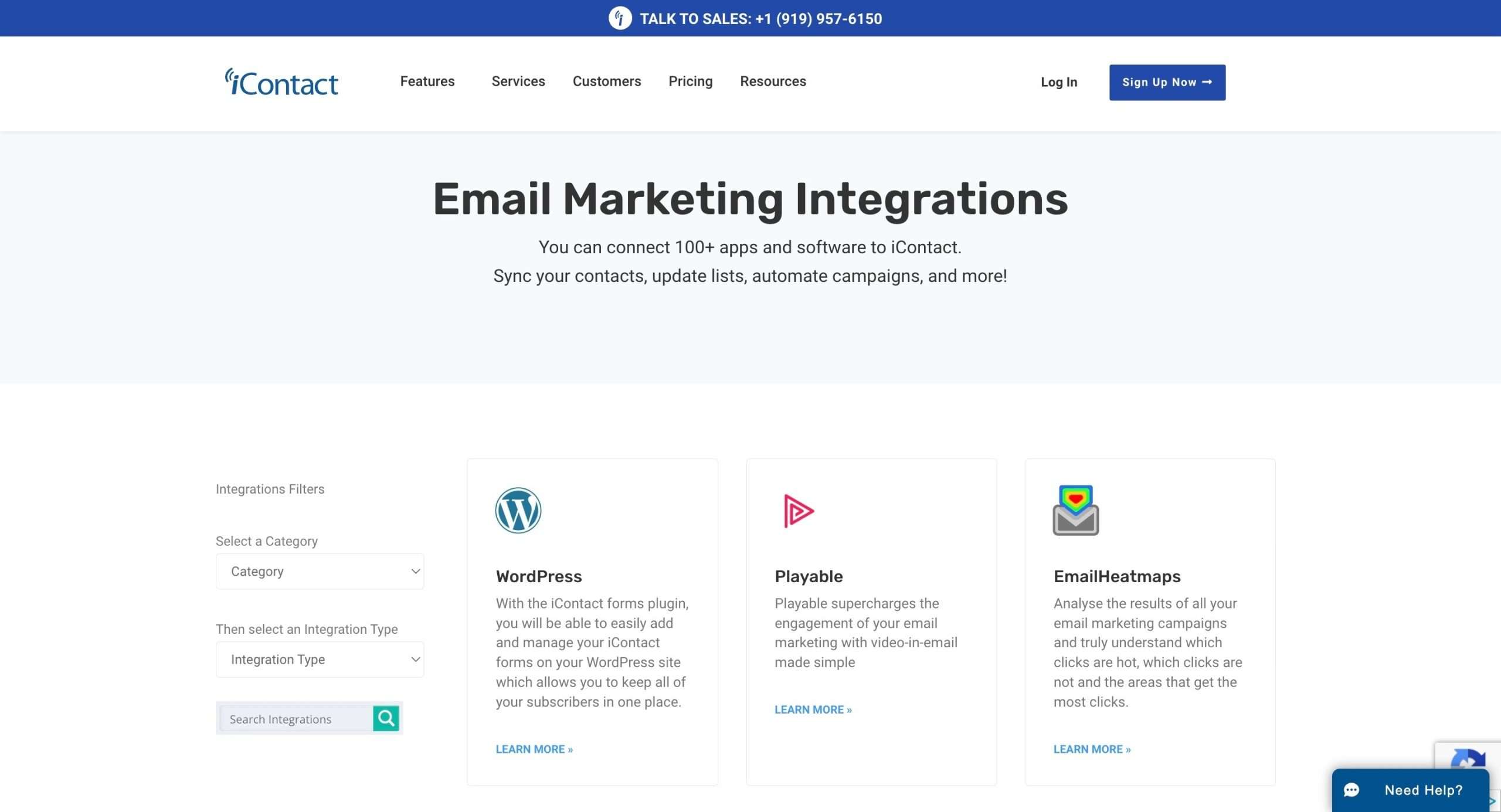
iContact allows you to connect your account with over 100 other apps and services you may already be using.
This enables you to sync your contacts, update email lists, automate campaigns, and more between iContact and the integrated tools.
Some of the key integrations iContact supports include:
- Zapier: Connects iContact with over 6000 apps. Allows setting up automated workflows between iContact and other tools without coding.
- Salesforce: Enables syncing Salesforce customer data with iContact and building email campaigns from within the Salesforce interface.
- WordPress: Provides a plugin to easily add and manage iContact subscription forms on WordPress websites.
- Microsoft Outlook: Allows managing email contacts in Outlook and syncing them to iContact.
- Zoom: Helps stay connected with customers and subscribers via Zoom video conferencing.
Other notable integrations include Follow Up Boss for real estate businesses, Calendly for scheduling, Squarespace and Webflow for building websites that connect with iContact, and Unbounce for creating landing pages.
You can set up triggers to automatically pass information between iContact and integrated apps.
iContact Price and Plans
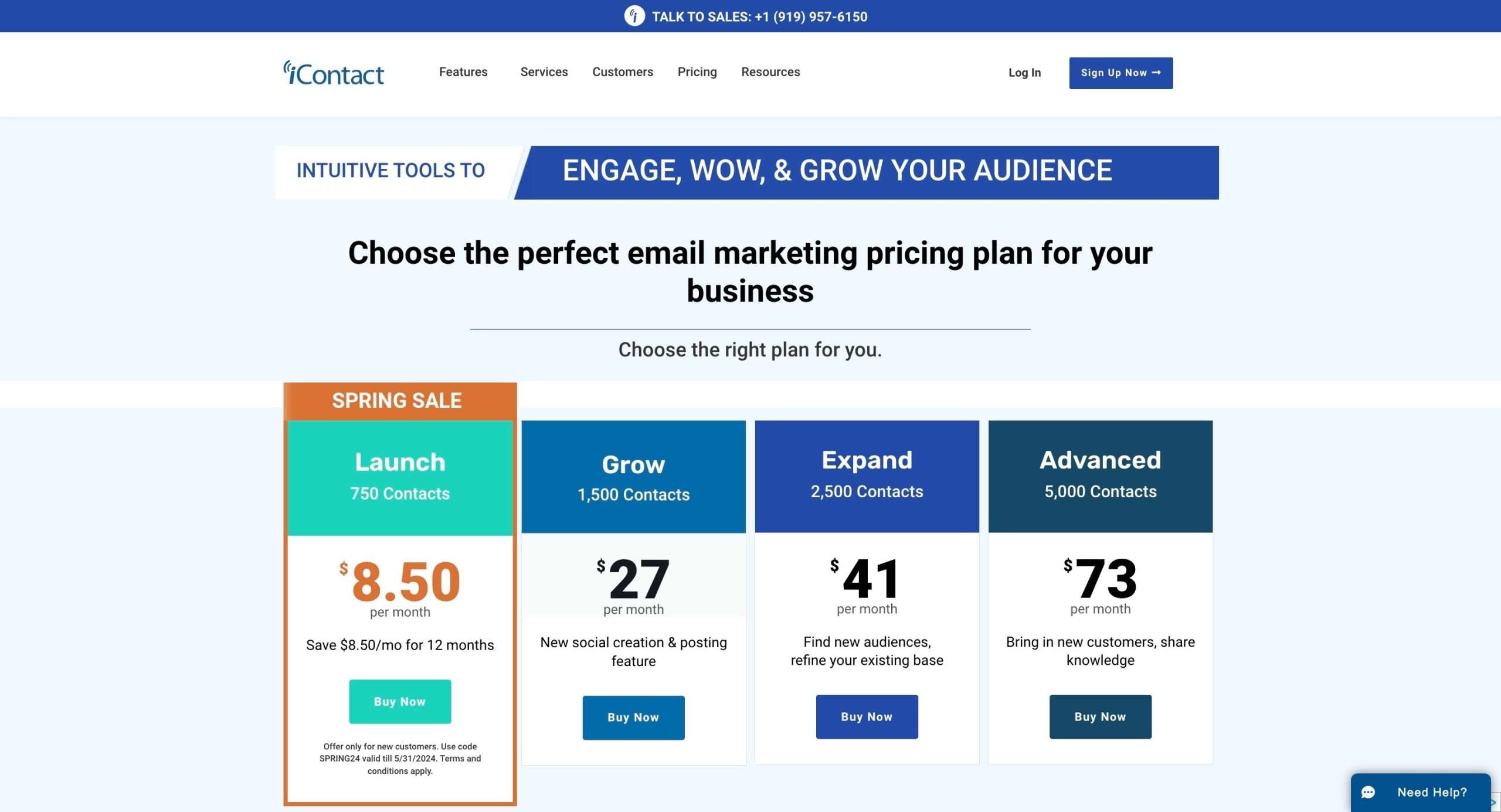
Besides the free plan with 250 contacts and 500 emails per month, iContact has 4 main plans:
- Launch: Starts at 8.5/month for up to 750 contacts
- Grow: Starts at $27/month for up to 1,500 contacts
- Expand: Starts at $41/month for up to 2,500 contacts
- Advanced: Starts at $73/month for up to 5,000 contacts
The prices go up based on how many contacts you have.
Is iContact The Email Marketing Tool For You?
There you have it—a complete review of iContact, an email marketing platform built for small businesses like yours.
What really stands out is how user-friendly iContact is. The clean interface is beginner-friendly, so even those with zero experience can get up and running quickly.
Sure, it may not have all the features of enterprise-level platforms. But it delivers the essentials at a price small businesses and solo entrepreneurs can afford.
If you’ve been struggling to find an affordable, simple email marketing solution for your small biz, give iContact a shot.
Sign up for their free plan now and see for yourself how hassle-free email marketing can be.


 A better way to manage projects and clients for freelancers
 Get through busy days like a breeze with Reclaim.ai