
Ever created a server on Discord?
Discord can support multiple channels and an unlimited number of members on one server.
That makes Dircover a great option for growing your audience base.
But managing that audience is another thing entirely.
That’s why many struggle to monitor several channels, not to mention their members’ activities.
Enter Carl-Bot.
Carl-Bot makes it easy for you to control your channel’s activities and moderate members.
How?
In this guide, I will tell you everything you need to know about Carl-Bot.
Before I get started, let me give you a little background on Discord for those just familiarizing themselves with it as we speak.
Discord—A Social Platform
Discord is a social app similar to Slack or Skype, but it serves a different purpose.
For example, imagine online gamers who want to connect on a platform to talk about Fortnite. What type of platform would you envision for them? That was the thought behind Discord’s creation.
Discord was exclusively built for Gamers before it attracted social clubs, influencers, and ultimately brands. Now, it is slowly gaining popularity, and companies are using this social network for marketing.
Discord basically brings together like-minded people and gives them a space to discuss their common interests.
With that covered, let’s get back to Carl-Bot and see how it can help you effectively run your Discord server.
What is Carl-Bot?
A Carl-Bot is a digital handyman you add to your Discord server to manage menial tasks for you.
For example, you want to drop a message every time someone enters or leaves. Or you want to keep the authority to ban members.
You can do both with a Carl-Bot.
The bot essentially allows you to preset welcome messages, assign roles to selected members, give customized commands, log activities, and perform tons of other useful actions.
In other words, Carl-Bot can save you time.
As a marketer, you can use this app to auto-set basic tasks, so it leaves you time to nurture your leads.
Carl-Bot might feel a little more advanced if you are used to other basic bots like Dyno, but it offers some incredible automation features you’d definitely like.
Core Features of Carl-Bot
- Reaction roles
- Custom commands
- Automod
- Logging
- Preset messages
- Gamification
- Alerts
- Autopurge
- Customization
I have covered five core features of Carl-Bot to help you get started. Once you have a general idea of what to expect, you can explore more functions.
Five Major Features of Carl-Bot
1. Auto-Role / Reaction Role Assigning
As a Discord server owner, you can delegate some of your control to any member by giving them certain roles in the community.
Carl-Bot provides you with the option to assign roles based on emoji reactions. This action is called a reaction role.
Say you want to reward your active members by granting them certain privileges. You can set emojis as a trigger.
Now, anyone responding to a pink heart Emoji will be automatically assigned a fan role. The roles are typically permanent by default, unless you set a timer. Once the time expires, they are removed from the role.
Reaction roles can be incredibly satisfying for both you and your audience. It lets your members feel like they’re an important part of your community and optimizes your time.
You can get up to 250 roles in the free plan and around 1000 in the premium plan.
How to set up Reaction Roles
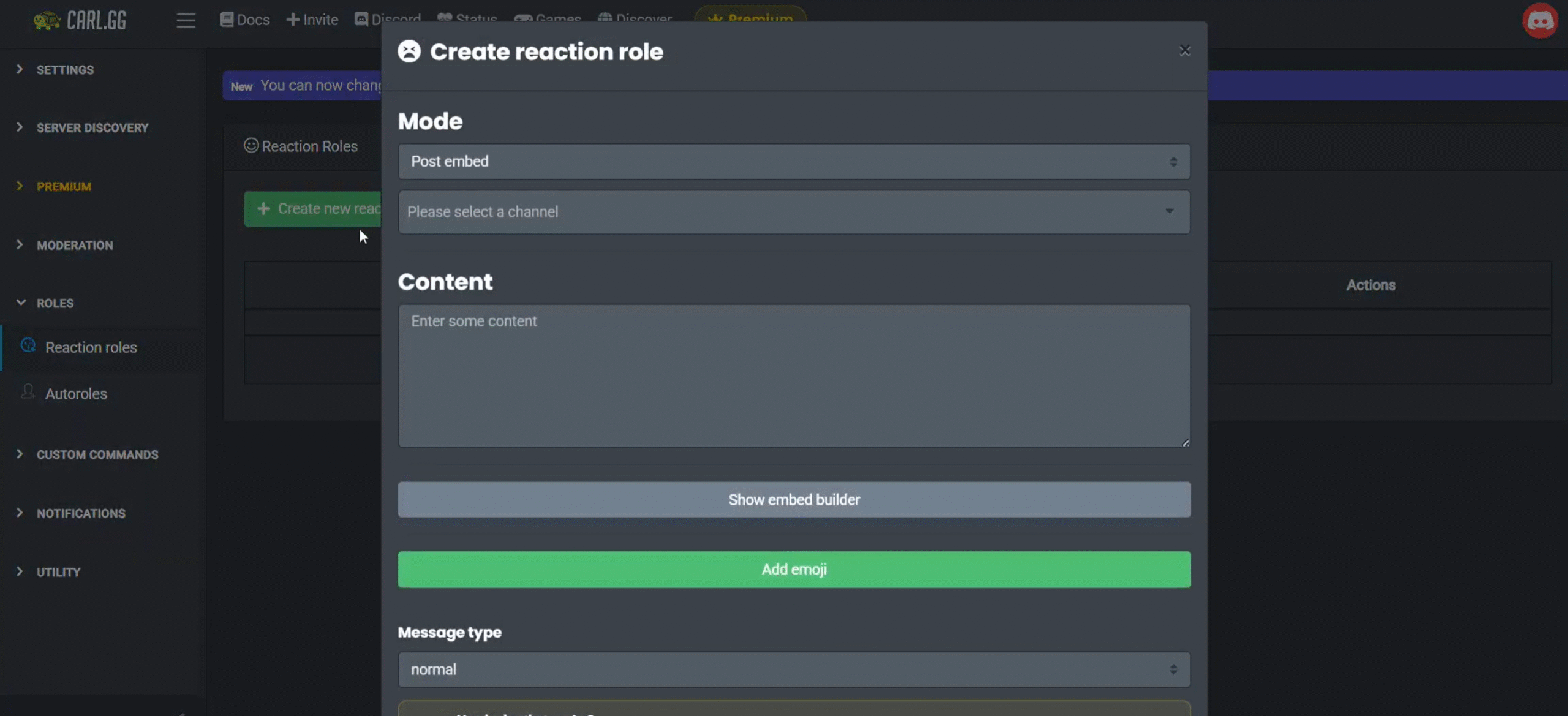
Creating reaction roles is easy. Go to the Carl-Bot dashboard and scroll down the left-side panel. You’ll see a tab called roles.
In the drop-down menu, you’ll find two types. Auto and reaction roles. Click on the green button, and a new window will appear.
You can now start assigning roles.
If you want to know more about it, check out this tutorial. You’ll find the detail instructions here.
2. Custom Commands
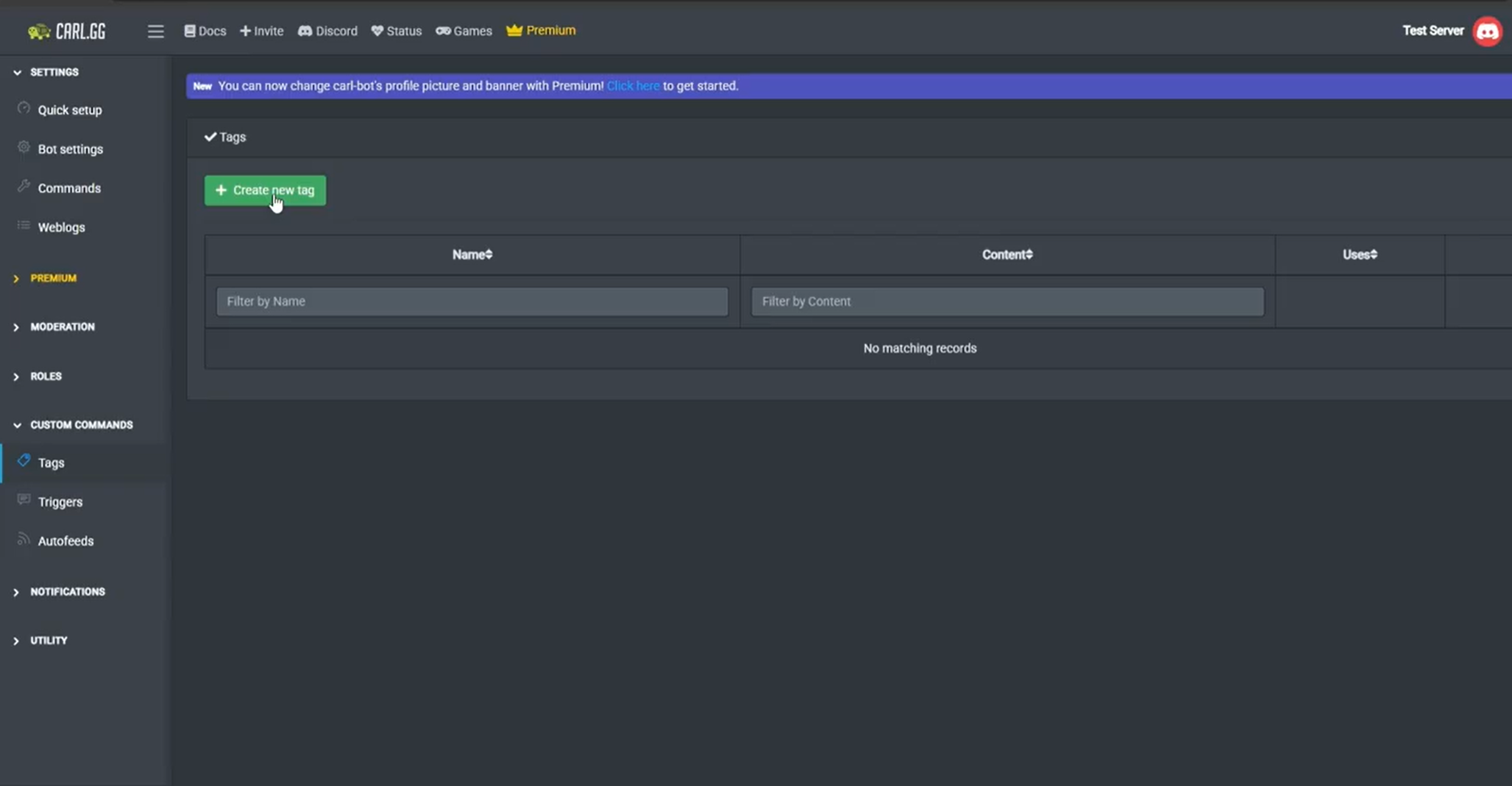
Server owners use custom commands to either identify a role or call a command.
While typically, you get presets to make your navigation easy, Carl-Bot allows you to create advanced commands not listed under the default template.
We call them custom commands, and you’ll recognize them by curly brackets {}.
Custom commands come in handy when you’re planning an event and want action from your audience. You can use them to create personalized messages and even build entire announcements.
They essentially help you engage your audience.
How to create Custom Commands
Custom commands are a little tricky to explain. Carl-Bot needs a Tag script to interpret your command, and a slight change in the language could alter the message you want to convey.
I came across this interesting video on YouTube, where the user explained how to create a donation command.
Take a look at it. It would give you a general idea of how to use custom tags.
3. Advanced AutoMod
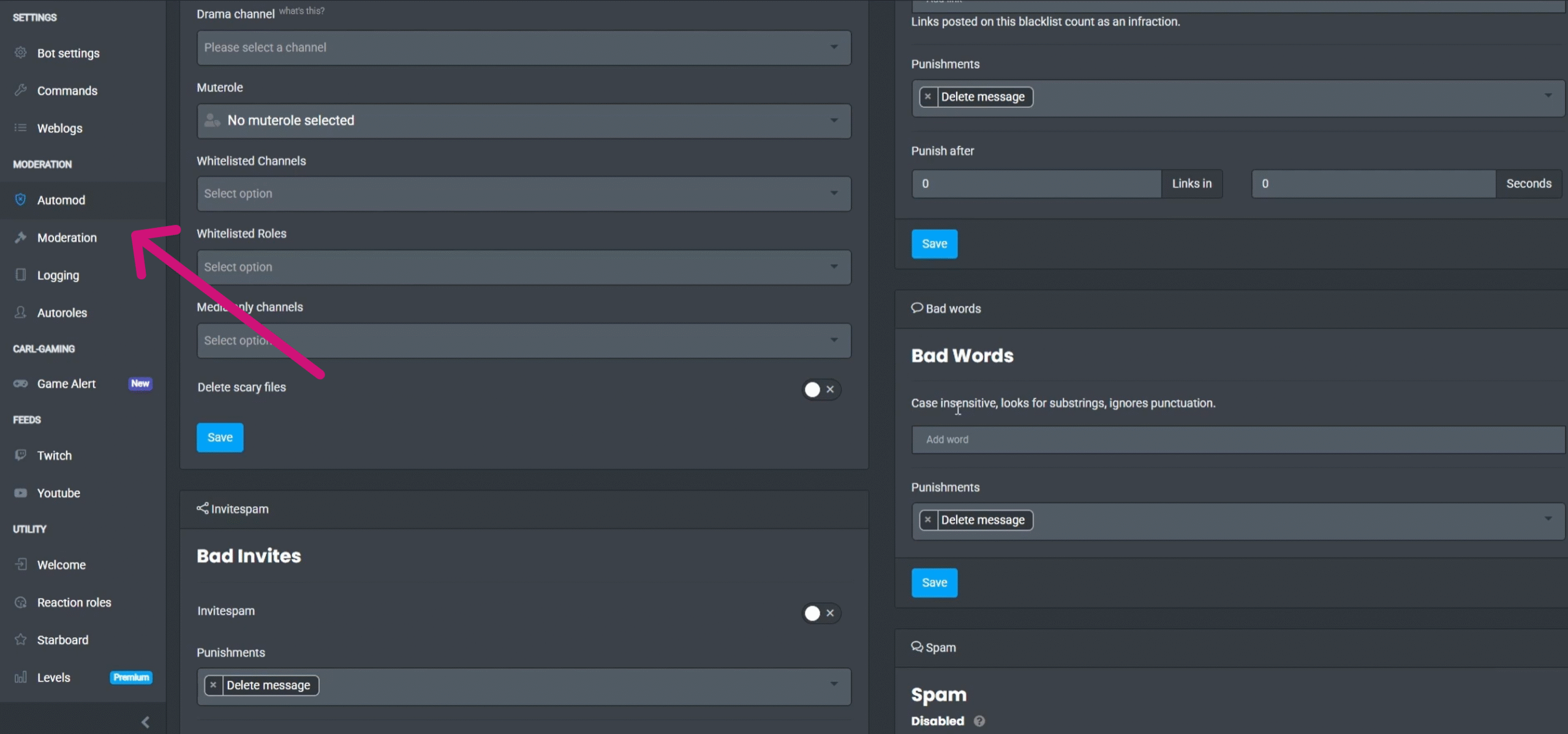
Carl-Bot’s AutoMod has some remarkable features that help you with crowd control to prevent rule violations.
Through AutoMod, you can send a warning to the potential rule-breaker, filter spam, kick out troublemakers, mute offensive members, and auto-delete abusive content.
Let me give you an example.
You are a toy brand, and one of your rules entails no explicit content.
Since it would be impossible to monitor every post, you can ban certain words instead. So anytime someone mentions Bad****, Carl-Bot will automatically delete or defer the message as per your instructions.
AutoMod is extremely useful for brands hoping to keep their content clean. In fact, you’ll have so much control over the content you can even mute someone speaking in capital letters! Amazing, isn’t it?
How to create an AutoMod action
AutoMod feature is stored under the Moderation tab in the main left-hand panel.
Suppose you want to censor content.
Click on AutoMod, scroll down to the Bad words window, and enter the words you prefer to ban. The form will give you the option to add multiple words and a suitable punishment for the offense.
Save the changes, and the Carl-Bot will activate the action.
Here’s a list of actions you can take with AutoMod.
Scroll down to Spam Settings. Trust me. You’ll love the advanced features.
4. Activity Logging
 Logging essentially means creating a record of any action taking place on the server. Who is invited, how many have joined within a month, what messages you have deleted, what has been updated. You get my point.
Carl-Bot allows you to log everything in a separate channel. Furthermore, you can limit the number of people who can see the records.
As a marketer, you might often need to revisit the logs to measure your campaign performance. Through Carl-Bot, you can set up a separate log channel for a particular event to analyze your campaign.
How to create a Log
To generate a log, create a channel first.
Once you have built a channel, say an event log, go to the logging tab displayed under the moderation section in the main panel.
Pick your channel from the drop-down list under the Channel Selection window and save it.
The moment you confirm the changes, the Carl-Bot will start logging your activities.
You can also remove unnecessary channels in the “Ignore channels” tab. The option is available in the first form. Do check it out.
5. Preset Messages
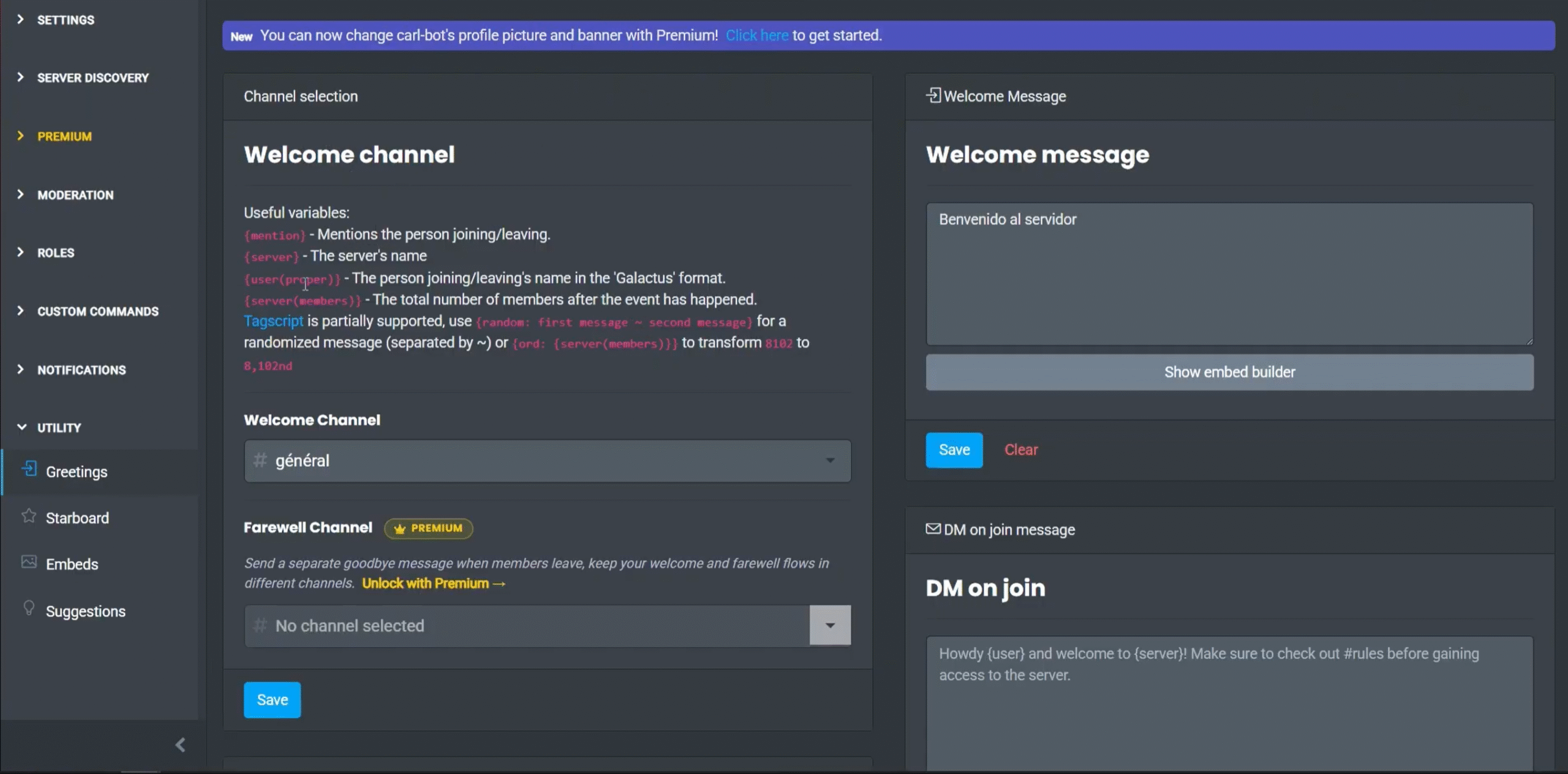
Carl-Bot allows you to preset welcome, farewell, and ban messages. This feature spares you from typing a greeting post every time a member joins the group.
As you set the message, a welcome message will pop up anytime a member joins the server.
You can also customize your messages to suit your brand message through an Embed builder.
It is an advanced option that helps you add an avatar, embed images and GIFs, and personalize your message.
How to create a Welcome message
Log in to the Carl-Bot dashboard and select the welcome tab. It will open a new window displaying multiple boxes for the welcome message, member left message, and a ban message.
Fill in the description box, add tags, and save the changes.
You will also discover an embed builder under the description box to create a custom message.
You can either use the embed builder directly on the welcome message or access it from the main panel.
Using the embed builder from the main panel allows you to create and preview messages simultaneously. This option can save you from toggling back and forth merely to edit your message.
Here’s a video tutorial to learn more about preset messages.
How to Install Carl-Bot

Carl-Bot is easy to use once you get the hang of it. The following is the initial setup procedure to add the bot to your server.
1. To operate the Carl-Bot, you must have a server for the bot to manage. You can either create a server or use an existing one. It’s up to you.

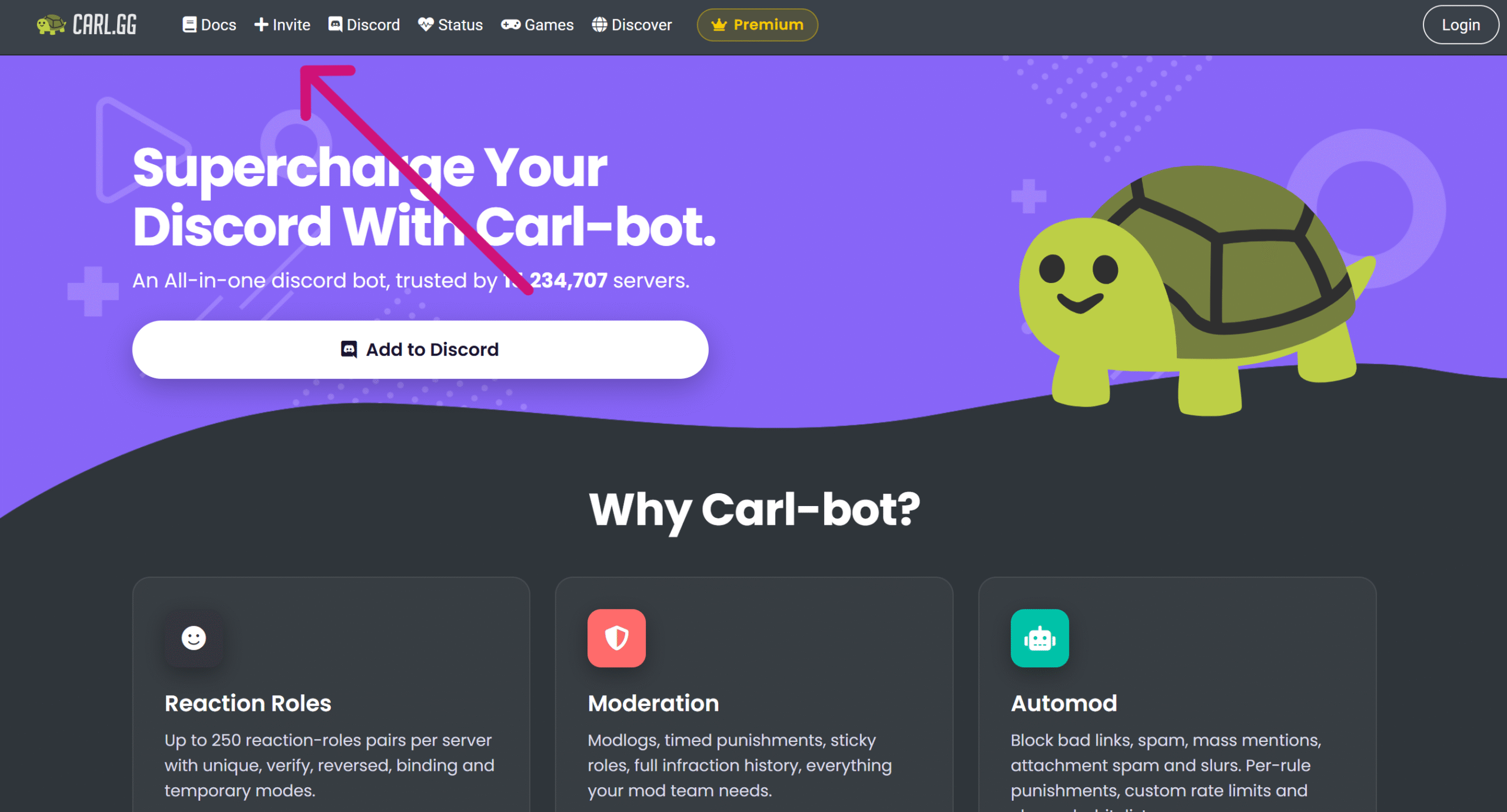
2. After you’ve chosen the server, sign in to the Carl-Bot site. You can invite the bot to your server through the invite button mentioned at the top of the landing page or log in from the Carl-Bot site.
3. Once you’re logged in, a pop-up window will appear asking for your chosen server, permissions, and authorization. As the steps are self-explanatory, you won’t encounter any trouble.
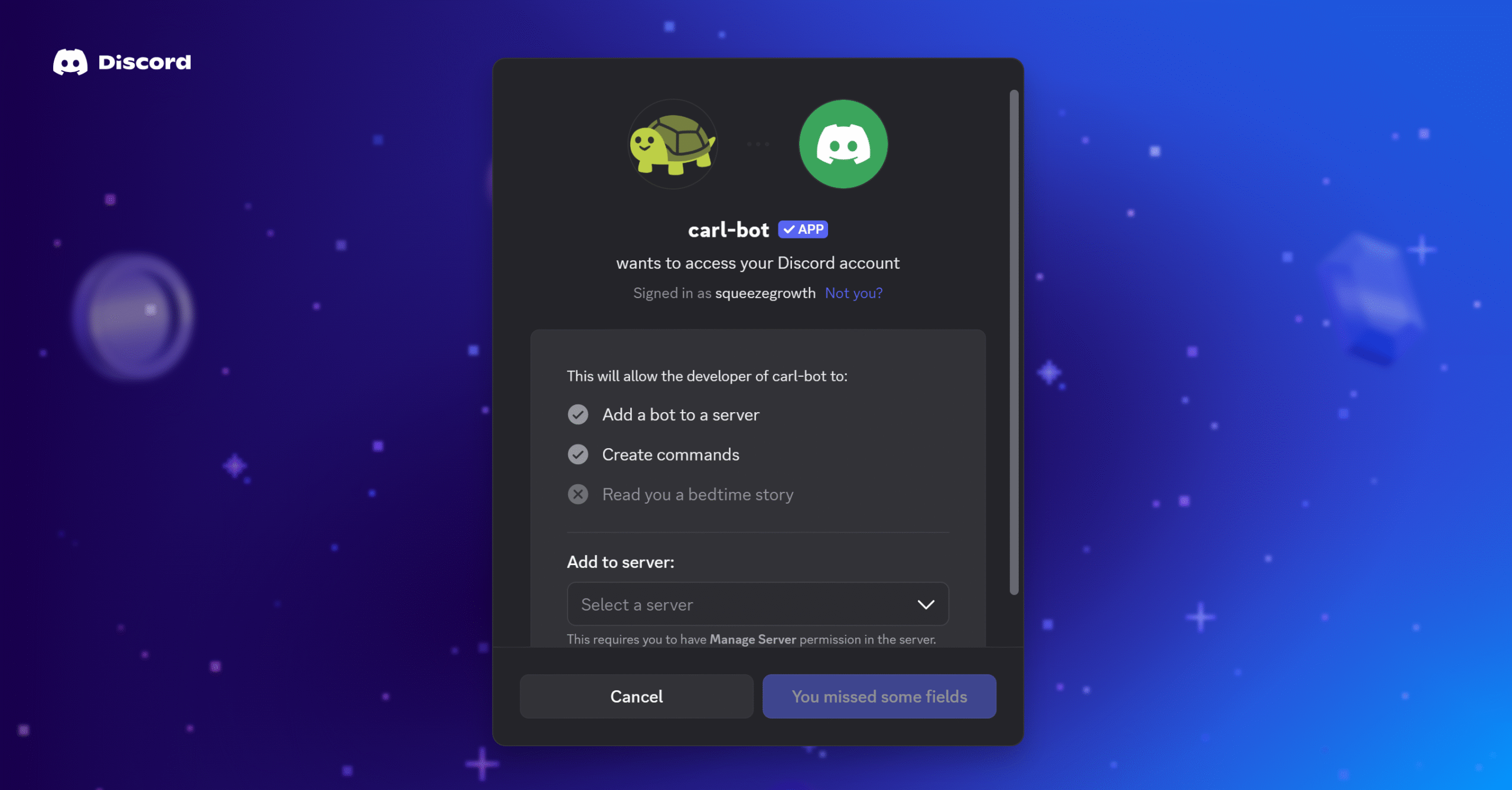
4. The authorization will direct you to Carl-Bot’s dashboard.
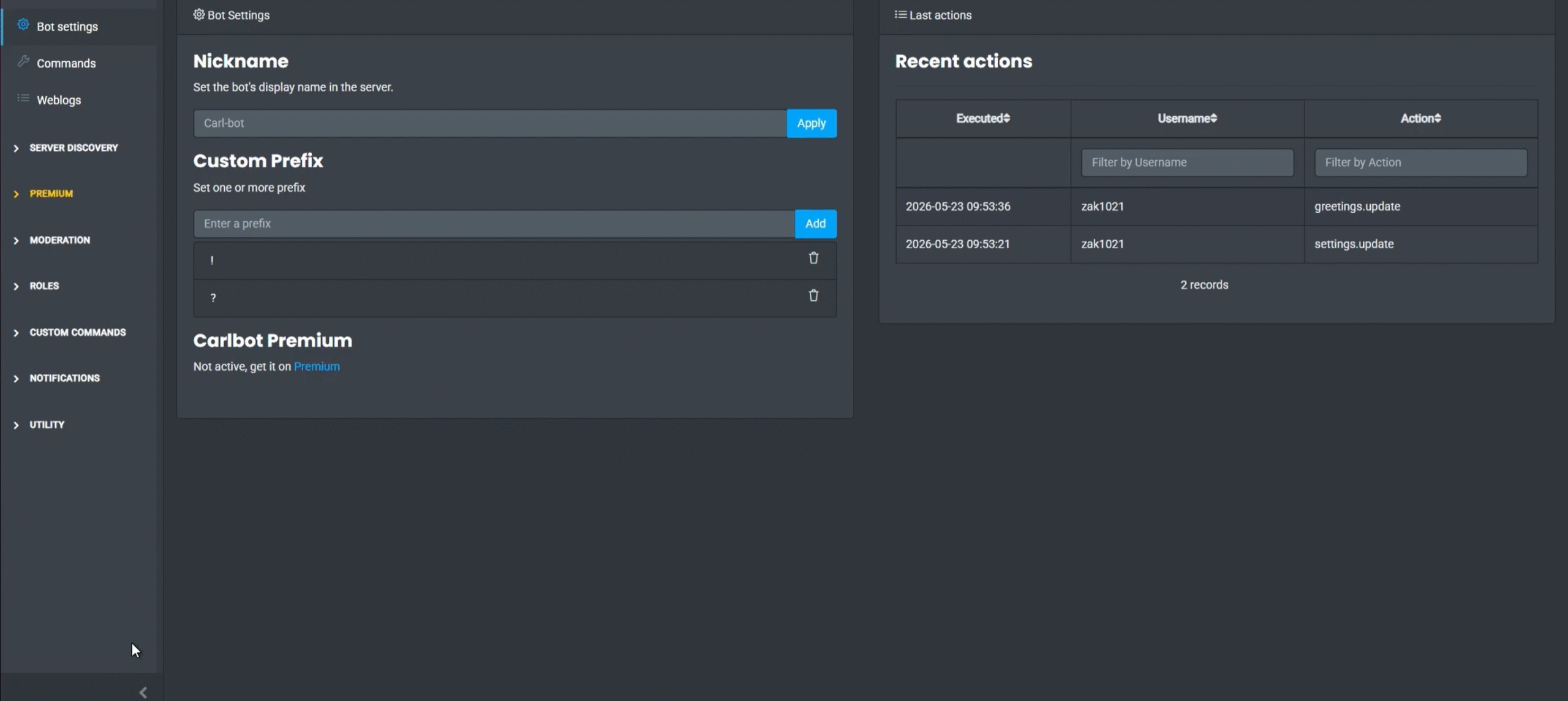
That’s It!
Go ahead and build reaction roles, create channels, and set up moderation as you see fit. I am attaching Carl-Bot’s setup documents here for your consideration.
Conclusion
Carl-Bot offers some of the best automation features you’ll find on the market.
As you know, Discord is not what I would call a user-friendly platform. You’re simultaneously managing multiple servers, several channels, and individual conversations.
Carl-Bot cuts down on your online time, allowing you to put all your focus on what’s important.
Do try Carl-Bot to experience it yourself. Good luck!


 A better way to manage projects and clients for freelancers
 Get through busy days like a breeze with Reclaim.ai